You can added additional service codes to an appointment. These Type 2 or secondary codes describe services that are always performed in conjunction with a primary service. For example, when an extended session needs to occur.
Before you can use Add-on Service Codes you must add them to your Clinician Service Codes setting page.
Clinician Service Codes
The service code settings page will look similar to the one below. 90785 is an example of an add-on code.

You can add to this list if you want by clicking on + Add Service Code on the upper right-hand corner. Add the codes needed. Each box on the window needs information entered into it.
The service code settings page will look similar to the one below. 90785 is an example of an add-on code.
You can add to this list if you want by clicking on + Add Service Code on the upper right-hand corner. Add the codes needed. Each box on the window needs information entered into it.
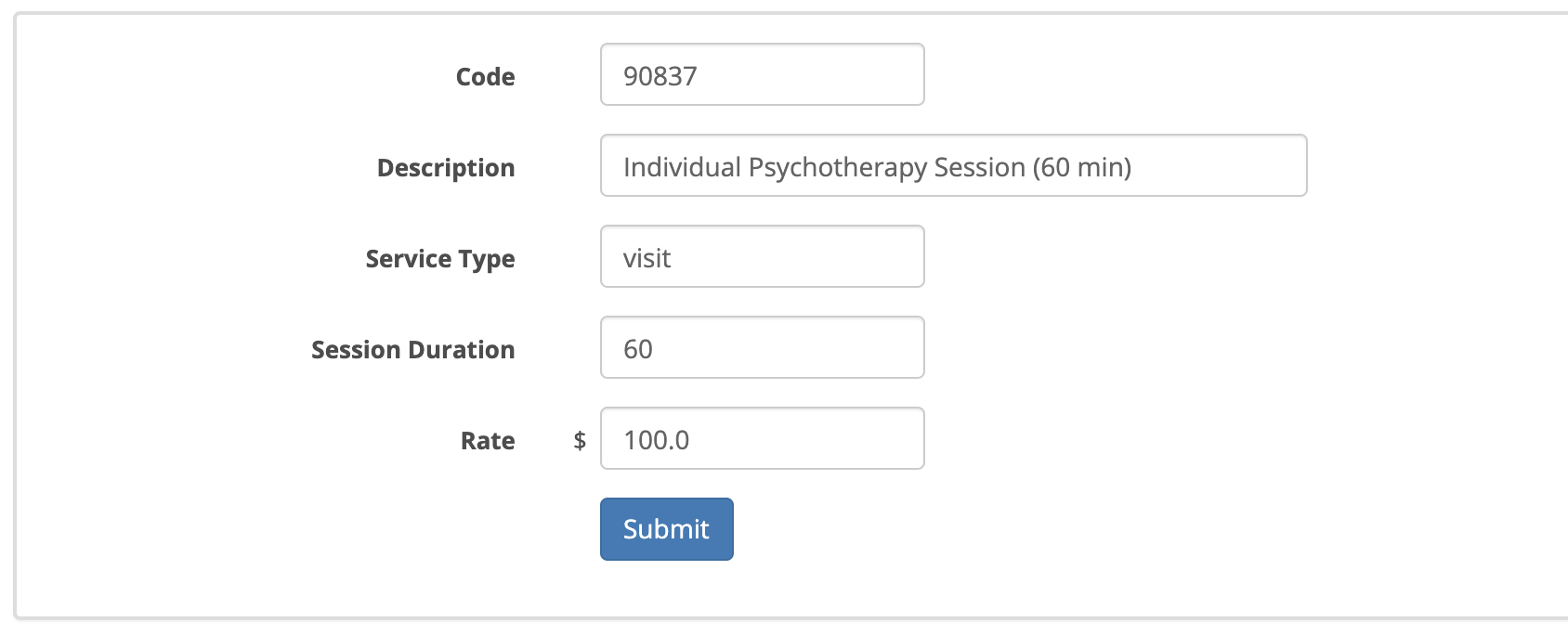
The rate is your "practice rate" that you bill an insurance company and typically not a client. Set them slightly higher than your best insurance payer for that particular service code.
Scheduling a Client Using Add-on Codes
Open the new appointment window by clicking on + Appointment on the right side of your Dashboard.
Select the main service code needed and then click on the +Add-On Code button.
In the example below, 90837 was selected as the primary and then an add-on code 90838 was selected as secondary.
You can also specify the number of units for each if necessary.
Save the appointment when done.
When using Add-on codes, check with the insurance provider to see which ones are allowed and/or used in combination with the primary service code. Each insurance provide may allow different codes or combinations of codes.