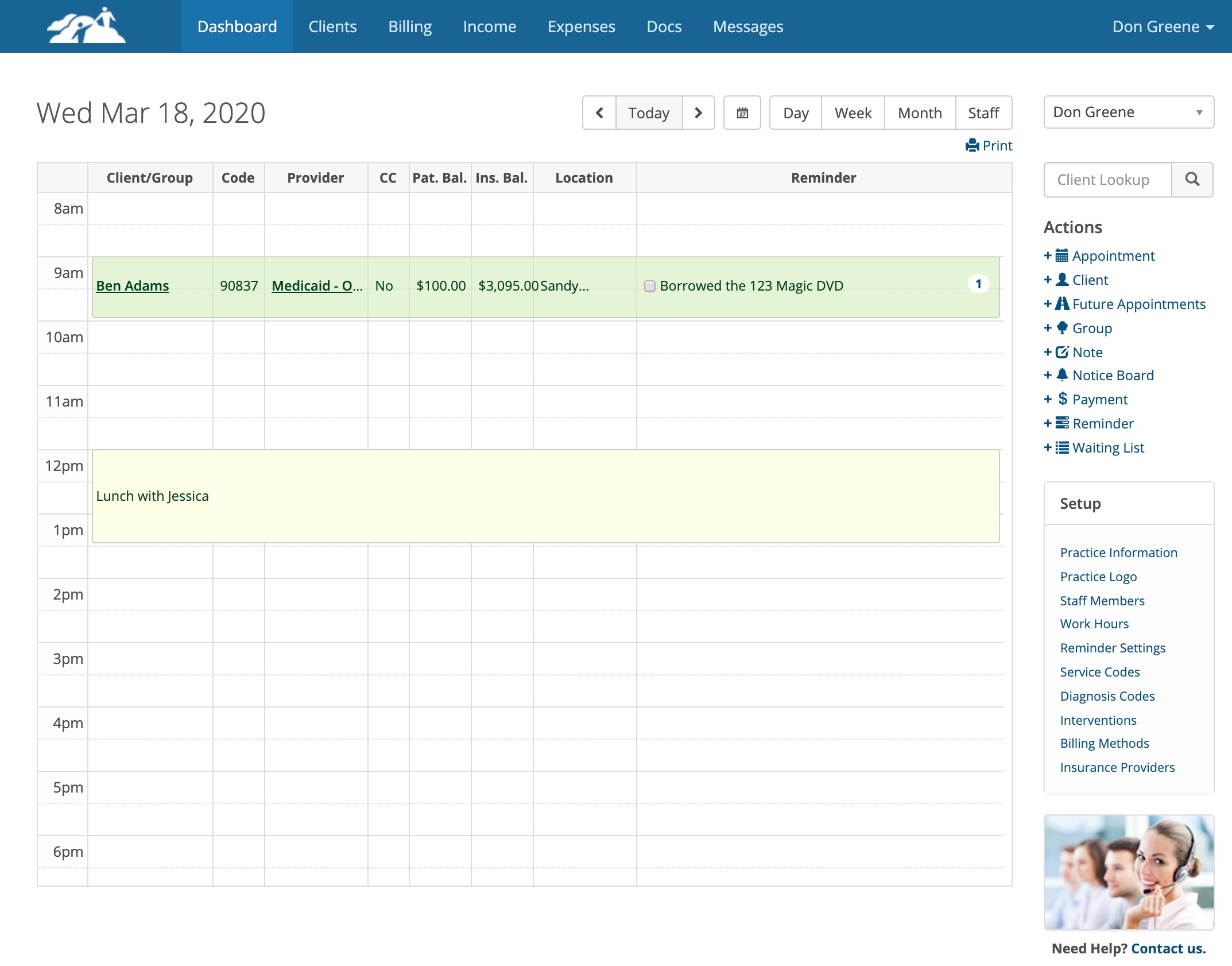
There are times when you need to block out a time on your schedule for non-clinical appointments such as a lunch break, vacation or time to catch up on paperwork.
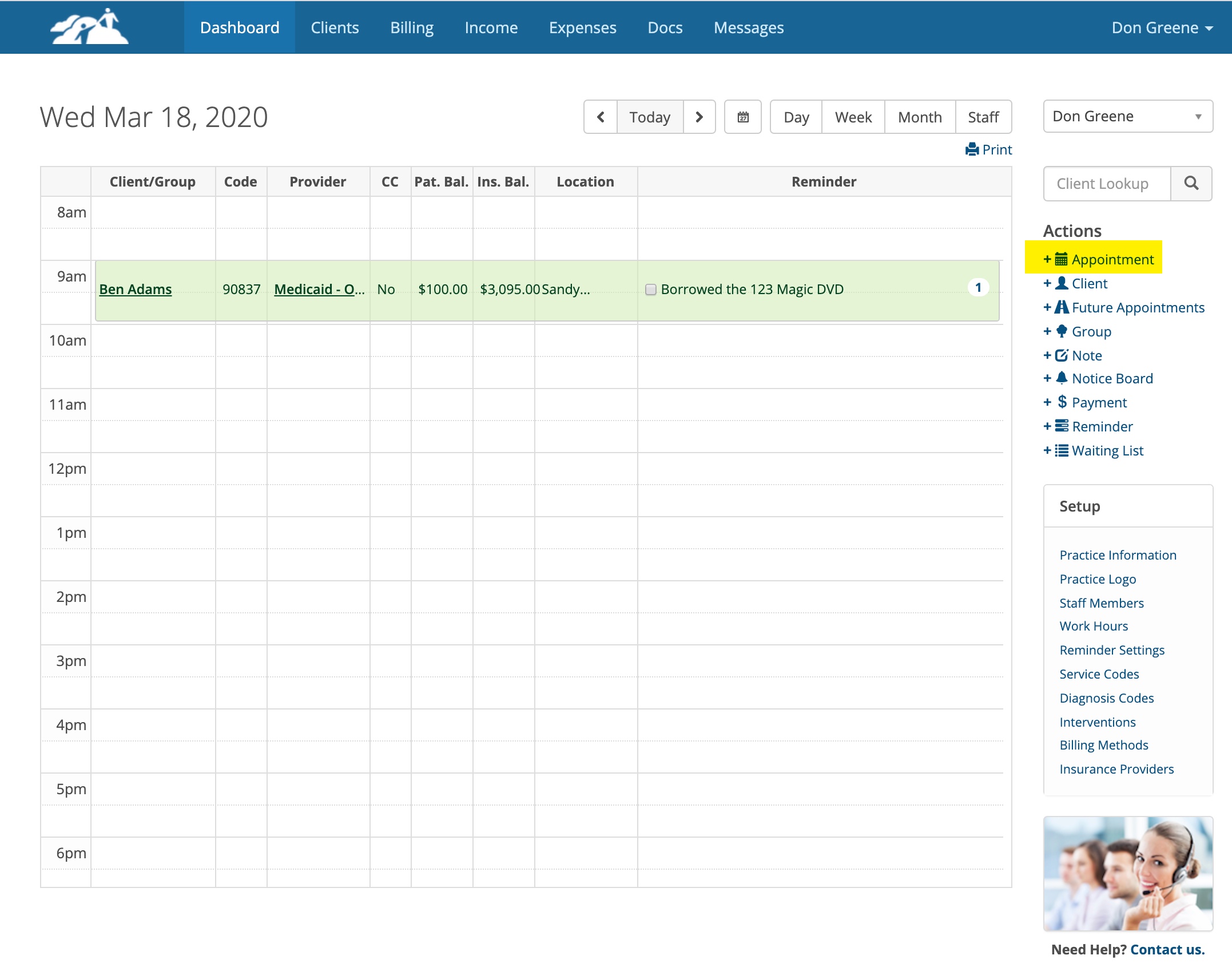
To get started, click on + Appointment on the Actions menu.
In the example below, we are creating a calendar event for a lunch appointment with Jessica. When you do this skip the client drop down and select the Service Code called Calendar Event.
The client drop down will disappear leaving the location, date, time, frequency and description as you options to complete the event.
Click Save when done.
Click Save when done.
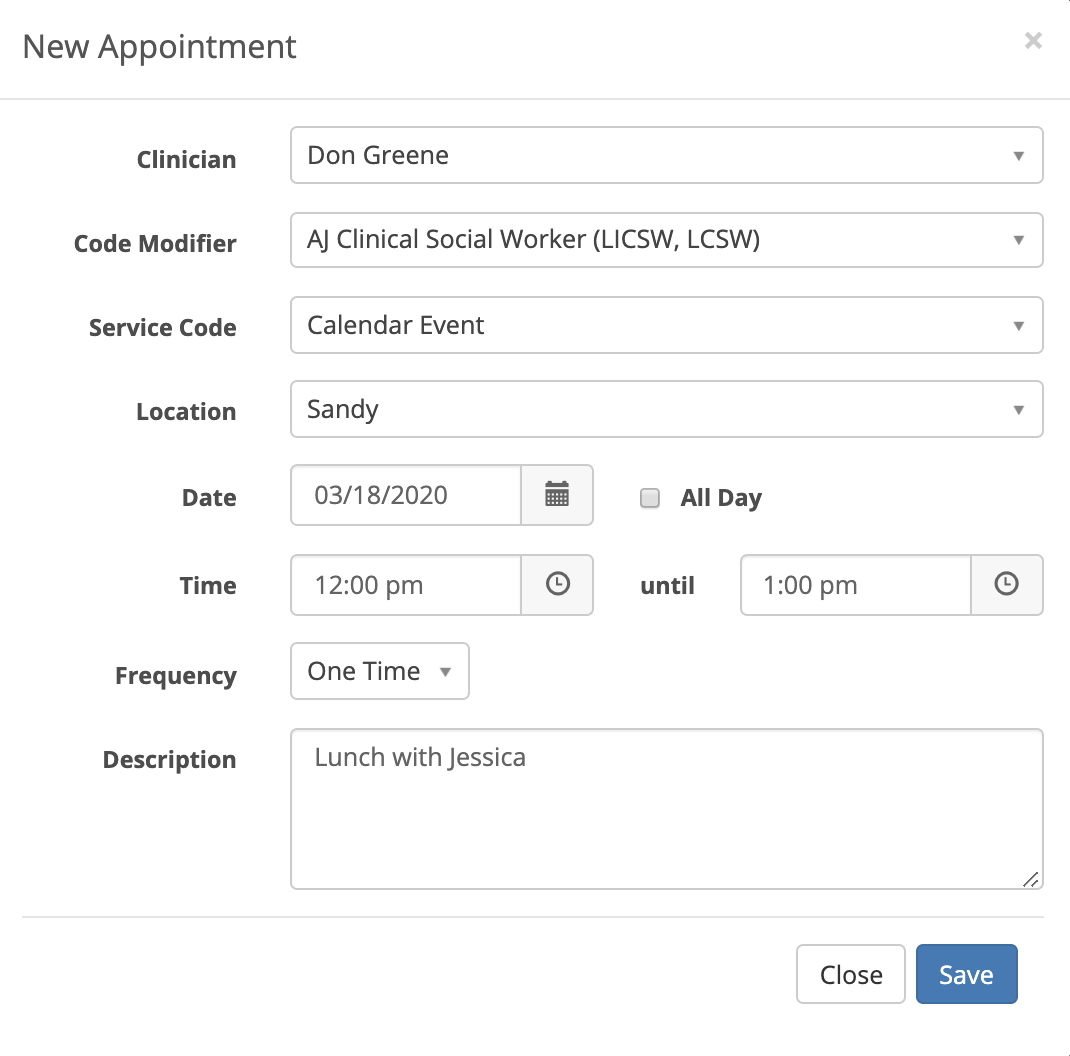
You can make the events for a specific block of time and also have them recurring daily, weekly, or all day. Don't forget to put the Description in the box. Otherwise you won't know what your Calendar event is for when you look at your schedule.
Here is what a Calendar Event for our lunch example looks like:
Here is what a Calendar Event for our lunch example looks like: