This article will help clinicians and other staff members troubleshoot issues when the client is having problems accessing the Client Portal.
The Client Portal Invitation
The clinician or staff member can send a Client Portal invitation to the client in one of two ways.
1. When a new client is added to the system the following window appears:
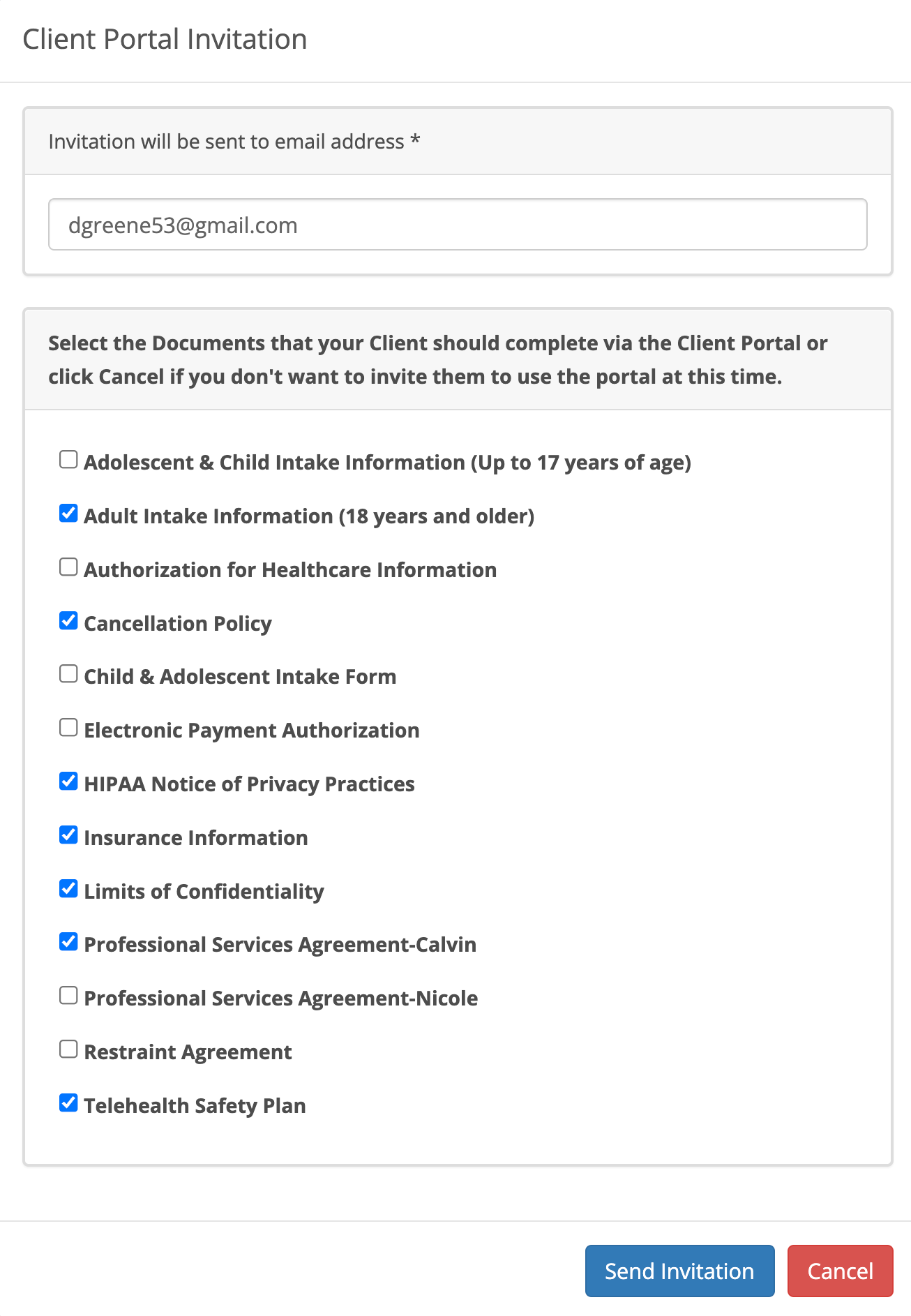
The person selects the document they wish to send the client (if any) and clicks the Send Invitation button.
2. The client can also be invited to the portal from their Client Profile page by clicking on the blue Send Invitation button in the lower right corner of the page.

Troubleshooting Tip #1
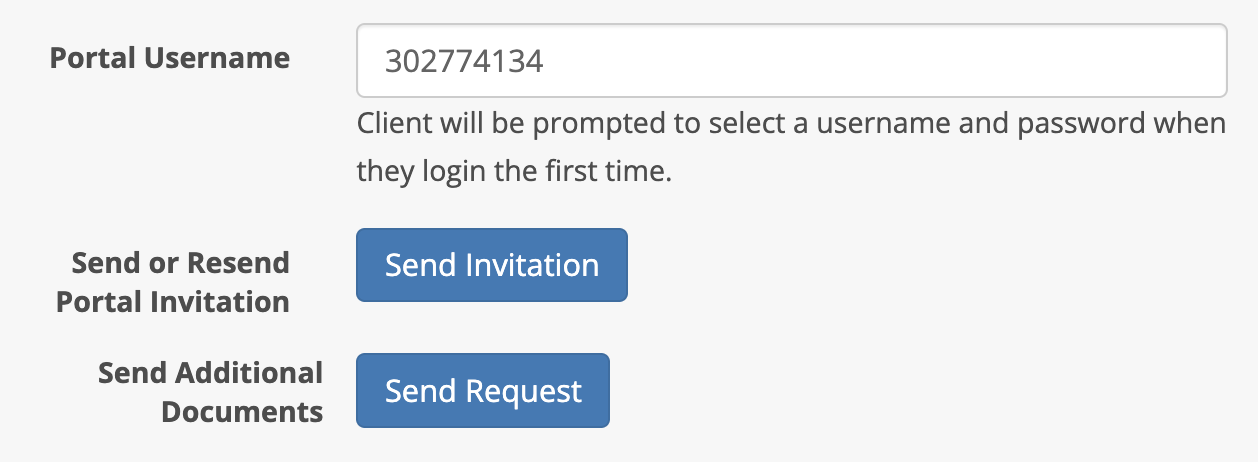
Notice that the Send Invitation button is darker blue than the one below it called Send Request. When you see the first button is dark blue and the other button is light blue it means the client has NOT been sent a Client Portal invitation.
When the invitation is sent to the client both buttons will be dark blue. See below:
Troubleshooting Tip #2
The client portal invitation email is only good for 48 hours from the time it was sent. It will expire and the client will get a message indicating the time period has lapsed. If that occurs, the clinician or staff member can click on the Send Invitation button again to send a new invitation. The client MUST look for the most recent invitation email to create a username and password. Older emails will not work.
Troubleshooting Tip #3
The documents and questionnaires do not need to be sent again if they were previously sent in the first invitation. If you check the boxes again the client will have duplicates of your templates.
Troubleshooting Tip #4
When the invitation has been sent to the client they receive a welcome email. Here is an example of a message:
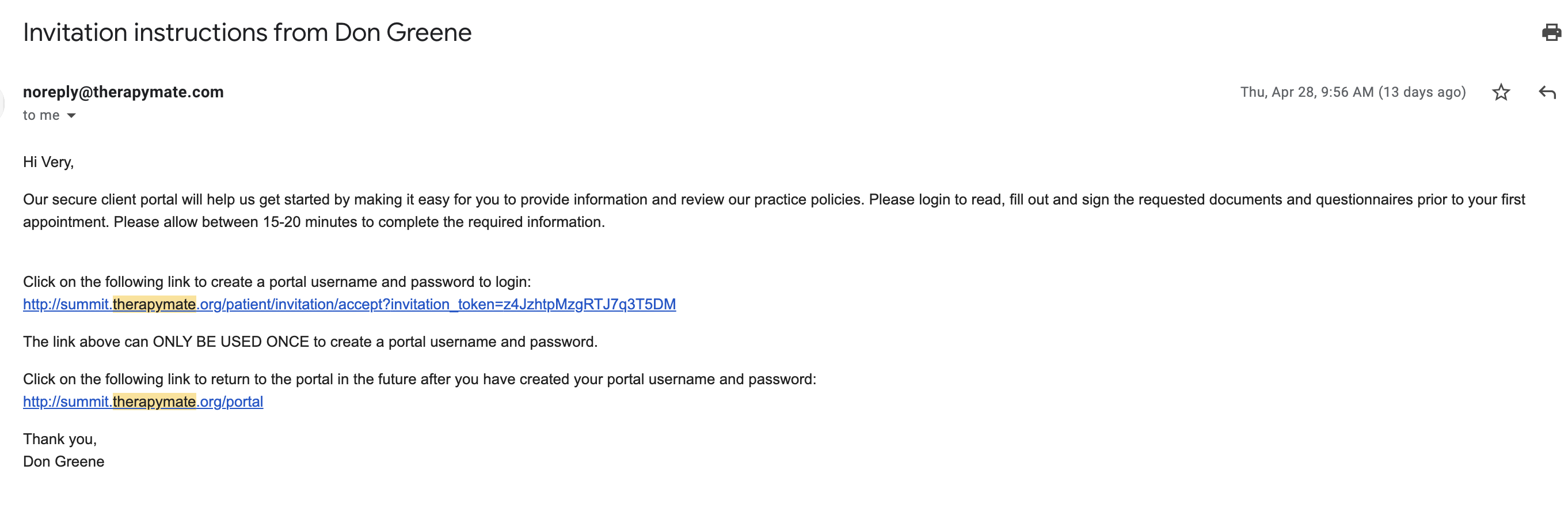
Check to make sure the client received the email. Sometimes the message will go to their spam folder. Sometimes the email address in their chart is incorrect.
Troubleshooting Tip #5
Notice in the welcome message above that there are two web link addresses (in blue) in the message.
The first web link instructs them to click the first web link to create a username and password. The client selects a username and password and is granted access to the portal. PLEASE NOTE: THIS WEB LINK IS ONLY GOOD FOR CLICK.
If the client logs out and needs to get in LATER they click on the second web link address to return to the portal. The client must use this link to login to the client portal after they have done so successfully the first time. If a client tries to login to www.therapymate.com it won't work.
The following login page will appear:
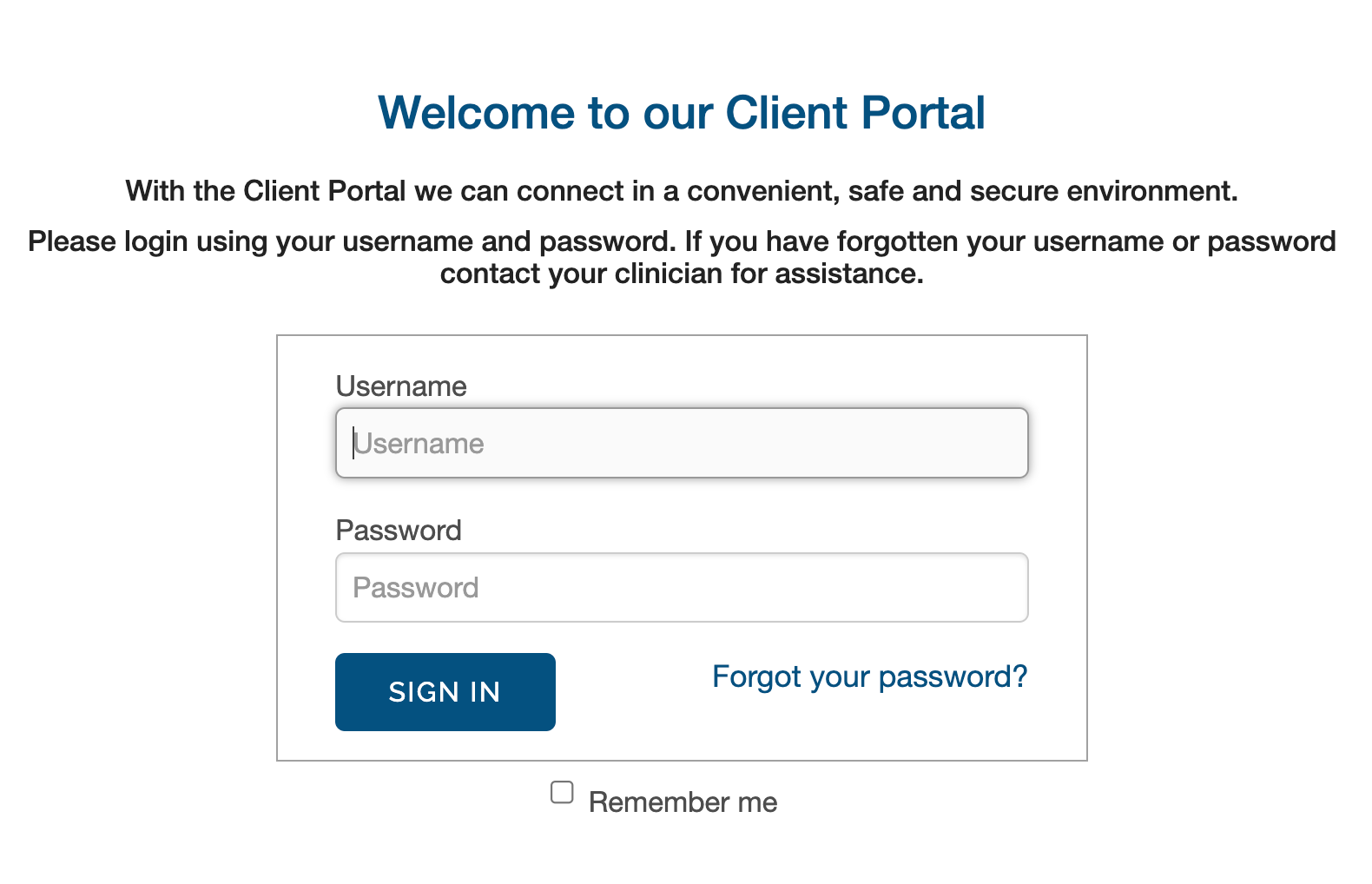
The client enters their client portal username (not their email address) and password that they chose the first time they logged in. The username is generally not their email address unless that is what they chose for their username. We don't recommend that the client uses their email address for their username.
The client clicks the blue Sign In button to gain access to the client portal again.
IF THE CLIENT IS HAVING PROBLEMS LOGGING IN THE SECOND TIME MAKE SURE THEY ARE USING THE CORRECT WEB LINK. This second web link is the practice's unique client portal address.
Troubleshooting Tip #6
The client's Portal Username box will change from their client ID number to the portal username they chose when they clicked on the first web link in the welcome email. If the client number doesn't change it means the client did not respond to the welcome email message that was sent.

Troubleshooting Tip #7
If the client forgets their username the clinician or staff member can look on their client information page and give it to them.
If the client forgets their password they can click on Forgot your password? on the client portal login page (see above). They will be asked for their portal username after clicking on Forgot your password:
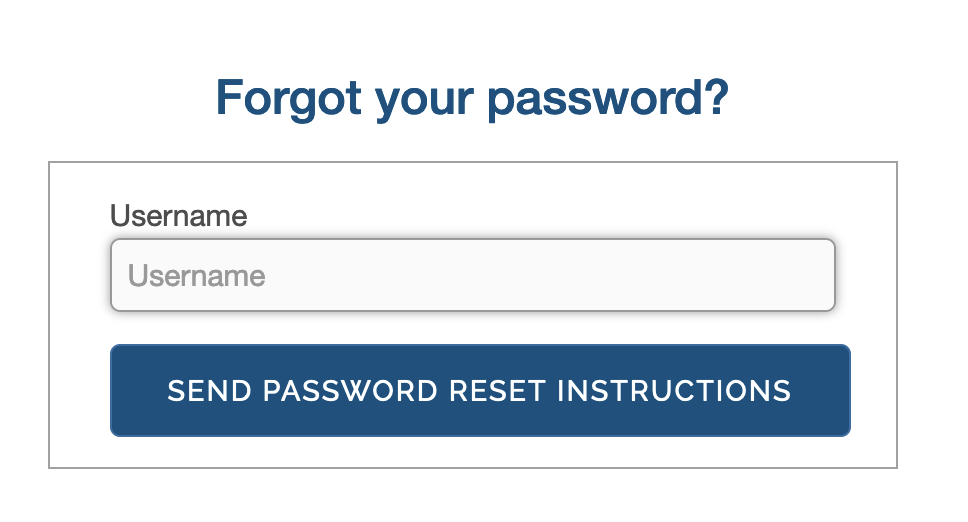
For security purposes, the reset instructions will be sent to the client's email address you have in their chart.
Troubleshooting Tip #8
If a client makes 5 unsuccessful login attempts, their client portal will become locked for 1 hour. In addition, an email is sent to the email address in their chart with a link to unlock their account immediately.