The Messages feature in the Client Portal will allow the Clinician and Client to securely message each other and if needed, send documents as attachments back and forth and convert a message into a Contact note. If the chart has a Partner attached, a message can be sent to either.
The training article will show you how to use these features. There is a lot to cover in this article, so take your time to learn and understand the various features and options available to you.
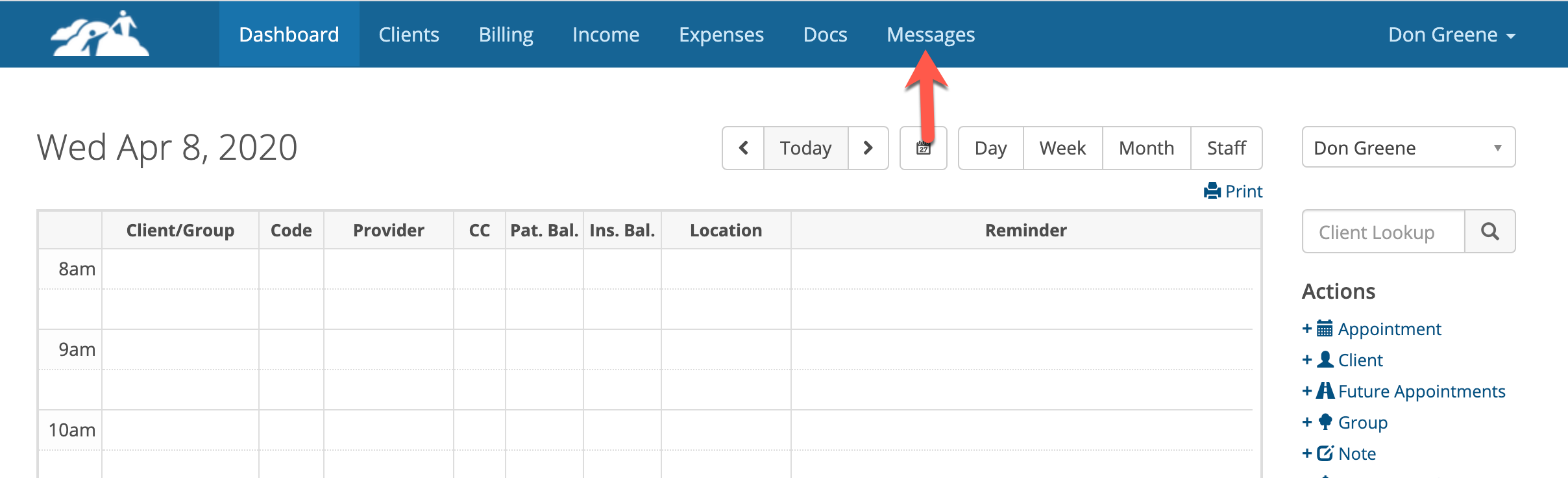
On the Dashboard main menu there is an option called Messages. Click on that to access the messaging area.
On the Dashboard main menu there is an option called Messages. Click on that to access the messaging area.
In the messages area you will see four tabs, Unread, Read, Sent and Archived. The default sorting is by newest date first.
New messages will appear in the Unread tab. When a message is opened and read, it will move to the Read tab automatically. Likewise, messages you send will be under the Sent tab.
To view a message under any of the tabs, search by the client's name, nickname, email address or client ID number. When you see the message you want to read click on it.
After reading a message you can respond to it, archive it, mark it as unread, or convert it to a Contact Note by clicking the appropriate button.
Archived message remain in the system and can't be deleted.
Additional Sorting Options
There is a drop own labeled "Mark As". You can change the status of a message to any one of the options in the dropdown.
If you want to do one of these options for more than one message at a time, check the boxes on the left. For example, if you want to Archive multiple messages at once, check the boxes and then click Archive from the dropdown.
The "Sort by" dropdown allows you to sort by First Name, Last Name or Date (date is the default). After leaving the messsages area and coming back, the sort default will return to newest date.
For System admins, Assistant system Admins, Clinical Directors, Billers and Schedulers, there is a clinician drop down. If one of these roles accesses the Messaging feature, they can pick a clinician from the dropdown, view their message and create and send messages to clients. For example, maybe the Biller would like to send a Superbill or Statement each month to a client.
A Clinician or Clinician FFS can only see their own messages.
Searching for Client Messages
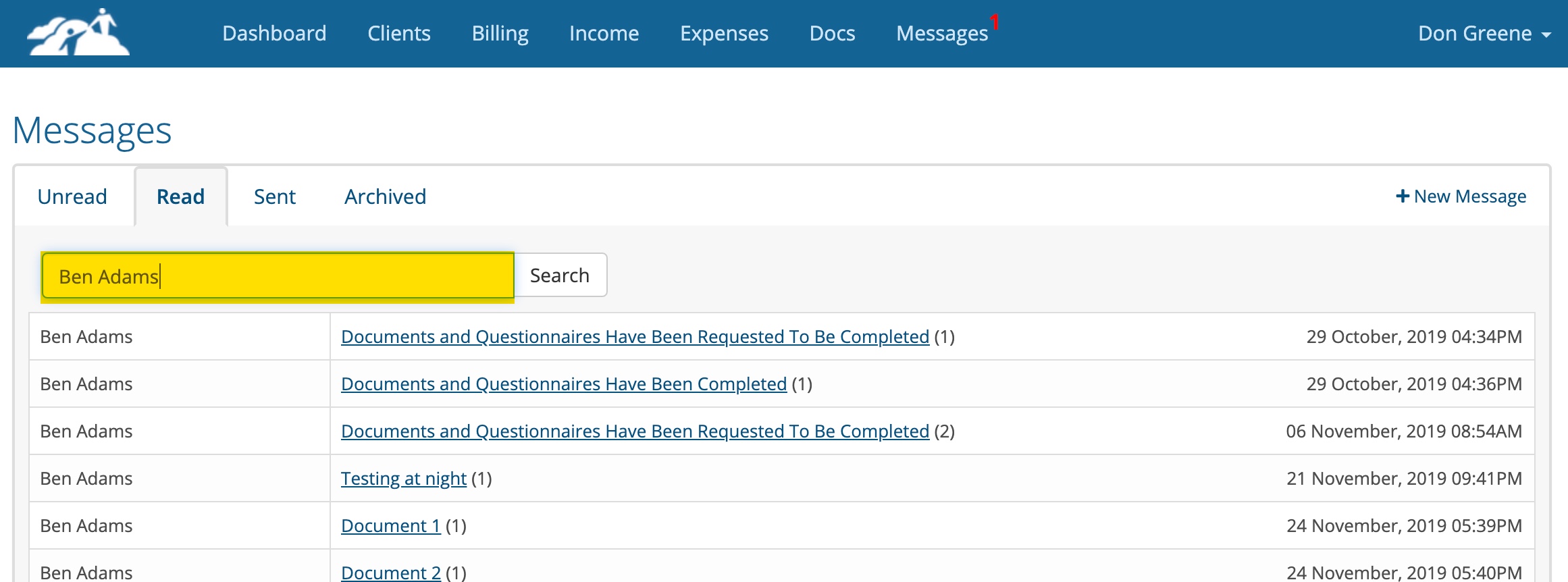
If you wish to search for all messages related to a client, put their name in the search box (shown below) and click the search button. Your search request only looks in the tab that you have selected.
Creating & Sending a New Message
Click on the + New Message button shown above. Give your message a Subject, select your client and enter your message contents. Adding a message in the large text box is required.
Click on the + New Message button shown above. Give your message a Subject, select your client and enter your message contents. Adding a message in the large text box is required.
Attaching Documents to Messages
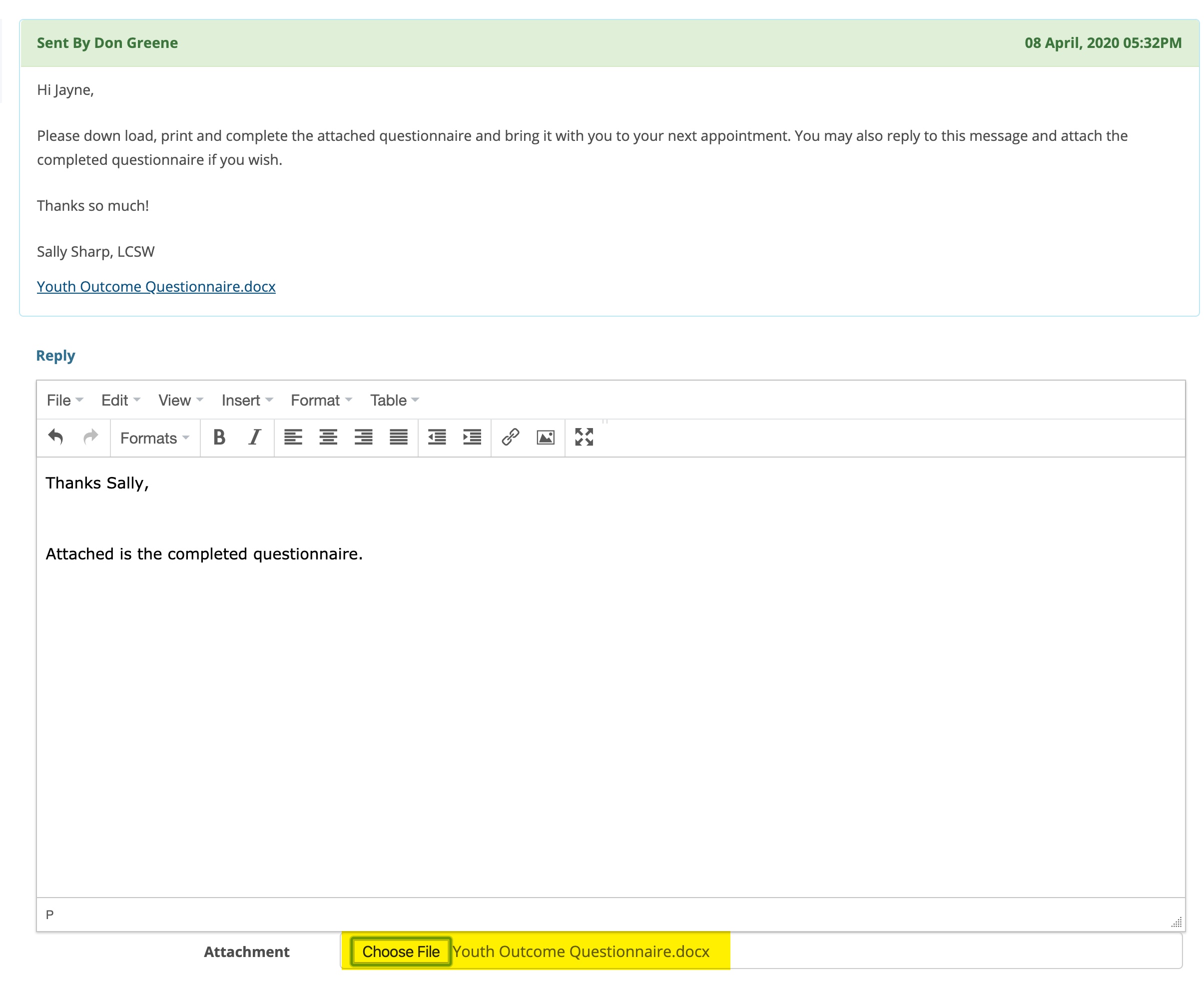
If you need to attach one or more files or documents click on the Choose File button as shown.
Be sure to hold down the Ctrl (for windows) key or cmd (for mac) key to select multiple files.
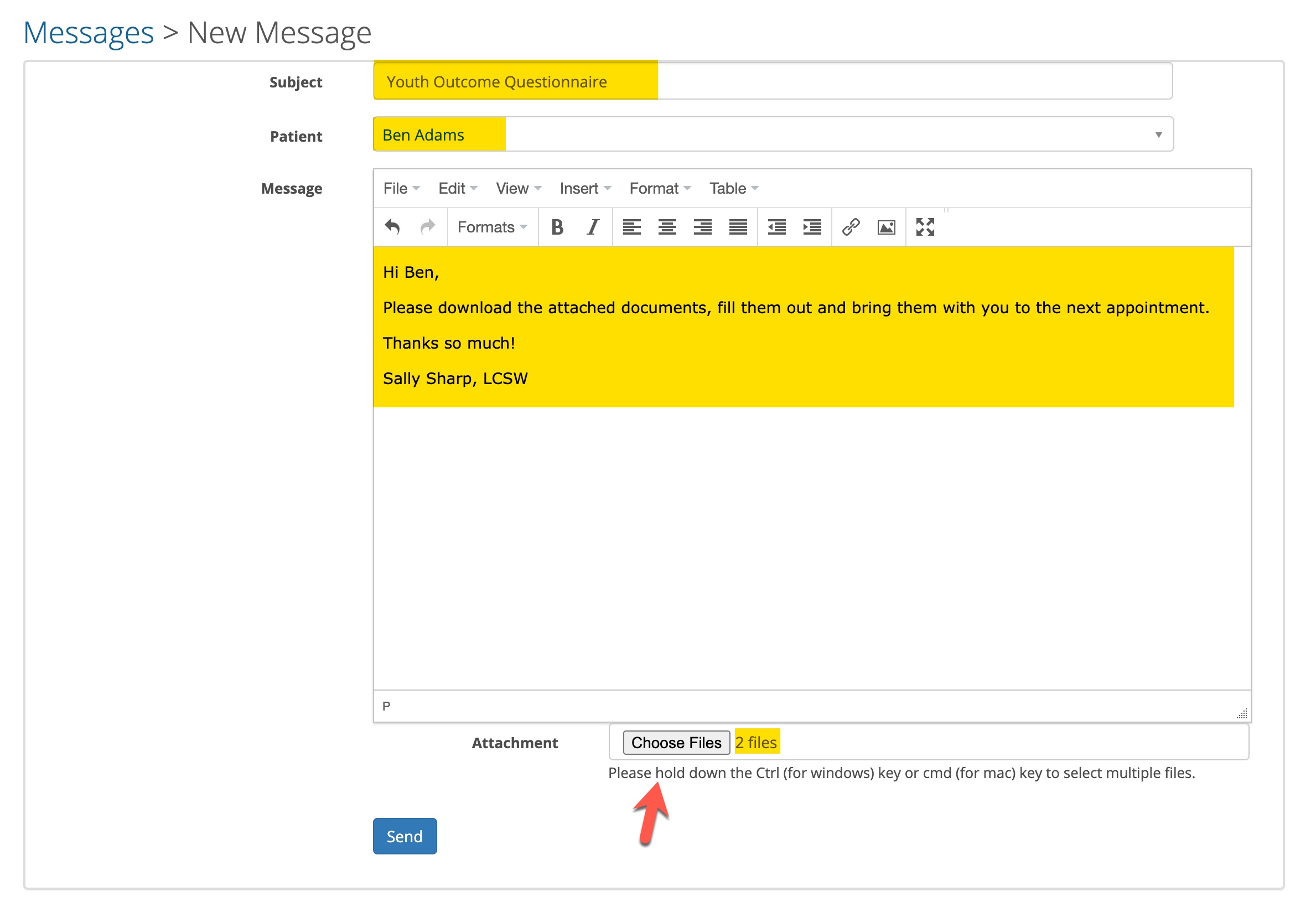
In this example we searched for two files and attached them by clicking the Choose Files button.
Click the blue Send button to send your message and the attachment(s) to your client. If you're sending attached files be sure to wait until each has processed and the message window closes. A progress bar will be display for each file as it finishes the upload and gets ready to send the message.
Adding a Signature to your Messages
You can create a signature that will automatically get added to any new message your create. For example, maybe I want my name shown at the bottom of each message.
To add a signature, go to your main settings page, click on Clinician Profile Information.
Scroll down the Clinician Profile Information page to the bottom.. You will see the Message Signature text editor where you can add your signature information.
Click update when done. All new messages will now populate with the text your put in the Message Signature text editor.
Client's Receiving Your Messages
A client will get an external email sent to them when you send them a message. TherapyMate uses the email address you have in their chart to do this.
Here. is an example of that email message:
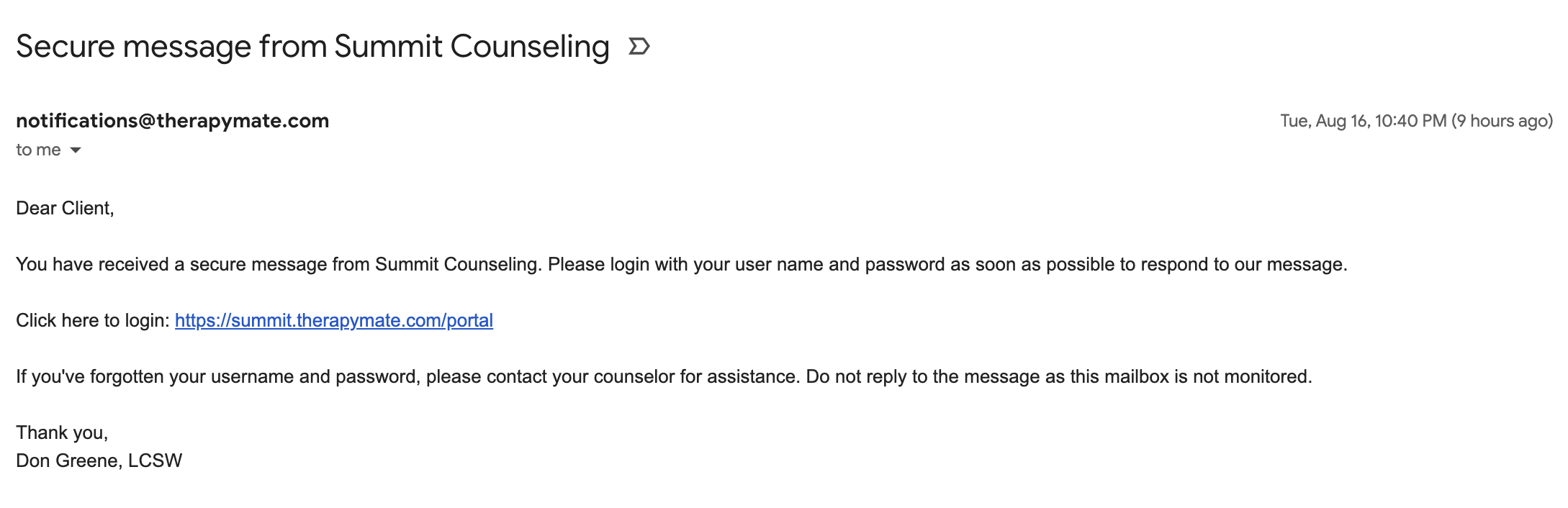
The clinician's name will be inserted at the bottom of the message.
The client clicks on the link within the email and logs into the Client Portal. In this training article we are assuming the client has already accessed the portal and created their own username and password. If that isn't the case you must invite them before they can use the messaging feature.
The client clicks on the link within the email and logs into the Client Portal. In this training article we are assuming the client has already accessed the portal and created their own username and password. If that isn't the case you must invite them before they can use the messaging feature.
Receiving Email Notifications from Clients
If you wish to also get notified via email when a client sends you a client portal message and/or they have completed the documents and questionnaires, there is a check box on your Clinician Practice Information settings page to turn that on.
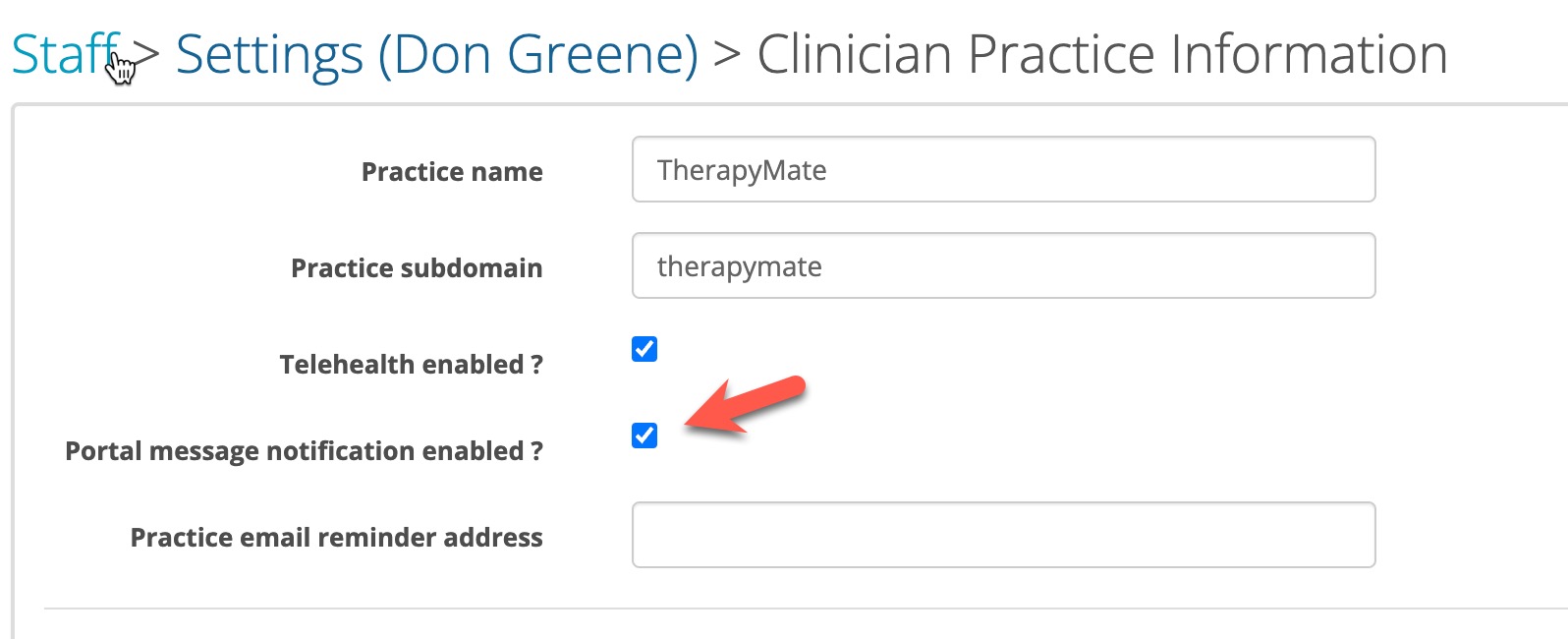
Check the box and click the Update button at the bottom to enable this feature.
Client's Portal Experience
When the client is logged into the portal they will see an envelope icon next to their name. If there is an incoming message the icon will have a number next to it (see below). All the client needs to do to read their messages is to click on the envelope.
When the client is logged into the portal they will see an envelope icon next to their name. If there is an incoming message the icon will have a number next to it (see below). All the client needs to do to read their messages is to click on the envelope.
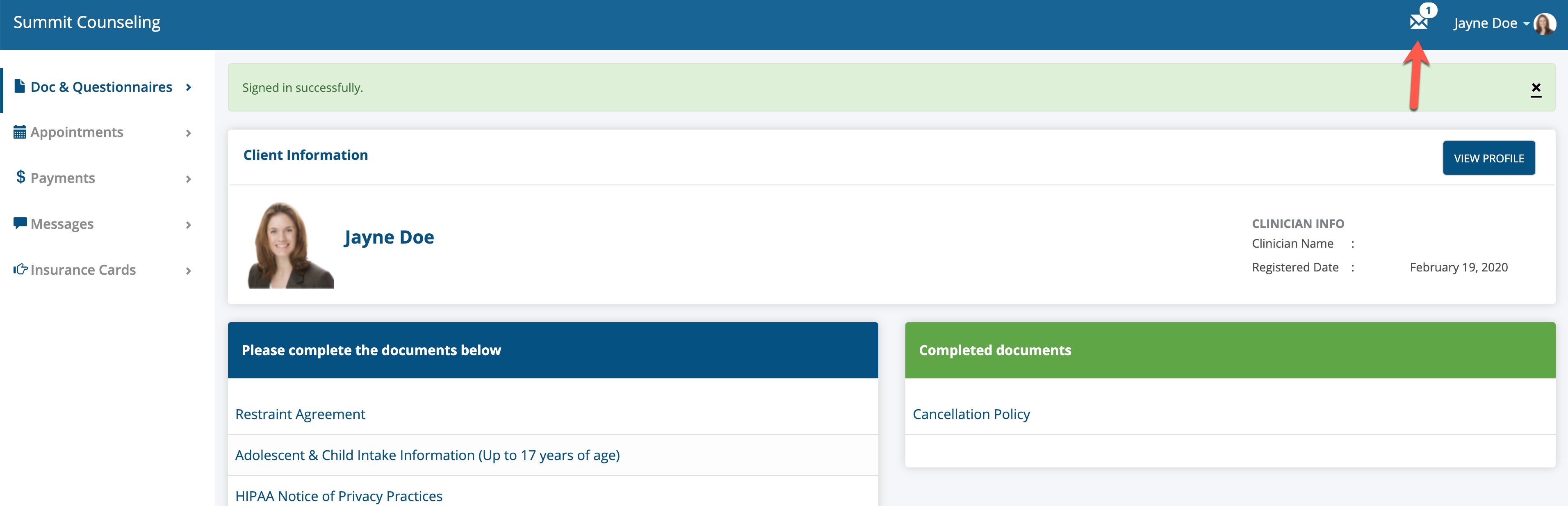
The client reads their message and if necessary replies to the message. The client can also attach the completed questionnaires or documents and send it back to the clinician. The can also send one or more documents in a message.
Receiving Messages on the Dashboard
When the clinician receives a new message from a client, the Messages menu option on the dashboard will have a red number next to it (see below). BTW...in a future update to the Message feature the Clinician will also get an email telling them they have a message to read. It will instruct them to login to TherapyMate to retrieve the message.
When the clinician receives a new message from a client, the Messages menu option on the dashboard will have a red number next to it (see below). BTW...in a future update to the Message feature the Clinician will also get an email telling them they have a message to read. It will instruct them to login to TherapyMate to retrieve the message.
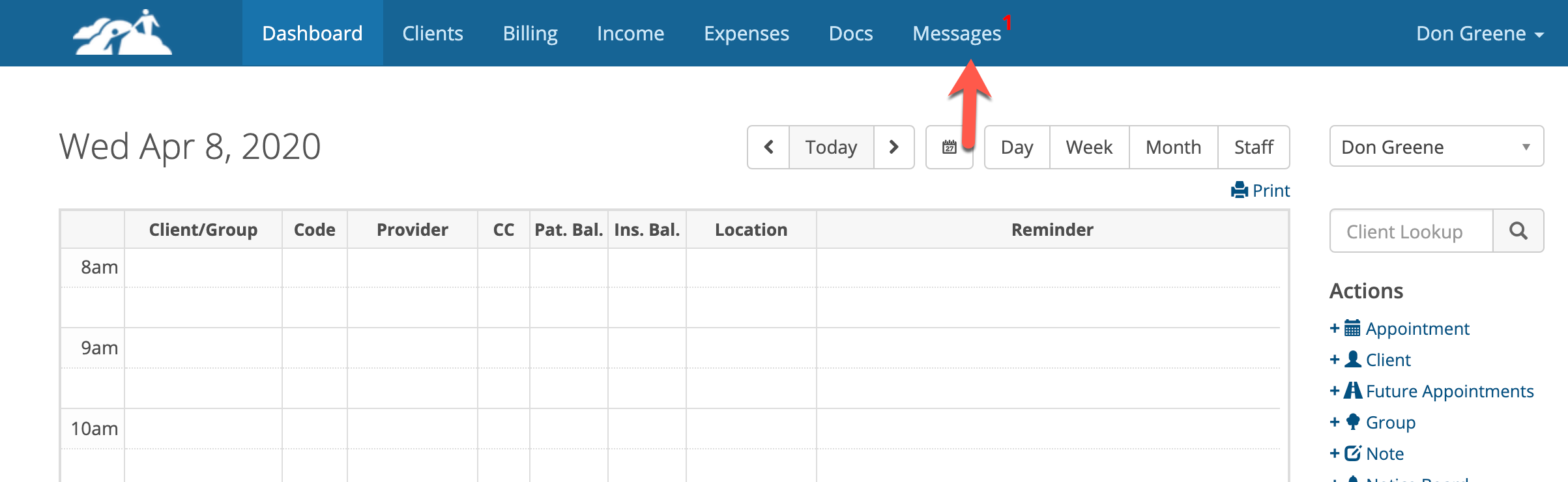
The clinician clicks on Messages on the blue menu bar. On the next page the clinician will see a list of their messages. Any unread messages will be in bold text. Click on the message to read it. In the example below, I would click on "Testing Paperwork Attached" to open and read the message.
Documents & Questionnaires Completed Notification
When you send a client documents and questionnaires from their client information page, the clinician will get a secure message telling him/her that the documents have been completed.
When you send a client documents and questionnaires from their client information page, the clinician will get a secure message telling him/her that the documents have been completed.

The clinician will be notified that a client has completed the documents and questionnaires when they see a red number next to the word Messages on the blue menu bar.
Converting a Message to a Contact Note
Open a message to view it. Click on the "Create Contact Note" button.
The Contact Note template will appear next.
Fill out the template as your wish and click the Save button to put the note into the client's Notes and Documents tab in their chart. If there are attachments in the message they will not get added to the contact note. Download those separately and upload them to the client's Documents area.