These instructions will enable you to created, change or cancel your appointments in the Client Portal. You can also look at your future appointments if there are any.
To perform any of these options login to the Client Portal with your username and password. The web address for the client portal was given to you by your clinician via email when you first created your username and password. Please click on the second web address in that invitation email to login.
Creating New Appointments
Look towards the left side of the Client Portal page and click on the menu option called Appointment
Then click on the + Appointment button shown below:
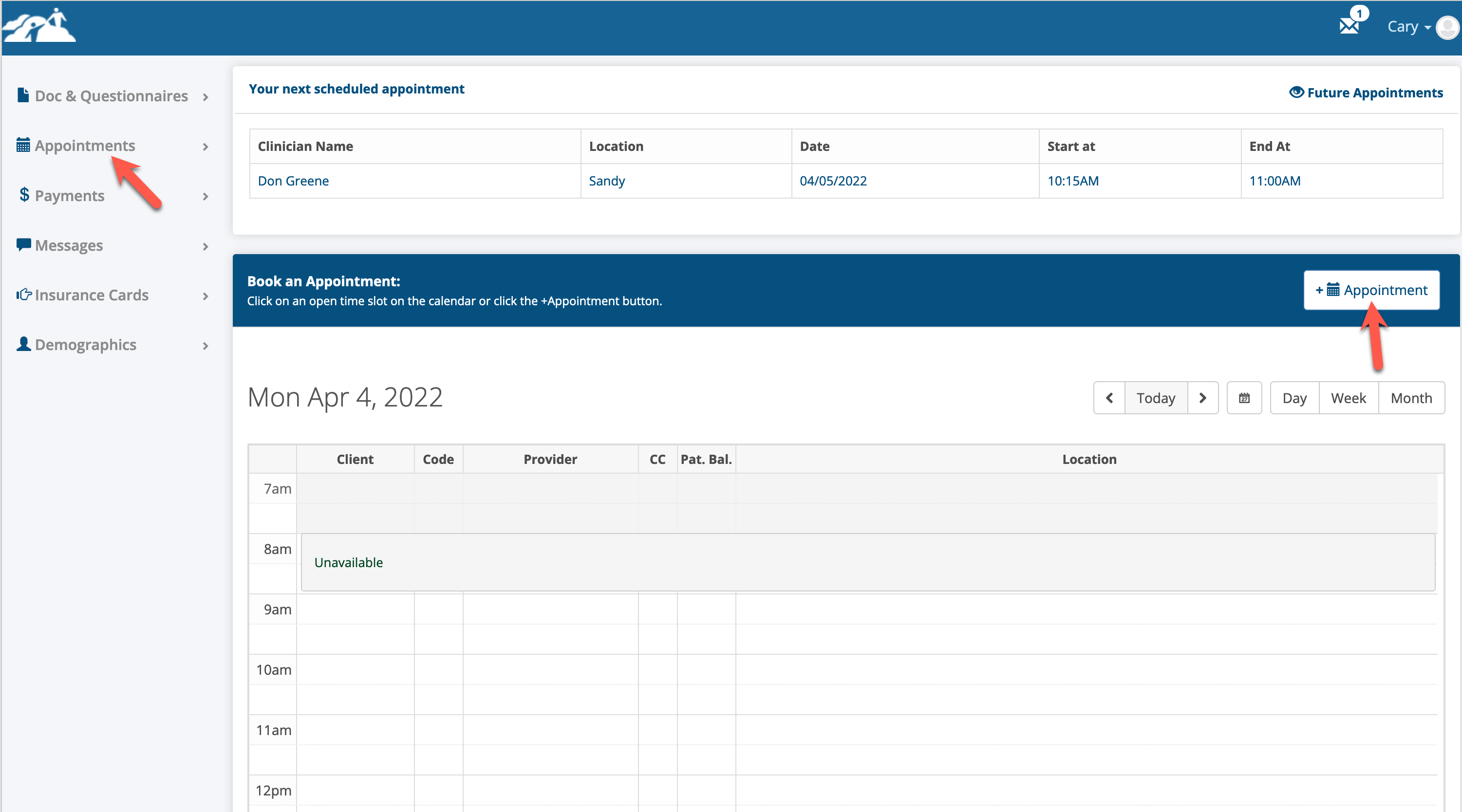
The New Appointment window will appear.
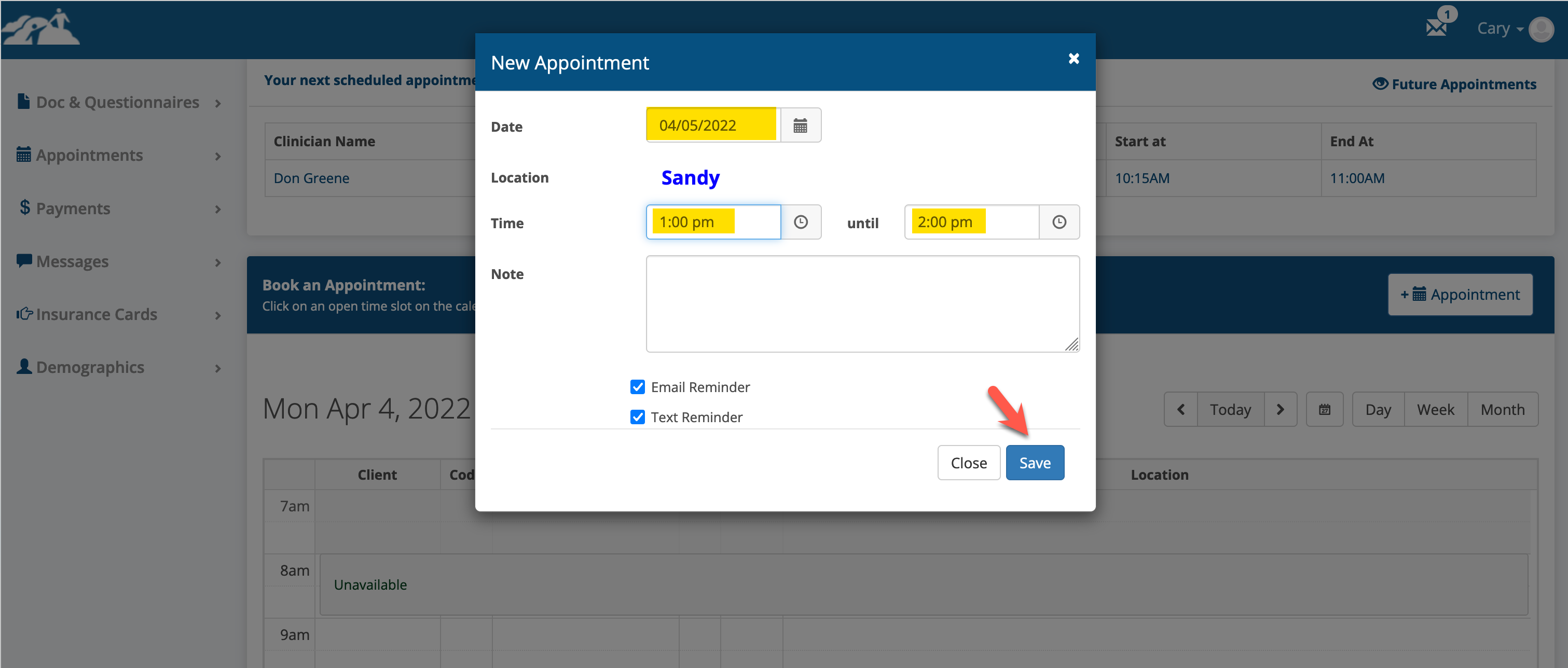
Select the date and time you wish to schedule the appointment. If you are configured for email or text appointment reminders there will be one or two check boxes as shown below. Don't uncheck those boxes if you wish to get reminders. If the reminder buttons don't appear please contact your clinician to get set up for appointment reminders if desired.
Click the Save button when done.
If the day and time you selected is not available a warning message will appear. Please try entering different values if you see this message.
You can also navigate to the day you're interested in to view available time slots. Click on the available time slot to open the New Appointment window. Be sure to click the Save button to schedule the appointment.
Please Note: If you reside in a different time zone as your clinician, the client portal will automatically make that adjustment when you create an appointment so your clinician's schedule is accurate.
Changing or Canceling Existing Appointments
Login to the Client Portal using your Username and Password.
Look towards the left side of the Client Portal page and click on the menu option called Appointment
You will see your appointment calendar. At the top you will see the next schedule appointment and a link to view any future appointments (if any).
You can also navigate the calendar using the forward and back arrows or the day, week or month buttons.
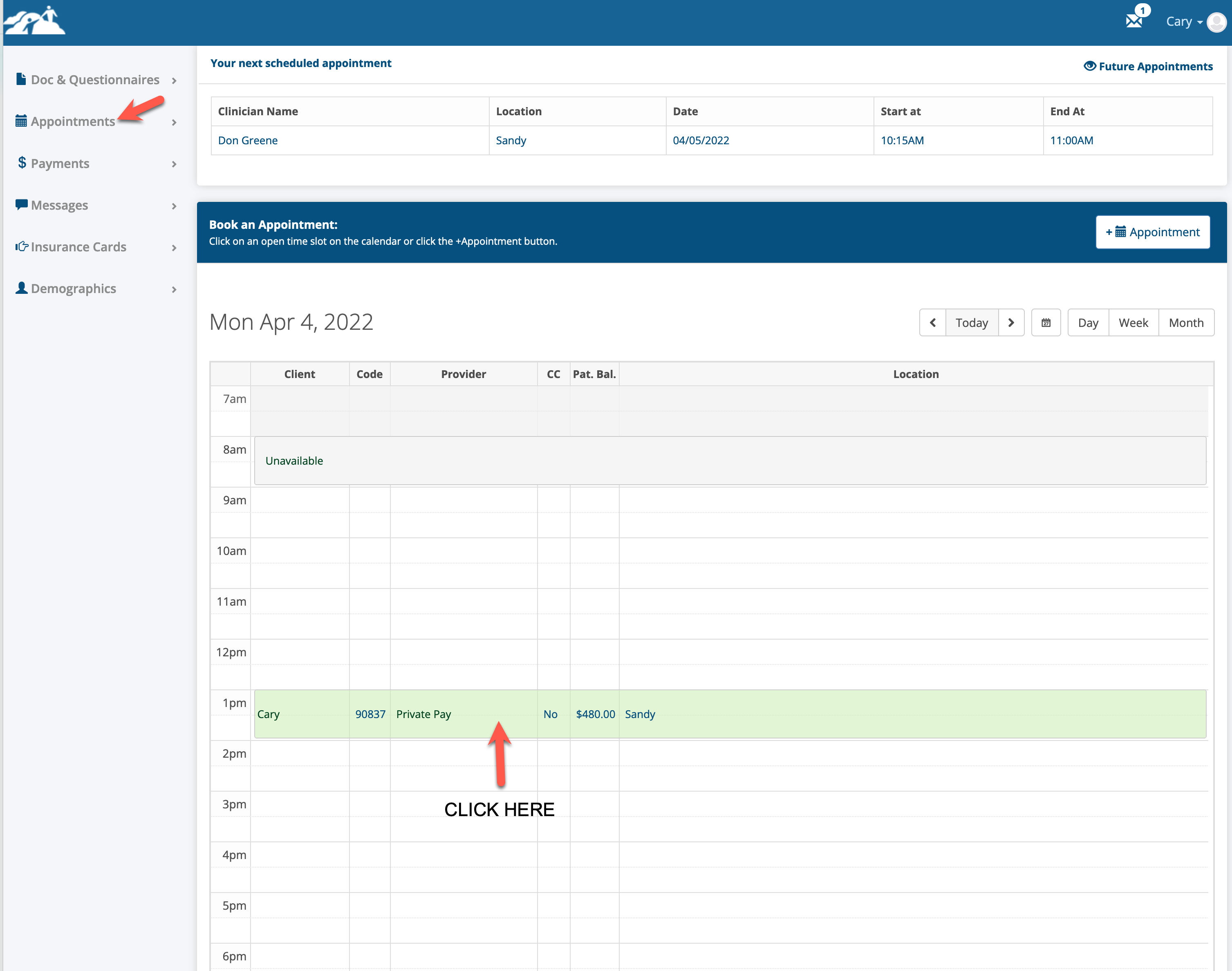
When the appointment you wish to modify is visible, click on it as shown above.
The edit appointment window will appear as shown below:
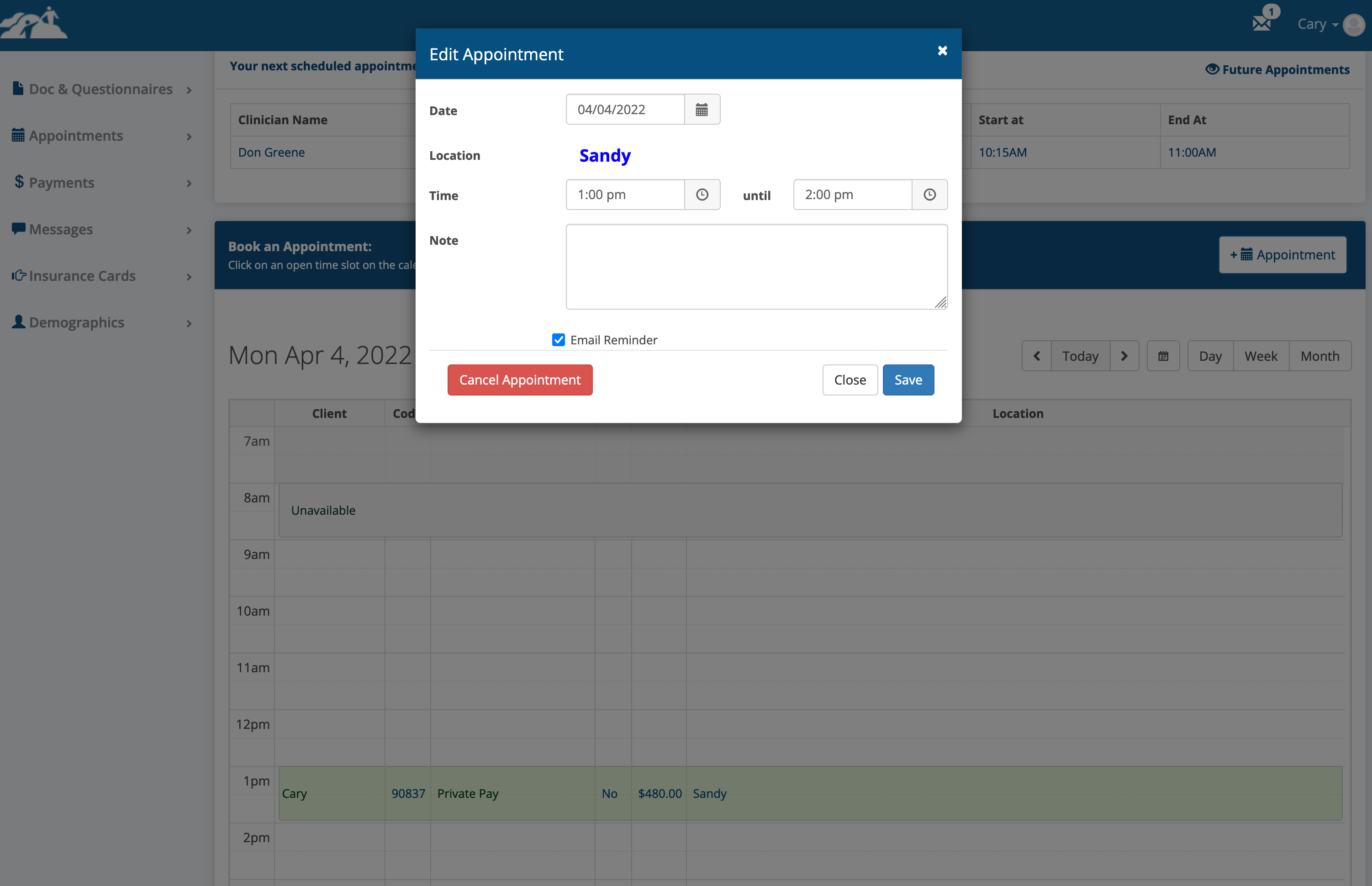
Y
ou can Cancel the appointment or change any of the other values to Change the date and time of the appointment.
Be sure to click Save when done.