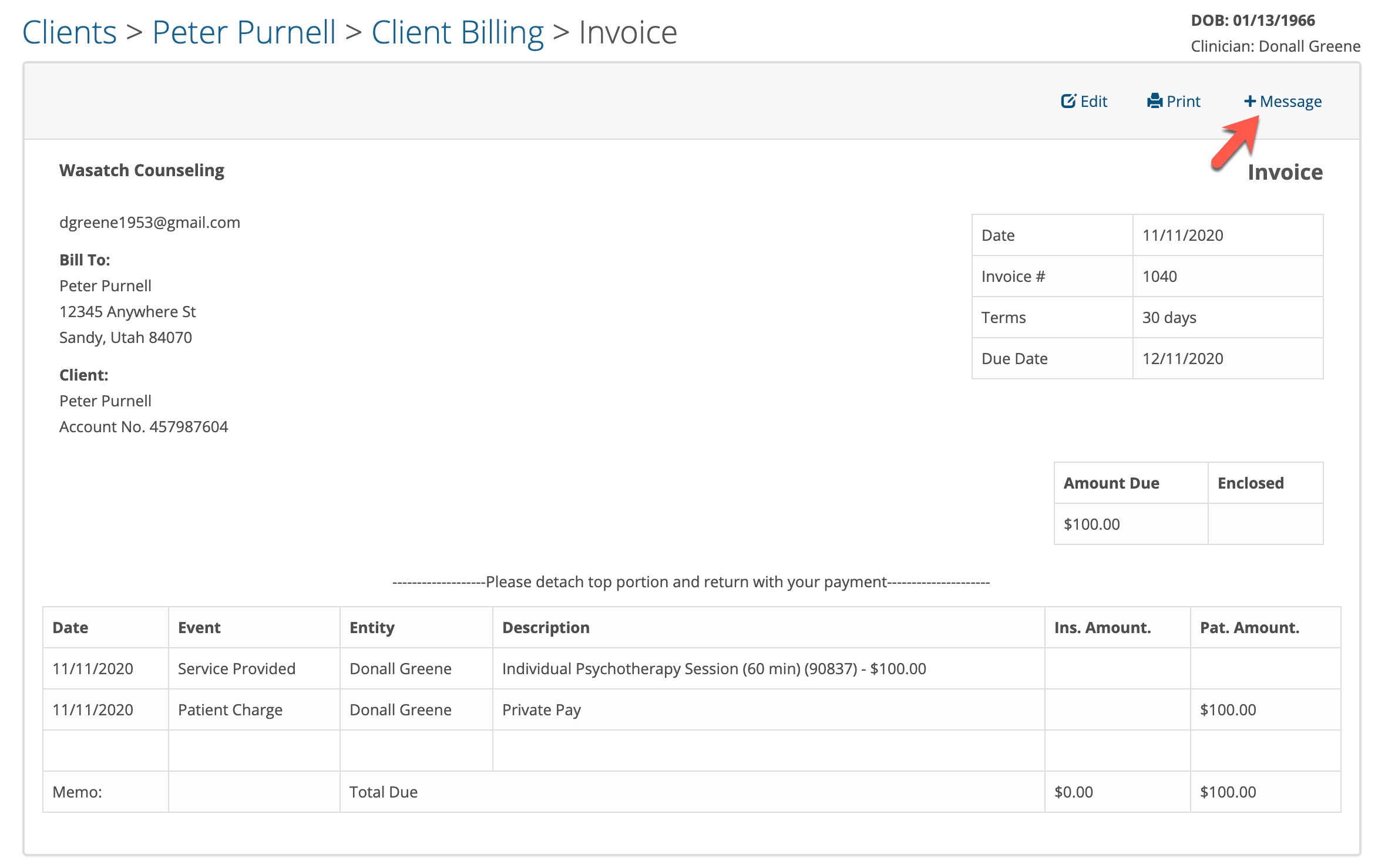
Clinicians, Scheduler and Billers can send invoices, statements and Superbills to clients using TherapyMate's Messages feature.
Sending a Statement and Superbill
Navigate to the Client's Billing page where all of the invoices are located. Notice the two highlighted items, + Statement and + Superbill. You can create one of these by clicking on the appropriate button.
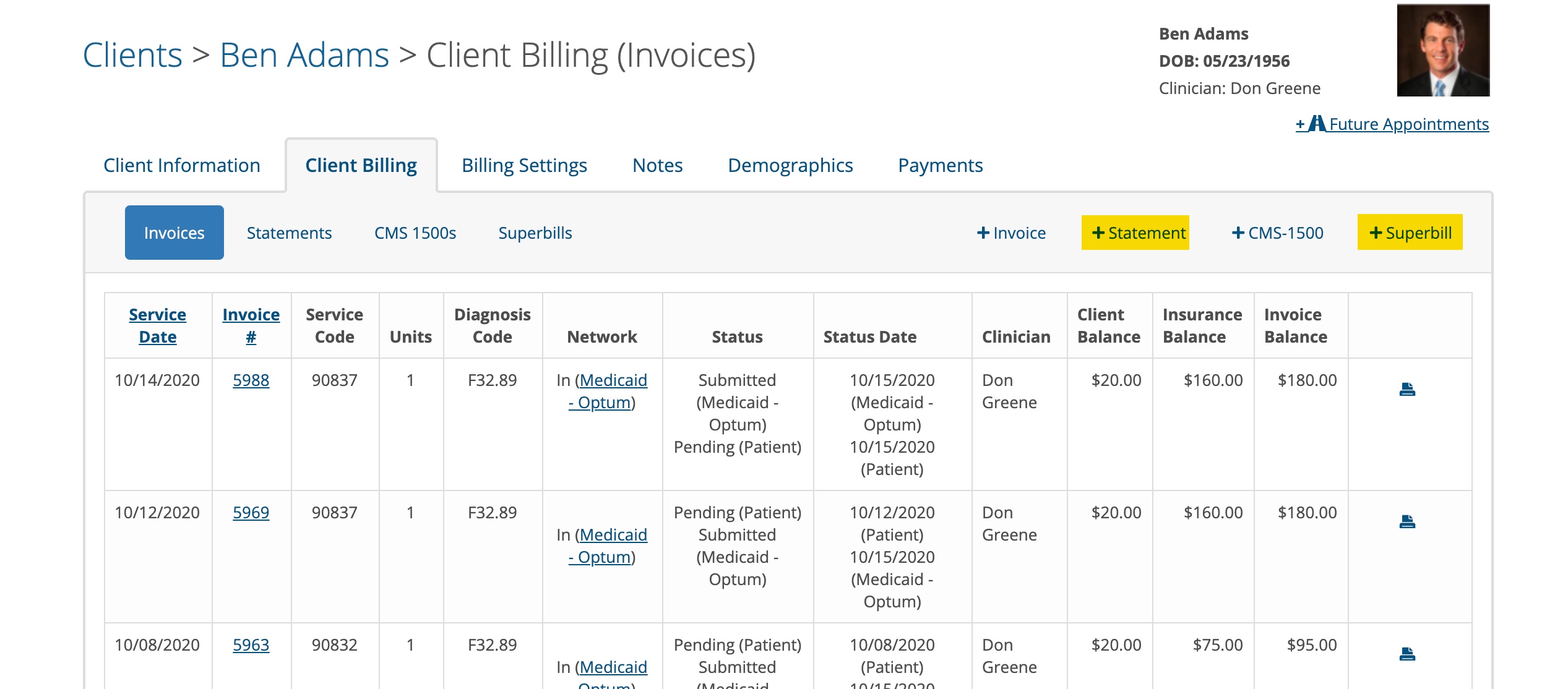
In the first example, we are going to create a Superbill. Check the boxes next to the dates of service you wish to include. We chose to do a Superbill for the month of October.
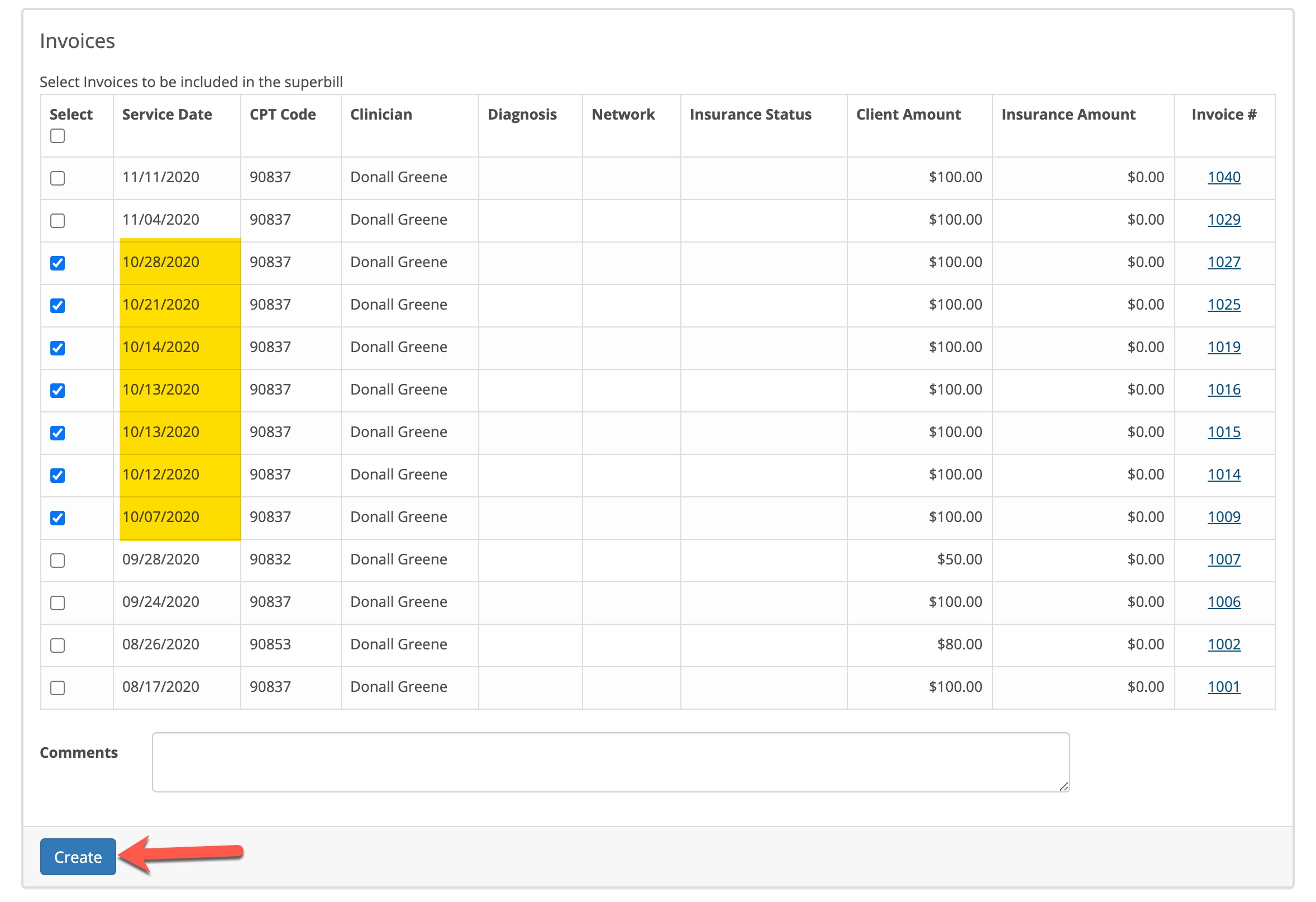
Click the Create button when done.
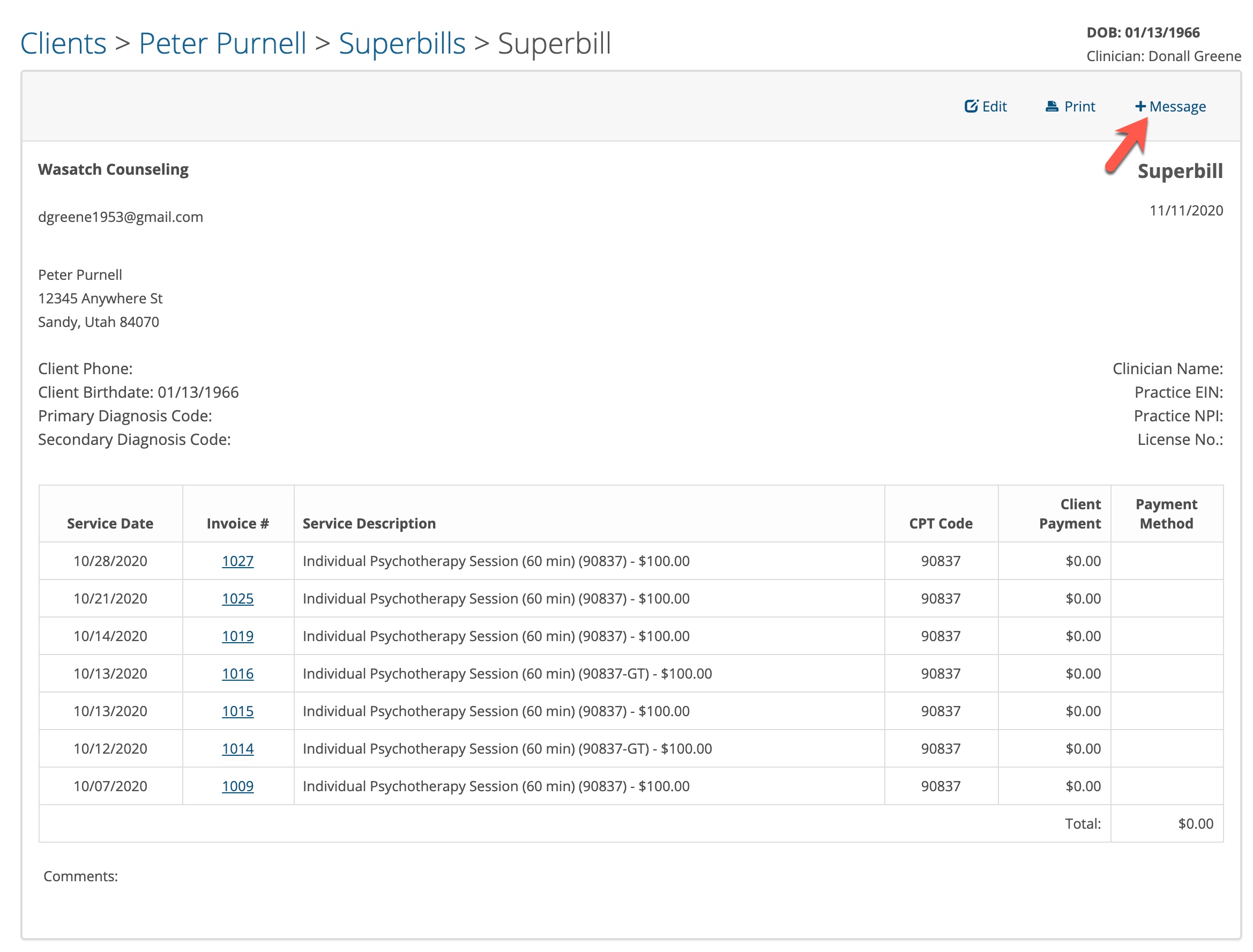
A preview of the Superbill will appear.
To send the Superbill click on the + Message button in the upper right corner.
A message window will appear where you can add some comments. See the example below:
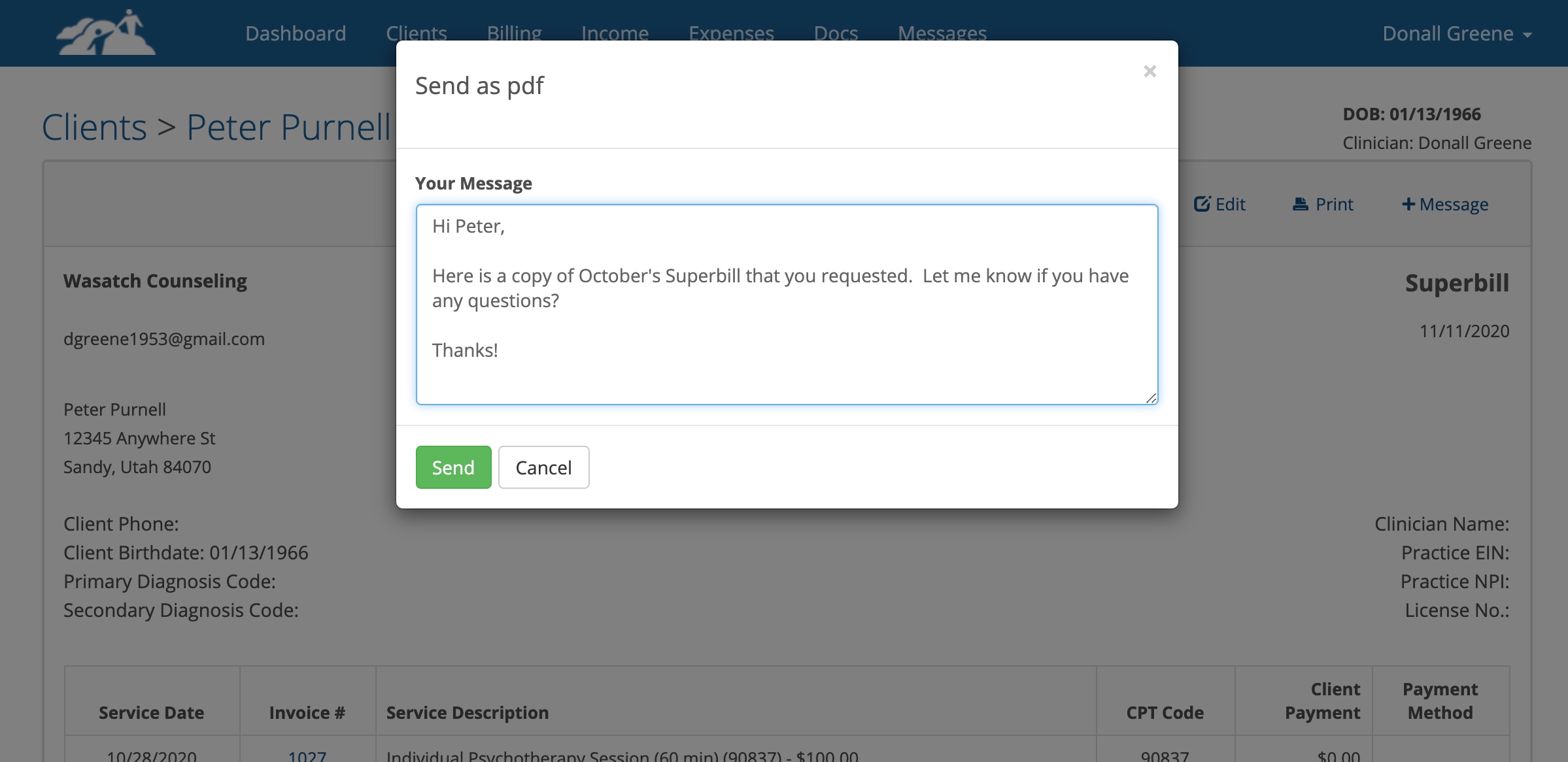
Click the green Send button when done.
The client will receive an email asking them to login to the Client Portal to retrieve their message and Superbill. (we are assuming they have a username and login to your portal to do that. If they don't you will need to send them a Client Portal Invitation first)
Creating and sending a Statement is very much the same process. Just create the statement as you normally would and when you see the statement preview screen, there will be a + Message button.
Sending an Invoice
Go to the client's billing page and click on the invoice number you wish to sent them. There will be a + Message button in the upper right corner. Click on that and the same message window will appear with the green Send button.