Creating Client Portal Documents & Questionnaires
This feature will allow you to create and send documents and questionnaire to your clients so they can fill them out in the portal electronically. Only the Practice System Administrator has access to create documents and questionnaires.
You can customize and use the forms that are supplied by TherapyMate or you can create your own.
To modify or create a new document (template) go to your Main Settings page by clicking on your name in the upper right corner of your Dashboard and choose Settings from the drop down.
Scroll down your settings page to the Practice Settings area.
Click on Client Portal Settings.
Scroll down the Client Portal Settings page to the Pre-Admission Documents and Questionnaires section.
Click on the Manage Documents & Questionnaires.
The enable online documents & questionnaires switch should be turned on.
You’ll see a list of your documents questionnaires. You can modify existing items in the list by clicking on them or you create new items by clicking on the + Add button.
You can turn on/off any of the documents and questionnaires by toggling the switch on the right.
You can sort by Title, and Level by clicking on the title.
If you click on the trash can icon, the document or questionnaire will be permanently removed. Don't do that unless you're sure you won't be needing it.
Creating your Documents & Questionnaires
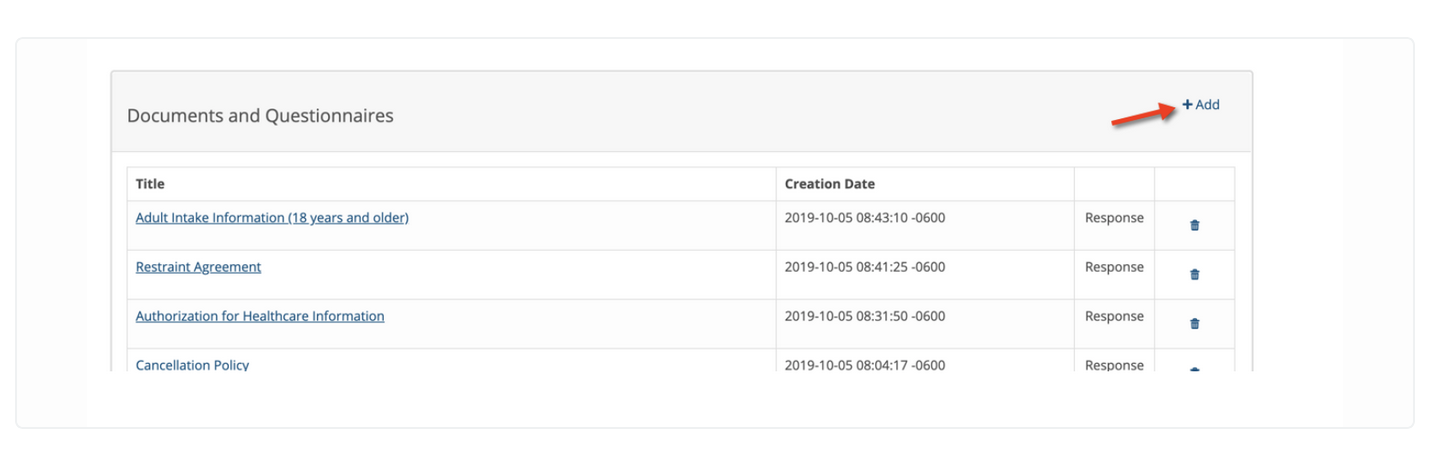
If you want to create an entirely new document click on the +Add button in the upper right-hand corner.

When you click on the +Add button shown above you’ll be taken into our text editor.
Start by giving your document a name in the Title box.
If you require a client signature on this document check the Signature Required check box. This will enable the client to electronically sign your document when they complete it.
Select the Level 1 or Level 2. Level 1 items are sent more frequently and Level 2 items are sent less frequently to clients.
Create your document by adding text, check boxes and input text boxes to the document. These check boxes and text boxes are what a client will use to enter date into your document. Clicking on the 3 dots on the right hand side of the tool bar will expose the text font size drop down, the font type drop down, Insert Test box and Insert logo buttons.
AVOID creating your document in another word processor and then cutting and pasting the contents into the TherapyMate text editor. There is a pretty good chance that your new document will not work properly. If you create a document in Microsoft Word for example, save it as a plain text document first. Then you can open the plain text version to cut and paste the contents into TherapyMate's text editor. This will reduce the chances that unsupported or hidden characters get copied and pasted.
When you are done, click the Add button at the bottom to save your work.
Please Note: The documents and questionnaires are templates that you send to clients via the Client Portal. Do not put client specific information on a template and send it to a specific client. Documents & Questionnaires need to be generic for all clients to fill out.
"Can I upload my own forms?"
Basically no...you can't do that. Here is the reason why and what you can do instead.
Even if you could upload your own forms they wouldn't be usable because they wouldn't contain input boxes. Input fields are required so you can capture data that your client enters into your form. For example, your document might have something that looks like this:
First Name: ______________Last Name: __________________
The lines that you see above are not input fields in the on-line electronic world.
What you can do is copy the contents of your existing forms and paste the contents of your existing form into the TherapyMate text editor and then reformat
Please Note: Text from the other document for word processor must be saved in plain text format before copying the information into TherapyMate's text editor. Copying and pasting directly from a Microsoft Word formatted document will contain hidden formatting information and can cause your Therapymate template to not work properly. You can save your Word document as a plain text file and then copy and paste the contents to eliminate the hidden formatting information.
Here is an example of a document that was pasted into the text editor:
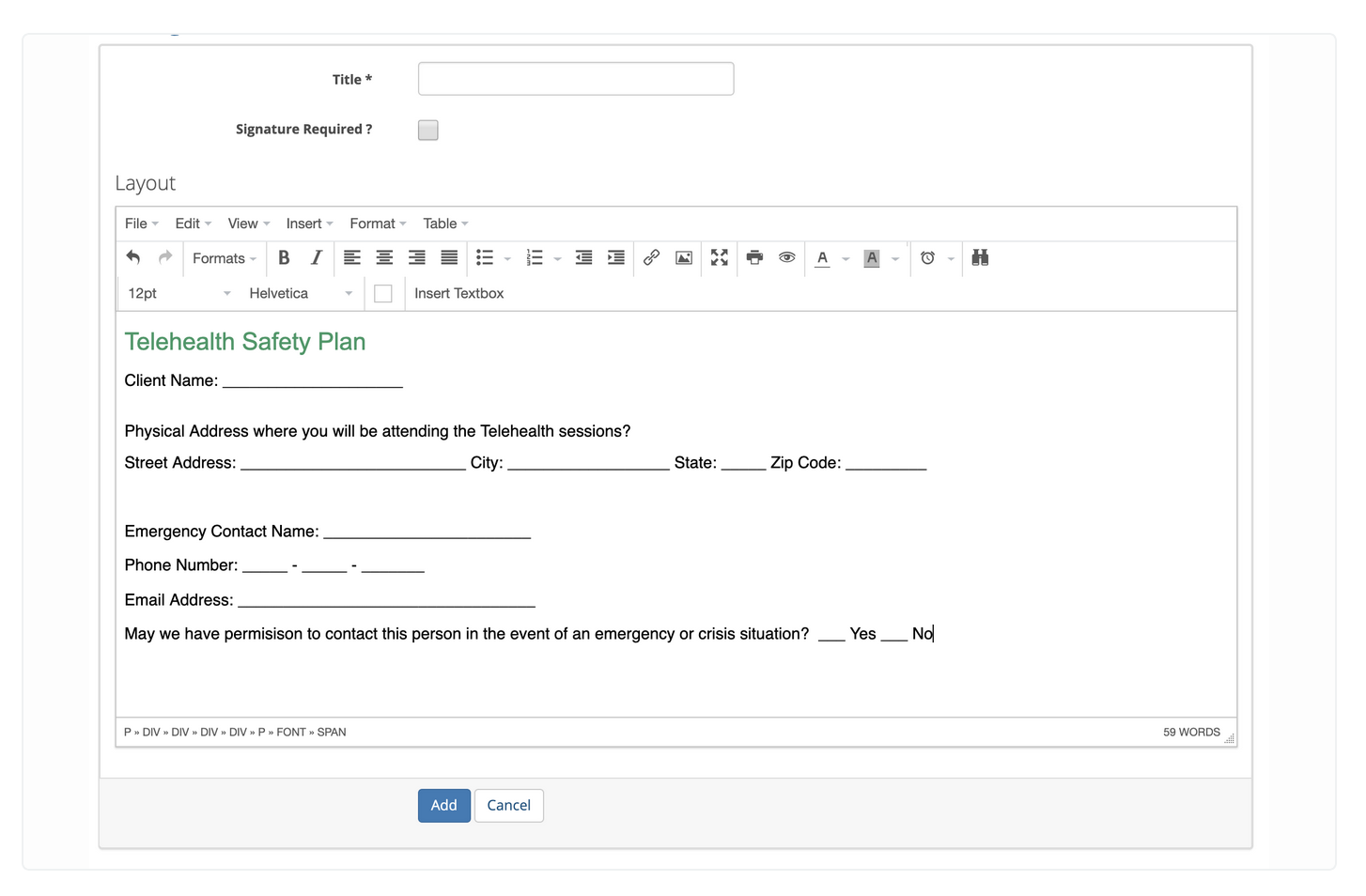
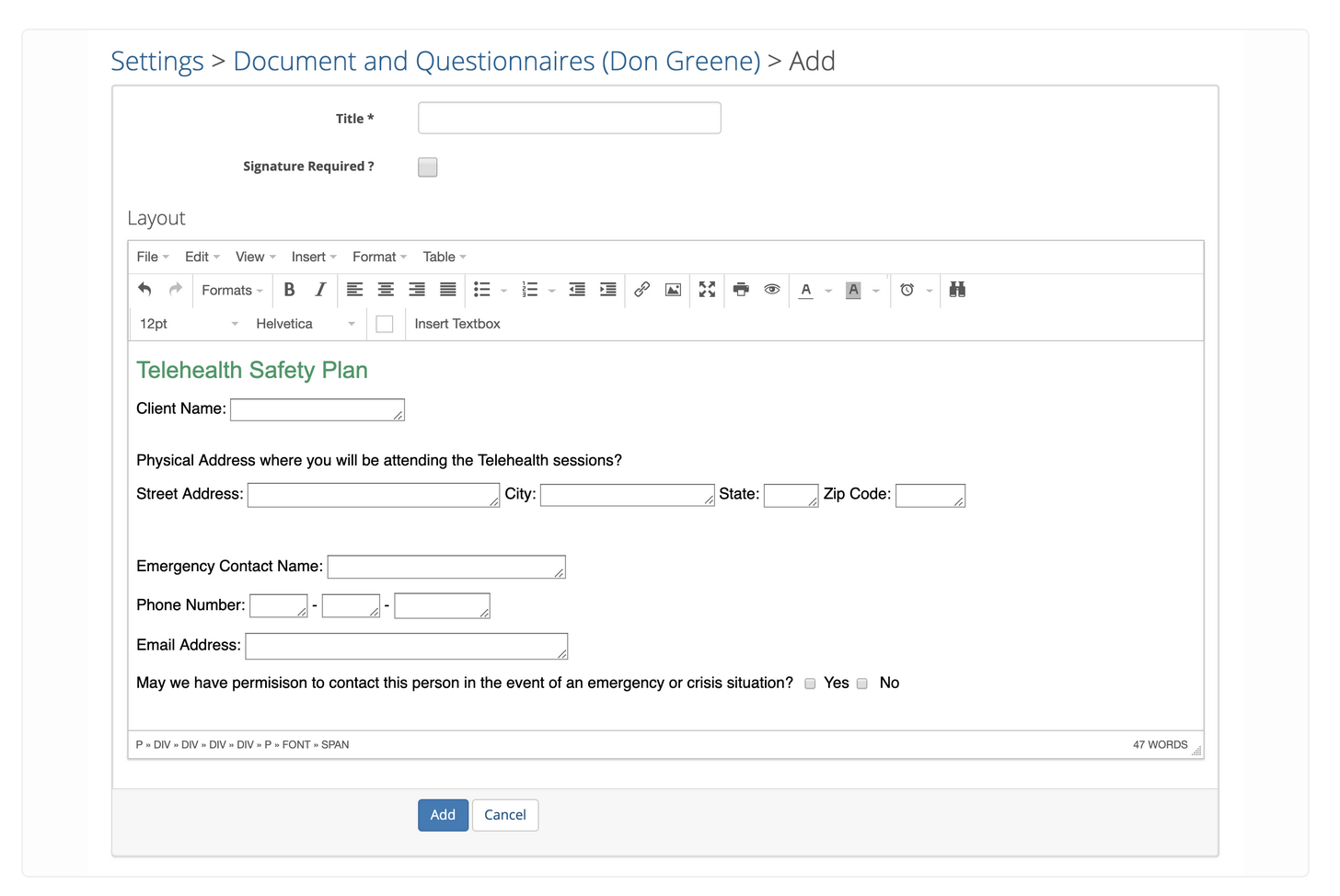
It contains lines that normally a client would complete if this was a paper document. To make these lines useful in an online electronic format replace the lines with input text boxes and checkboxes. See the converted example below:

After you have created your new document click the Add button. The new document will now get added to your master list. You will now be able to send it to clients after you test them.
Testing your Documents and Questionnaires
It is very important that you test your documents and questionnaires templates before you sent them to clients.
1. Create a test client. Put your own email address in the client chart.
2. Invite the test client to the Client Portal by selecting some of the documents you want to test (see below)
3. Login to the client portal as the test client using the username and password you entered when you to invited via email.
4. Click on the template you sent to yourself and test it.
5. Try completing the template and try saving it.
6. If you get an error there is something wrong with your template. You'll need to debug.
7. If you don't get an error, Congratulations! The saved version of the document will appear on the right side of the client's portal page or at the bottom of their notes page in TherapyMate.