Email & Text Appointment Reminders
You can send email and text appointment reminders to clients prior to their next appointment. This article will show you how to configure your Practice settings and create appointments that will send out email or text reminders to clients.
Please inform your client's that email and text appointment reminders are courtesy reminders and delivery or lack thereof is subject many variables such as a client's mobile carrier network availability, scheduling issues, incorrect profile settings and as such are not guaranteed.
Configuring the Appointment Reminder Settings
The System Administrator can activate and set up the appointment reminders for each clinician in their individual settings. The System Administrator goes to the Staff page and clicks on the clinician's settings link to see a list of available settings as show below.
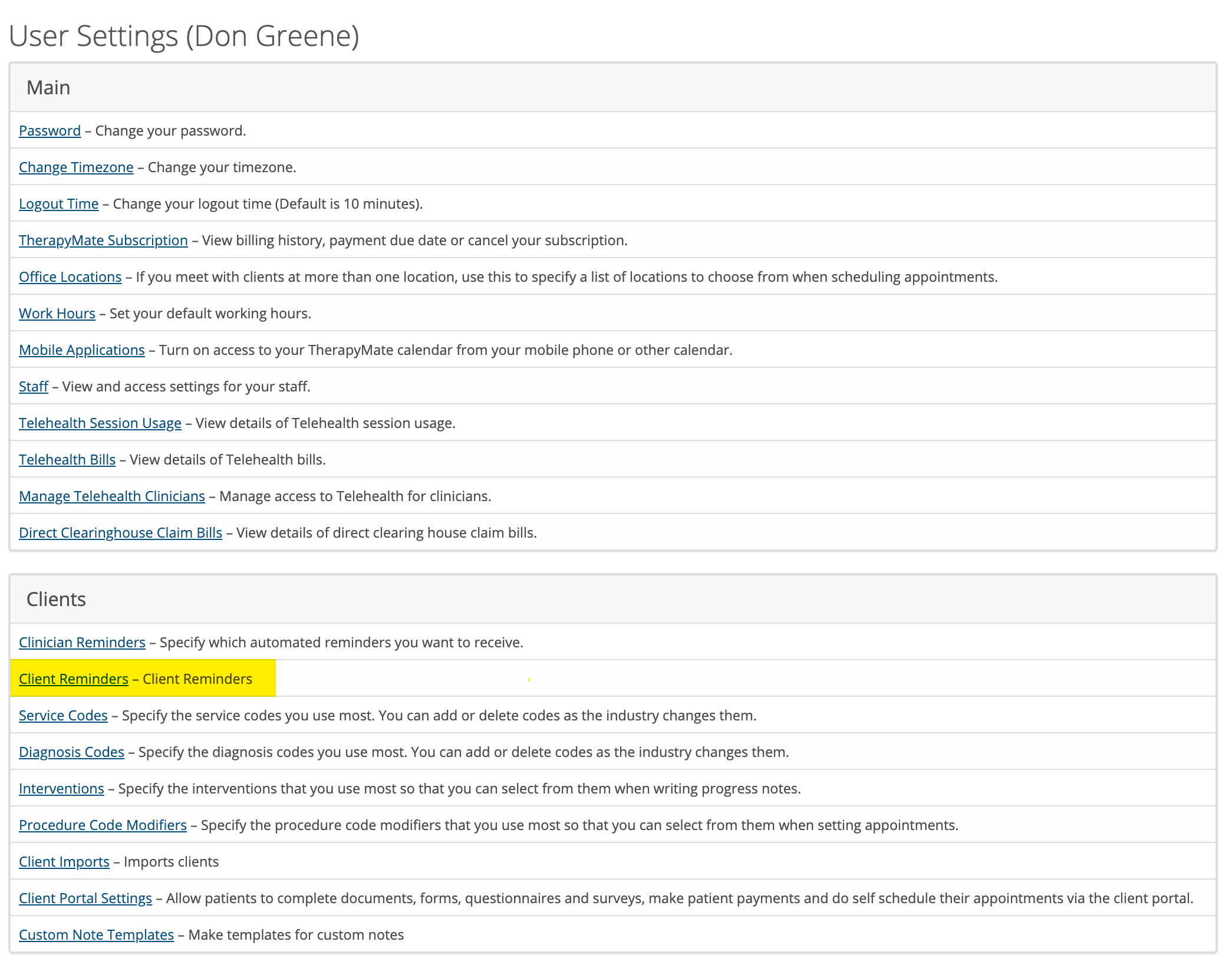
Enabling Automatic Client Reminders
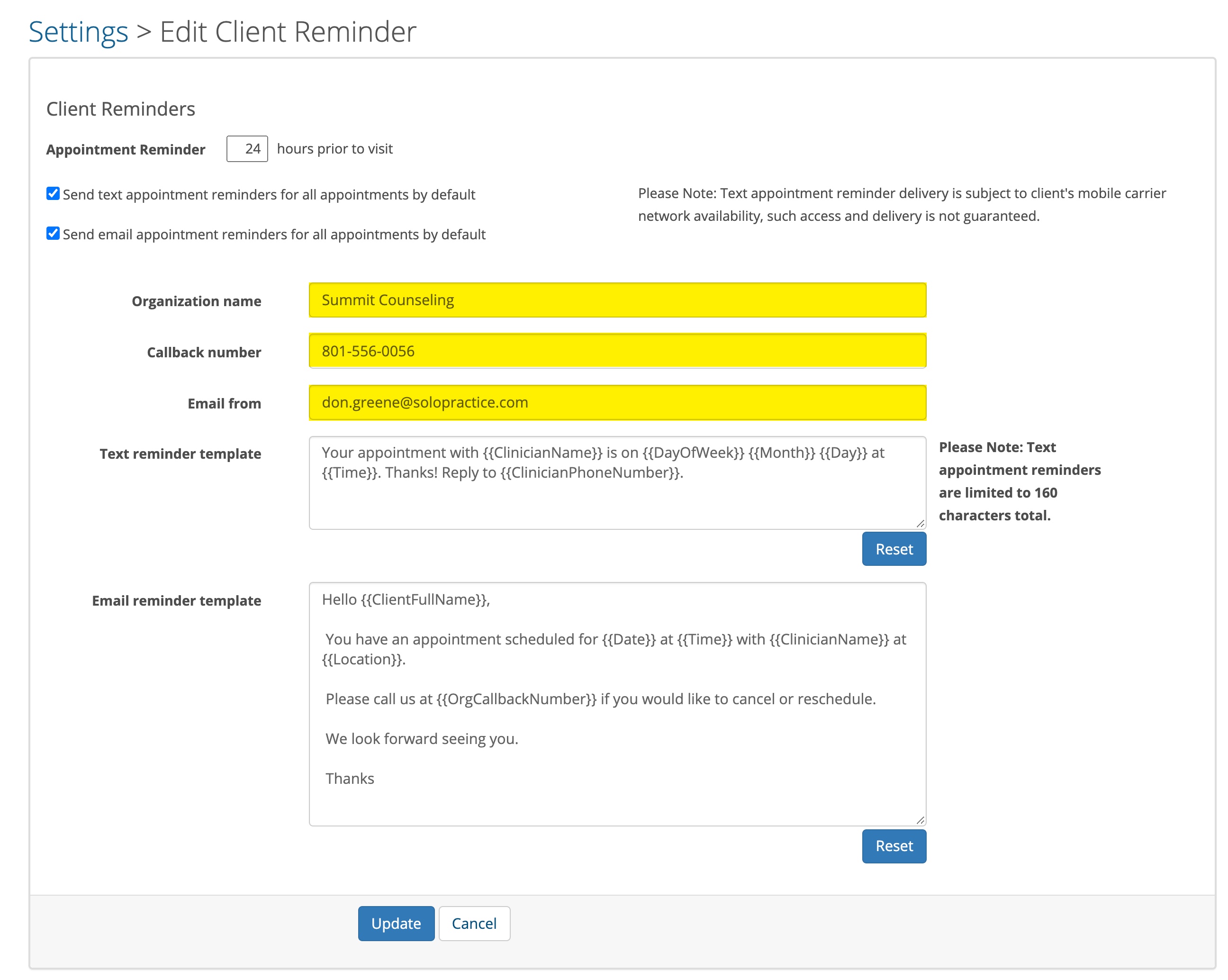
If the two check boxes (shown below) are checked, an email and/or text reminder will automatically go out to scheduled clients the specified number hours prior to their appointment. The default is 24 hours and you can change it to something else if you desire.

Before a client can receive email or text appointment reminders the clinician needs to configure the client's chart. That will be discussed in another article called Client Appointment Reminders.
Customizing Email & Text Appointment Reminders
There are several ways to customize the reminders that your client receives. The first three options are:
1. Organization name - This will be filled in automatically for you.
2. Callback number - This is a phone number that you would like clients to call if they need to reschedule or cancel an appointment.
3. Email from - This is a email address that you would like clients to use if they need to reschedule or cancel an appointment.
Customizing the Contents of your Messages
The Systems Administrator can change the content in the Email or Text Appointment reminders for each clinician in the highlighted areas shown below. There are templates in each of these by default.
You can choose to modify the contents like we did below or just leave them with the defaults. You are responsible to ensure the contents of your messages are HIPAA compliant.

Parts of these templates will automatically fill in things like the clinician name, client name, date, time, and phone numbers if you leave any of the double bracketed items in the template (i.e. {{Location}}.
Here are the allowed email appointment reminder variables:
{{ClientFullName}}
{{OrganizationName}}
{{OrgCallbackNumber}}
{{ClinicianName}}
{{Location}}
{{Date}}
{{Time}}
Here are the allowed text appointment reminder variables.
{{ClinicianName}}
{{DayOfWeek}}
{{Month}}
{{Day}}
{{Time}}
{{ClinicianPhoneNumber}}
{{appointment.clinician.mobile_phone}}
{{appointment.clinician.mobile_phone}}
Please notice that the variables are NOT the same in all cases for both types of reminders templates.
You have a lot more freedom to add additional text to Email reminders.
Text appointment reminders are limited to a total to 160 characters by most cell phone carriers. Try to stay within 160 characters for text reminders or the contents of your messages may not be visible to clients.
If you get in trouble and need to reset the templates back to the defaults, click the appropriate Reset button and click update.
Please Note: Whenever you are changing the contents of your reminders for a clinician, it is critical to test them using a test client. Use your own email address and phone number, schedule the client and send yourself the reminders to make sure they are what you had in mind.