If a person has Authorizations or EAP benefits, you can configure a patient’s billing settings for those and keep track of the appointments that get used for those sessions.
Authorization & EAP Billing Settings
Authorization & EAP Billing Settings
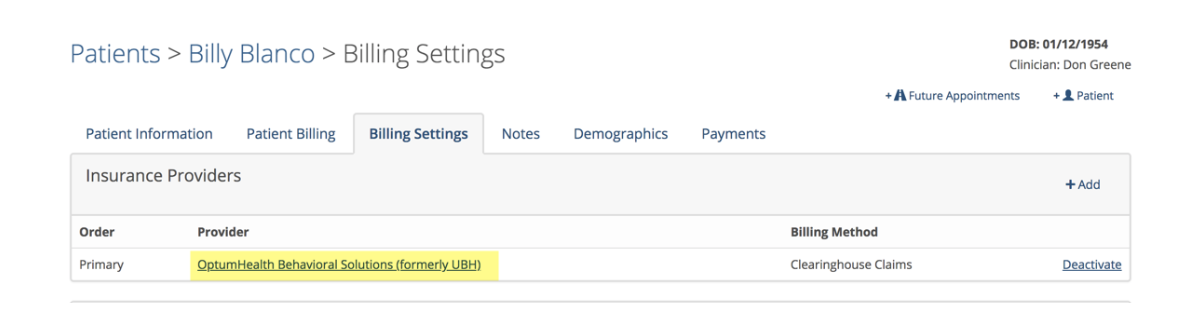
Go to the patient’s Billing Settings page and add the appropriate insurance provider to their settings.
After adding the insurance provider, click on that provider again and at the bottom of the page you will see a Pre-Authorization section. Click on +Add.
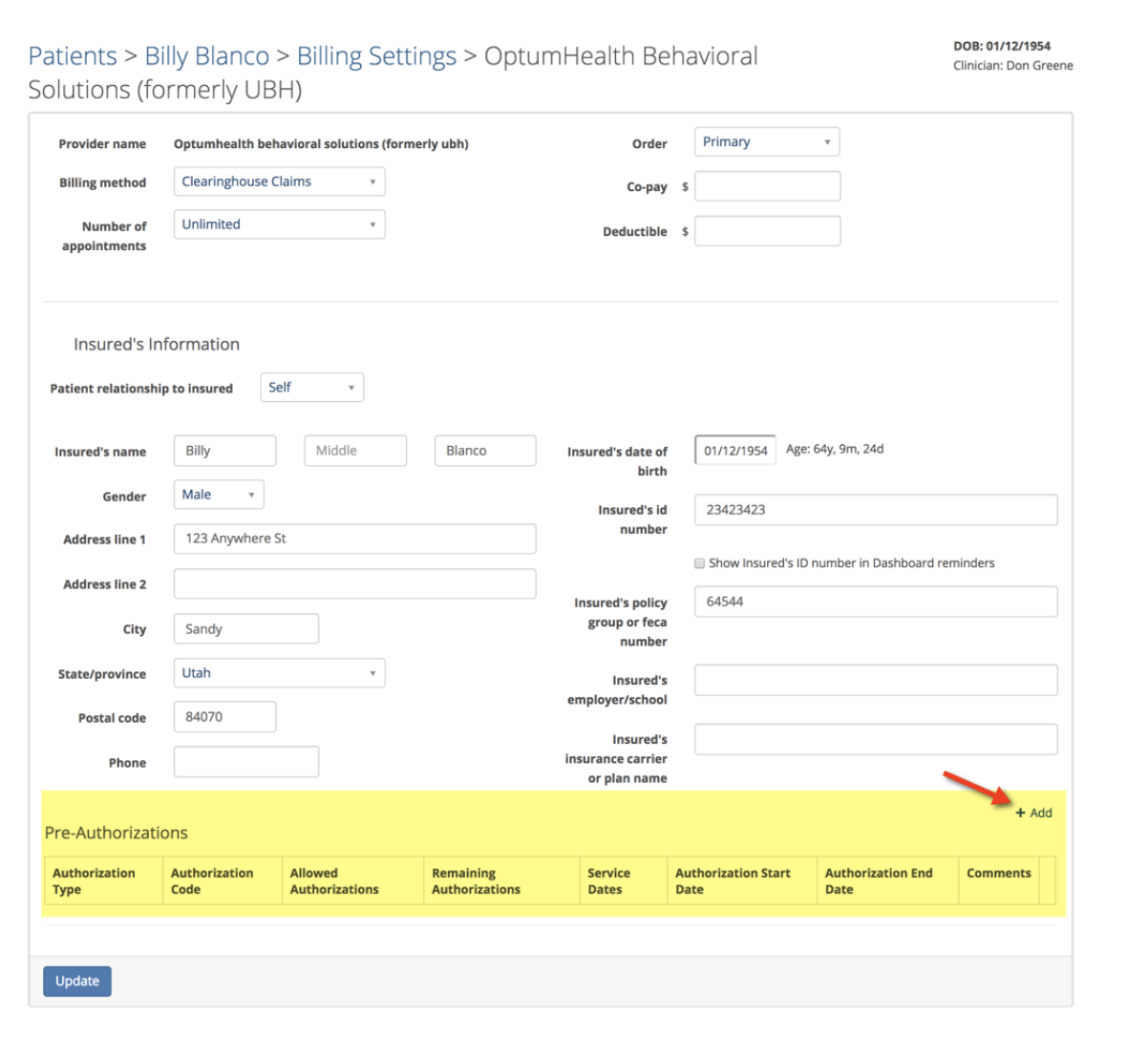
Complete the following page by adding the appropriate information. You can name the Authorization Type box anything you wish but keep it short. The Comments box is optional.

Click the Add button when done.
Here is what the saved Pre-Authorization looks like:
Here is what the saved Pre-Authorization looks like:

Scheduling an Authorization
It is important to schedule the Authorized or EAP sessions properly, so the authorization information is included in the claim you send to the insurance provider.
When you create an appointment for an Authorized or EAP patient on the Dashboard you should make sure the Code Modifier is set properly and manually check the EAP checkbox at the bottom of the window if it isn't already. Not all authorizations require a code modifier so check with the insurance provider for more information. If the checkbox is not checked, the claim will be automatically billed as a regular, non-EAP session.
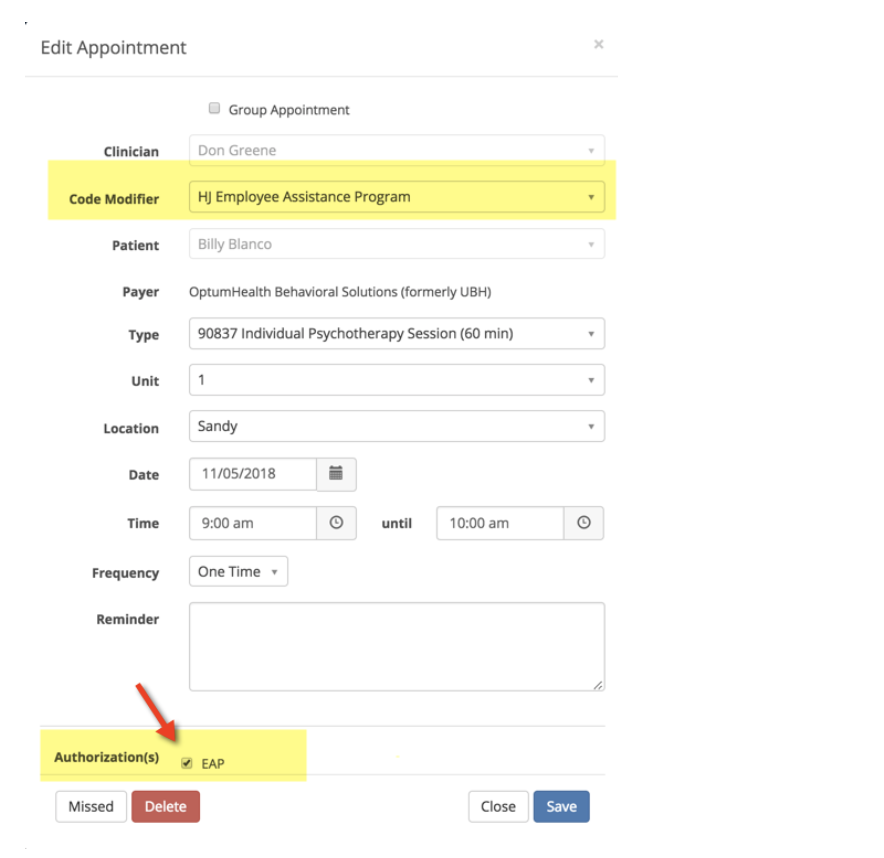
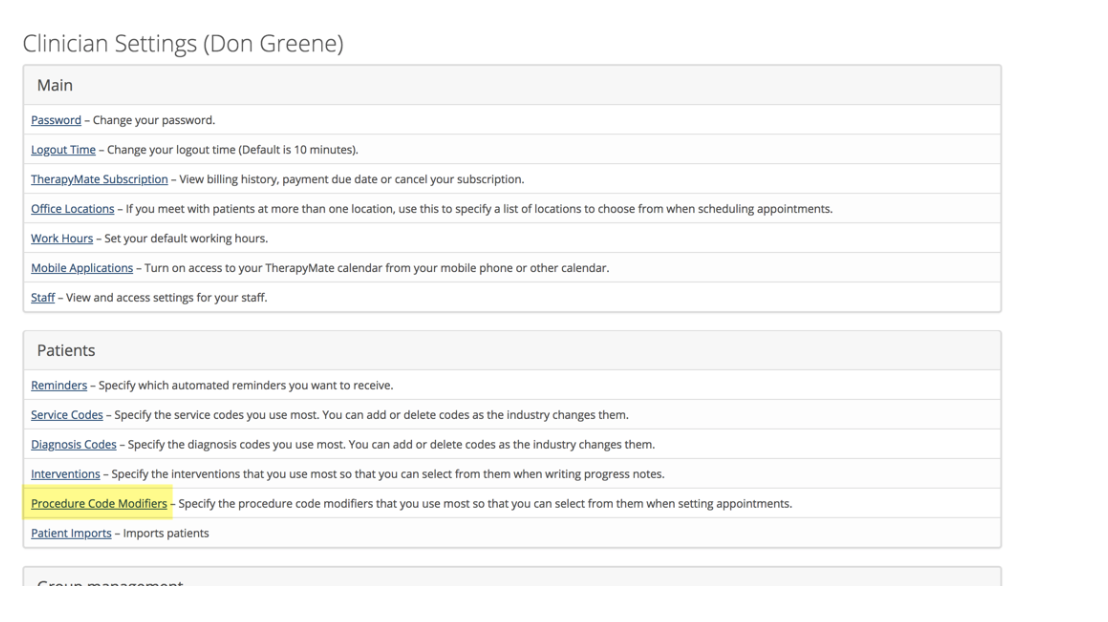
If you don’t have the Code Modifier dropdown, you will need to turn it on and add “HJ Employee Assisted Program” option to your list of modifiers. Go to your clinician settings and do that.
After saving the appointment, you will notice that the appointment reminder will start counting down as EAPs are used. Don’t remove these reminders.

If you ever need to check to see what appointment dates used the available EAP authorizations, go back to look at the patient’s EAP settings to see the service dates that got used. Here is an example:

When all of the Authorizations or EAP sessions have been used, the EAP checkbox on the appointment window will not let you check it anymore.
Appointments that Already Exist. Adding an Authorization or EAP authorization after the patient’s appointments have already been put on the Dashboard are not retroactive to those appointments.
If you want to change an existing appointment to use an EAP session, edit the appointment and change the Procedure Code Modifier and check the EAP check box at the bottom of the window.