A non-licensed Clinician can be configure to be supervised by a licensed Clinician. This would allow the Supervisor to review and sign the notes created by the supervised Clinician.
When it comes to billing, the supervised Clinician can bill under the supervisor's NPI and Taxonomy Code to most insurance providers.
A supervised clinician can also be configured to bill under their own NPI for some insurance providers and under their supervisors NPI for others. The most recent example is Medicaid in some states require a Practice to bill for covered clinical services within their scope of practice provided by a qualified non-licensed provider when the qualified non-licensed provider is under their direct supervision.
This article will explain the various settings options that are available.
Supervisor Assignment Settings
Supervisor Assignment Settings
Before a Supervisor can see the notes of a Supervised Clinician, they must be given Clinical Supervisor rights in addition to the Clinician role. The Supervisor must have both roles.
See the example below:
Supervised Clinician Settings
A supervised clinician must be assigned a supervisor.
The System Administrator goes to the Practice's Staff page. Look for the clinician who is going to be supervised and click on their Setting on the right side of the page.
Click on the Supervision Billing Settings link show below:
At the top of the page there is a checkbox to enable the clinician to be supervised and to select their supervisor from the drop down. A clinician can have only one supervisor.
Next you will notice a list of the Insurance providers that are setup for the Practice. Each insurance provider has an on/off switch for the clinician we are configuring.
- If the switch is "On" it means that claims related to that insurance provider will be billed under the supervisor's NPI and taxonomy code.
- If the switch is "Off" for a particular insurance provider the claims will be billed under the supervised clinician's NPI and taxonomy code.
The default is to have all insurance providers in the "On" position. PLEASE CHECK TO MAKE SURE THE SWITCHES ARE IN THE RIGHT POSITION FOR EACH SUPERVISED CLINICIAN BEFORE BILLING ANY CLAIMS AS OF MARCH 16, 2026
Profile Information Settings
On the supervised clinician's profile information settings page, enter their First Name, Last Name, a comma and their credentials (there is a 24 character limit including spaces). Here is an example:
This completes the settings for the Clinician.
Client Notes
Client Notes
The Supervised Clinician can start scheduling clients and writing session notes. The Supervisor will get Tasks on their dashboard to review the supervised clinician's notes. The supervisor can click on the task link to open the note to review and sign it. If the supervisor wishes to make comments at the end of the note they can do that, save it and the supervised clinician will get a task added to their Dashboard.
Clinician Signature
When a supervised Clinician creates a patient note, they electronically sign the note at the bottom by checking the checkbox next to their name as shown below:
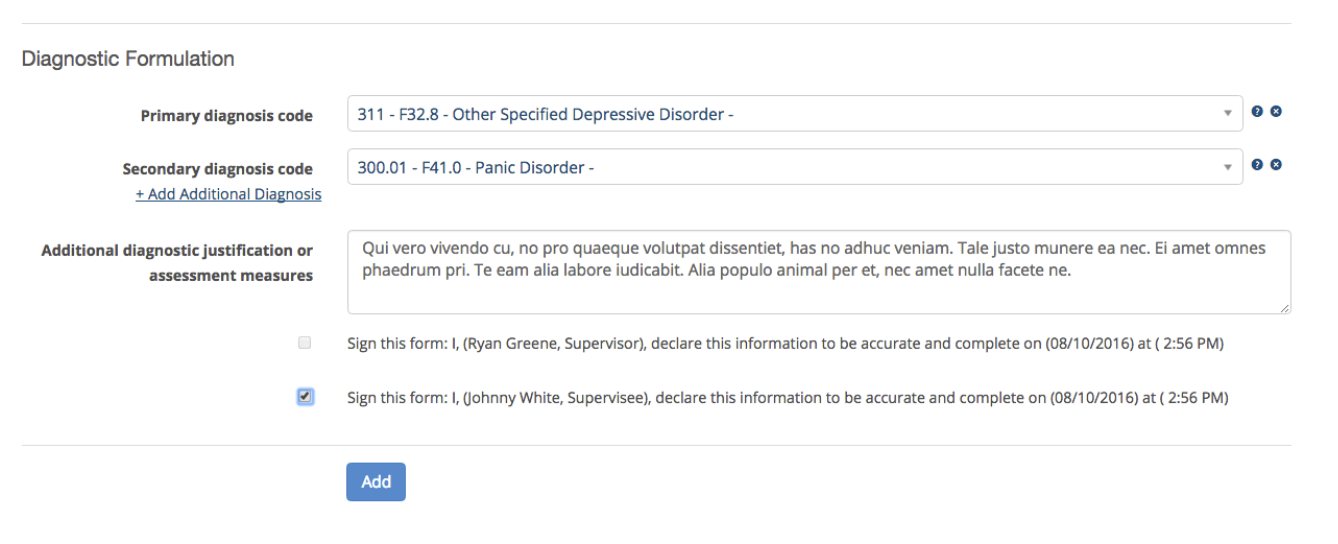
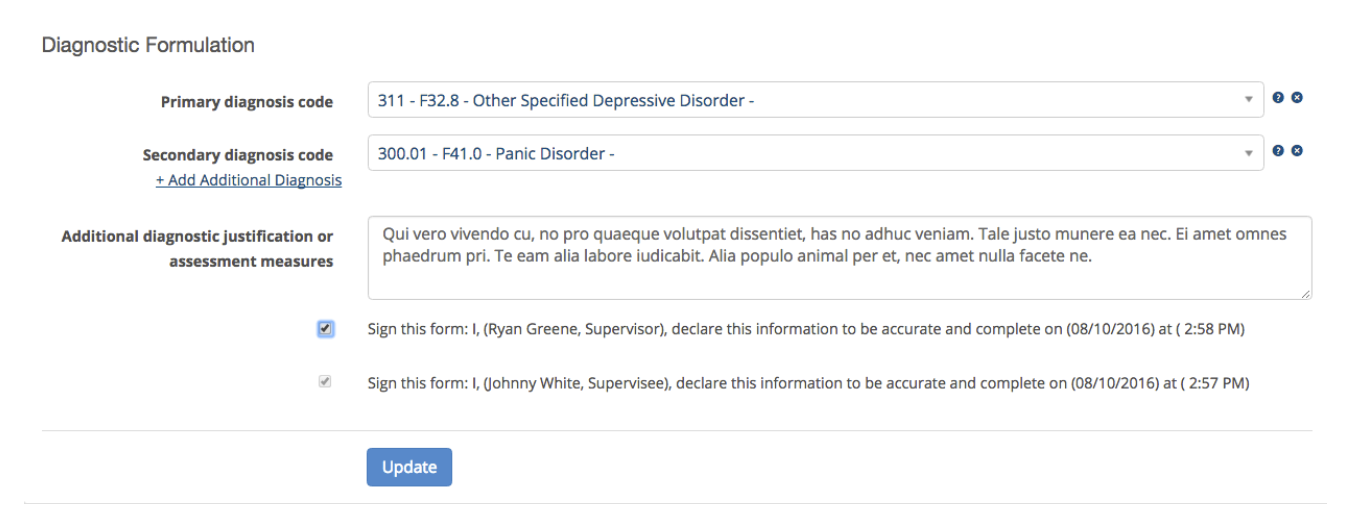
Supervisor's Signature
On the note example above, notice there is a second signature line for the supervisor. When a Supervisor logs in, a Task will be added to their task list on the bottom of their Dashboard to review the notes of a supervised clinician(s). When the supervisor is satisfied with the note, they can check the box to sign and update it.