Adding insurance providers to a Practice is a critical task so you can configure a client's insurance billing settings. Adding new insurance providers can only be done by the System Administrator or Assistance System Administrator of the Practice. Here is the process:
Step 1
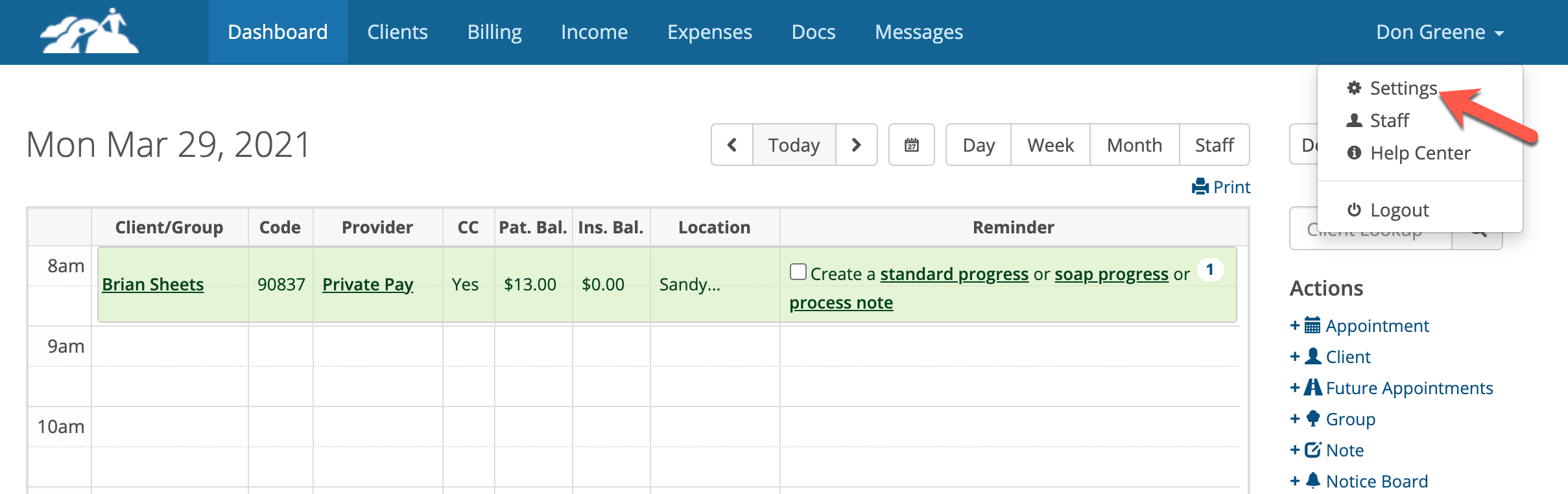
The system administrator logins into TherapyMate and clicks on their name in the upper right corner and chooses Settings.
Step 2
In the Practice Settings area click on "Insurance Companies and Other Providers".
Step 3
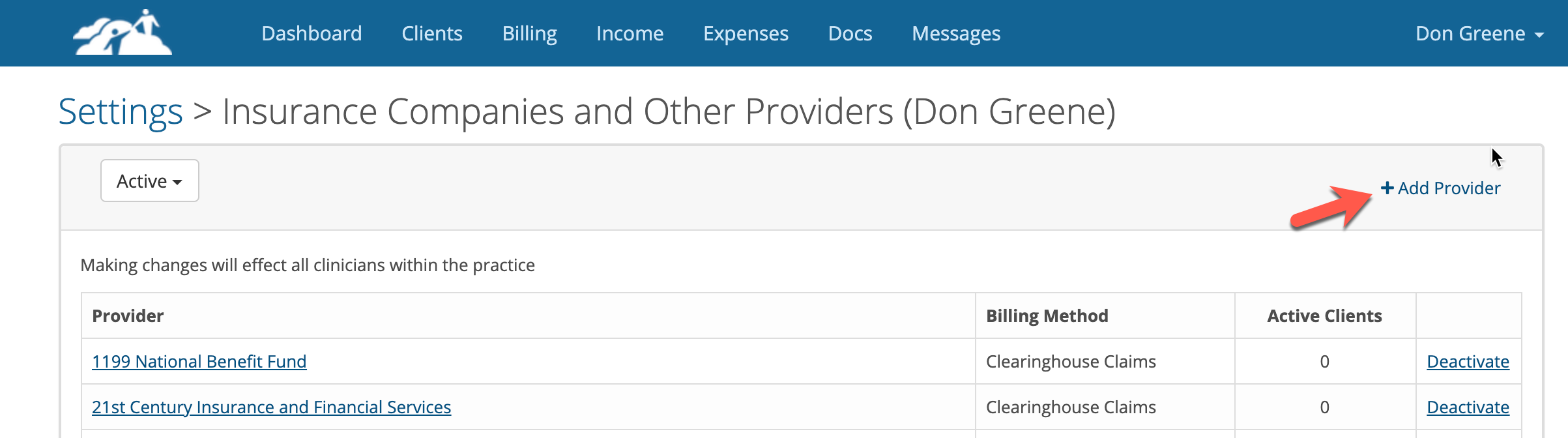
Click on the + Provider button.
Step 4
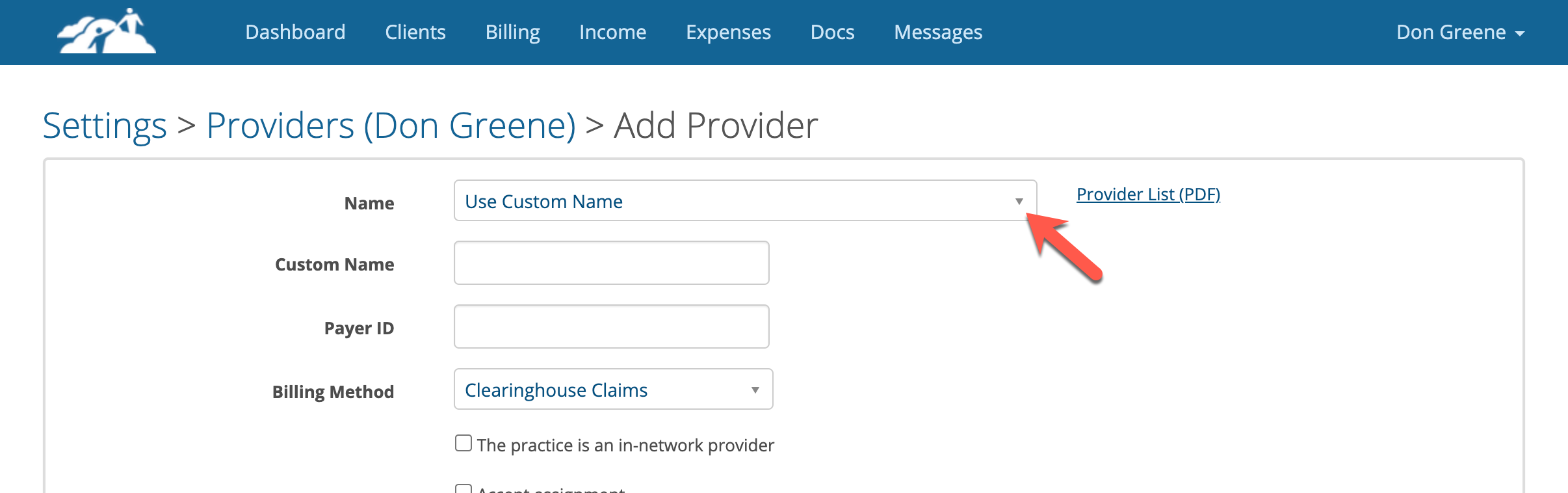
Locate the insurance provider in the "Name" dropdown.
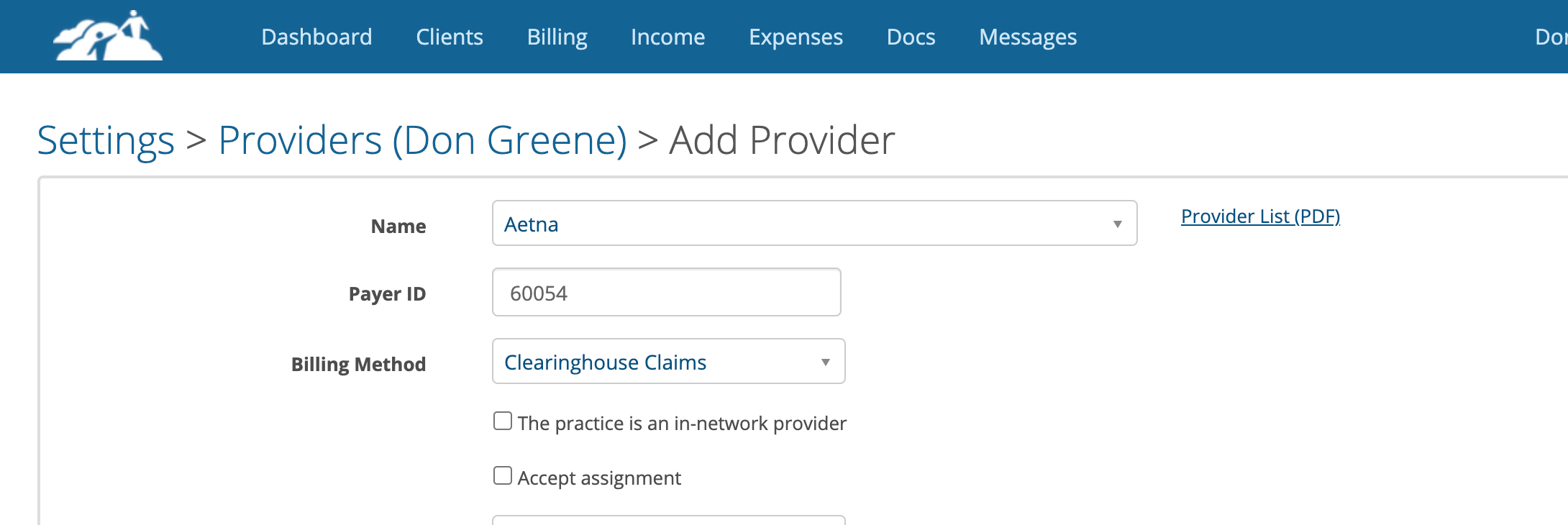
For example, if was was trying to add Aetna, I would click the dropdown arrow and type the word Aetna. When it appears in the list, click on the appropriate name. Notice that the Payer ID gets filled in automatically when you select a provider (see below).
Step 4-Alternative Provider Not Found
If you can't find the insurance provider you're looking for in the dropdown, you can add it manually. Leave "Use Custom Name" in the Name dropdown. In the "Use Custom Name" box type the name of the insurance provider and their associated Payer ID number in the Payer ID box. If you don't know the Payer ID number check the back of the client's insurance card or call the insurance company or your clearinghouse.
Step 5
Fill in the other parts of the Providers page. The highlighted boxes are important and usually required. The un-highlighted boxes are optional.
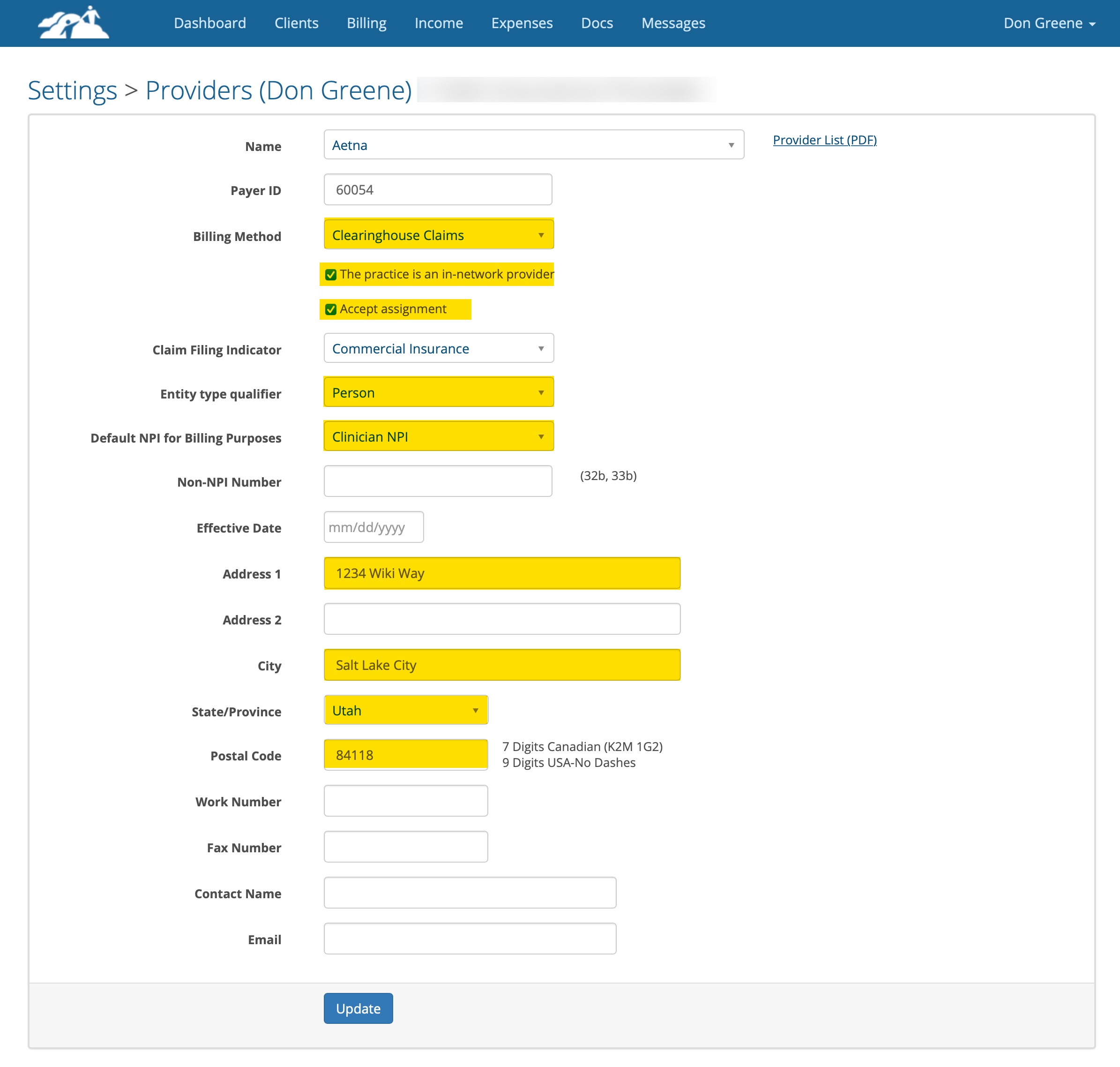
Billing Method-Select the billing method for the provider. For example, If you are going to submit the claims through a clearinghouse choose Clearinghouse Claims-Direct for Claim.MD. If you're going to print paper claims choose CMS-1500.
Check Box-The Practice is an in-network provider. Check the box if you are an in-network provider. Leave unchecked if you aren't.
Check Box-Accept Assignment. Checking this box will ensure that the insurance company will process the claims and sent any payments to the practice. Otherwise payments may go directly to the client.
Claim Filing Indicator-Most of the time you can leave the default as Commercial Insurance. Rare and special cases might require this to be set to something else and the particular provider can advise you. Some government agencies require this.
Entity Type Qualifier-Set this to "Person" if you are using a Solo Practice name for billing. Set it to "Non-Person" if you are using a Group Practice name for billing.
Default NPI for Billing Purposes-When you credentialed with the insurance provider you told them that you were an individual or group practice. Choose the appropriate option here.
Non-NPI Number-This is used to add the Taxonomy Code number that is associated with a providers licensure like LPCC, LCSW, PMHNP, etc to your claims. Here is an example taxonomy code for a LCSW, 1041C0700X. Not all insurance providers look for this information so use it as needed.
Enter the number in the Non-NPI Number box. Two other drop downs will appear.
Pick ZZ-Provider Taxonomy CMS-1500 for paper claims or PCX-Provider Taxonomy 5010A1 for electronic claims.
The two boxes will appear in the claims in the following locations:
Box 32B qualifier is for the service facility location taxonomy.
Box 33B qualifier is for the billing provider.
Address, City, State and Postal Code-This is the claims address of the insurance provider you are adding. You can find this address in your paneling agreement details, on the back of a client's insurance card or by doing a Google search. It is good practice to always add all 9 digits in the Postal Code box. Do not use a dash between the first 5 and the last 4 digits. This could cause claims to be denied and the eligibility search feature to fail.
Step 6
Click the blue Add button when done. The new insurance provider will be added to the master list of providers for the practice. If the practice has multiple providers, all of them will inherit the new insurance provider.