The System Administrator can add new users to TherapyMate and assign each person a role to perform specific job functions or gain access to information within the program. A user role or roles are assigned to each person before they can access TherapyMate. This gives personnel who work in your practice the rights they need to perform certain functions or see information.
There are eight different roles:
Clinician, Clinician (Fee for Service), Clinical Supervisor, Clinical Director, Assistant Systems Administrator, Accountant, Scheduler, Biller, Clinician Supervisor and Systems Administrator.
Clinician, Clinician (Fee for Service), Clinical Supervisor, Clinical Director, Assistant Systems Administrator, Accountant, Scheduler, Biller, Clinician Supervisor and Systems Administrator.
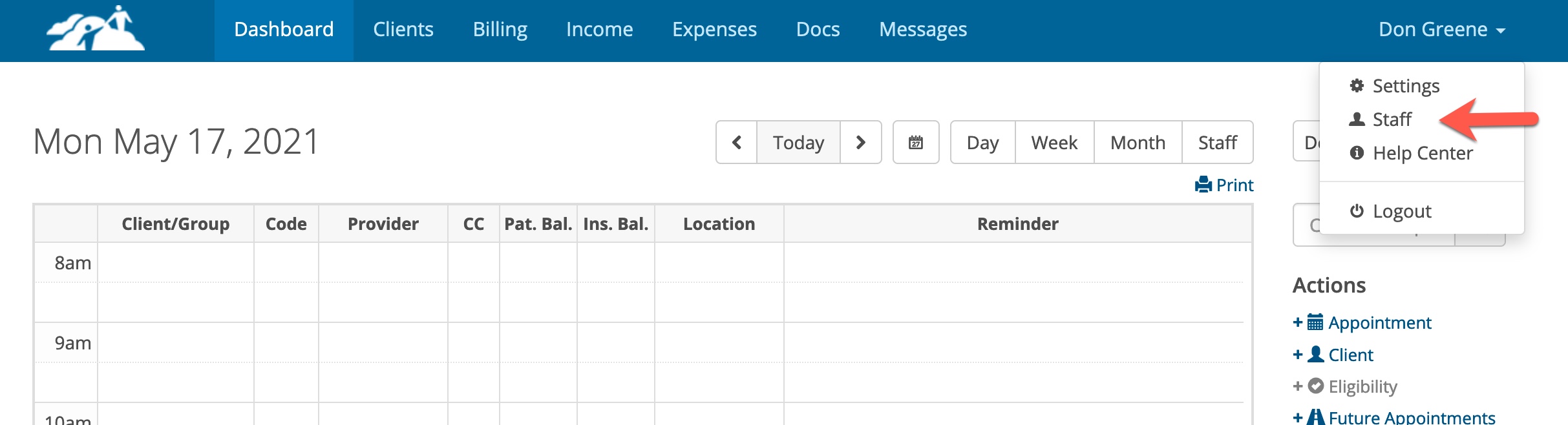
To add a new staff member the system administrator clicks on their name in the upper right corner and chooses Staff from the drop down.
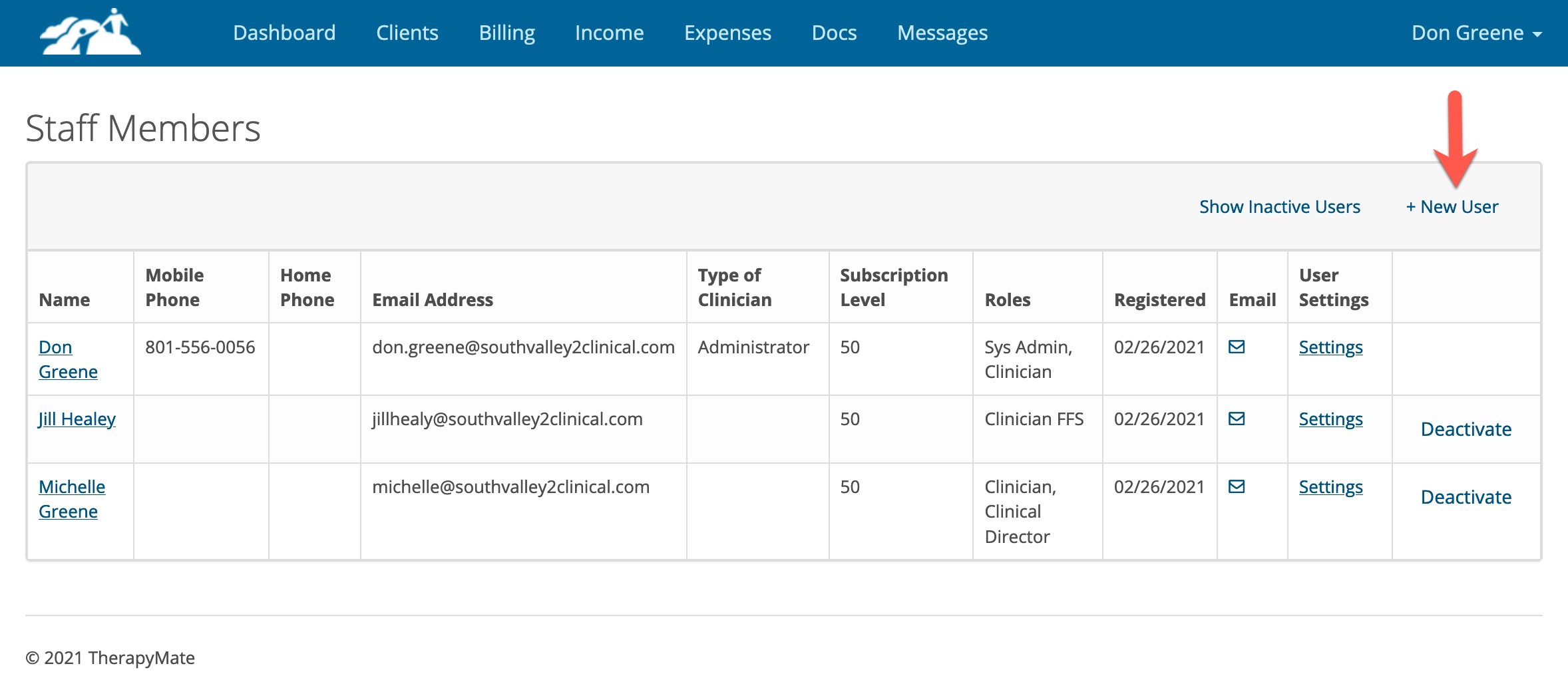
In the example below there are already three staff members. To add a new staff member click on +New User.
Fill in the text boxes on the left side of the page. The first and last name fields are required. Enter a valid email address for the new user. When the new staff member is saved, TherapyMate will automatically send the new staff member an email invitation so they can create a password and validate the account. Their email address becomes their username when logging into TherapyMate.
One the right side of the User Settings page is a list of Roles the person can have. Think about these as permissions to view or do certain things in TherapyMate. Check the box next to the role you wish to assign to this new staff member.
Assigning Roles
Pick a role that best describes what the new user will be able to see and do on the right hand side of the page above. Some users can have multiple roles. For example a clinician can also be a clinical supervisor and clinical director. Another example would be a person who will be your account, biller and scheduler.
When you're done selecting the user's role(s) check the agree checkbox and click the create button.
The staff member you just added will receive an email welcoming them to TherapyMate. It will ask them to create a password. When they create their password they will be able to access TherapyMate based on the role(s) you assigned them. If the person doesn't find the welcome email, have them look in their spam folder.
Multiple Role Assignments
More than one role can be assigned to a staff member. For example, A person could be a Clinician, Clinical Supervisor, Clinical Director, Assistant System Administrator and Practice Scheduler. Another example could be a Staff member is given the Accountant, Biller and Scheduler roles. Be careful when assigning multiple roles that you understand what the Staff member will have access to in the program.
Copy Settings from an Existing User
The System Administrator can create a new Clinician and clone the settings of an existing clinician.
Here are the settings that can be cloned:
Check the checkbox next to Copy Settings from Existing User?.
Select the Clinician role you wish to clone.
Select the settings you wish to clone. You can check the boxes individually or click the Select All button.
Be sure to choose a clinician role and then click the Create button at the bottom left corner.
The new clinician will automatically inherit the settings from the specified clinician that were chosen.
Make sure you configure the new clinician's Clinician Profile Information Page after you create them. This page is not cloned.