You can download and save your notes to a PDF file or print them to your printer.
Be aware that your browser settings may affect the process of how the notes are downloaded saved or printed. Apple's Safari is a good example of being a little different than other browsers when it comes to downloading the notes to a PDF and keeping the file size as small as possible.
Preparing the Download in TherapyMate
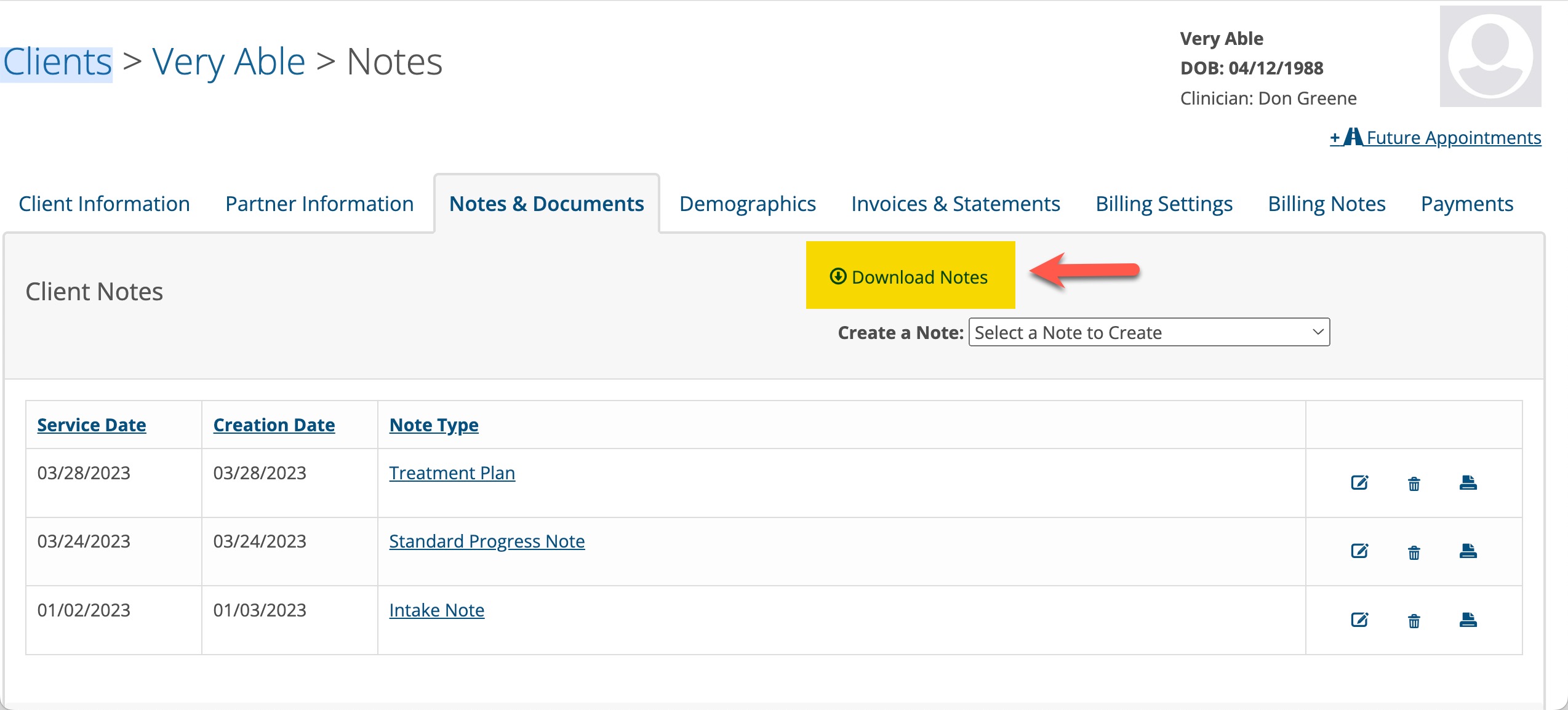
1. Go to the client's notes and documents tab in their chart and click on Download Notes as shown below:
2. Check the checkboxes in the Service Date column to select the notes you wish to download. You can select one or many as needed.

3. Click on the Generate Download button in the lower left corner. In the Generated Downloads area at the bottom of the screen you will see the Status. Generatering means it is working on the download.
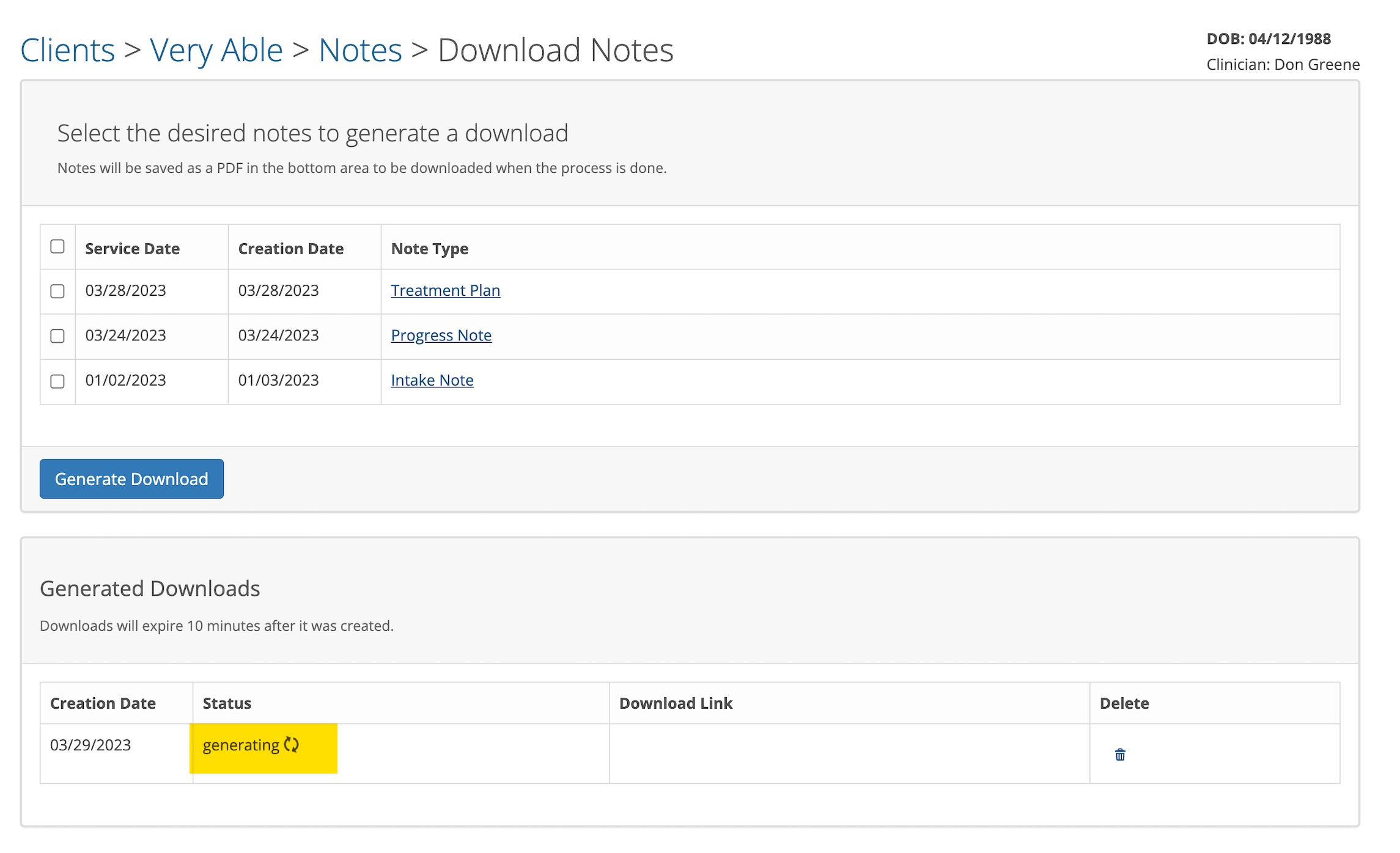
When the download is finished, the resulting PDF will appear in the Generated Downloads area. Please note: The download link will expire in 10 minutes and disappear, so download it as soon as possible or you will have to start over.

You can click on the download link in Safari the notes will appear on your screen. You can print them on your printer or save them as a PDF file to your computer.
If you choose to save the file as a PDF, click on the File menu option at the top of your Safari window and choose Export to PDF.
This will save the file to the location of your choosing on your computer in the smallest file size possible. Smaller file sizes are easier to send to the client via TherapyMate's Messages feature.
We also recommend that you install the free version of Acrobat Reader on you Mac. This is very handy tool for viewing PDFs in general.