If you need to download the documents from one client chart and upload them to a duplicate client chart for the same person these instructions will show you how to do that using Microsoft Windows.
Login to TherapyMate and locate the client on the Clients tab on the blue menu bar.
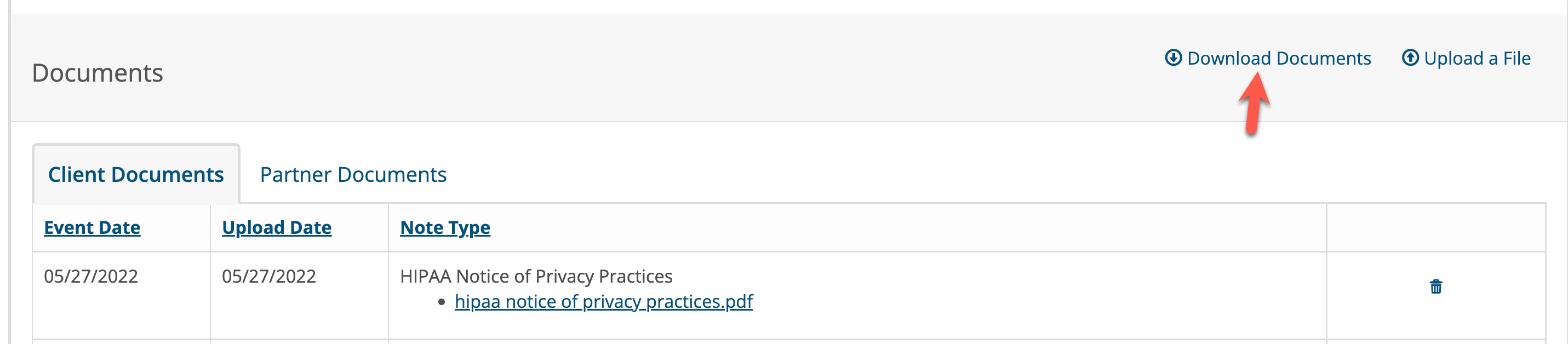
When you have the client chart open click on the Notes & Documents tab. Scroll down the page to the document section.
Click on Download Documents.
On the download page choose the documents you wish to download by clicking on the check boxes on the left side of the page. If you check the box next to Event Date it will select all of the documents.

Click the Download button in the upper right corner to download the selected files. It might take a few seconds for the documents to be downloaded to your computer so be patient.
When the files are downloaded, they are saved in a single ZIP file. The ZIP file contains all of the files that you selected from the client's chart. The file name will appear in the lower left corner of your browser window and gets saved to your downloads folder on your computer with a file name format similar to the one below:
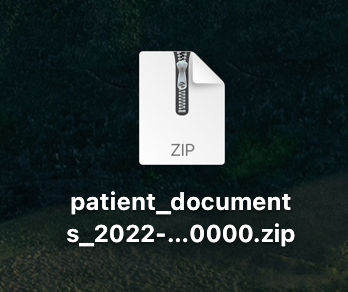
Go to your downloads folder in Windoes and double click on the ZIP file to expose a list of files that it contains.
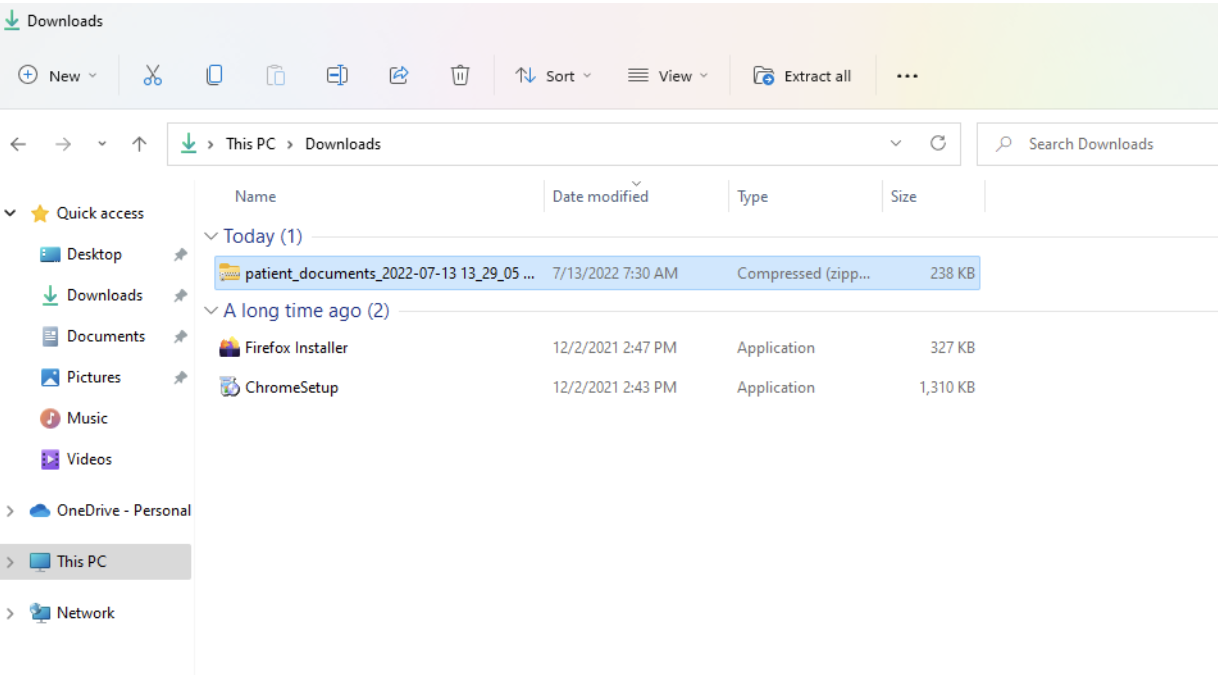
Here is an example of what that list might look like:

Hold down your CTRL key and click on each file with your mouse or track pad to highlight each one as shown above.
With your mouse or track pad, click and hold down the left button and drag the highlighted files to your desktop with your mouse.
When the files are on your desktop, you are ready to upload these files to the other client chart using TherapyMate.
Login to TherapyMate, if necessary and locate the client chart where you need to upload the documents that you just dragged to your Windows desktop. In this example we are going to upload the documents to Larry Alder's chart who is assigned to clinician Randy Becker.
Click on Larry's notes and documents tab. Now click on the Upload a File button

Now click on the Choose Files button.

Choose the files you wish to upload by holding down your CTRL key and highlighting each one of them. Click on the Open button when done.
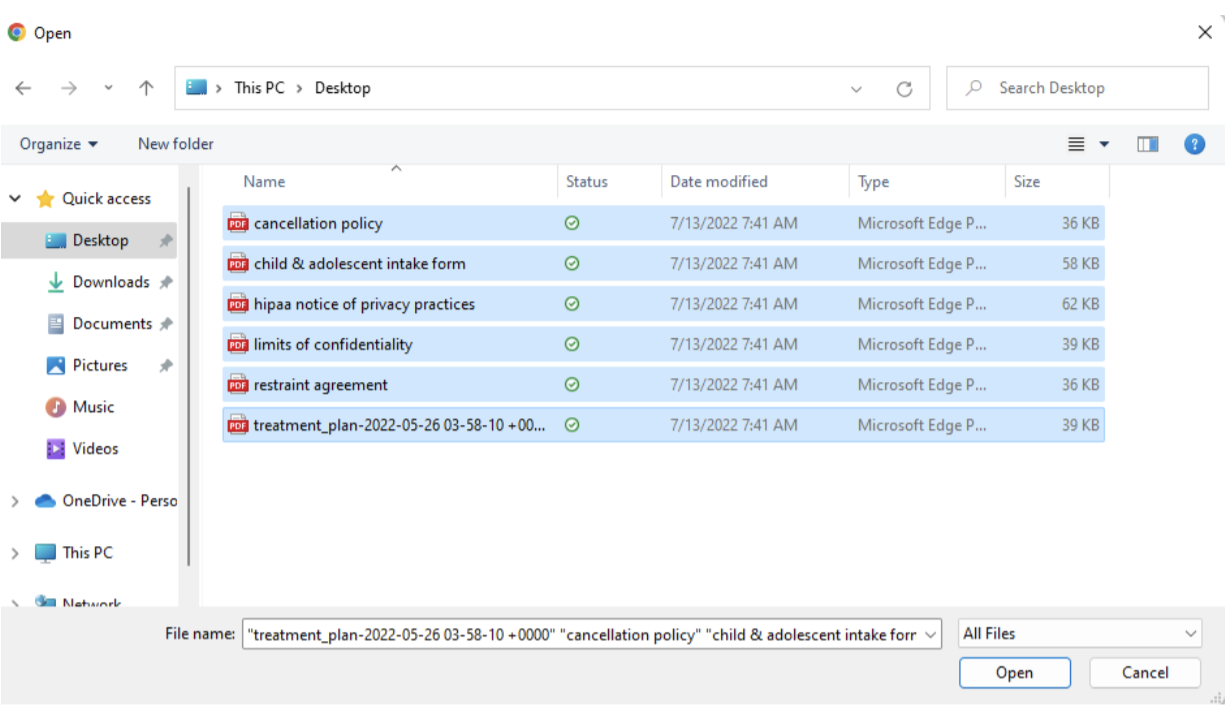
In TherapyMate you will see the number of files you selected next to the Choose Files button. In this example there are 6 files.
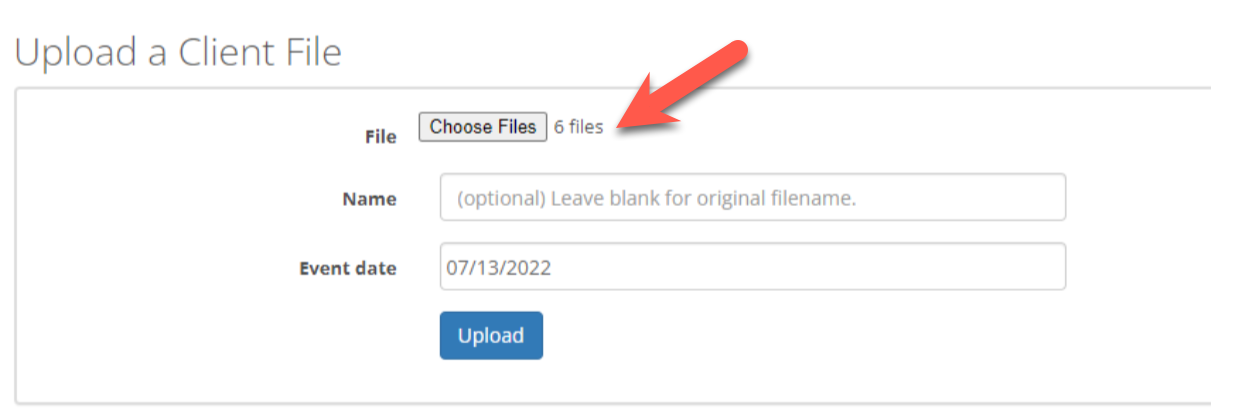
Click the blue Upload button to complete the process. Now look in the client's document section to see the uploaded files.

This completes the transfer of files from one client chart to the other.