What is Two-factor Authentication
Two-factor authentication (2FA), sometimes called Multi-factor authentication, is a security measure that requires more than one method of authentication from independent sources to verify the user’s identity. This means that in addition to a username & password, a user must also provide another form of authentication, such as a fingerprint or a one-time code displayed on an authenticator app, to access an account or system.
The benefits of using 2FA are numerous. First and foremost, it helps to prevent unauthorized access to accounts and systems by adding an additional layer of security. It also makes it more difficult for attackers to compromise accounts, as they would need to obtain multiple forms of authentication to gain access. In addition, 2FA can help to reduce the risk of account takeover and other types of cyber attacks. It can also provide additional peace of mind for users, knowing that their accounts are better protected.
A time-based one-time password (TOTP) is required which is a temporary passcode generated by an algorithm that uses the current time of day as one of its authentication factors. Each code is valid for 30 seconds, after which a new code will automatically be generated by the authenticator app. Setting up TOTP requires a TOTP authenticator app or device.
Therapymate supports two-factor authentication via TOTP on a per user basis. Most TOTP authenticator apps like Authy, Apple Passwords or Google Authenticator work just fine. We also support backup codes in case you lose your TOTP authenticator app.
Enabling Two-factor Authentication
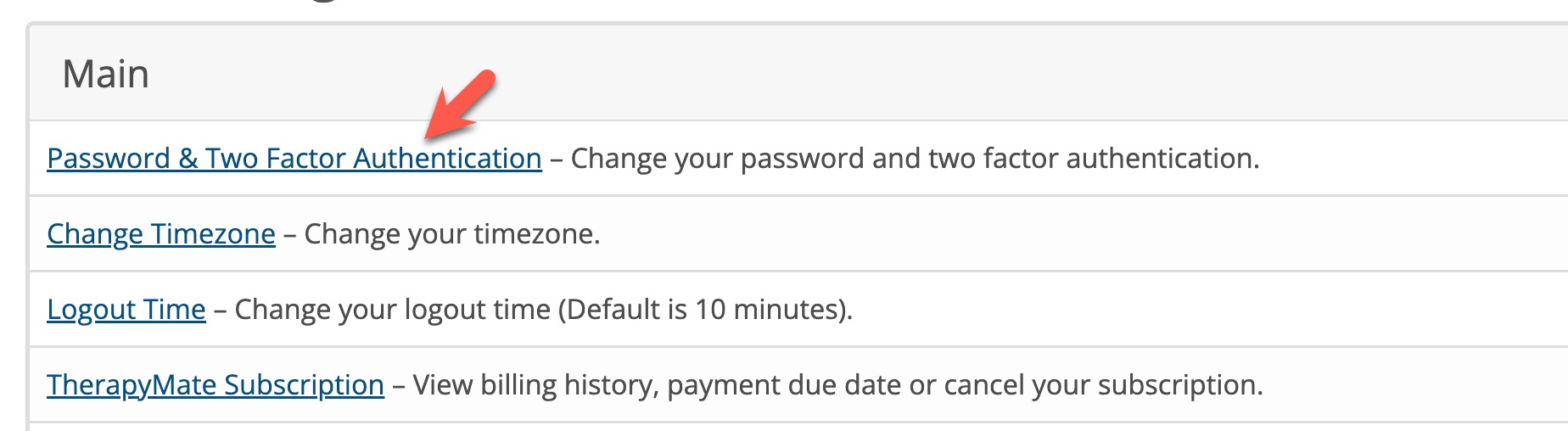
To enable the two-factor authentication feature in TherapyMate, go to your main settings page by clicking on your name in the upper right corner of your Dashboard. Choose Setting from the drop down menu. On the next page, click on the menu option Password & Two Factor Authentication as shown below.
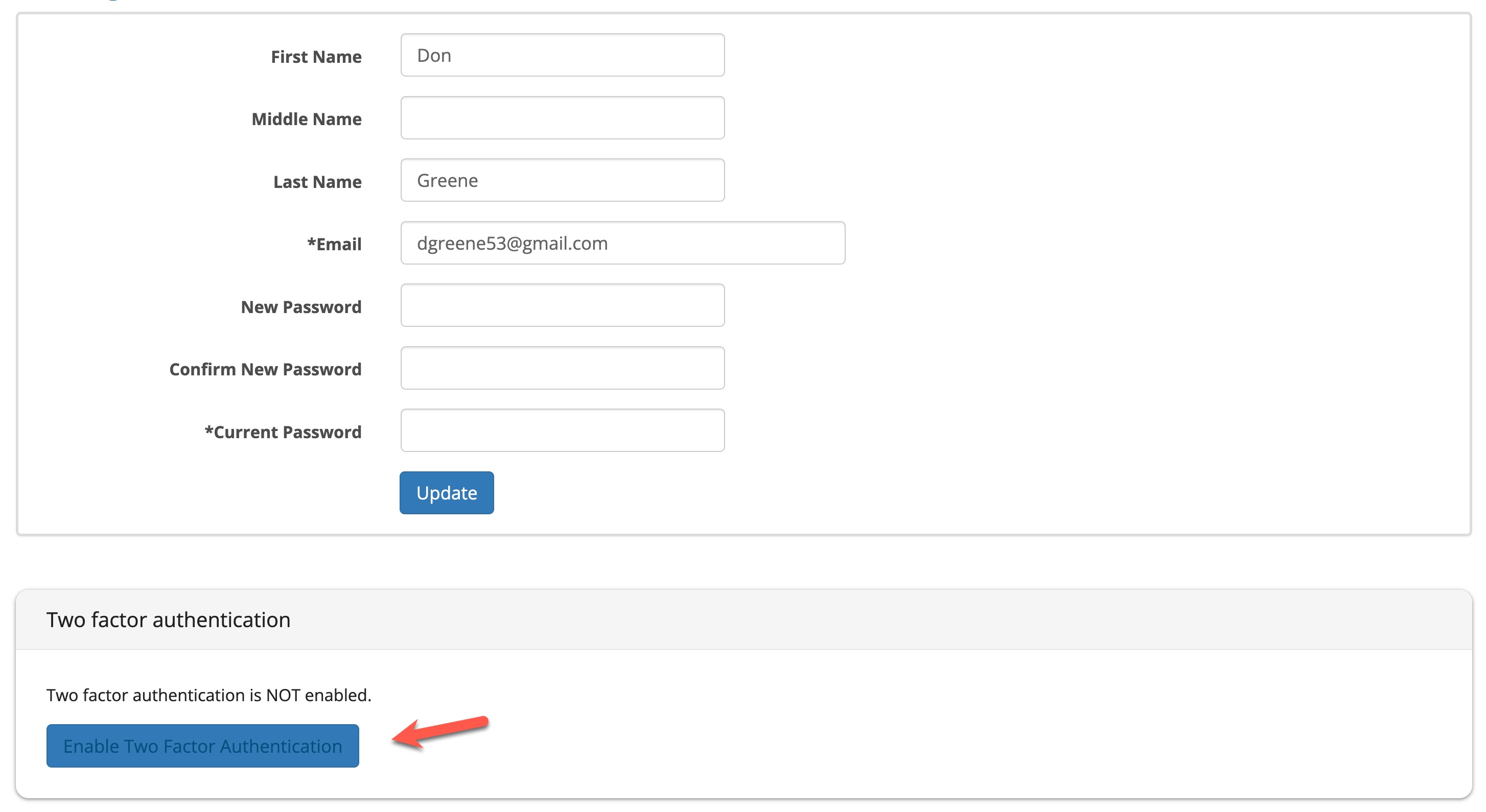
On the next screen you will see options for changing your TherapyMate password and enabling two-factor authentication. Click on the blue button at the bottom of the screen to start the enabling process for two-factor authentication.
Scan the QR code using an OTP compatible app (such as Authy, Apple Passwords or Google Authenticator)
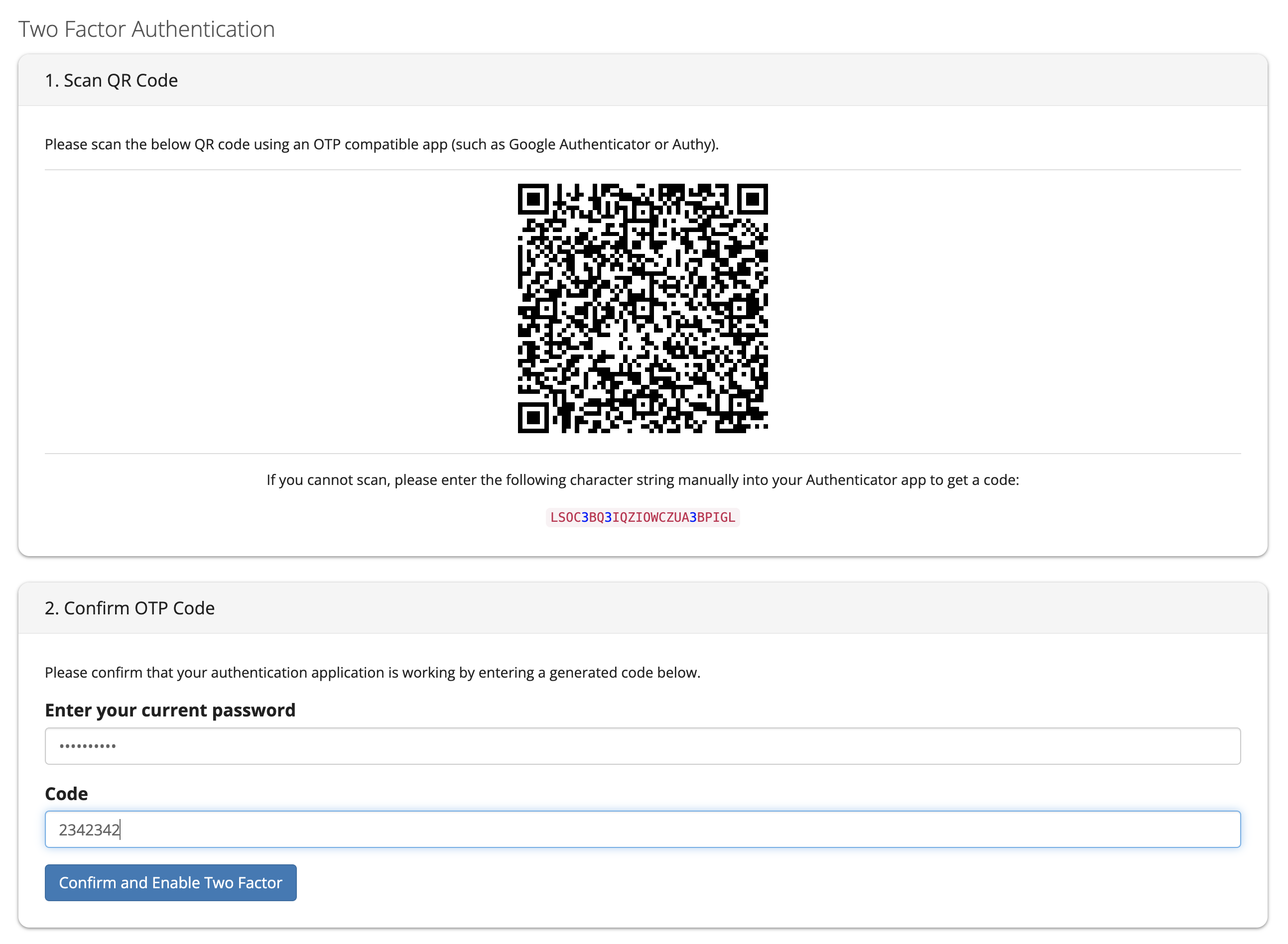
Enter your TherapyMate password and the code from your authenticator app in the example above.
Click the blue Confirm and Enable Two Factor button
A list of backup codes will appear on the next screen similar to the following example:
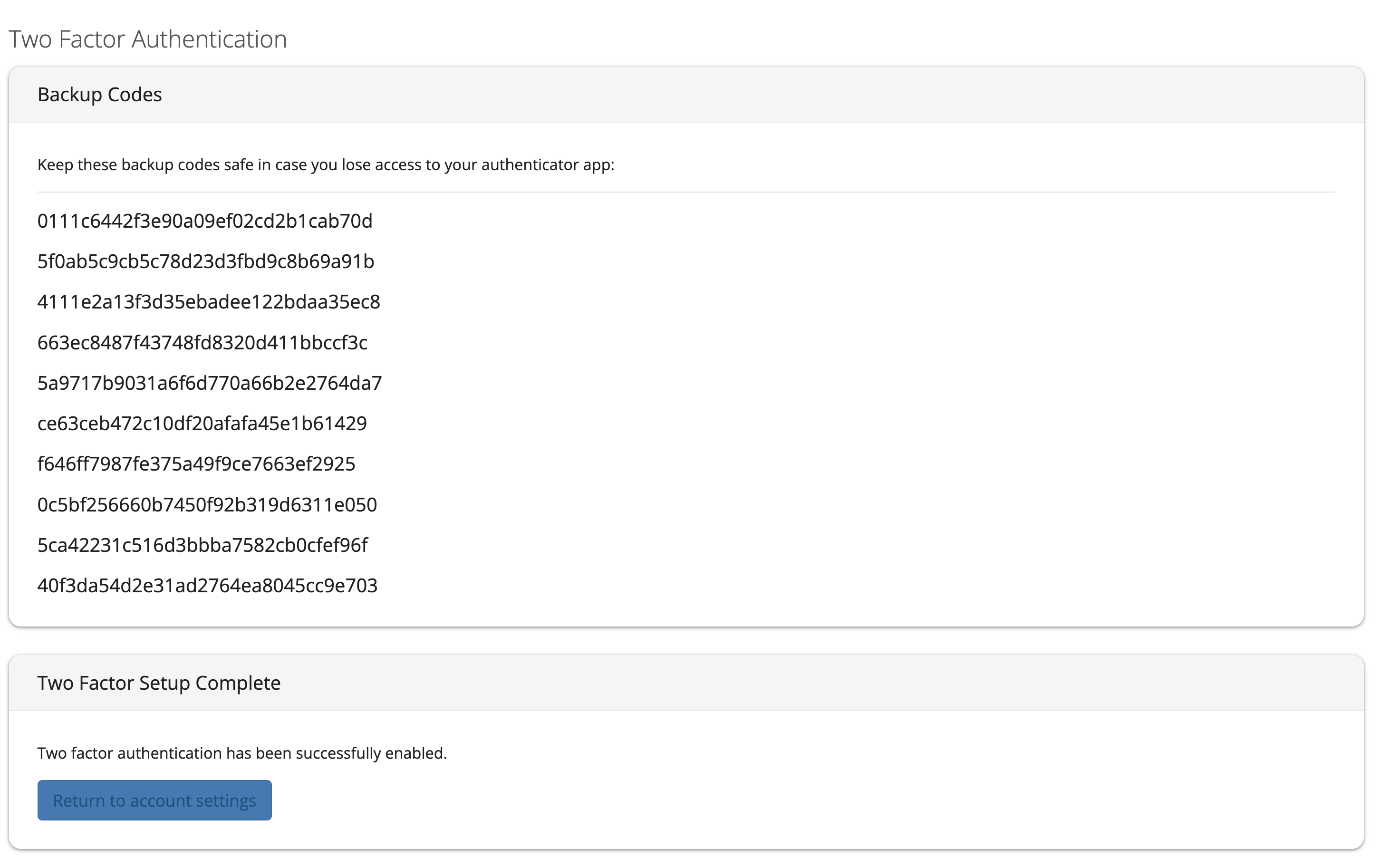
Save these backup codes in a secure location in case your authentication app is not available. lost or not working.
Enforcing Two-Factor Authentication for the Entire Practice
It is possible to force all staff members to use Two-Factor Authentication. There is a Practice settings option calle Practice Security.
Click on the link called "Two-step login'.
If the Enforcement radio button show "On" that will force users to use Two-factor Authentication. There is also a drop down you can set to allow new staff members a period of time before they are forced to use it.
Disabling Two-Factor Authentication
To disable the two-factor authentication feature in TherapyMate, login (use a backup code if necessary), go to your main settings page by clicking on your name in the upper right corner of your Dashboard. Choose Setting from the drop down menu. On the next page, click on the menu option Password & Two Factor Authentication.
At the bottom of the next screen, click on the red Disable Two Factor Authentication button.
A message will appear asking if you want to cancel or delete. Click the blue Delete button to disable two-factor authentication.

Starting Over
Let's say your authenticator app isn't working on your mobile device or computer. Delete the TherapyMate profile from your authenticator app.
Login to TherapyMate (with one of her Backup Codes if necessary) and then go to your main settings page and click on Password & Two Factor Authentication.
Then click on the red Disable Two Factor Authentication button.
After it is disabled, you will see the following screen to start over.
Take a picture of the QR code with your camera and enable it again by putting in your TherapyMate password and the authenticator app code.
Click the Confirm and Enable Two Factor button.
This should get you up and running with 2FA again.
Checking Staff Member Participation
The System Administrator for the Practice can look to see if members of the staff are enrolled in two factor authentication. The System Administrator can see a column on their Staff page indicating whether or not a staff member has enrolled.
A System Administrator can also generate backup codes on behalf of a staff member is needed on that same page for enrolled members.