This article will help you add and enable the use of Procedure Code Modifiers for each clinician.
Step 1
Go to your Settings page by clicking on your name in the upper right hand corner of your Dashboard and choose Settings from the drop down.
Step 2
Click Procedure Code Modifiers (shown below)
Step 3
To enable Procedure Code Modifiers check the box as shown. There is no save button. After is is checked you can navigate away from the page.

When your Procedure Code Modifiers are turned on you'll be able to select them in the new appointment window when you're scheduling clients. Select the correct Code Modifier from the drop down as needed.

Step 4
If you need to add a new Procedure Code Modifier click on the + Add Procedure Code Modifiers button in the upper right hand corner

Step 5
Add a "two letter" modifier and a "short" description of that modifier as shown below:
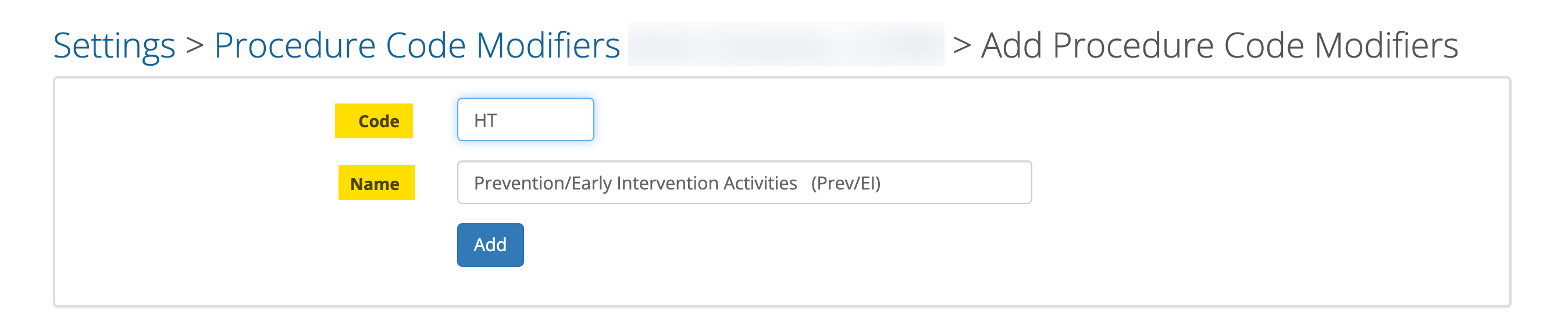
If you need to add procedure code modifiers for Telehealth, the most common modifiers are 95 and GT. The description for each should be "Telehealth Audio & Video Communications"
Click the Add button when done.
The new Procedure Code Modifier has now been added to your list.
FYI...if your Practice has more than one clinician, you need to repeat this process for each clinician on their settings page.