This article contains some important information about the way Demographics are collected, used and flow within TherapyMate.
Client Supplied Demographics
There is a client portal feature that can require new clients to enter their Demographic information when they first login to the client portal. This feature can be turned on/off for the entire Practice as needed. It is off by default.
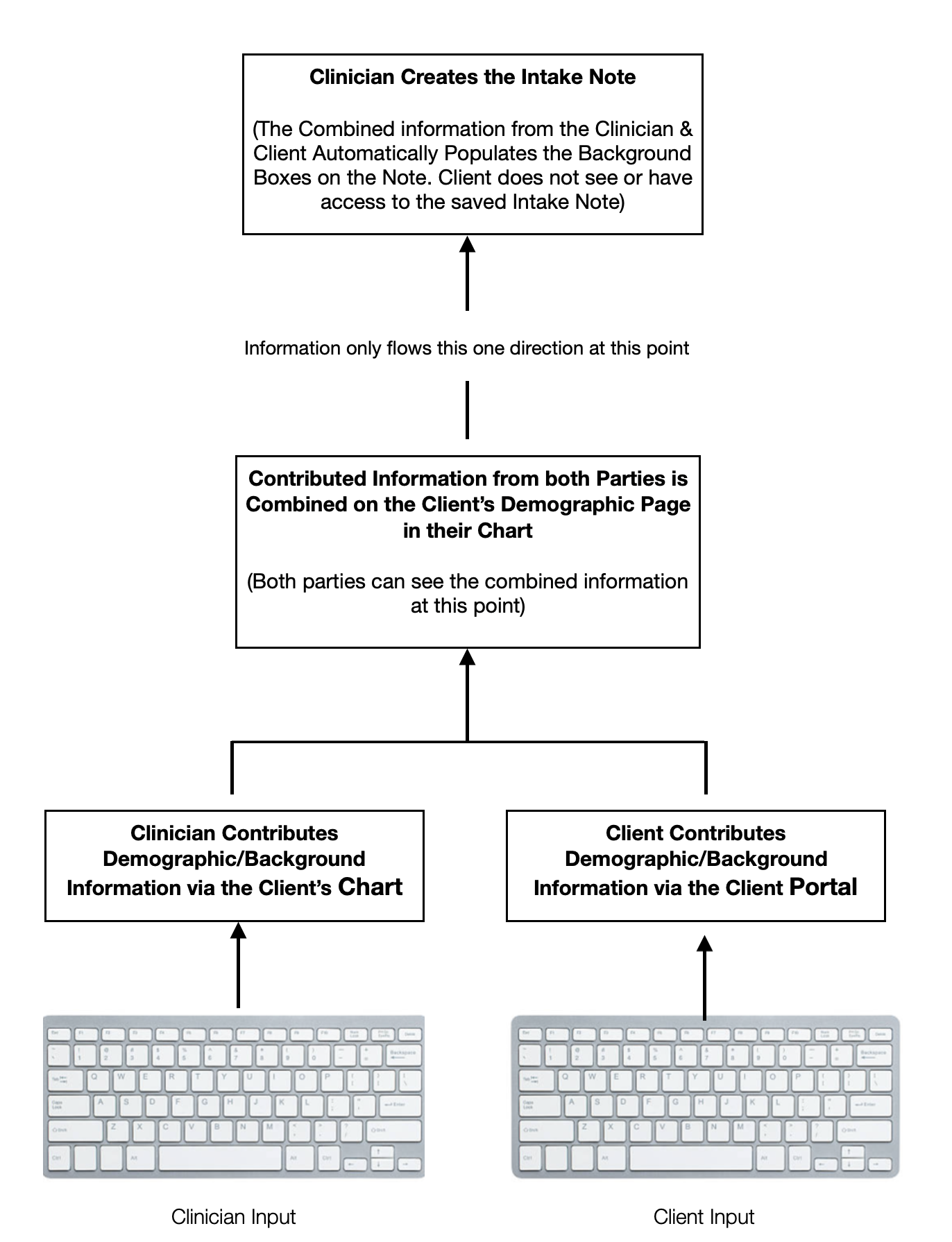
If a client provides this information via the client portal, it is saved on their Demographic page in the portal AND the information gets save to the client's chart on the Demographics tab for the clinician to see. Each box requires at least 3 characters. If the item isn't applicable the client can type N/A in the box.
When the client completes the Demographic page and saves their information the client will not be able to go back and do any edits. When the client goes to save the page there is a warning telling them they can't make changes later. The page will be locked.
If the client wants to revisit the demographic page after it is locked, there is an Unlock button on the demographic tab in the client's chart that a clinician can click to unlock the page so the client can login again to the client portal to make changes to their information.
Clinician Supplied Demographics
A clinician can also add more information the client's Demographic information in their chart. If the item isn't applicable the clinician can type N/A. Each box requires at least 3 characters.
If the client portal demographic feature is turned on, the client will be able see the information entered by the clinician when they login to the client portal.
FYI...if the clinician completes the client's demographic page before the client has a chance via the client portal, the client will not be able to contribute any new information via the client portal. The page will already be LOCKED to prevent the data from being overwritten. If the client's demographic page is locked for any other reason, the clinician can UNLOCK the page by clicking on the button shown below:
When the page is UNLOCK, the client can login to the client portal to add informaton, make changes or remove information on their demographics page. Changes made by the client will be reflected in their chart automatically. If an Intake Note has already been done, the changes will NOT display on the note.
Creating an Intake Note
When the clinician creates an Intake Note, the information provided by the client and/or clinician automatically populates on the Intake Note in the appropriate fields. The client doesn't not have access to the Intake Note. If the clinician adds additional information to the demographic background boxes on the note, that information does not populated backwards to the client's demographic tab or to the client's portal demographic page.
PLEASE NOTE: The demographic page in the client's chart should be completed by the clinician and/or client BEFORE the Intake Note is started. Otherwise the boxes will be blank on the Intake Note.
After the Intake Note is created and saved, any new information entered on the Demographic pages by the client or clinician will not be shown on the Intake Note.
In the future, if a new Intake Note is created, it will grab the most recent version of the Demographic page to populate the note. In other words, if the Demographic page has new information that was added since the previous Intake Note was created, that additional information will be included in the new Intake Note.
Clients do not have access to or can see the Intake Note.
Information Flow Chart
Word to the Wise
When a clinician adds information to a client's demographic page it is best to add information that was discussed with the client first. Entering information that you wouldn't want the client to see should be avoided for many reasons.