There are two reports that you can run to find all of the unsigned client notes.
1. A clinician can run a report to find all of the notes they haven't signed.
2. A supervisor can run a report to find all of the notes they haven't reviewed and signed for their supervisee(s).
At the top of your dashboard there is a menu item called "Reports".
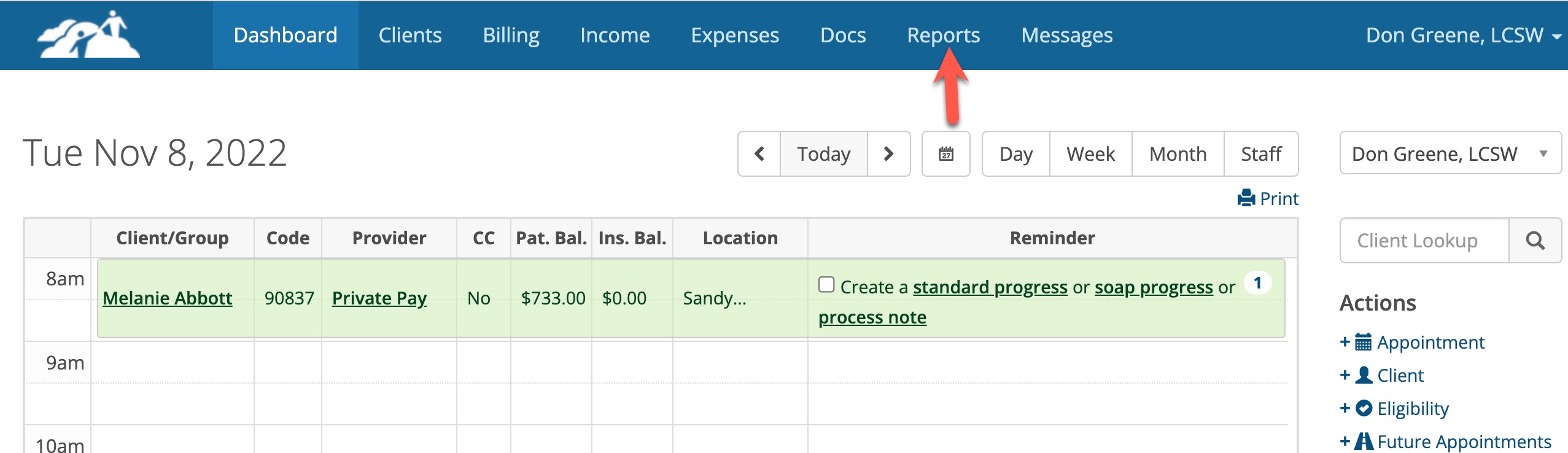
Click on Reports and you'll see the following options:
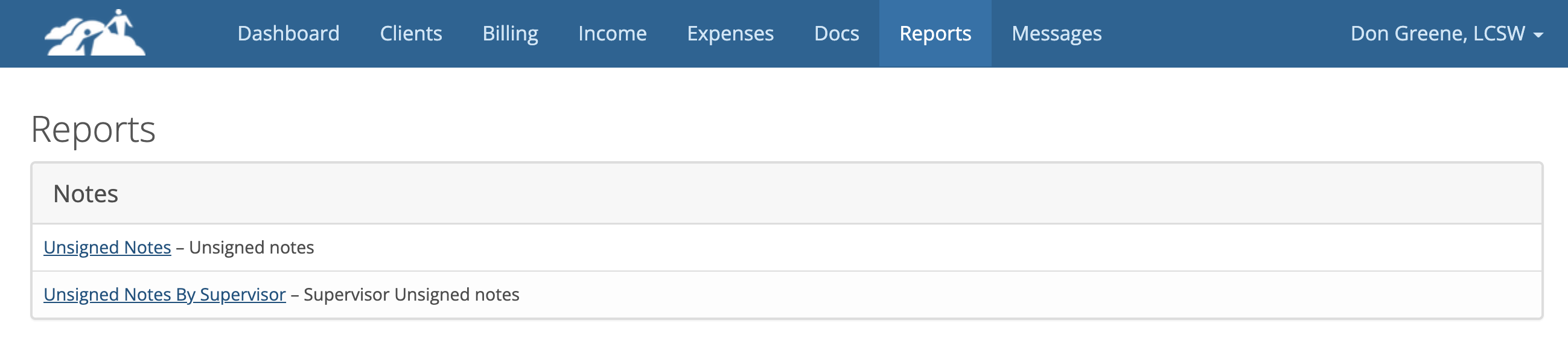
Unassigned Notes
This report can be run by a clinician to find all of the notes they haven't signed. The list can be sorted by note type. The default is All Notes. If a selection is made from the drop down click the "Filter" button to update the list.
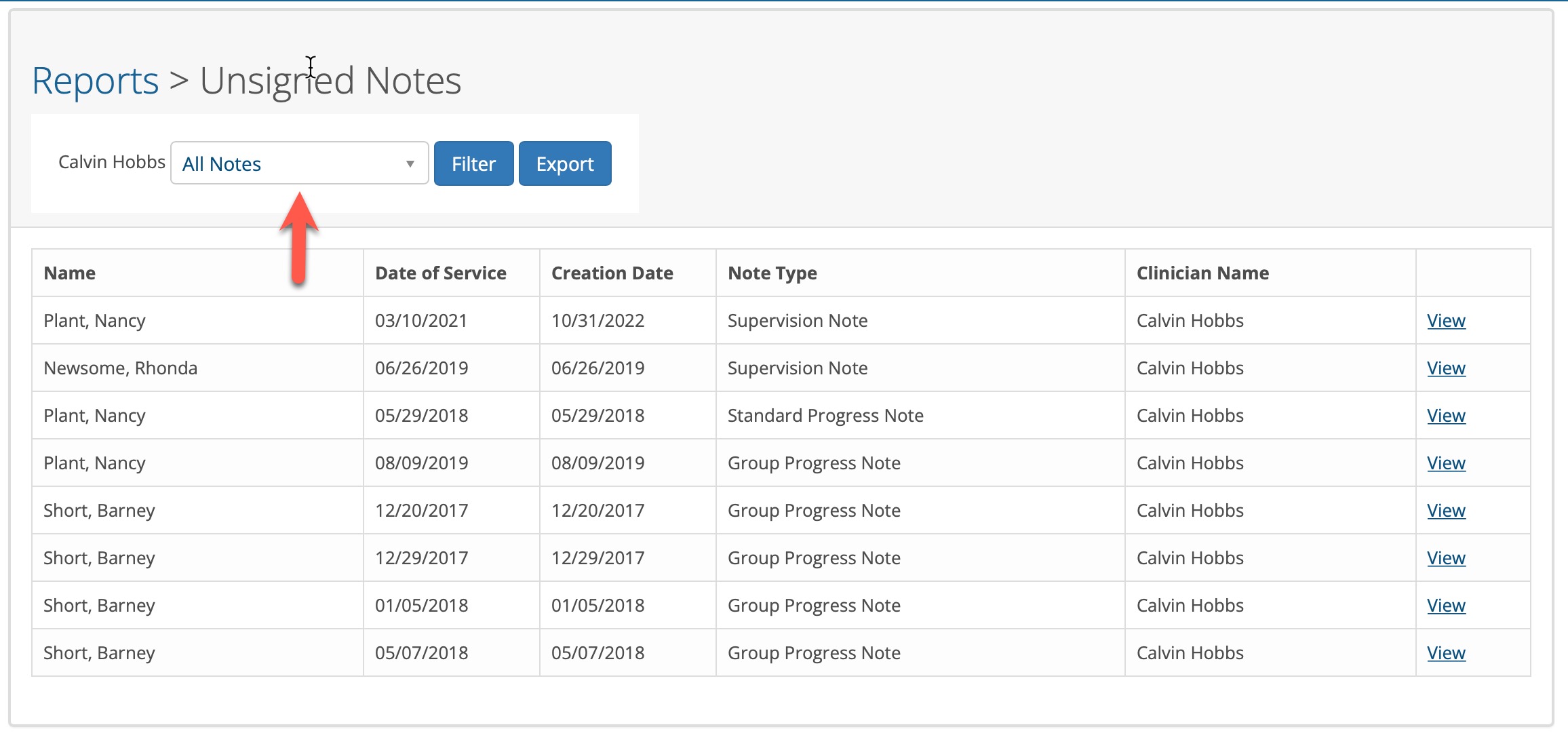
An individual clinician will only see their own unsigned notes. A System Administrator or Clinical Director has an option to select any of the clinicians in the Practice to view their list.
The list of unsigned notes can be exported by clicking the Export button. The export file is a spreadsheet compatible file.
To sign a note the clinician clicks on the View button which takes them to note.
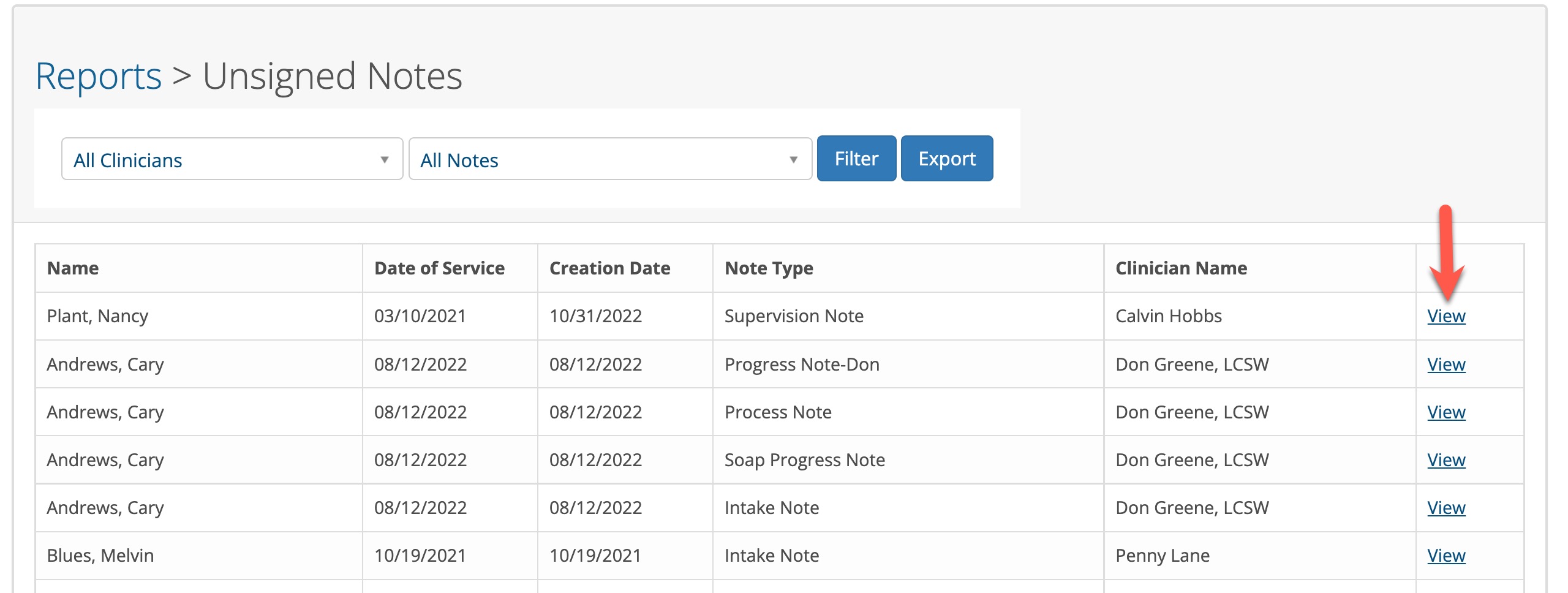
The note is opened in edit mode so the clinician can review and sign the note.
When the note is signed and saved, the clinician will be returned to the Unsigned Notes page so they can work on any additional notes they may have in their list.
Supervisor Unsigned Notes
This report can be run by a clinician or a supervisor to find all of the notes that haven't been signed.
A System Administrator or Clinical Director has an option to select any of the clinicians in the Practice to view their list.
The lists can be sorted by note type. The default is All Notes. If a selection is made from the drop down click the "Filter" button to update the list.
A clinician can see any unsigned notes that haven't been reviewed or signed by their supervisor.
The process for the supervisor is the same as above. The supervisor clicks on View to review and sign the note.
When notes have been signed and saved, they will disappear from the lists.