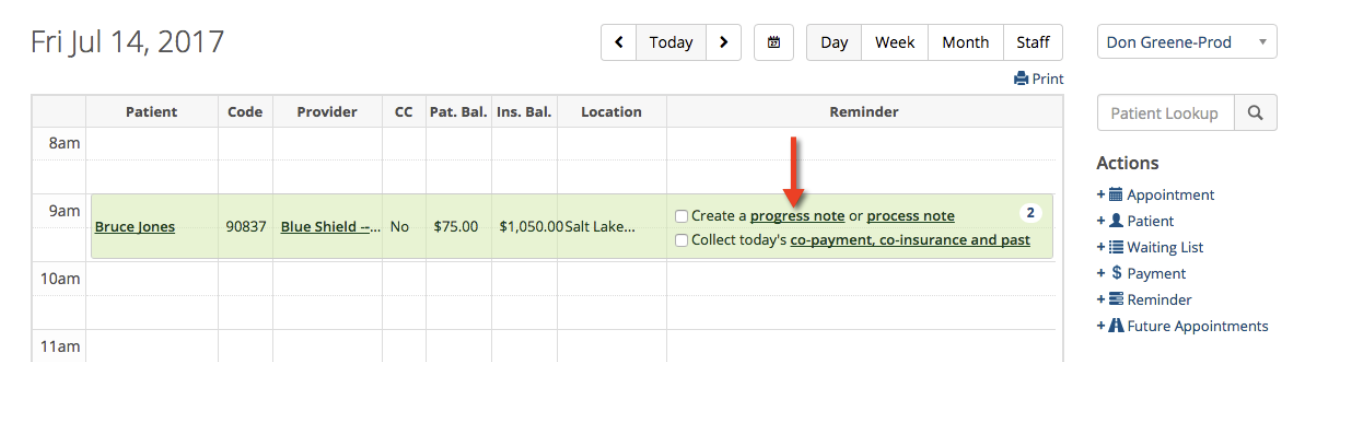
The date that gets assigned to a note is usually assigned automatically when you click on the Dashboard reminder for the note you wish to create. This ensures that the appointment date and the date on the note match. When the note is created and signed, the reminder will disappear from the Dashboard.
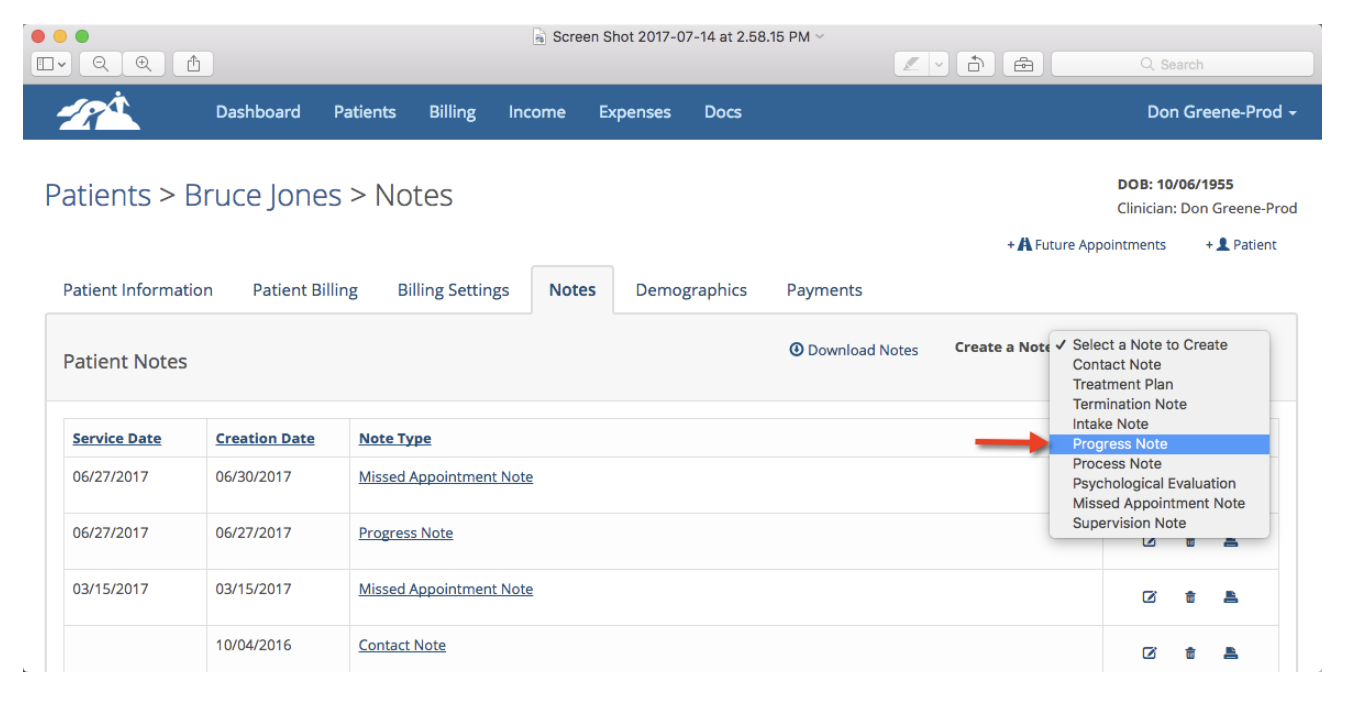
If you go directly to the client's chart and enter the notes page, you can create the note from there by clicking on the Create a Note drop down. This makes it easier to find older dates of service that you may not have created a note for.
Select the note type you wish to create from the drop down. Notice that it will default to the newest appointment date. BE VERY CAREFUL to pick the correct date for the note you are intending to create.
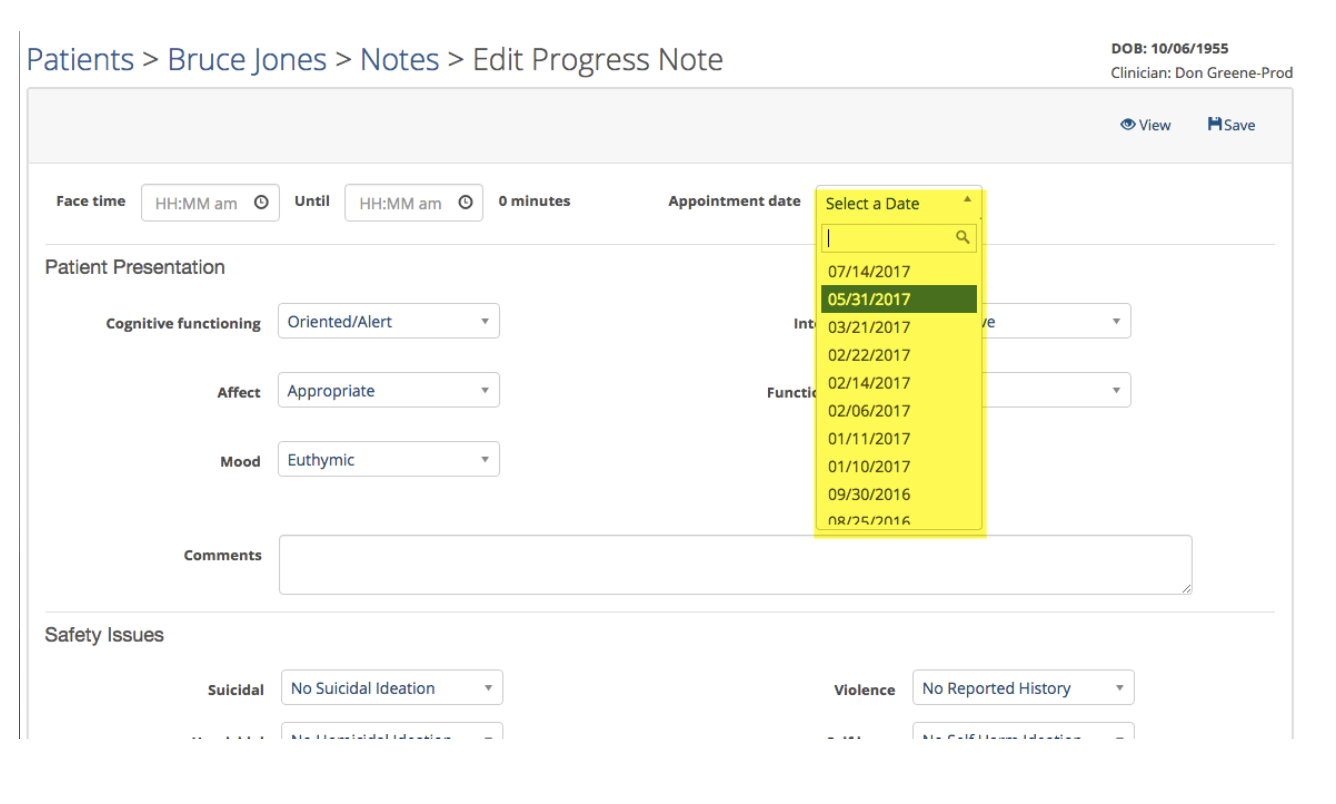
If the drop down contains no dates of service that means you are all caught up with your notes for that patient or there wasn't an appointment on your calendar for the date you are looking for.
Once you have created and signed your note for the desired date of service it will be saved to the client's notes area.
Once you have created and signed your note for the desired date of service it will be saved to the client's notes area.