Patients can be re-assigned to other clinicians in the practice. When this happens, there will now be two client charts in the system, one that is assigned to the original clinician and a new one assigned to the new clinician. If the patient needs to be seen by multiple clinicians in the practice you can do as many re-assignments as necessary so each clinician can maintain a chart on the patient.
When a patient is re-assigned, the original clinician will still have access to their patient’s history, billing information, payment history during the time they saw the patient and will still get credit for the income. The original clinician will not be able to see the new chart that gets assigned to the new clinician unless they have Supervisor rights.
If the original clinician is no longer seeing the patient, they can deactivate their patient’s chart without impacting the new chart that was created during the re-assignment process for the new clinician.
Making a Re-Assignment
Go to the patient’s information page. You’ll notice a blue Re-Assign button on the upper right side of the page.
Go to the patient’s information page. You’ll notice a blue Re-Assign button on the upper right side of the page.
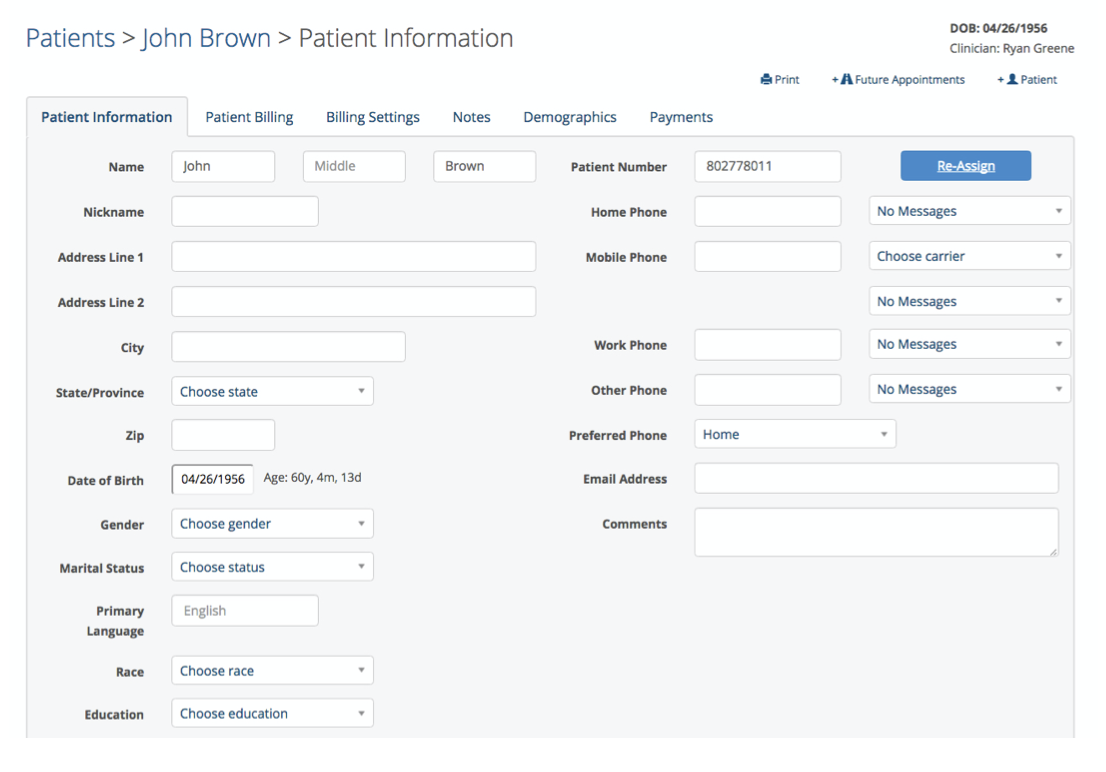
When you click on the Re-Assign button you will see the following window appear.
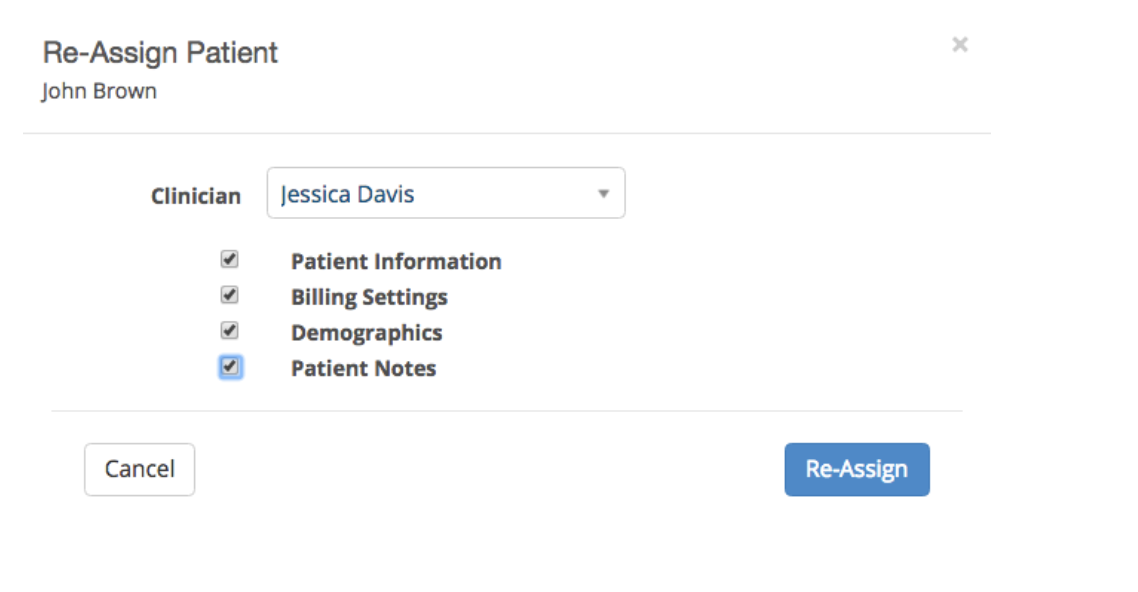
Select the new clinician from the drop down. Next check the boxes next to the type of information you wish to transfer. You must check the patient information box at a minimum. Click the blue Re-Assign button when done. You will see the following message on your screen after clicking the Re-Assign button.

The system will now gather the information you requested to be transferred and build a new patient chart and assign it to the new clinician. This process will take about 10 minutes. Clinicians will receive emails from TherapyMate Support when the process is completed.