A Practice can create custom note templates and add them to the list of pre-built notes already supplied by TherapyMate.
Custom notes are stand alone notes that will not allow data to carry over from one note to another unlike some of the default notes that are provided. The are only accessible from the "Create a Note" drop down on the client's notes page in their chart.
The System Administrator of the Practice can design and add custom note templates within TherapyMate using our built-in text editor. Once a custom note is designed and saved, it will be available for all Clinicians in the Practice to use.
Designing Custom Notes
To begin your design work, the System Admin of the Practice needs to go to their settings page by clicking on their name in the upper right-hand corner of the Dashboard and choose "Settings". On the settings page click on "Custom Note Templates".
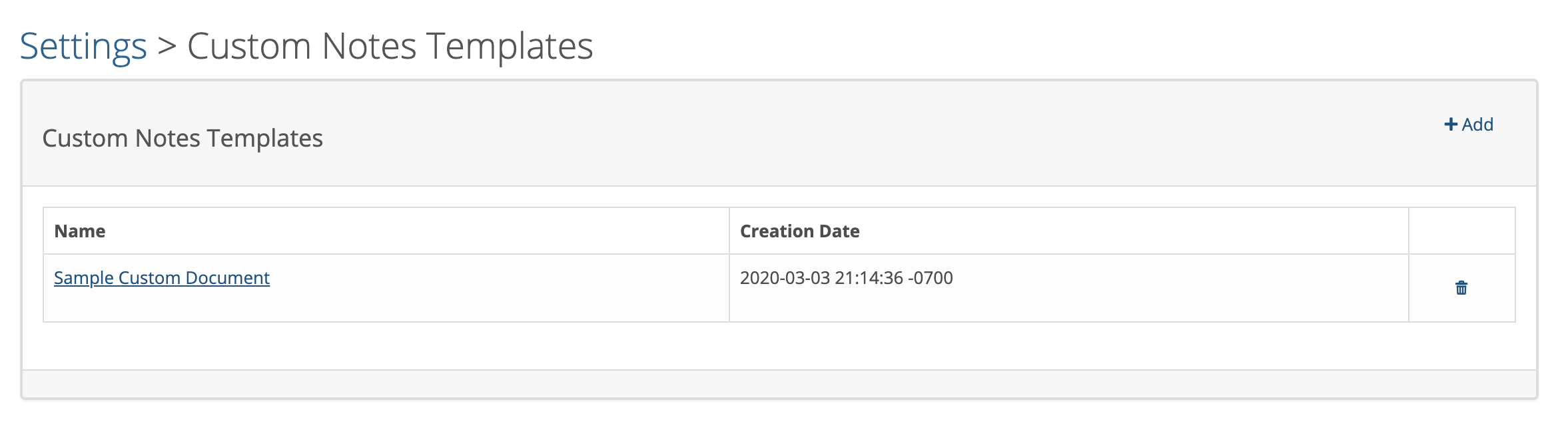
To access the built in text editor, click on +Add.
You will see the text editor screen next. See below:
You can use the tools on the tool bar to format your contents. Clicking on the 3 dots on the right side exposes more tools like the text size, text font, insert checkbox, insert textbox and insert logo.
Before you add these input fields, select the point size and font type.
To add a check box or text box click where you want the item to be placed in the layout area and then click the item from the tool bar menu.
In the example below, titles, text boxes and check boxes were added using the tools. The text boxes can be expanded by clicking on the lower right corner and dragging them to the size you need.
To add a check box or text box click where you want the item to be placed in the layout area and then click the item from the tool bar menu.
In the example below, titles, text boxes and check boxes were added using the tools. The text boxes can be expanded by clicking on the lower right corner and dragging them to the size you need.
There is a checkbox called Can Send To Client. If this checkbox is checked, a clinician can send this particular custom note template to the client via the client portal for their signature after completing it. The client will receive an email notification to login to the client portal to view and sign. When the client signs the document, a copy will be saved in their chart on the Notes and Documents tab.
A client can also sign a completed custom note in the office. This feature is turned on by default. The Sign by Client button is located in the upper righthand corner of the note after it is completed.
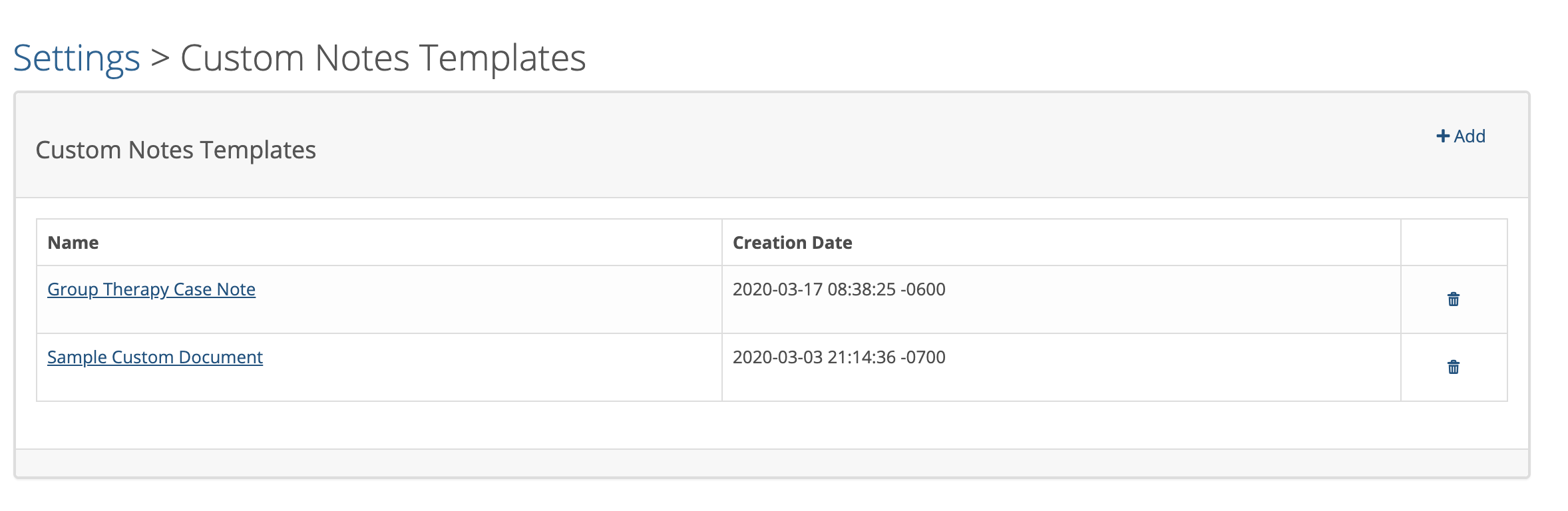
When you have your custom note finished, click the "Add" button to save it. The note will be added to your list of custom note templates as shown below.
Using a Custom Note Template
The custom notes are accessible from the Create a Note drop down on a client's notes page. In the example below, the Group Therapy Case Note is now in this drop down.
The custom notes are accessible from the Create a Note drop down on a client's notes page. In the example below, the Group Therapy Case Note is now in this drop down.

Click on the note to open up the template to complete it. We recommend that you test the note after completion. If you need to make changes to the note you can edit it from the Custom Note Template are in the main settings. To edit the note, click on the name and it will open again in the text editor.
When a note is completed it is saved in the client's chart just like other notes in the list.
Using Your Own Existing Note Templates
When a note is completed it is saved in the client's chart just like other notes in the list.
Using Your Own Existing Note Templates
If you have notes in Microsoft Word or a PDF and wish to add them to TherapyMate, you can cut and paste from the note into the Custom Note Template text editor. You will have better success if you can copy the contents from a plain text document and paste it into the TherapyMate text editor.
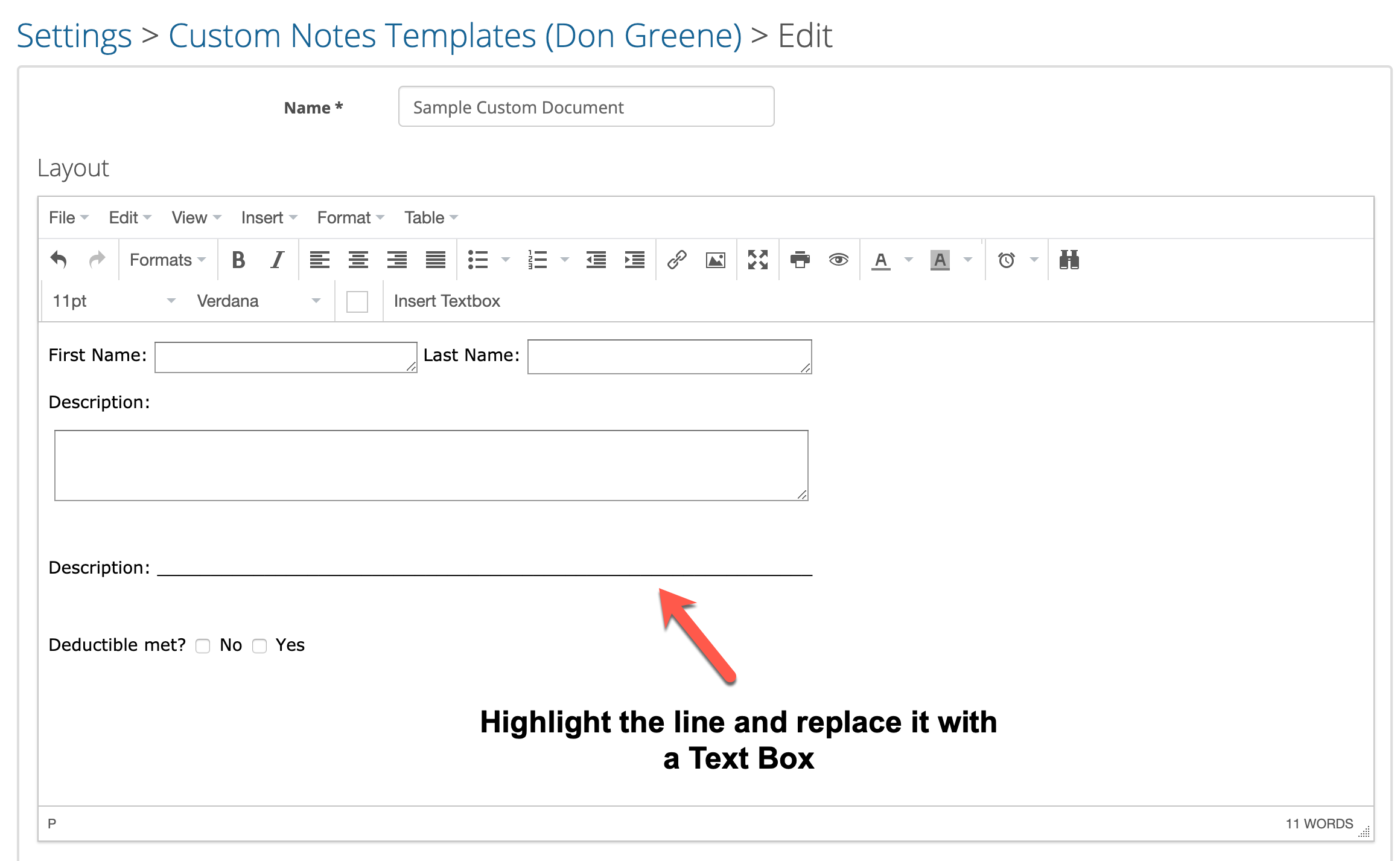
You can expect to do some formatting before you can use the note. For example, lines on your document need to be changed to text boxes so you can add the input fields. Lines are not input fields. See below:
If you have any questions, please contact TherapyMate support for assistance.