If you need to download any of the documents at the bottom of a client's notes page, you can do them individually or do multiple documents at once.
Be aware that your browser settings may affect the process of how the documents are downloaded and saved. We used Google Chrome in the examples below. Other browsers may present different windows or options but the results can be the same.
At the bottom of the notes page there is a documents area. See below:

To download documents, click on the Download Documents button as shown above.
Select the documents you wish to download by checking the checkboxes next to the Event Date column.

Click the Generate Download button.The following window will appear. Click the Download button again.
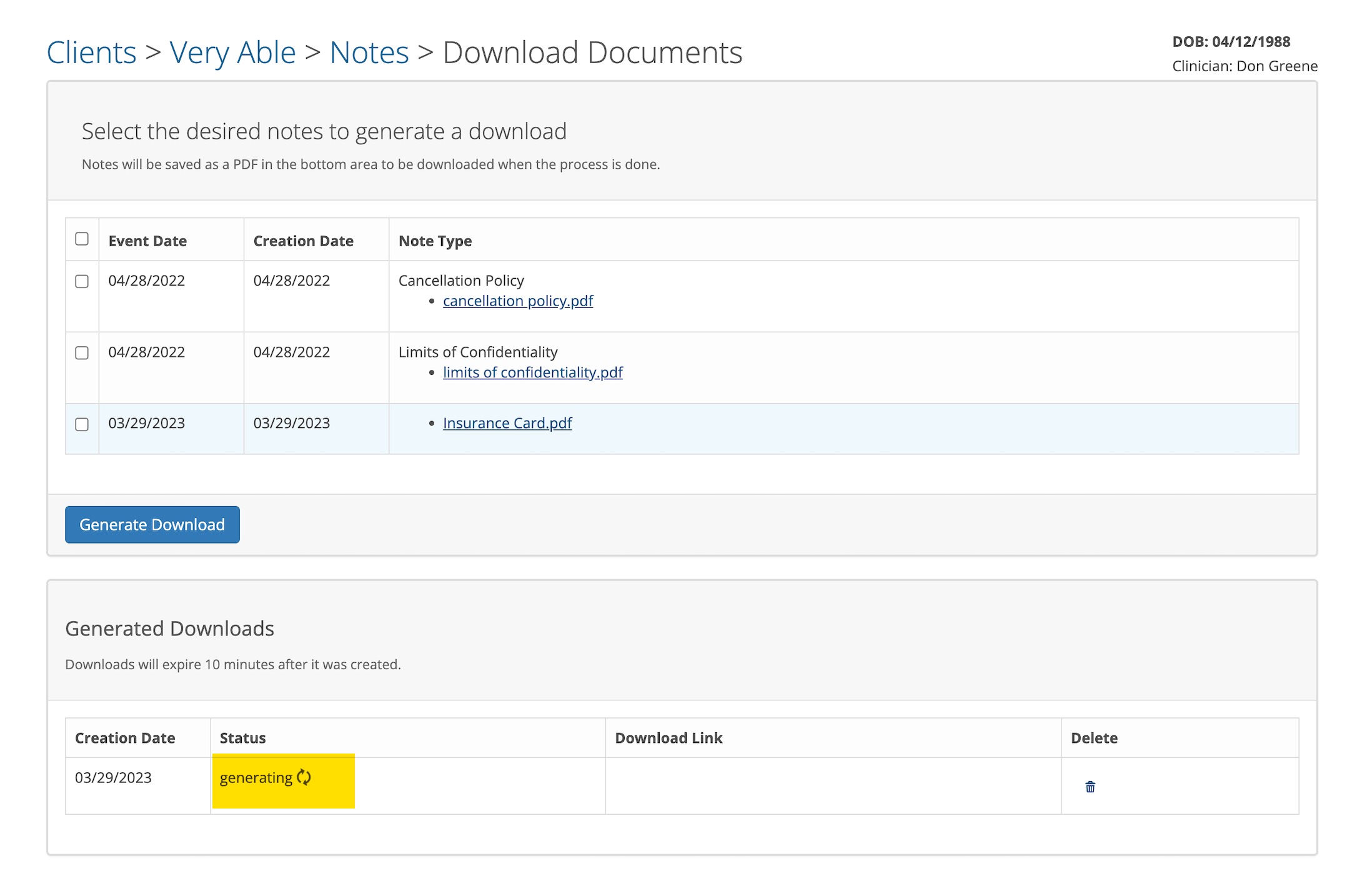
When the download is done, it will appear as a Zip file in the Generated Downloads are on the page. See below;
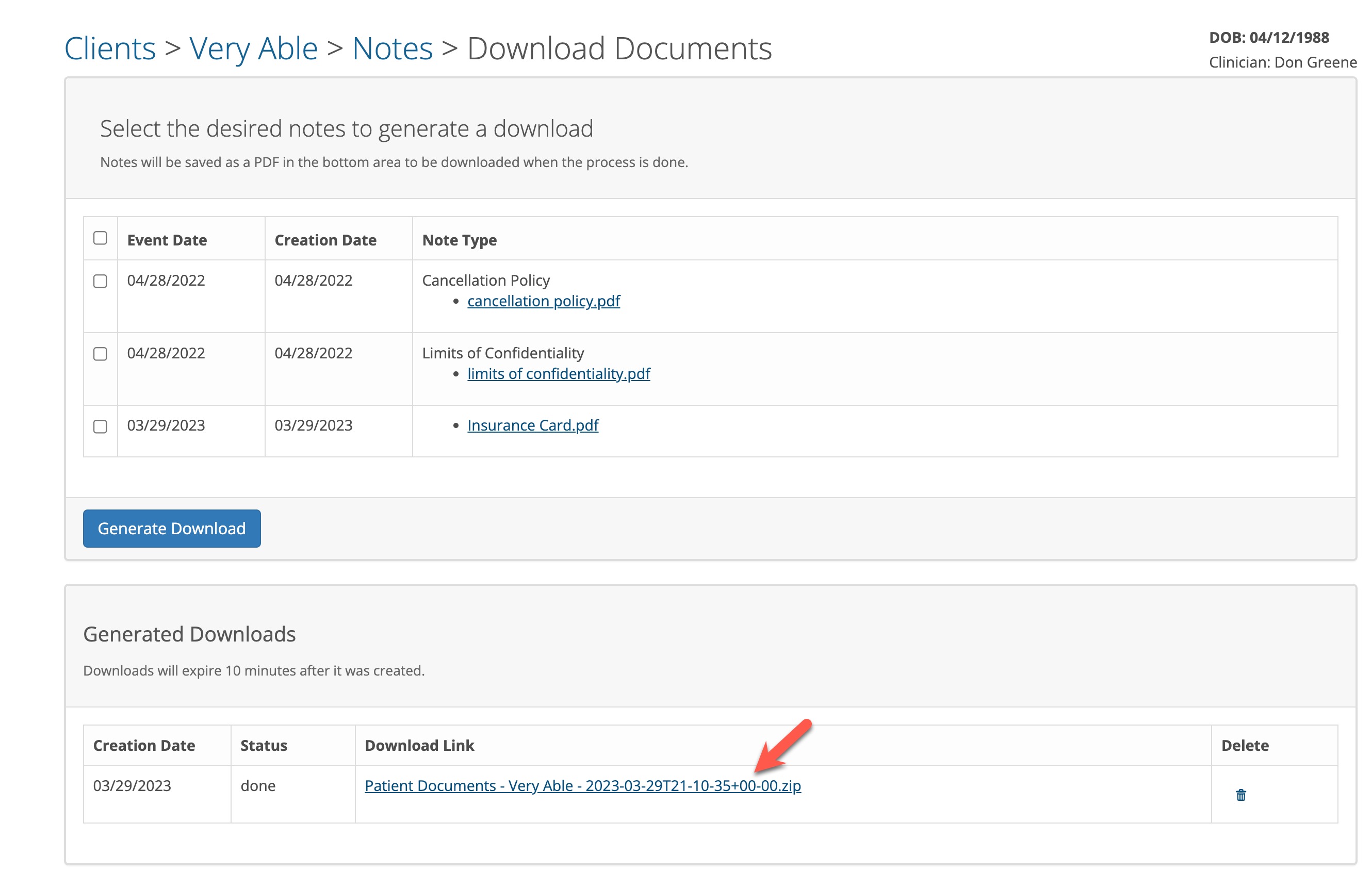
If you click on the link above, the files will be downloaded to your computer. Depending on your browser's settings the file could be in your downloads folder or on your desktop.
The file will be saved as a ZIP file. A Zip File is a compressed file that takes up less storage space and can be transferred to other computers more quickly than uncompressed files. It will look similar to the following if it is an icon on your desktop.
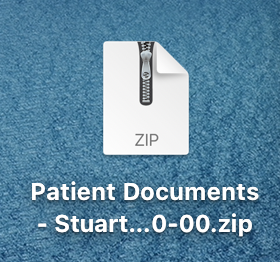
To uncompress a Zip File, right click on the file and choose Open or Open with utility program that came with your computer. When the ZIP file is uncompressed you will see a file folder that contains all of the documents you downloaded.
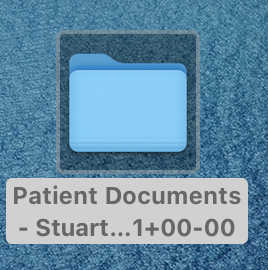
Click on the folder to view the contents.
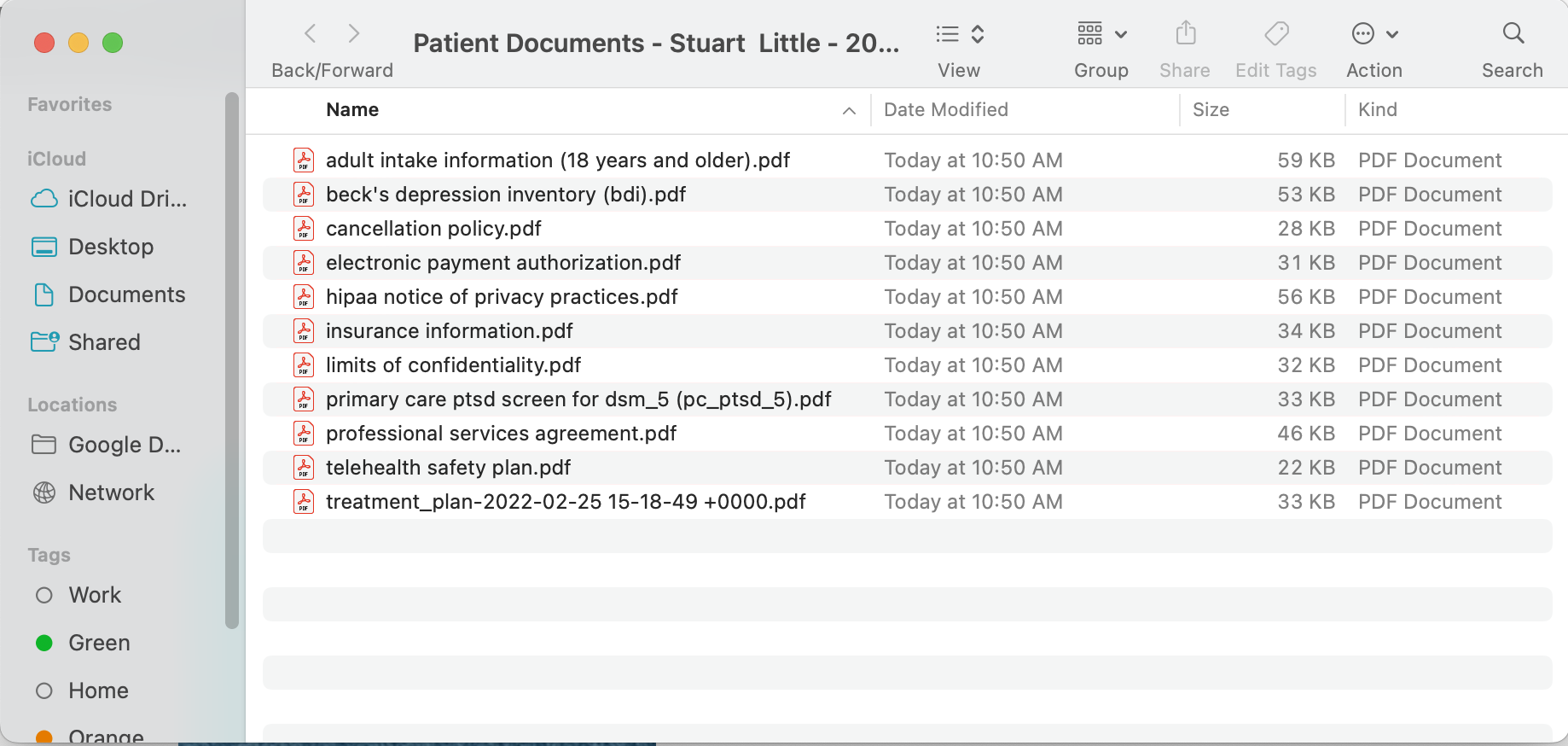
The folder can be renamed if needed. Be sure to store the files in a secure manner on your hard drive or other file storage service.