You can download and save your notes to a PDF file or print them to your printer.
Be aware that your browser settings may affect the process of how the notes are downloaded saved or printed. We used Google Chrome in the examples below. Other browsers may present different windows or options but the results can be the same.
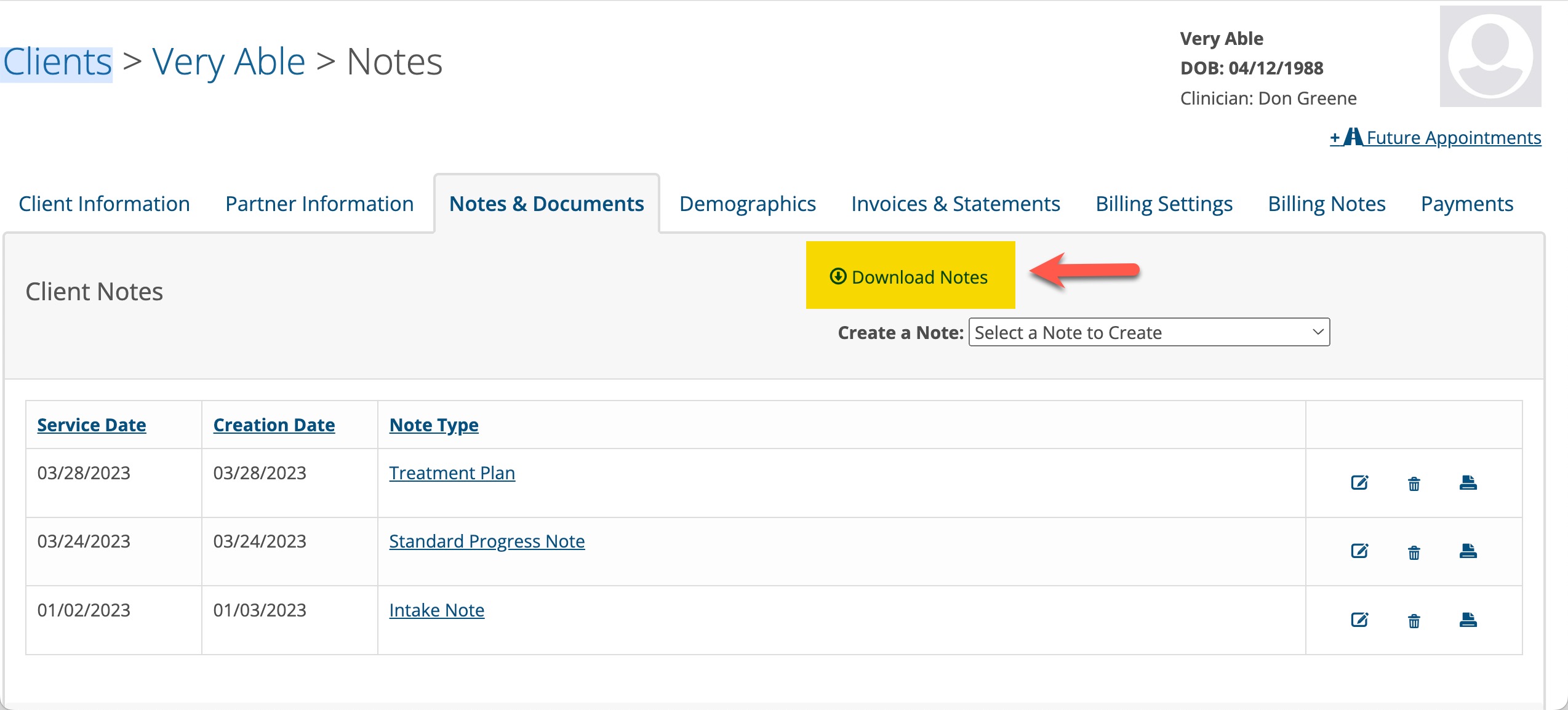
1. Go to the client's notes and documents tab in their chart and click on Download Notes as shown below:
2. Check the checkboxes in the Service Date column to select the notes you wish to download. You can select one or many as needed.

3. Click on the Generate Download button in the lower left corner. In the Generated Downloads area at the bottom of the screen you will see the Status. Generatering means it is working on the download.
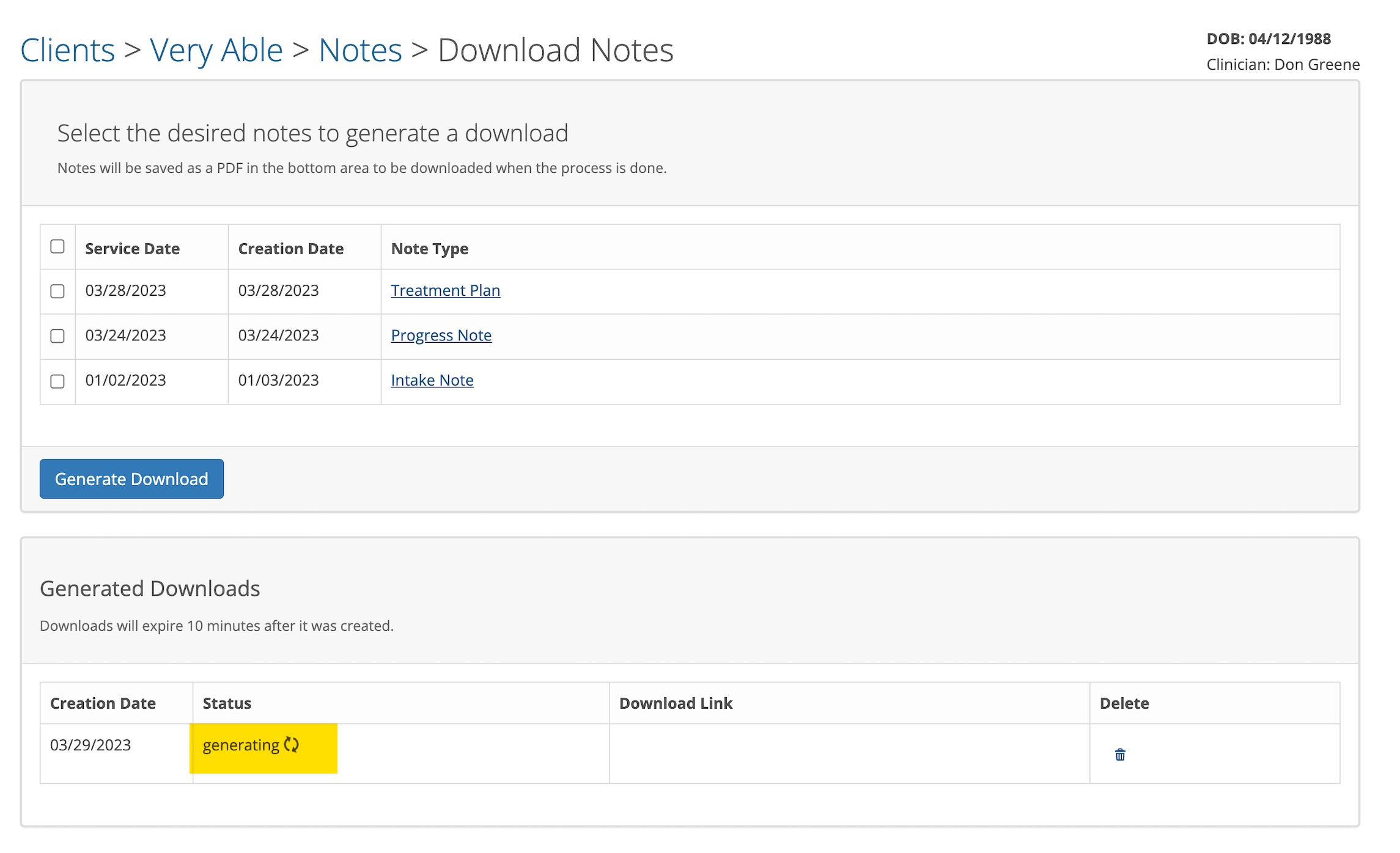
When the download is finished, the resulting PDF will appear in the Generated Downloads area.

You can click on the download link to view, print or save the PDF to your computer. Please note: The download link will expire in 10 minutes and disappear, so download it as soon as possible or you will have to start over.
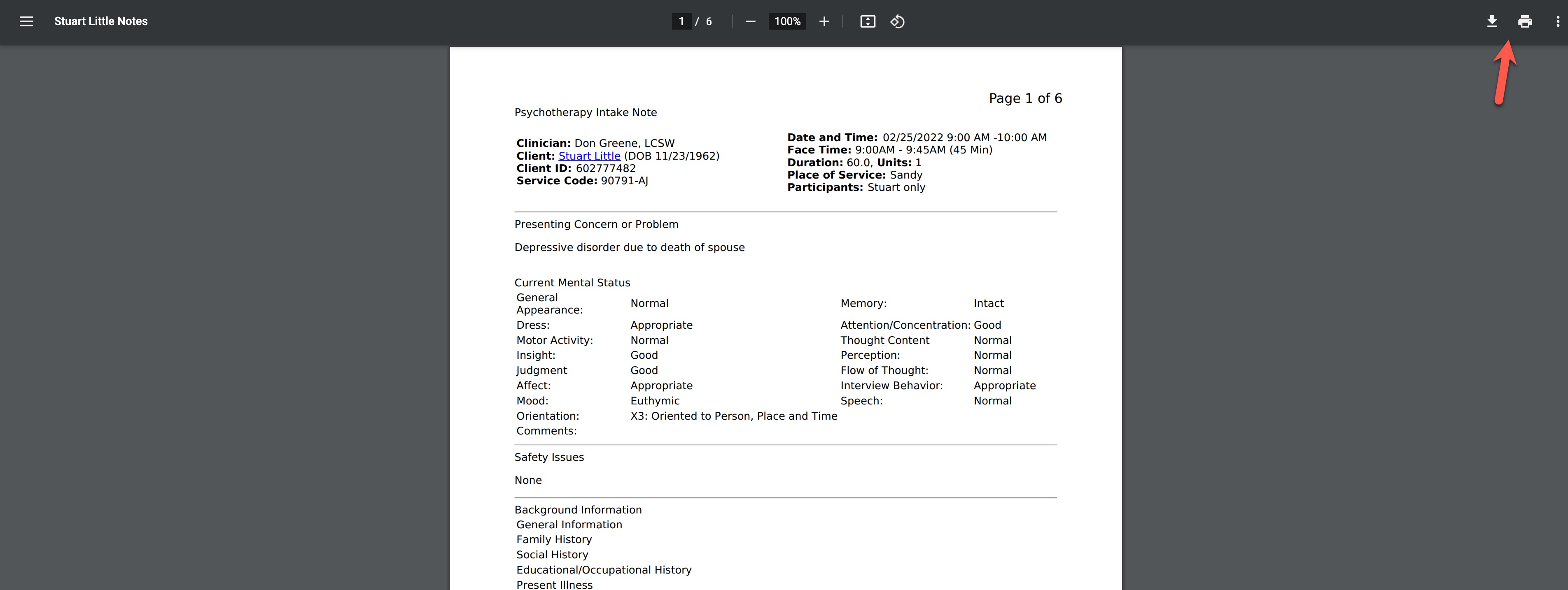
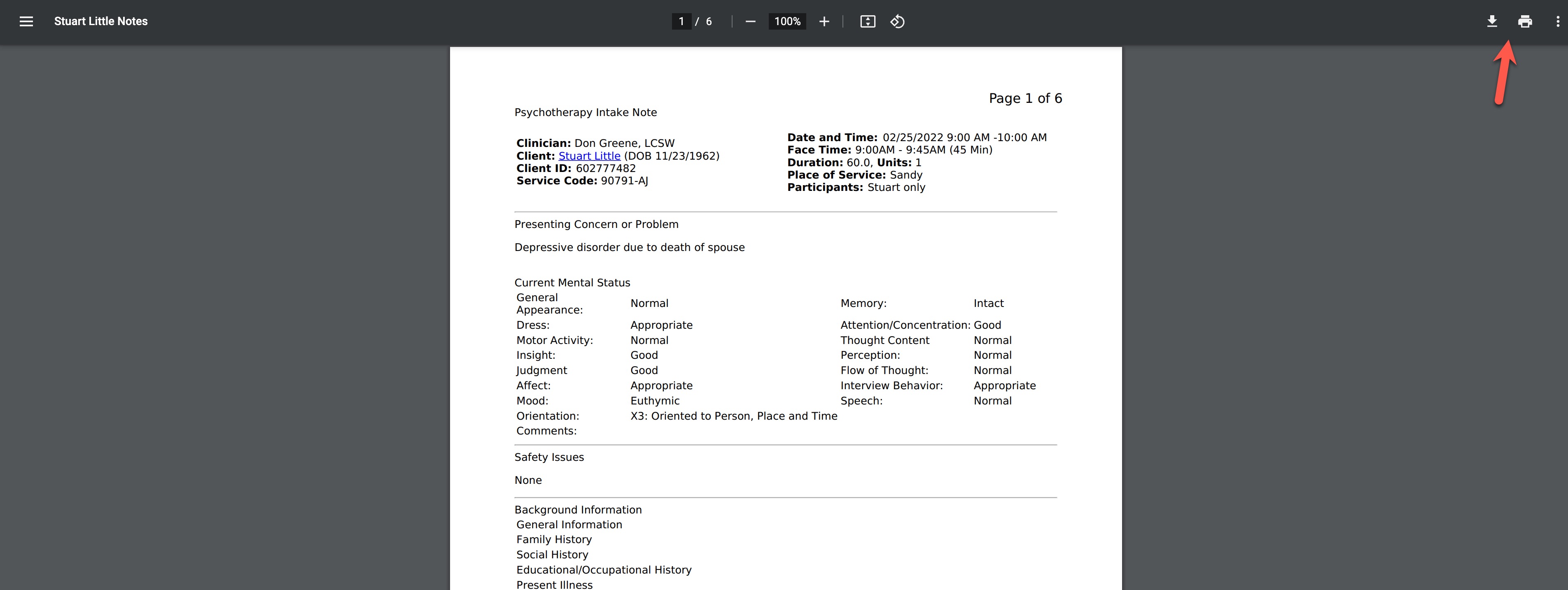
A preview of the notes you selected will be shown in a new browser window. At this point you can do one of two things:
1. Download the notes to your computer.
2. Print the notes to your printer
There are two icons in the upper right corner of your preview window. One will allow you to download the notes as a file to your computer and the other one will allow you to print the notes. (see the red arrow below)
Downloading the notes to your computer
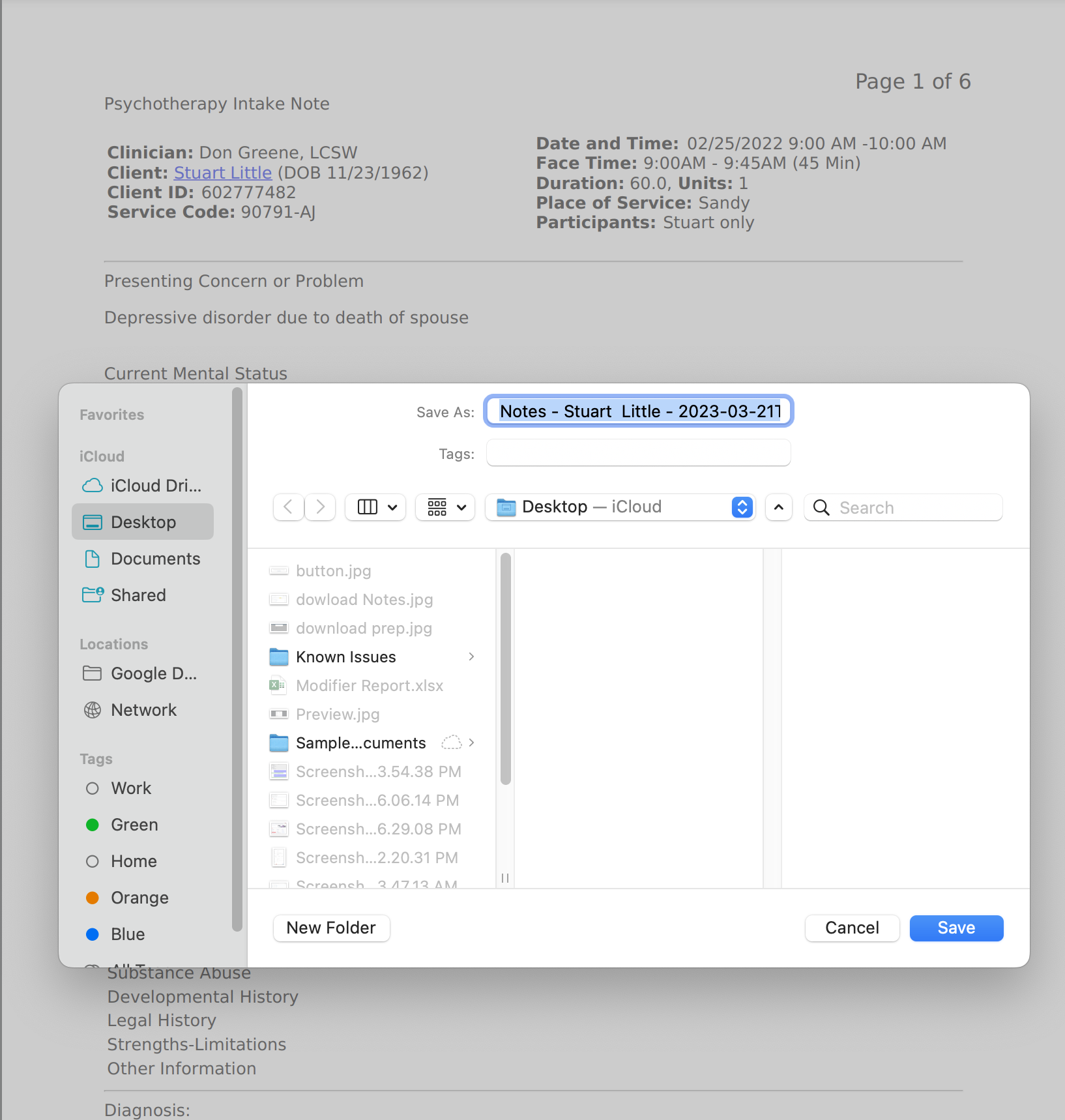
If you choose to download the notes as a file, the following window will appear. You can change the Save As name and select the location where you want the file saved to your computer.
When you have made your selections click the Save button to finish your export.
Printing the notes to your printer
Click the printer icon in the upper right corner.
The following window will appear. Select the destination where you want the notes printed to.
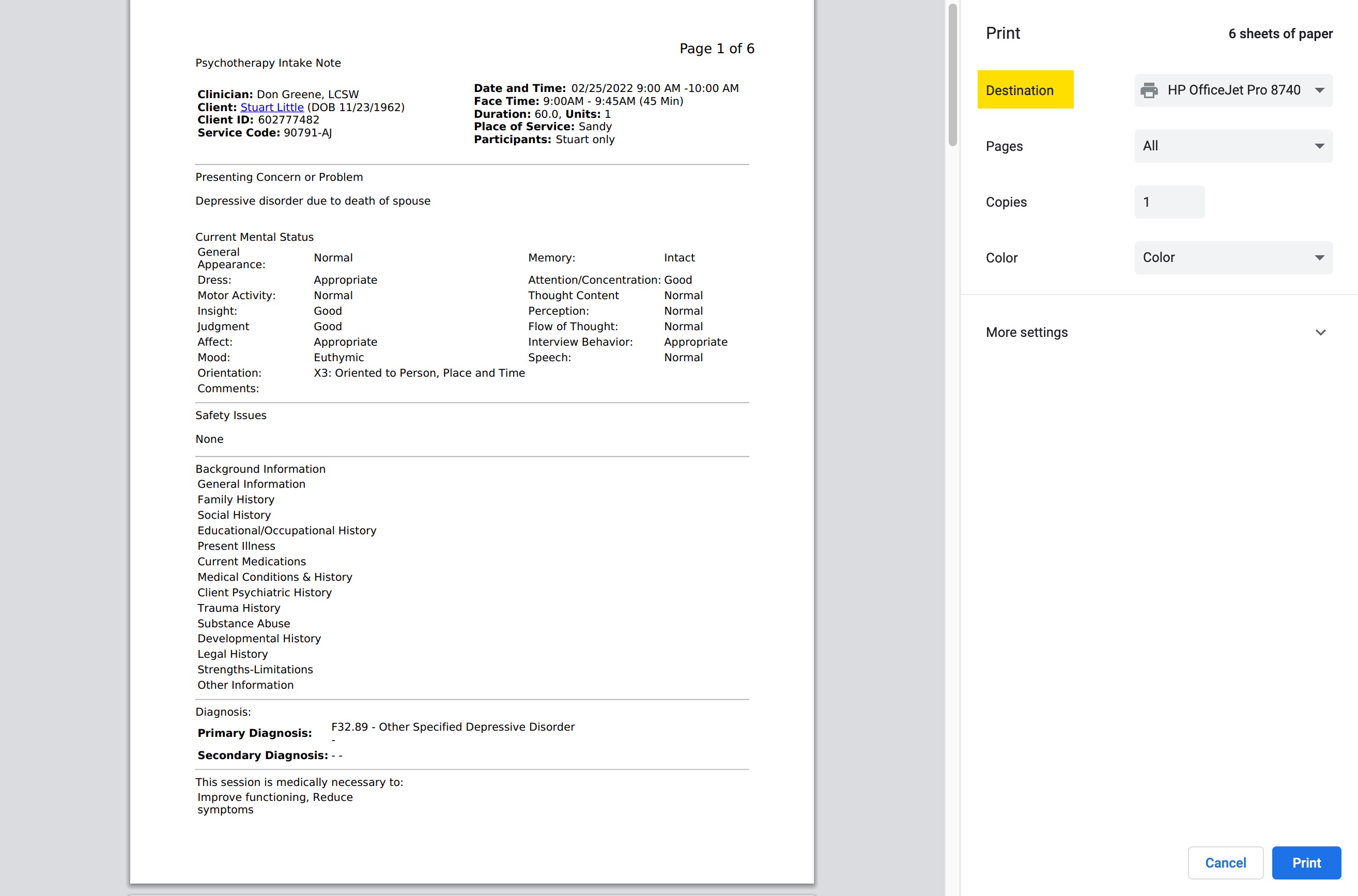
Click the Print button to start printing the notes to your printer.