Overview
Telehealth is the provisioning of mental health services by a provider to a recipient of services where each person is in separate locations, and the services being delivered are over electronic media such as video conferencing. All data is encrypted, your sessions are anonymous, and none of your information is stored. We adhere to HIPAA data privacy requirements.
The purpose of this article is to train clinicians how to use the Telehealth audio & video feature in TherapyMate.
Telehealth Practice Settings
Before a Practice can use the Telehealth feature in TherapyMate, the System Administrator needs to enable the Telehealth feature, add a Telehealth office location and the appropriate Telehealth procedure code modifiers for each clinician in the Practice. Please refer to the article called Telehealth Setup Instructions for more information.
Scheduling a Telehealth appointment
To schedule a Telehealth appointment, open the appointment window on the Dashboard and create the appointment like you normally would. Select the location called Telehealth from the Location drop down. The location must say Telehealth before you can initiate a session.
Telehealth is the provisioning of mental health services by a provider to a recipient of services where each person is in separate locations, and the services being delivered are over electronic media such as video conferencing. All data is encrypted, your sessions are anonymous, and none of your information is stored. We adhere to HIPAA data privacy requirements.
The purpose of this article is to train clinicians how to use the Telehealth audio & video feature in TherapyMate.
Telehealth Practice Settings
Before a Practice can use the Telehealth feature in TherapyMate, the System Administrator needs to enable the Telehealth feature, add a Telehealth office location and the appropriate Telehealth procedure code modifiers for each clinician in the Practice. Please refer to the article called Telehealth Setup Instructions for more information.
Scheduling a Telehealth appointment
To schedule a Telehealth appointment, open the appointment window on the Dashboard and create the appointment like you normally would. Select the location called Telehealth from the Location drop down. The location must say Telehealth before you can initiate a session.
Please note: If you only have one service location defined in your settings called Telehealth the appointment will default to Telehealth automatically. You will not see a Location dropdown on the appointment window..
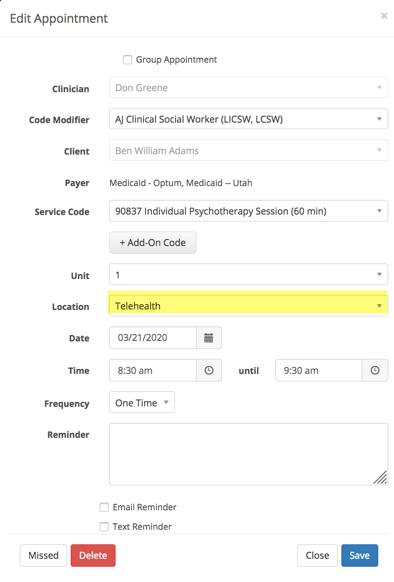
If the Telehealth option is not in the location list, you will need to go back and follow the setup instructions mentioned above to add it as an office location to your settings.
Telehealth appointments can only be schedule at a future time and/or date on the Dashboard calendar.
Telehealth appointments can only be schedule at a future time and/or date on the Dashboard calendar.
Telehealth Invitations
If a client is scheduled for a Telehealth appointment, a reminder is sent automatically at midnight the day of an existing appointment or 15 minutes prior to the start time if the appointment is created the same day.
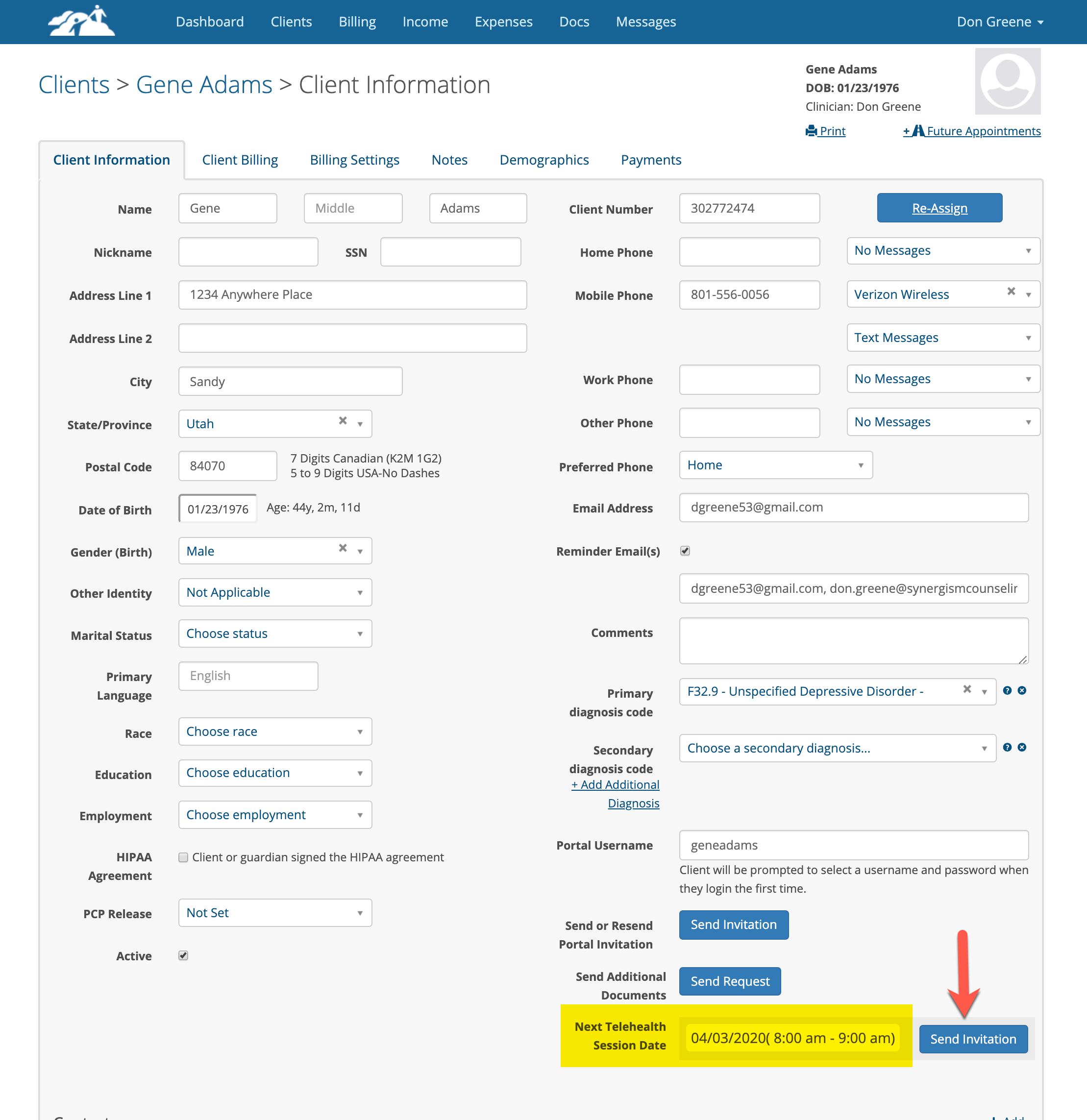
However, if for some reason an invitation needs to be resent, go to the go to the clients information page and click the invitation button in the lower right corner.
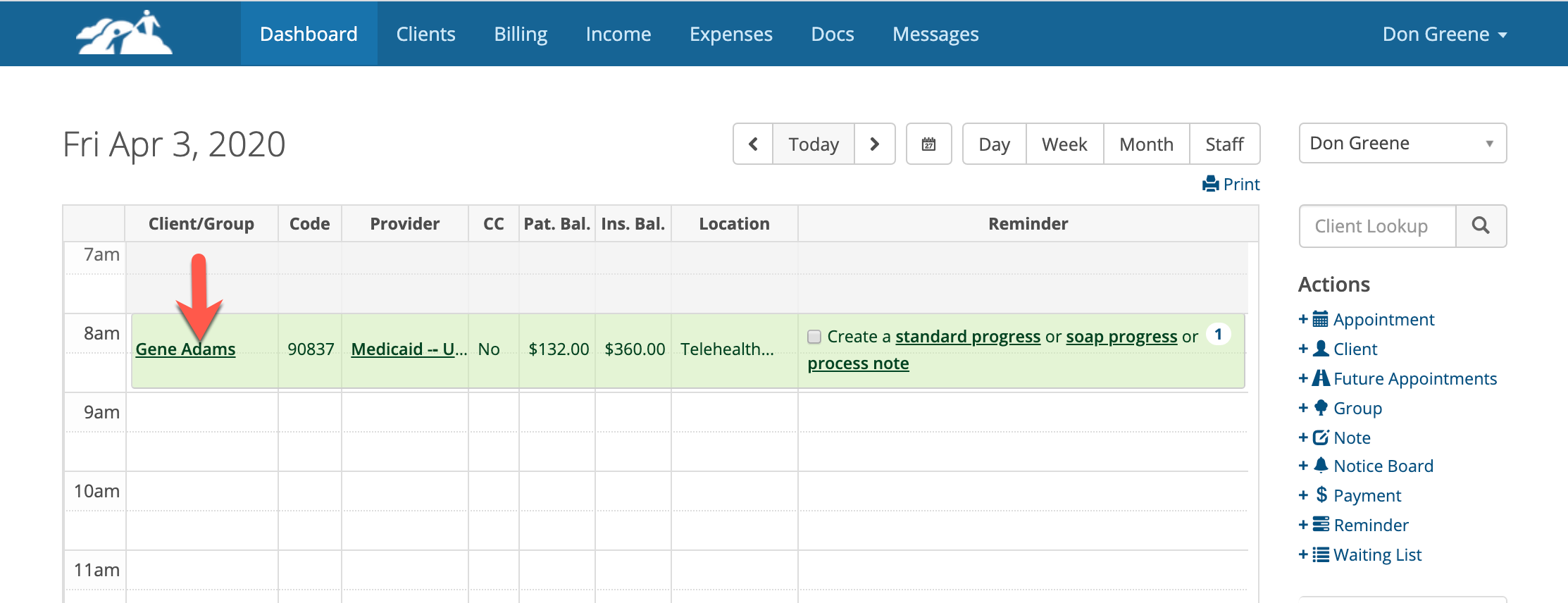
In the lower right corner of the client's information page you will see the next Telehealth session date and time for the client. Click the Send Invitation button to invite the client to this session.
The client will receive an email inviting them to join the Telehealth session. In the email there will be a link for them to click on to join.
The client can also join by logging into the Client Portal and clicking the Join button. To login to the client portal the client must already have a username and password.
For more detailed information about how Telehealth Invitations are sent CLICK HERE.
Joining a Telehealth Session
- Talk to your client about the telehealth process prior to their first telehealth session so you both know what to do and expect.
- Please ensure that you are both using the latest versions of the Google Chrome, Microsoft Edge or Mozilla Firefox browsers. These are the only supported Internet browsers and the latest versions will work better.
- Clients can use their smartphone to join the session if there phone browser supports it. If the client gets a browser not supported message it means their phone is too old and won't work.
- When a client is scheduled for a Telehealth appointment, they will automatically receive an email with a button to join the session. The email goes out at 12:00 am. If the clinician creates the appointment on the same day as it is occurring, the email goes out 15 minutes prior to the appointment. If the clinician wishes to send the invitation manually click the blue Send Invitation button is next to the scheduled date and start time for the session on the client's information page.
- When the Telehealth invitation is been sent a new blue button will appear on the lower right corner of the client's information page. It will say Join with [client's name]. (see below)

- The clinician clicks on the Join with [client's name] button they will start to process to join the session.
- The client should look in their email inbox for the Telehealth invitation and click on the words Session Link just prior to the meeting. If the client doesn't receive the invitation have them check their spam folder or verify that their email address is correct in their chart.
- A client can also login to the portal and click on the Join with [clinician name] button on their portal home page to join the meeting if desired. The client must have a portal username and password to login to the portal before they can join.
- When the client and clinician have both clicked on their individual Join Meeting buttons as shown below the session will begin.
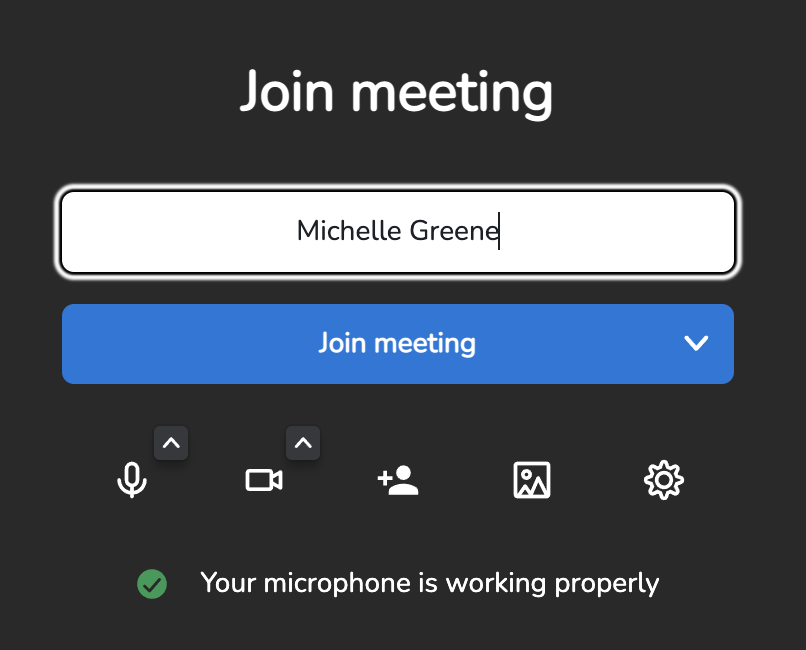
- Make sure that each participant allows their cameras and microphones to be enabled if prompted. If the microphone or camera for a participant is not working the browser needs to be configured to allow.