We highly recommend that you setup a test session with another person to try the various options before conducting Telehealth sessions with clients.
The buttons, controls and menu options are different depending on whether your the Clinician (Moderator) or the Client/Patient. A Patient has a subset of options as shown later in this article.
Here is a picture of the menu bar that will appear that the bottom of the screen after joining a session for the Clinician and Client:

Here are descriptions of these buttons and how they may differ from Clinician (moderator) and Client:
Microphone
Clicking on the microphone icon will turn it on/off. If the Clinician clicks on the up arrow they will see the following options:
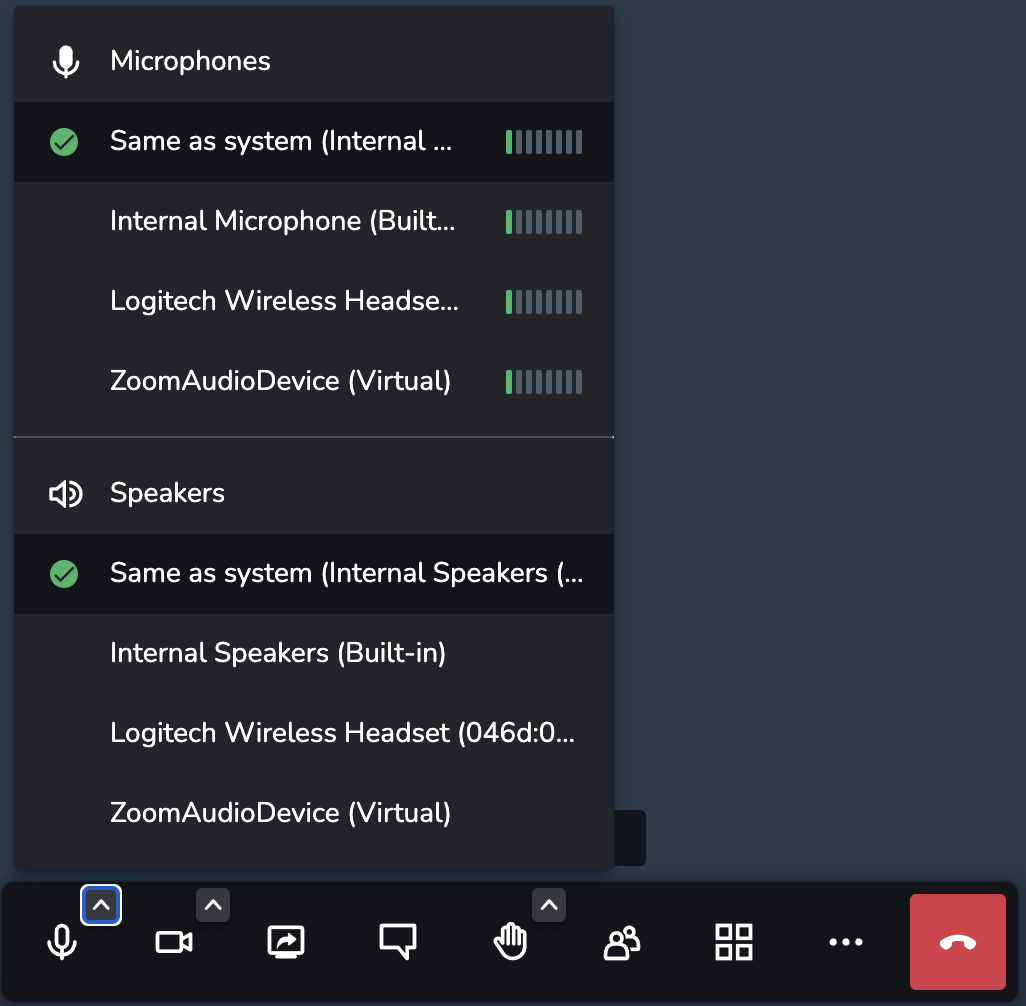
A Client won't see the options above. They can only turn on/off their microphone
Camera
Clicking on the camera icon will turn it on/off. There are not other menu options for this button for the Clinician or the Client.

Share Screen
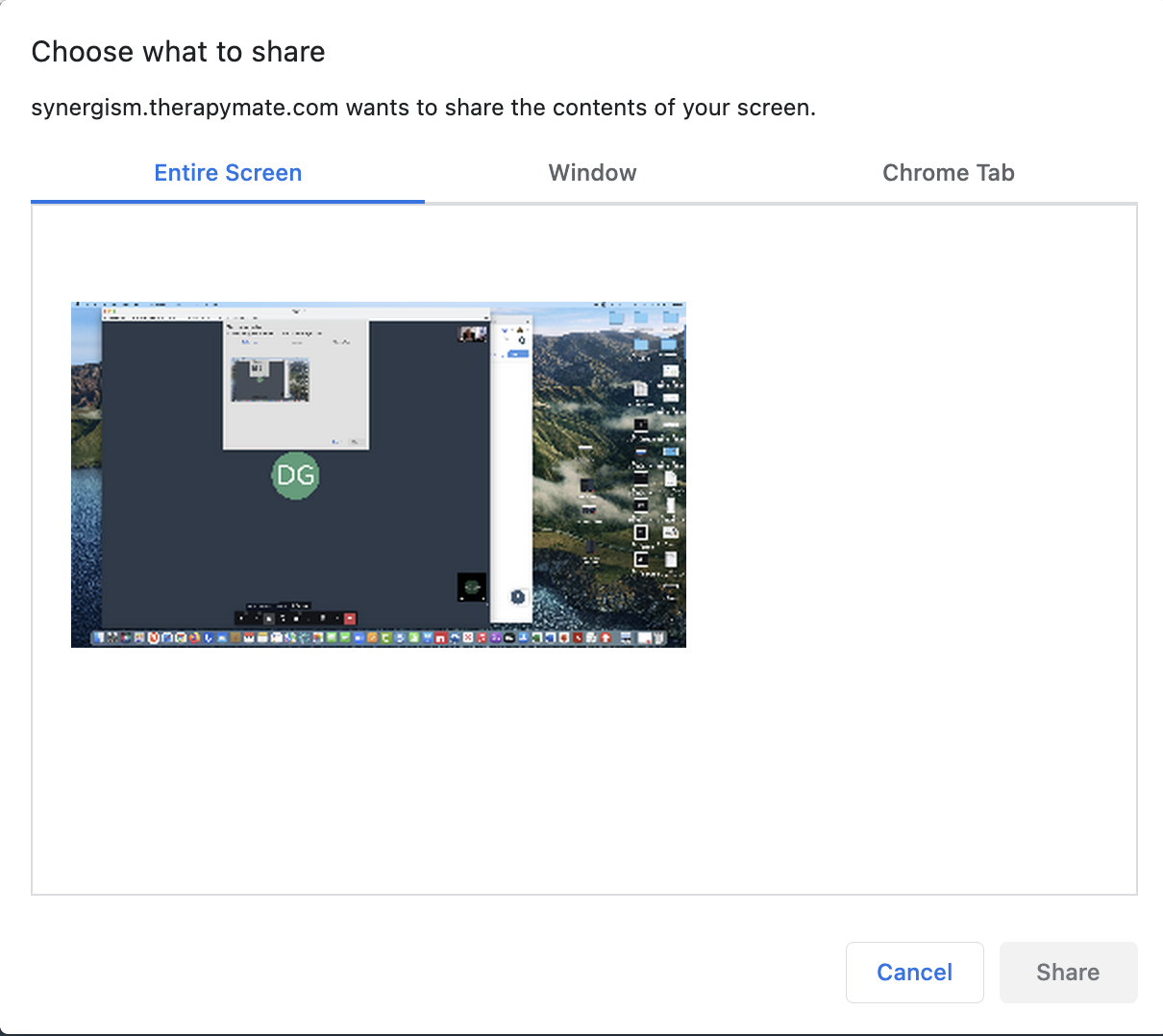
If the Clinician or Client wants to share their screen they can click on this menu option. They have the option to share the entire screen, and application window or a browser tab. Click on the screen, window or tab you want to share and the Share button will go from gray to blue. When the button is blue, click on it to share your screen.
If the Clinician or Client wants to share their screen they can click on this menu option. They have the option to share the entire screen, and application window or a browser tab. Click on the screen, window or tab you want to share and the Share button will go from gray to blue. When the button is blue, click on it to share your screen.

Raise or Lower Your Hand
In a group Telehealth session a person can click on the Raise or Lower Your Hand icon to get the clinician's attention to speak. The Clinician will see a message flash on the screen and can respond verbally to let the participant speak.
In a group Telehealth session a person can click on the Raise or Lower Your Hand icon to get the clinician's attention to speak. The Clinician will see a message flash on the screen and can respond verbally to let the participant speak.

Chat
Clicking the Chat Icon allows a participant to chat with the Clinician. If the session is a group session all members of the group can chat together.
Clicking the Chat Icon allows a participant to chat with the Clinician. If the session is a group session all members of the group can chat together.

Invite Other People
Participants may invite other people to the session using this menu option. The invitation will be sent via email. There is also an option to have someone join via telephone only. Additional charges for the the telephone option may apply for the practice if used.
Participants may invite other people to the session using this menu option. The invitation will be sent via email. There is also an option to have someone join via telephone only. Additional charges for the the telephone option may apply for the practice if used.

Toggle Tile View
Allows a Clinician and Client to arrange the different video boxes on their own screen.

More Options
The more actions buttons differ greatly for the Clinician(Moderator) and Client. The Clinician (Moderator) should familiarize themselves with each of these option.
The image on the left is the Clinician(Moderator) menu options and the image on the right is the client's menu options.
End Call
The red end call button will end the participants session. Each participant should click the button when the session is over.
The red end call button will end the participants session. Each participant should click the button when the session is over.