This training article assumes that each clinician in the Practice has the Telehealth Office Location and Procedure Code Modifiers configured in their settings. If these have not been done, contact the System Administrator or Practice Owner for assistance.
Scheduling a Group Telehealth Session
Add a new group appointment to your schedule. It is assumed that you have already created your group so you can select it during the appointment creation process.
Select the correct Code Modifier and Location from their respective drop downs. If the location is NOT set to Telehealth the process to invite a client and join a session will not work.
Add a new group appointment to your schedule. It is assumed that you have already created your group so you can select it during the appointment creation process.
Select the correct Code Modifier and Location from their respective drop downs. If the location is NOT set to Telehealth the process to invite a client and join a session will not work.
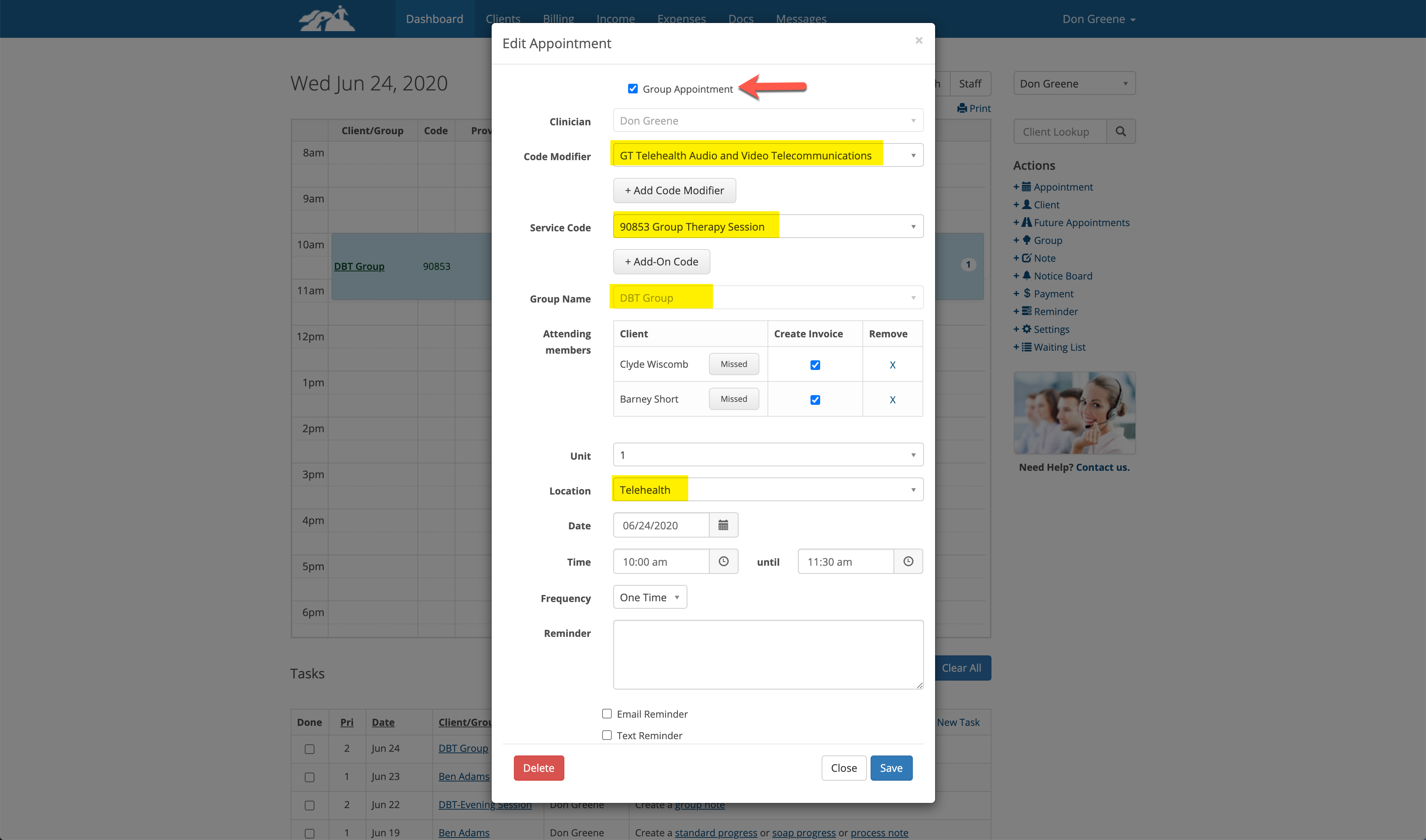
Click the Save button and the group appointment will be scheduled.
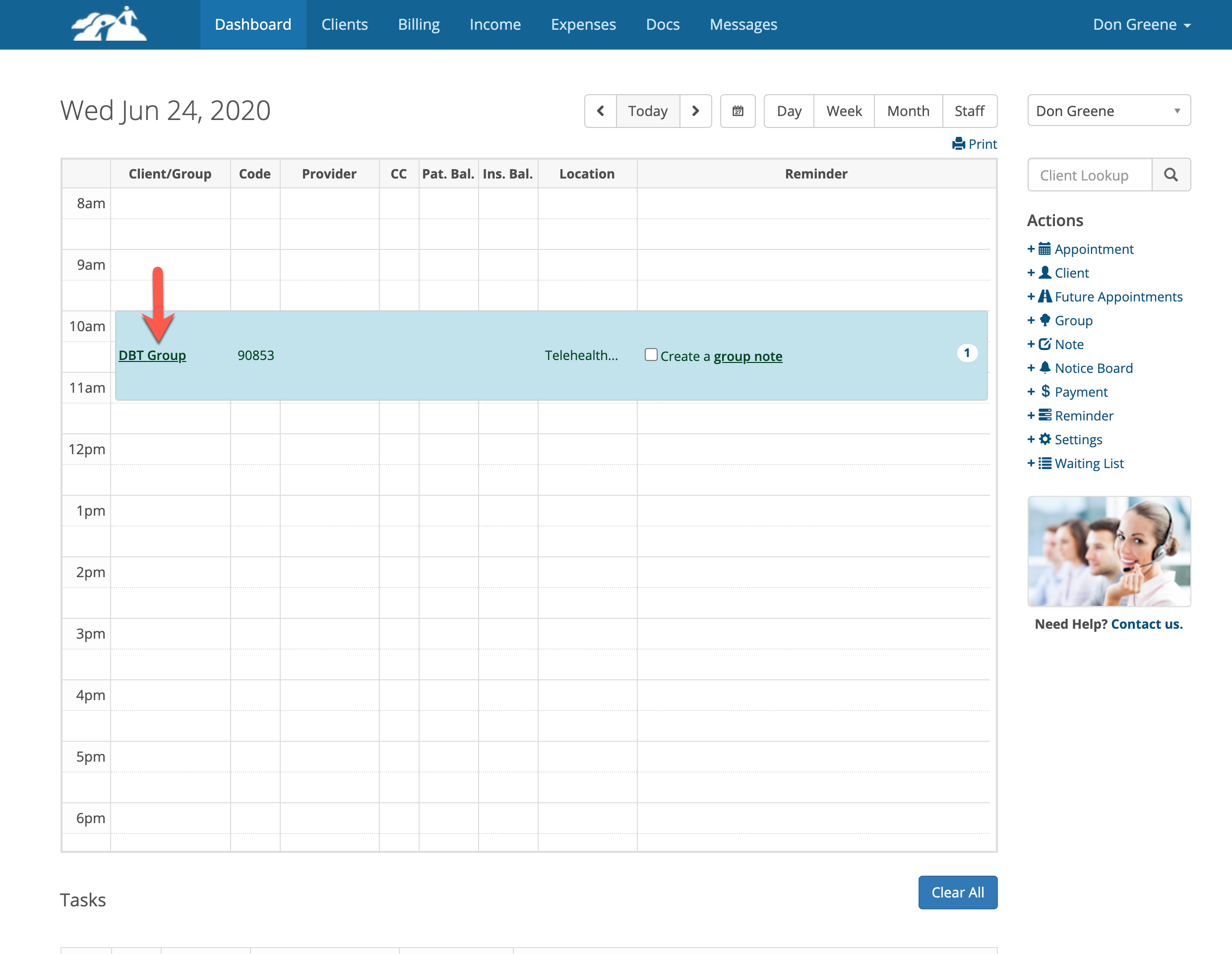
To start a group Telehealth session, click on the group name as shown below.
To start a group Telehealth session, click on the group name as shown below.
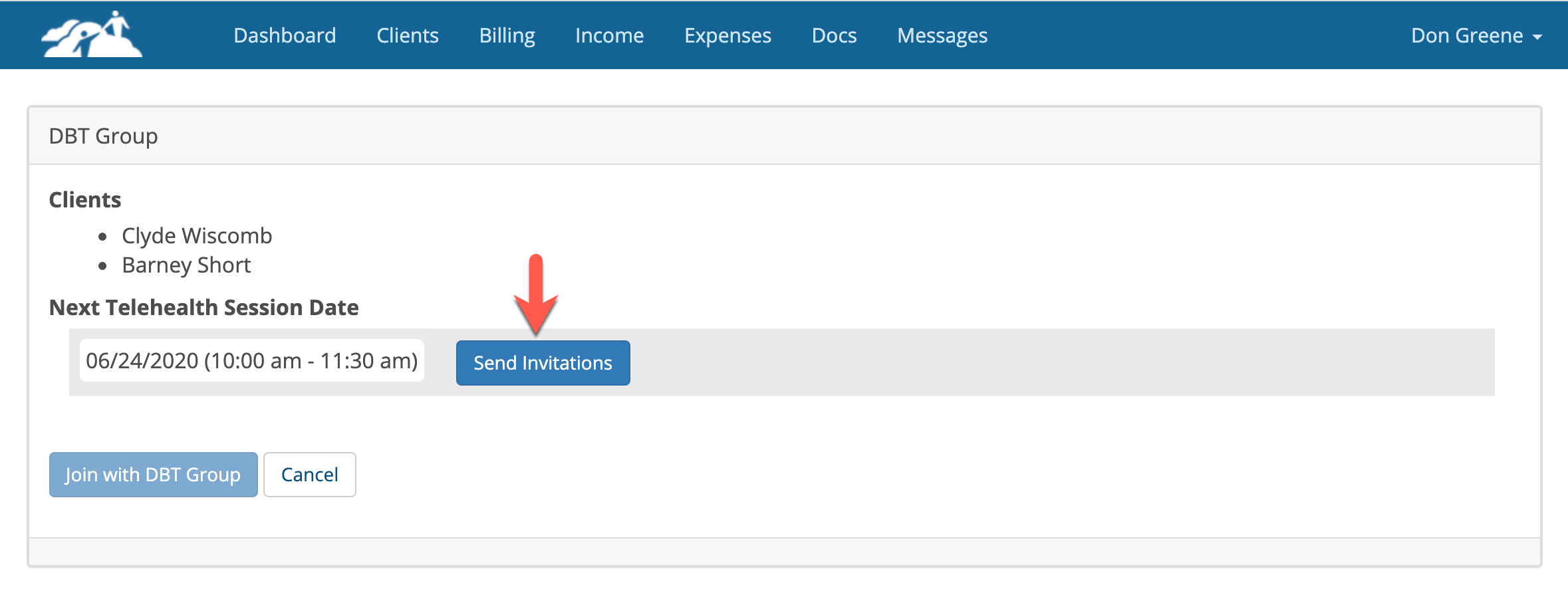
Click the Send Invitations button shown below. Each group member will receive an email invitation with your client portal link to join the session. The clients must login to the Client Portal using the link and click on their individual Join with (clinician name) buttons.
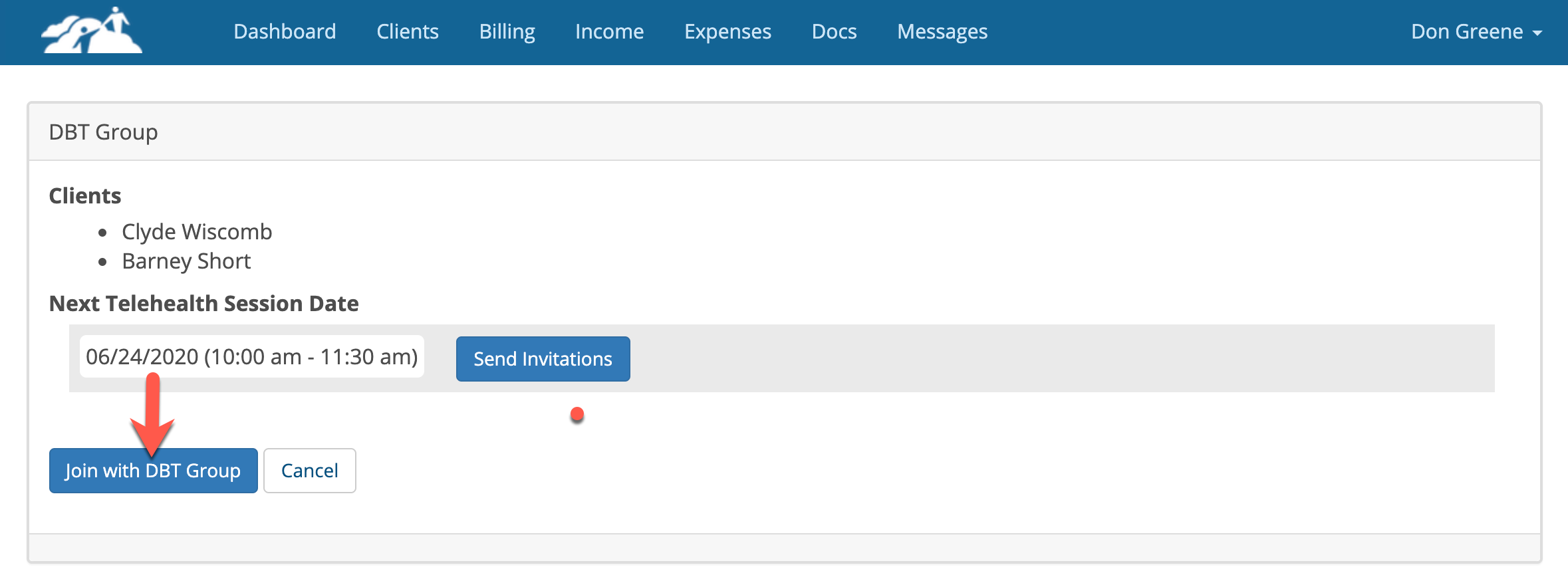
Next, the clinician joins the group session. In this example the clinician clicks the Join with DBT Group button.
When the clinician and group members join the session, everyone will be seen and heard.
Please Note:
Before a client can join a Telehealth session, they must login to the Client Portal. If the client has not be invited to the portal previously you will need to do that so they can create a user name and password to access the portal.
Before a client can join a Telehealth session, they must login to the Client Portal. If the client has not be invited to the portal previously you will need to do that so they can create a user name and password to access the portal.
When both participants have clicked on their respective join buttons they will see each other on their computer screen and the Telehealth session begins.
Ending a Telehealth Session
Each participant should close their video windows or click the "End Call" button. This will end the session.
Troubleshooting Tips
Ending a Telehealth Session
Each participant should close their video windows or click the "End Call" button. This will end the session.
Troubleshooting Tips
- If the Client can't login to the Portal, remember that Usernames and Passwords are case sensitive.
- Participants should enable their microphone and camera during use.
- Make sure the speaker and microphone volume controls are adjusted properly on each device.
- Mobile phone users should be on their speakerphone or use ear buds during the session so the client can hold the phone in front of them during the session.
- The quality and reliability of an audio & video during a Telehealth session are dependent on several factors. Each connected participant plays a role. Using the Telehealth service assumes that each participant (client & clinician) have a good high speed internet connection. Telehealth sessions running on low speed DSL Internet connections could experience frequent disruptions in video and audio performance requiring either party to reconnect to the session.
- Poor audio & video performance could also be attributed to factors outside the control of the connected participants and TherapyMate. This could be the result of overloaded internet service providers or Internet traffic in general on the world wide web. Per minute fees will apply no matter the conditions and are not refundable.
- If either participant experiences a sudden black video screen during the session, The person who's video has stopped streaming should try rejoining the session by closing their video window and clicking on the "Join" button in TherapyMate again. The black screen issue occurs when either participant's internet speed or bandwidth gets too low.
- Both participants should maintain adequate room lighting and a proper distance from their cameras so they can see each other.
- Supported devices include: Windows PCs, Apple PCs, Chromebooks, iPhones and Android phones.
- Supported Internet browsers include: Microsoft Edge, Google Chrome, Firefox and Safari. Microsoft Internet Explorer is NOT support and will cause issue.