Overview
Telehealth is the provisioning of mental health services by a provider to a recipient of services where each person is in separate locations, and the services being delivered are over electronic media such as video conferencing. All data is encrypted, your sessions are anonymous, and none of your information is stored. We adhere to HIPAA data privacy requirements.
The purpose of this article is to train clinicians how to use the Telehealth audio & video feature in TherapyMate.
Telehealth Practice Settings
Before a Practice can use the Telehealth feature in TherapyMate, the System Administrator needs to enable the Telehealth feature, add a Telehealth office location and the appropriate Telehealth procedure code modifiers for each clinician in the Practice. Please refer to the article called Telehealth Setup Instructions for more information.
Scheduling a Telehealth appointment
To schedule a Telehealth appointment, open the appointment window on the Dashboard and create the appointment like you normally would. Select the location called Telehealth from the Location drop down. The location must say Telehealth before you can initiate a session.
Telehealth is the provisioning of mental health services by a provider to a recipient of services where each person is in separate locations, and the services being delivered are over electronic media such as video conferencing. All data is encrypted, your sessions are anonymous, and none of your information is stored. We adhere to HIPAA data privacy requirements.
The purpose of this article is to train clinicians how to use the Telehealth audio & video feature in TherapyMate.
Telehealth Practice Settings
Before a Practice can use the Telehealth feature in TherapyMate, the System Administrator needs to enable the Telehealth feature, add a Telehealth office location and the appropriate Telehealth procedure code modifiers for each clinician in the Practice. Please refer to the article called Telehealth Setup Instructions for more information.
Scheduling a Telehealth appointment
To schedule a Telehealth appointment, open the appointment window on the Dashboard and create the appointment like you normally would. Select the location called Telehealth from the Location drop down. The location must say Telehealth before you can initiate a session.
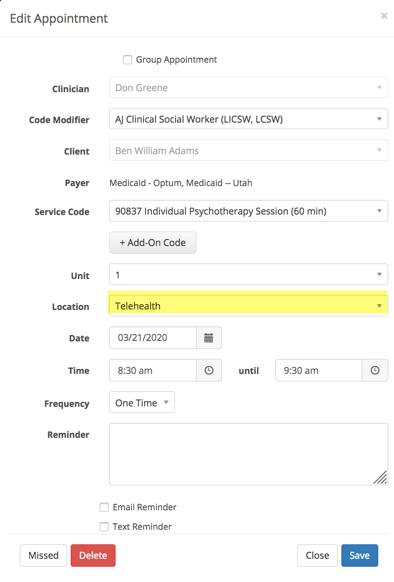
If the Telehealth option is not in the location list, you will need to go back and follow the setup instructions mentioned above to add it as an office location to your settings.
Telehealth appointments can only be schedule at a future time and/or date on the Dashboard calendar.
Telehealth appointments can only be schedule at a future time and/or date on the Dashboard calendar.
Joining a Telehealth Session
- Talk to your client about the telehealth process prior to their first telehealth session so you both know what to do and expect.
- Please ensure that you are both using the latest versions of the Google Chrome, Microsoft Edge or Mozilla Firefox browsers. These are the only supported Internet browsers and the latest versions will work better.
- Clients can use their smartphone to join the session if there phone browser supports it. If the client gets a browser not supported message it means their phone is too old and won't work.
- The clinician should send the client a Telehealth invitation prior to the the start time of the session from the client's information page. The blue Send Invitation button is next to the scheduled date and start time for the session. The invitation can be sent up to 24 hours in advance.
- When the Telehealth invitation is sent by the clinician a new blue button will appear on the lower right corner of the client's information page. It will say Join with [client's name]. (see below)

- The clinician clicks on the Join with [client's name] button they will start to process to join the session.
- The client should look in their email inbox for the Telehealth invitation and click on the words Session Link just prior to the meeting. If the client doesn't receive the invitation have them check their spam folder or verify that their email address is correct in their chart.
- A client can also login to the portal and click on the Join with [clinician name] button on their portal home page to join the meeting if desired. The client must have a portal username and password to login to the portal before they can join.
- When the client and clinician have both clicked on their individual Join Meeting buttons as shown below the session will begin.
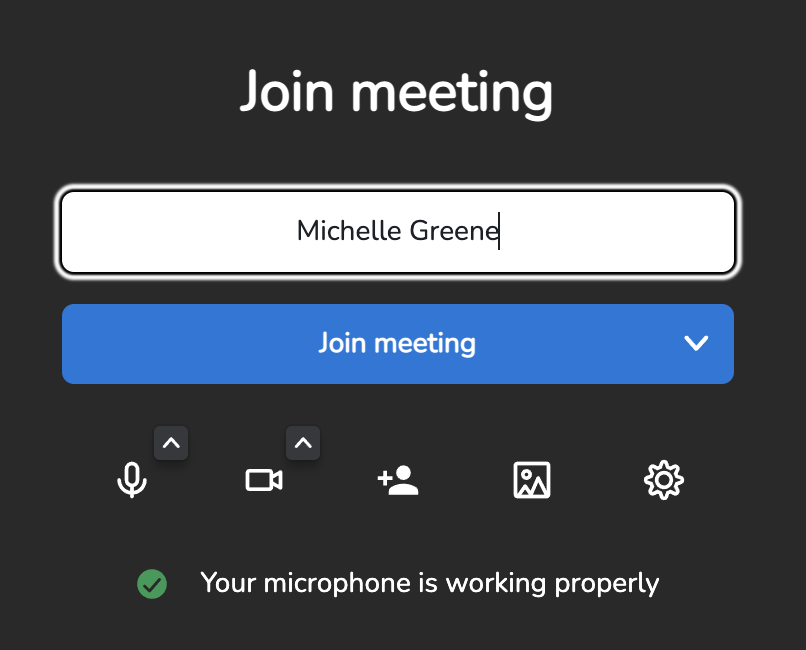
- Make sure that each participant allows their cameras and microphones to be enabled if prompted. If the microphone or camera for a participant is not working the browser needs to be configured to allow.
- There is a time limit for each session. It is dynamic according to the appointment start and end times plus 5 minutes. The session will end after that automatically.