When an ERA doesn't post automatically in TherapyMate an EXCEPTION has occurred and we will alert the Practice of the event in the Clearinghouse Claims-ERA Exception tab. This tab is located in the Clearinghouse Claims area in the Practice's main billing area.
How to locate the ERA Exception
1. Copy the Check Number
2. Login to Claim.MD
3. On the Claim.MD menu list click on View ERA
4. On the View ERA page click on Search
5. Enter or Paste the check number in the Check # field
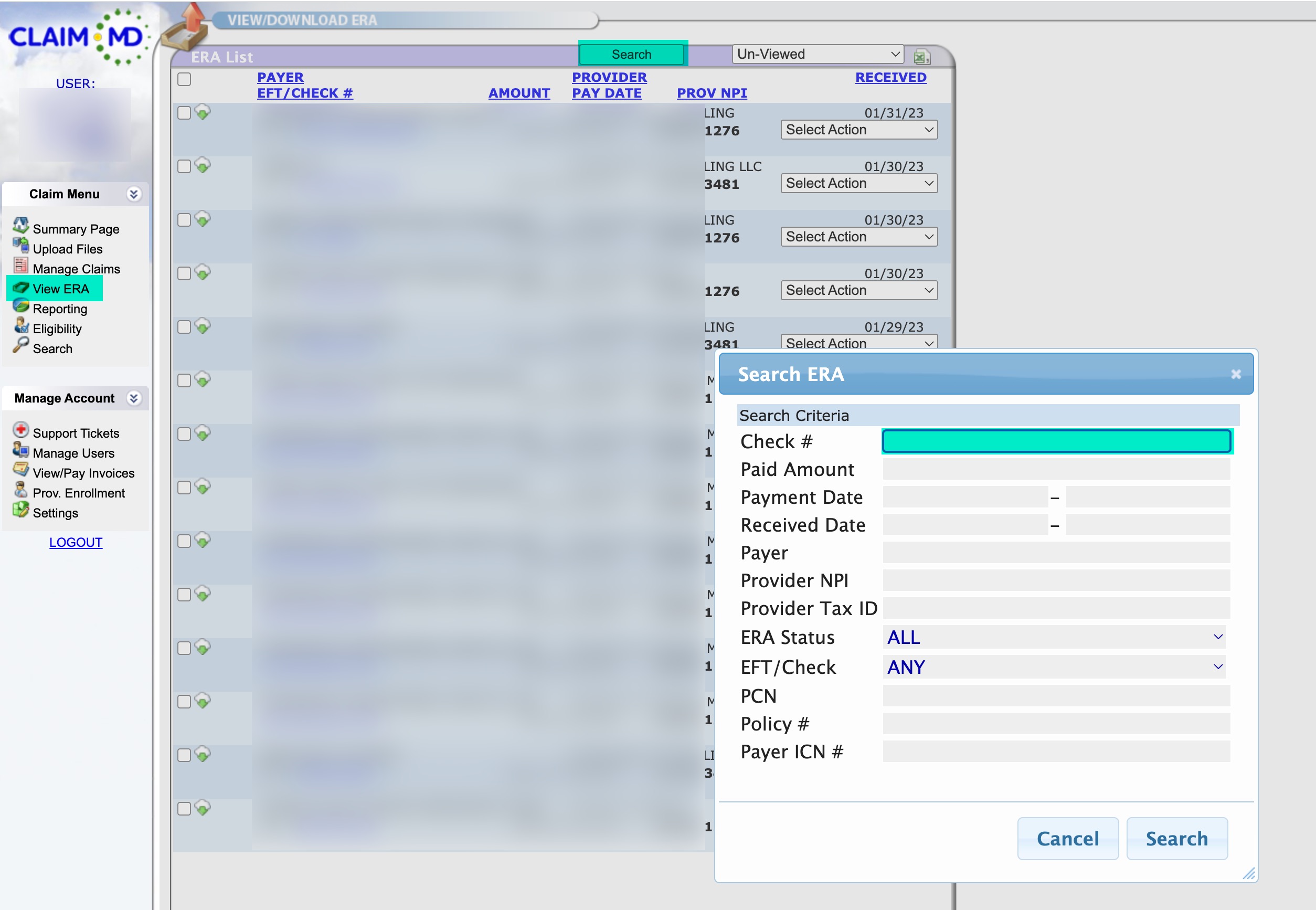
6. Click the Search button. The ERA will be displayed.
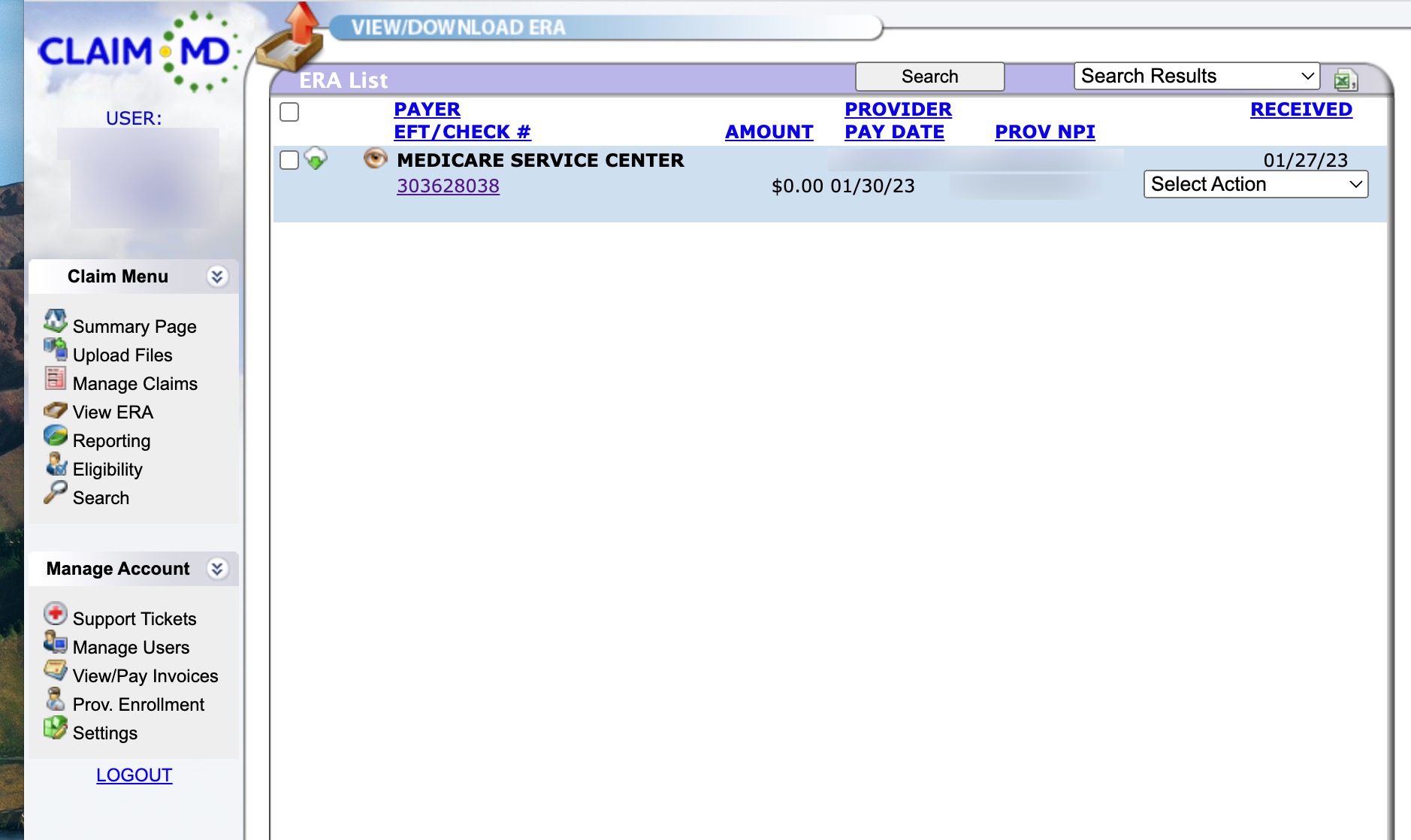
7. To view the contents of the ERA click on it. You'll be able to find the claim that caused the exception. The exception could be due various reasons. The ERA will have error codes on it so you can determine the cause.
Receiving Email Notifications of Exceptions
If you wish to get notified via email that an exception has occurred, there is a checkbox on the System Administrator's Clinician Practice Information page.
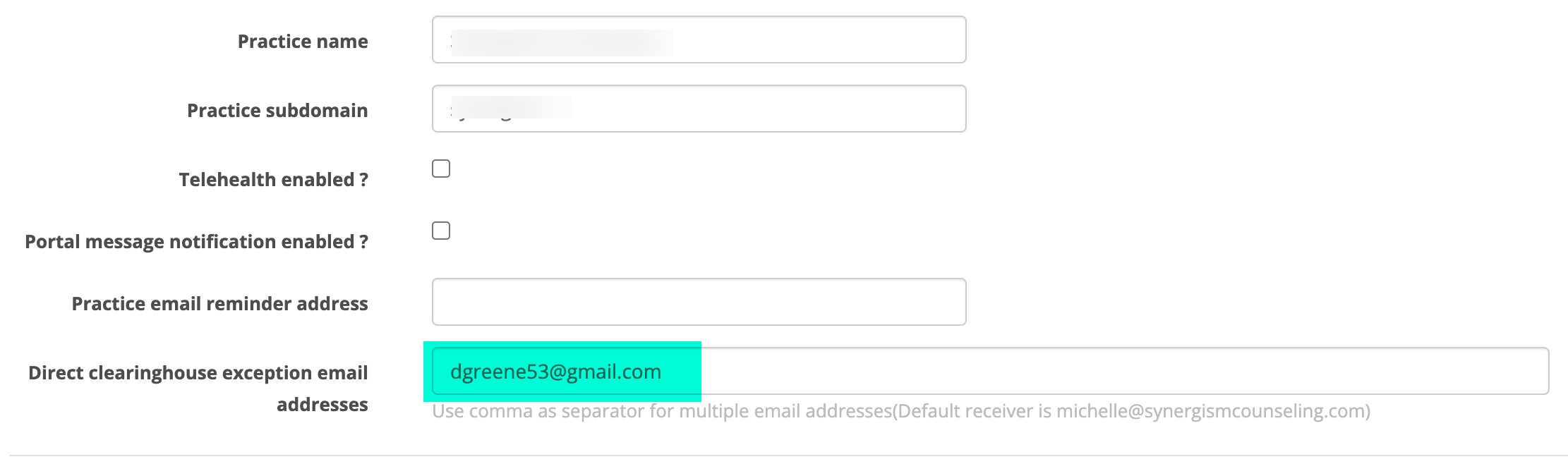
Enter the email address you want the notifications sent to. This could be anyone in the Practice that have designated to do this. If more than one person needs to be notified, enter both addresses in the box separated by a comma.