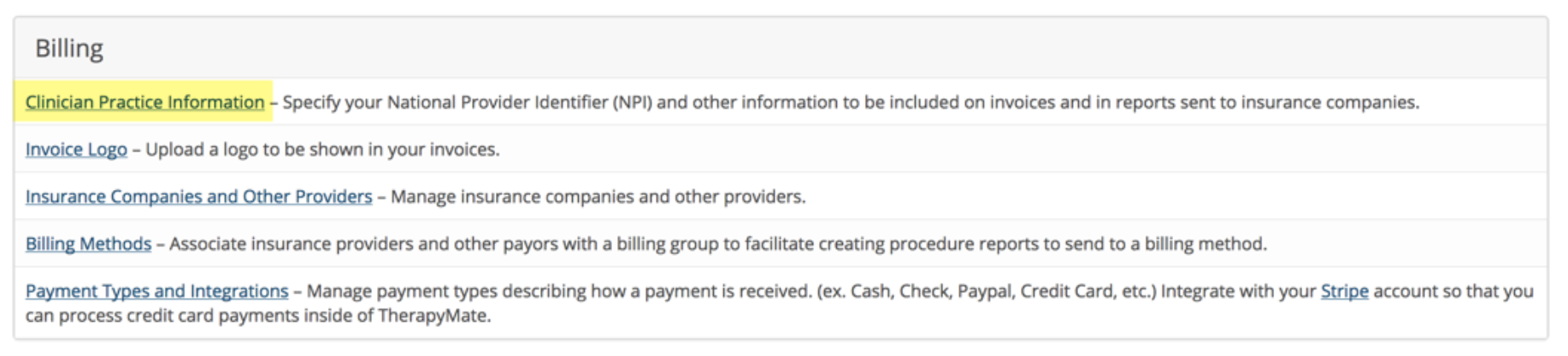
Click on the link and scroll down to the bottom of the Clinician Practice Information page. You will see two fields called Interchange ID Qualifier and Clearinghouse ID. Set them to the values shown below and save the page when done.

This completes the settings changes for Availity in TherapyMate.
Creating a Clearinghouse Claims batch file

3. If you've never submitted any Clearinghouse Claims-Batch Files the page above will be blank. If you have submitted these types of claims in the past, they will be listed

7. In this example, we created a Clearinghouse Claim file for Warren and Jim. To download the file, click on the disk icon where the red arrow is located. The system will perform some error checking and attempt to download your batch file to your computer.
8. When you click on the floppy disk icon, TherapyMate is going to do some checking to see if any of the billing information is missing. If it finds something missing it will show you what needs fixing as in following example:

The file name that gets saved will be similar to the following example: edi_file_10492.txt. The numbers will increment each time you create another file.

- Login to Availity at www.availity.com
- Click on Claims & Payments on the main menu bar and then click on Send and Receive EDI File

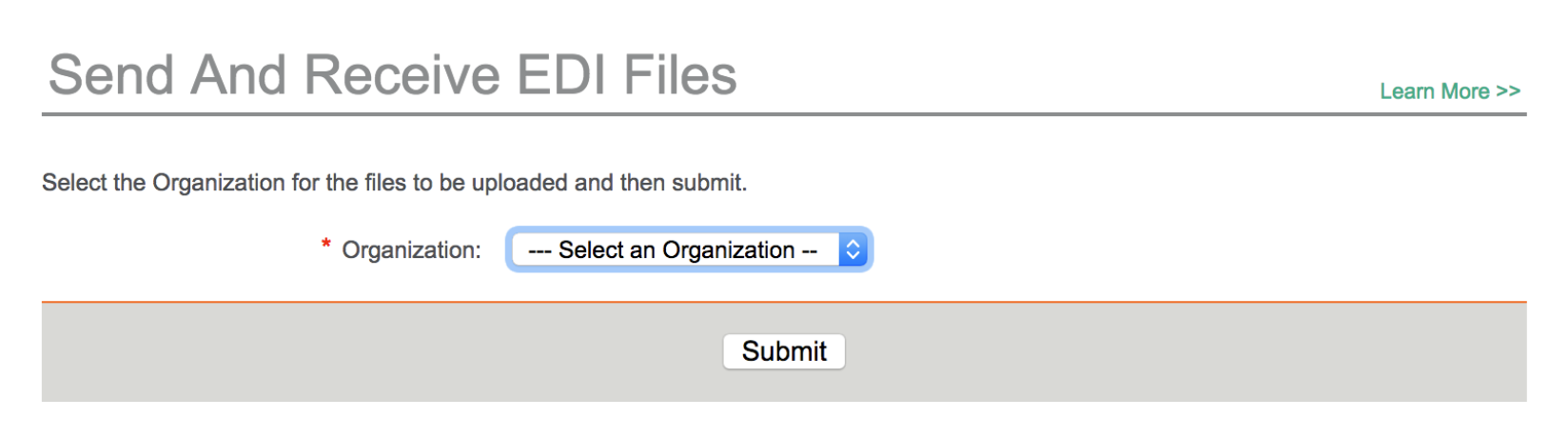
3. Select your organization from the drop down and click Submit.
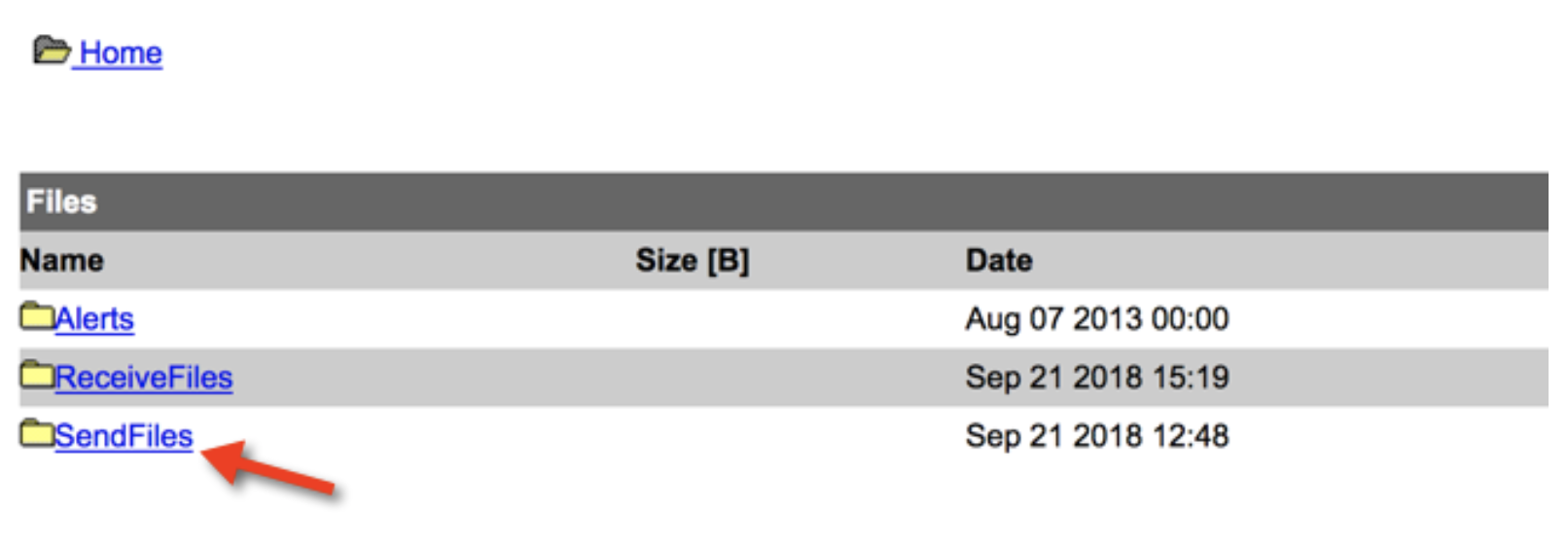
4. Click on Send Files folder as shown below:
5. Click on the browse button and locate the clearinghouse batch file you created and save to your computer. It may be saved in your downloads folder or on your Desktop depending on your browser’s settings.
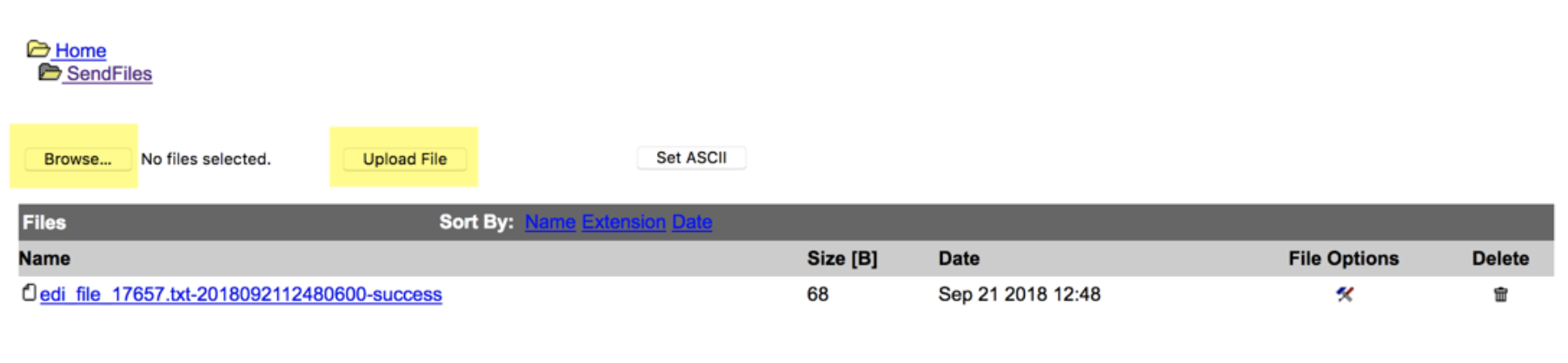
7. Your batch file has been submitted.
Checking Submitted Files for Errors or Acceptance
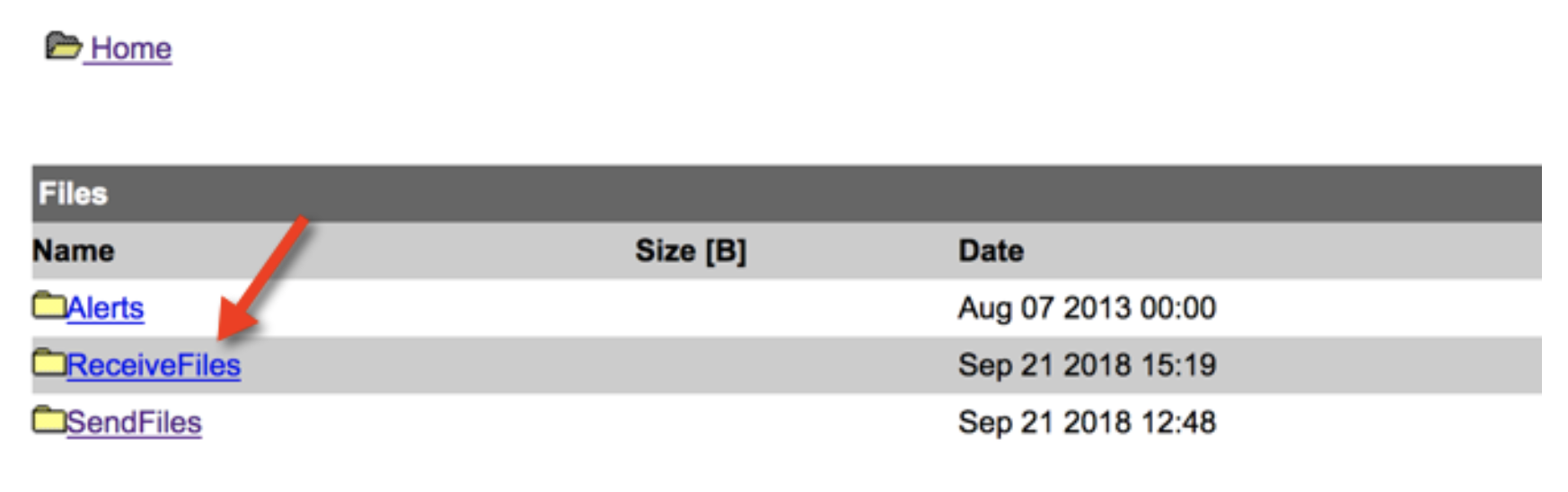
In the Receive Files folder there can be several different responses from Availity and the Insurance Providers. Here is an example so you can see what they look like:

To read the contents of one of these files, click on the icon in the File Options column and then click on Download as: Text/Plain. You’ll be able to read the contents of the file. DPT and EPT files are acknowledgements from the insurance companies and IBT or acknowledgements that the claims were rejected or accepted. The ERA’s are harder to read, but they are payment advices. For more information about the different file types, please contact Availity.
Please Note: TherapyMate's role is to help you create industry standard batch files so you can upload them into Availity. TherapyMate does not offer any support after that for the Availity website or their billing processes.