If you need to change your clearinghouse settings from one clearinghouse to another, go to your Clinician Practice Information page. Click your name in the upper righthand corner of the Dashboard and select Settings.
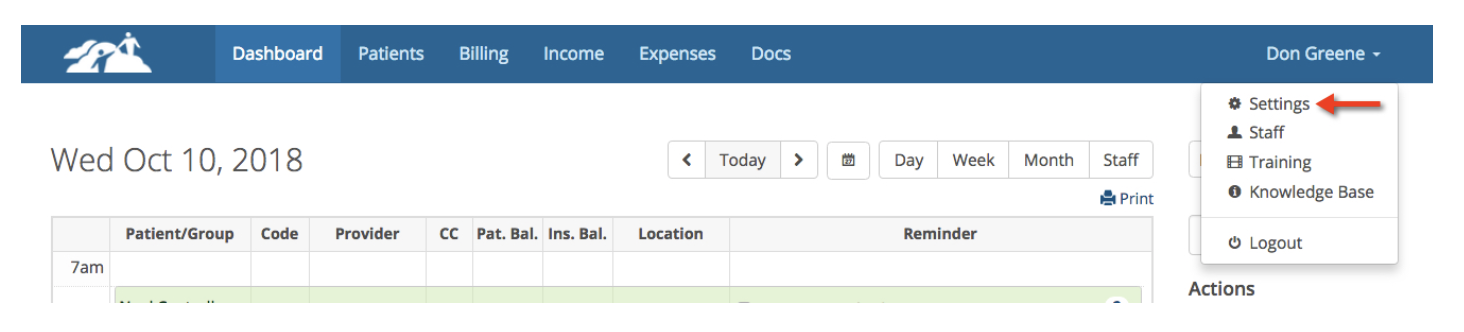
Changing Your Clearinghouse Settings
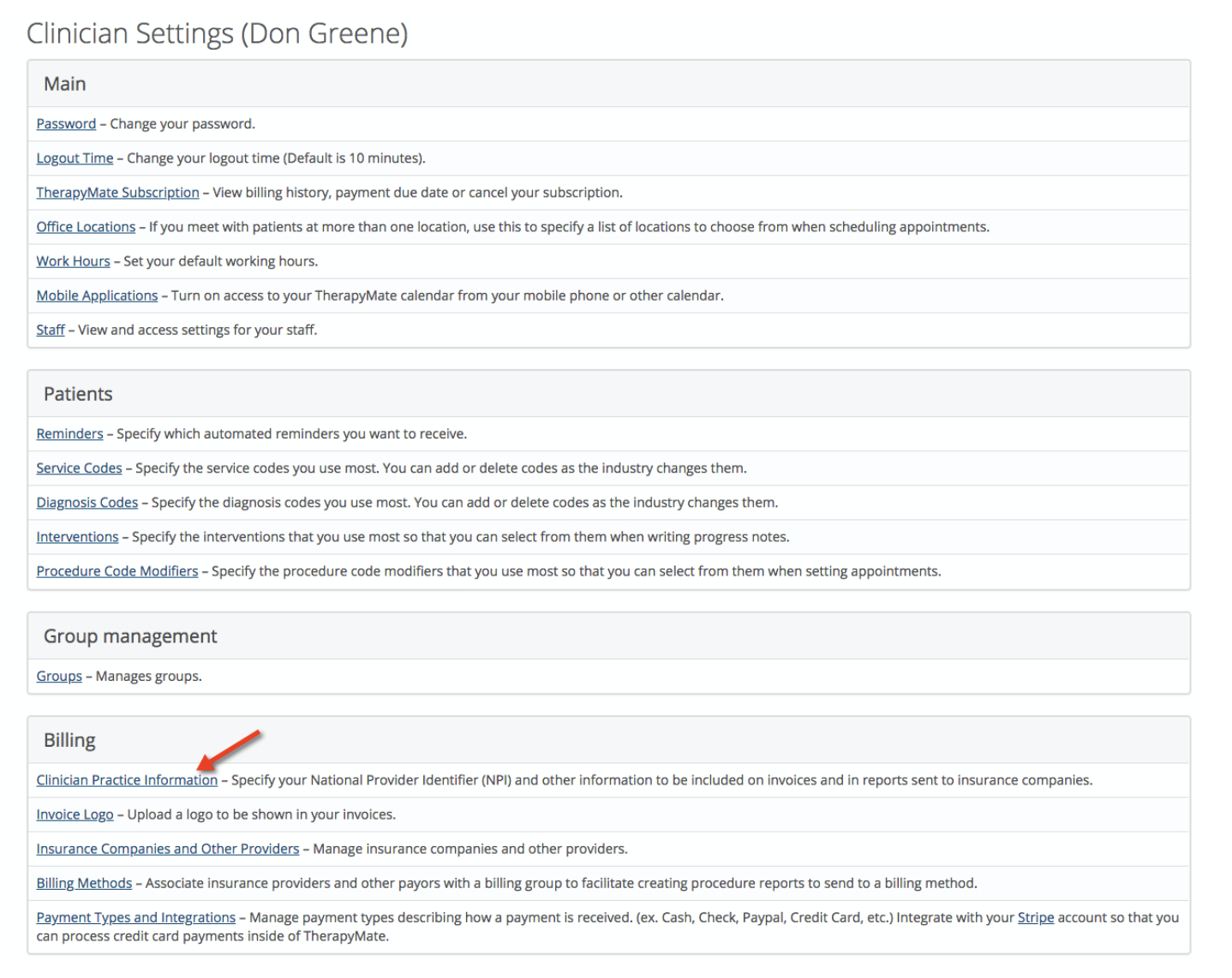
On the settings page, scroll down to Clinician Practice Information.
On the Clinician Practice Information page scroll down to where you will see Interchange ID Qualifier and Clearinghouse ID.
In the example below the settings for these two fields are for Availity.
In the example below the settings for these two fields are for Availity.
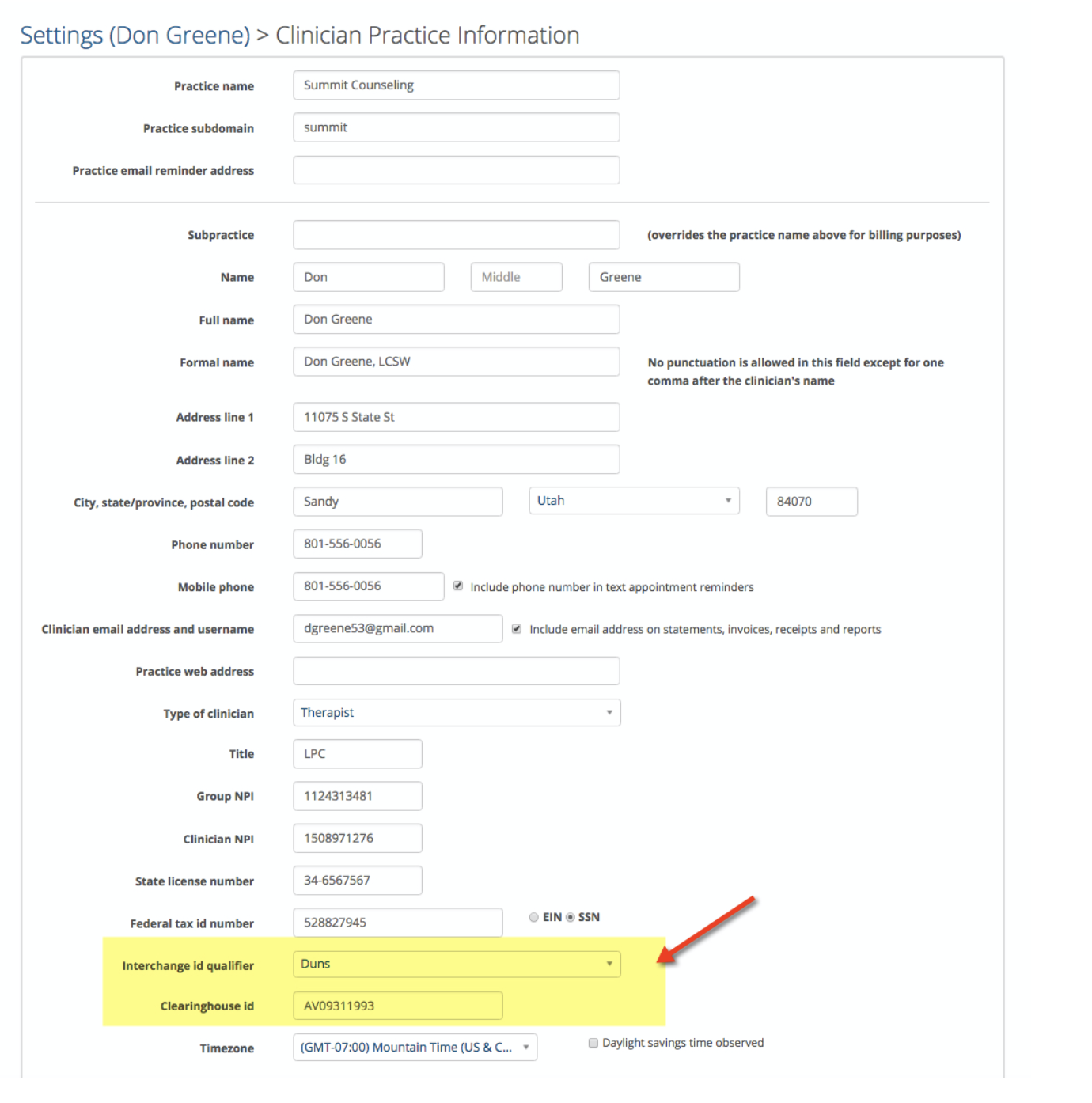
To properly bill claims to a clearinghouse, these must be set to the proper values. Here are the most common:
Office Ally
Interchange ID Qualifier: US Fed Tax ID Clearinghouse ID: 330897513
Navinet
Interchange ID Qualifier: US Fed Tax ID Clearinghouse ID: 273019889
Availity
Navinet
Interchange ID Qualifier: US Fed Tax ID Clearinghouse ID: 273019889
Availity
Interchange ID Qualifier: DUNS Clearinghouse ID: AV09311993
ClaimMD
Interchange ID Qualifier: Mutually Defined Clearinghouse ID: CLAIMMD
UHIN
Interchange ID Qualifier: Mutually Defined Clearinghouse ID: UHIN3
UHIN
Interchange ID Qualifier: Mutually Defined Clearinghouse ID: UHIN3
If you need to switch back and forth between two different Clearinghouses, you will need to change these settings before you create and submit the claims.
In a multi-clinician Practice each clinician has these fields and they must be set accordingly.
In a multi-clinician Practice each clinician has these fields and they must be set accordingly.