If you have a client payment that isn't applied to a particular invoice these instructions will help you apply it to an invoice with an open balance. Orphaned payments can happen if an appointment is deleted after a client payment was appointment was to the old invoice.
1. Go to the client's payment page. You will notice a payment that has been orphaned and is no longer applied to an invoice. In this example the amount that got orphaned is $293.55.

2. Click the edit button on the right. This will open a window like the following:
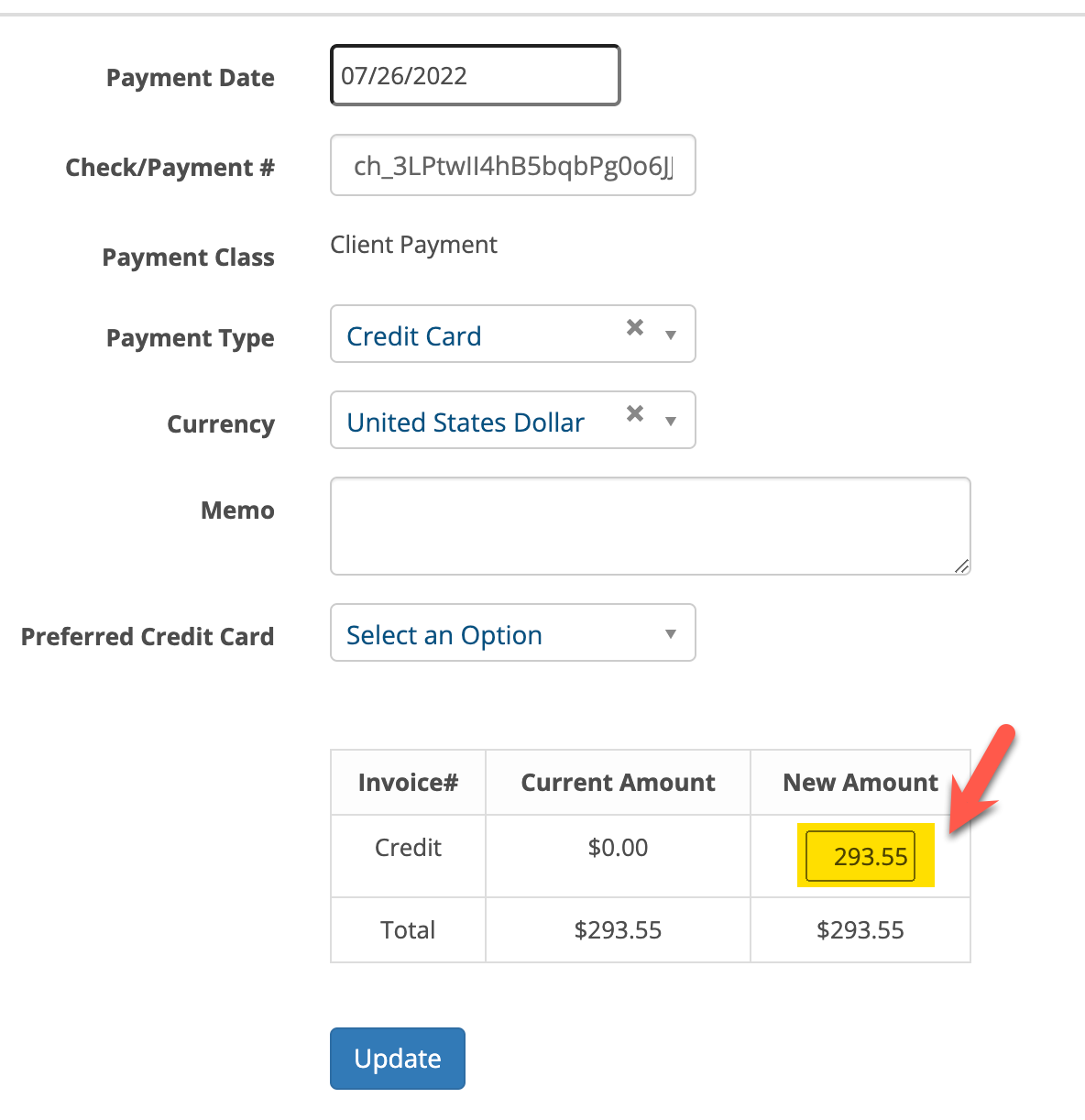
The yellow highlighted field will have 0.00 in it. Change the amount of the payment. In this example we entered $293.55. Click update when done. This will change the payment to a credit in the system as shown below.
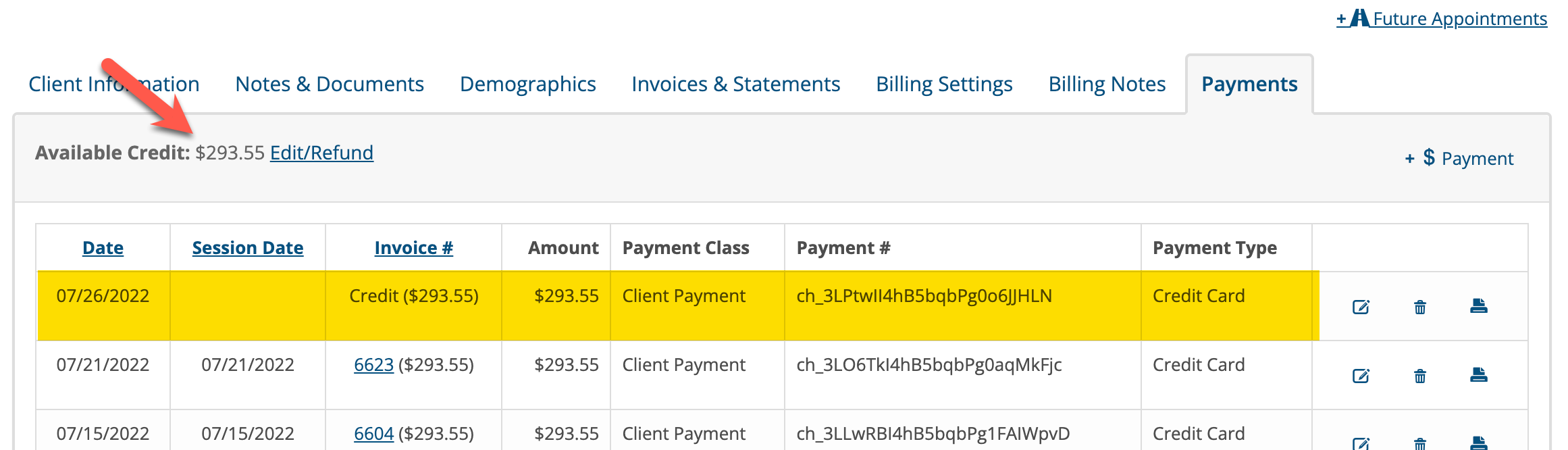
3. Now that the $293.55 is a credit in the system, we can apply it to the invoice that has a balance. Click on the +$ Payment link on the client's payment page. The payment window will appear like the one below:
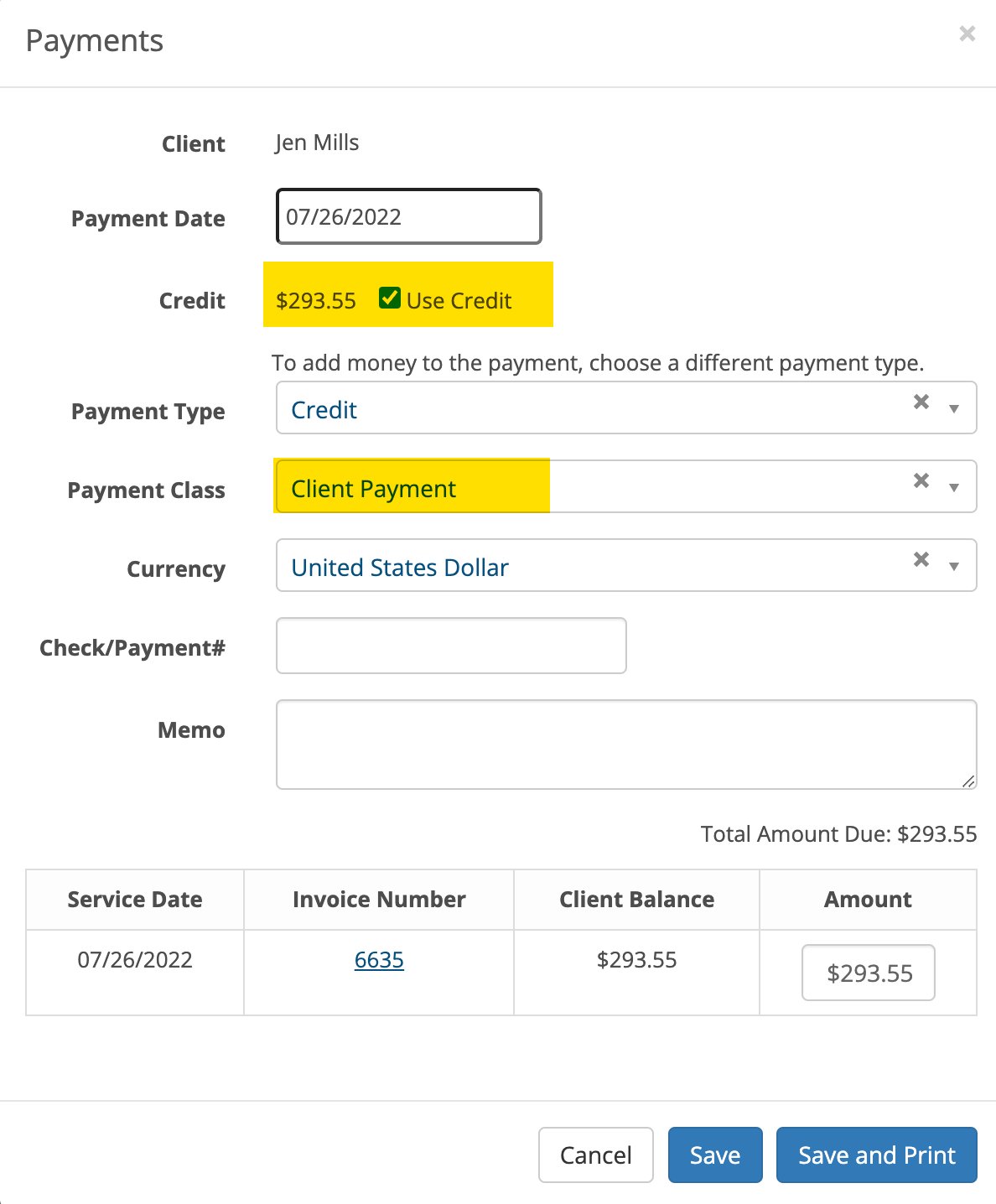
Click the "Use Credit" checkbox and select the Payment Class drop down. Leave the other items the same. Click Save.
Now the payment that we turned into a credit has been applied to the invoice.