Background Information
At the bottom of a client's insurance billing settings there is an area to add pre-authorizations. Sometimes these are called EAP authorizations. Here is an example for a Tricare authorization.

Scheduling an appointment will automatically use one of the remaining authorizations. At the bottom of the appointment window you will see the authorizations that are available. When available, the checkbox will be pre-checked.
In the pre-authorizations settings area it will show the dates that get used in the Service Dates column. Here is an example:

The appointment date of 6/14/2022 has now used one of the allowed authorizations. TherapyMate does not prevent you from scheduling more appointments after the authorization end date if there are any remaining authorizations. If the authorization has expired, edit the authorization and change the remaining authorization box to zero. Make sure you do this before adding any new authorizations.
The Problem
When a practice adds a new authorization before changing the old authorization to zero, billing errors will result. TherapyMate sees two authorizations that have remaining units and will try to use them when a new appointment is scheduled. Here is an example of what that would look like at the bottom of the appointment window.

Also notice the pre-authorization settings page shows that 9/9/2022 has been used twice under each authorization.
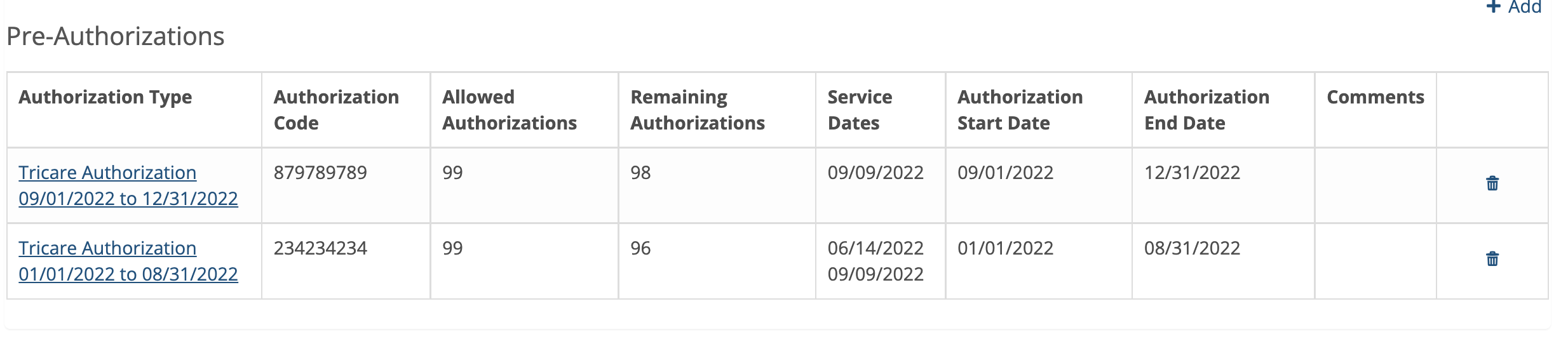
You can't use two different authorizations for the same date of service. If you create this situation you will get error when you try to submit a claim.
How to Fix
If you haven't created a claim file and the invoice(s) shows pending edit the appointment and uncheck the authorization that is no longer valid and save the appointment again. Then edit the invalid authorization and change the remaining authorizations column to zero.
If you already created a claim file the invoice(s) will show submitted. You'll need to perform the following steps:
1. Un-submit the invoice(s). This can usually be done by deleting the claim file that you created or you can manually edit each invoice and click the reset button. Regardless of the method you use, the invoice(s) must be returned to pending before proceeding.
2. Edit the appointment and un-check the authorization check box that isn't valid. Save the appointment again.
3. Edit the old pre-authorization and change the remaining authorization column to zero.
3. Now you can create a new claim file.
Please note: If you have already zeroed out the remaining authorizations you won't be able to uncheck the invalid authorization in the appointment window because it will be grayed out. Do the following:
Temporarily edit the old authorization and add back one remaining authorization so you can edit the appointment and un-check the box. Be sure to go back and edit the old authorization and change the remaining authorizations to zero again when you are done.