If you have a client who changes insurance providers, use these instructions to make the changes to their insurance billing settings.
Step 1
IMPORTANT! DO NOT deactivate the old insurance provider just yet.
Step 2
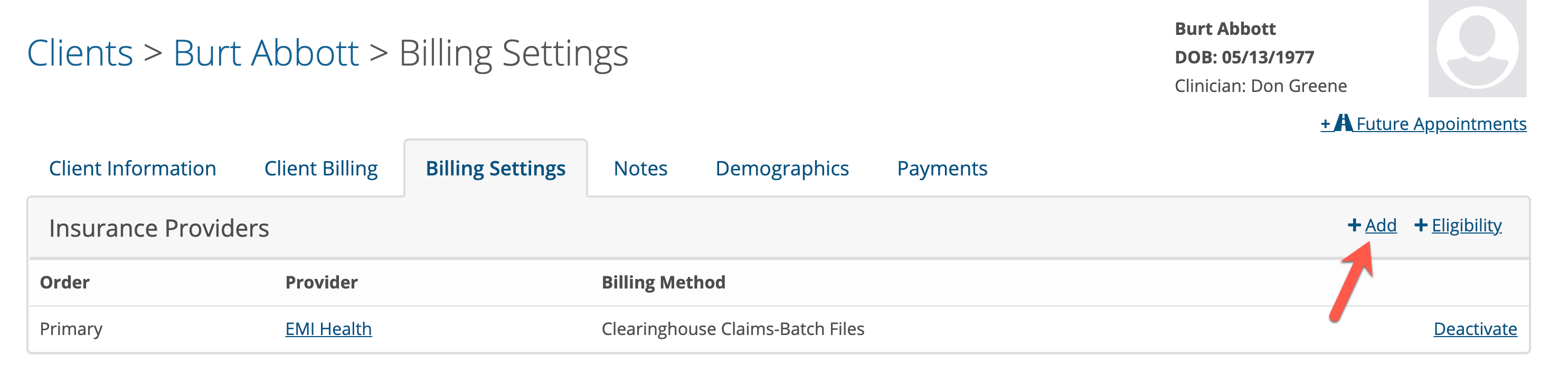
Add the new insurance provider to the client's insurance billing settings.
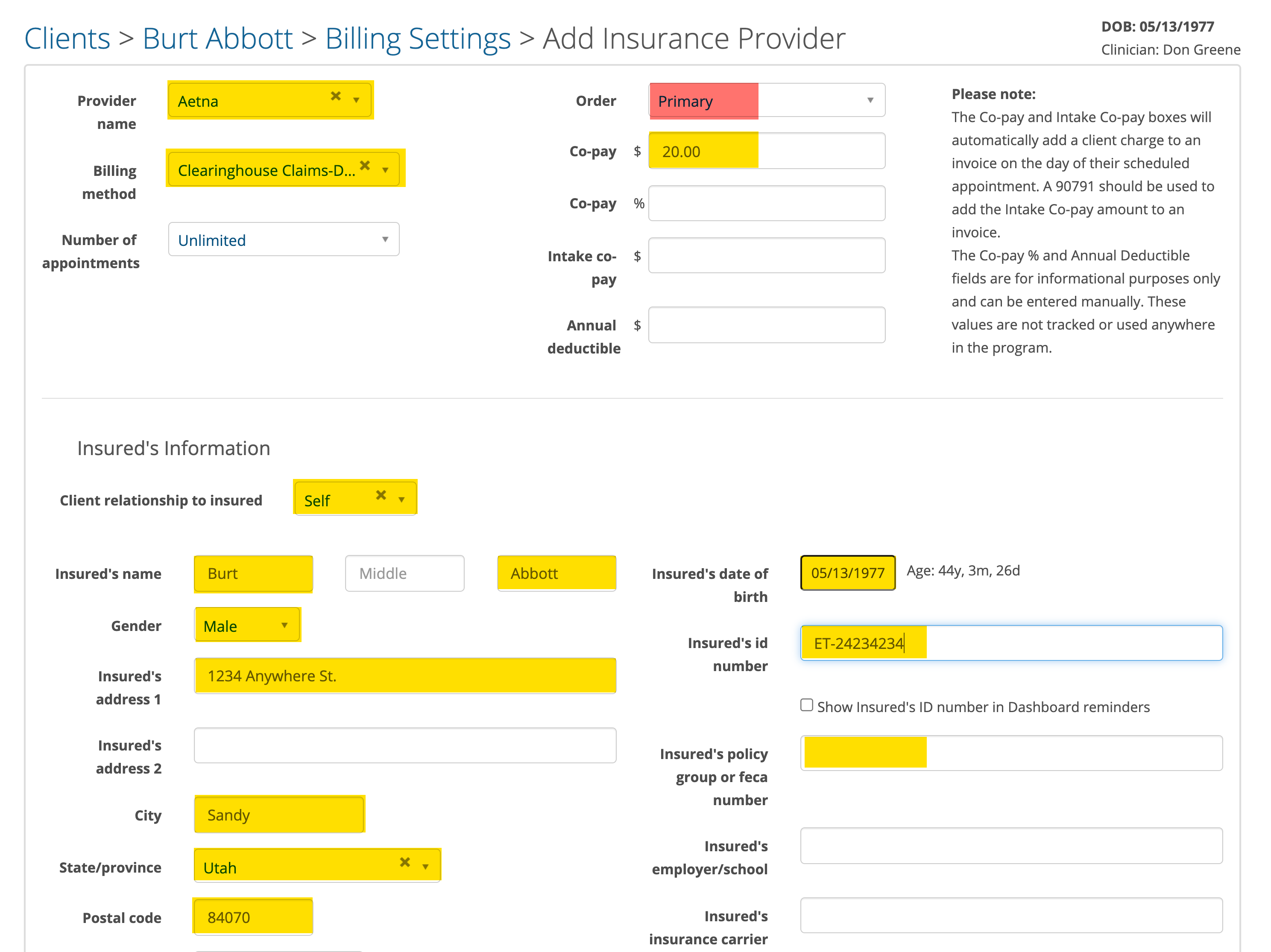
Complete the following page for the new insurance provider. The important fields to complete are highlighted in yellow. Be sure to select "Primary" from the drop down as shown in red.
(copay and group policy numbers are optional if not required)
Click the ADD button when done.
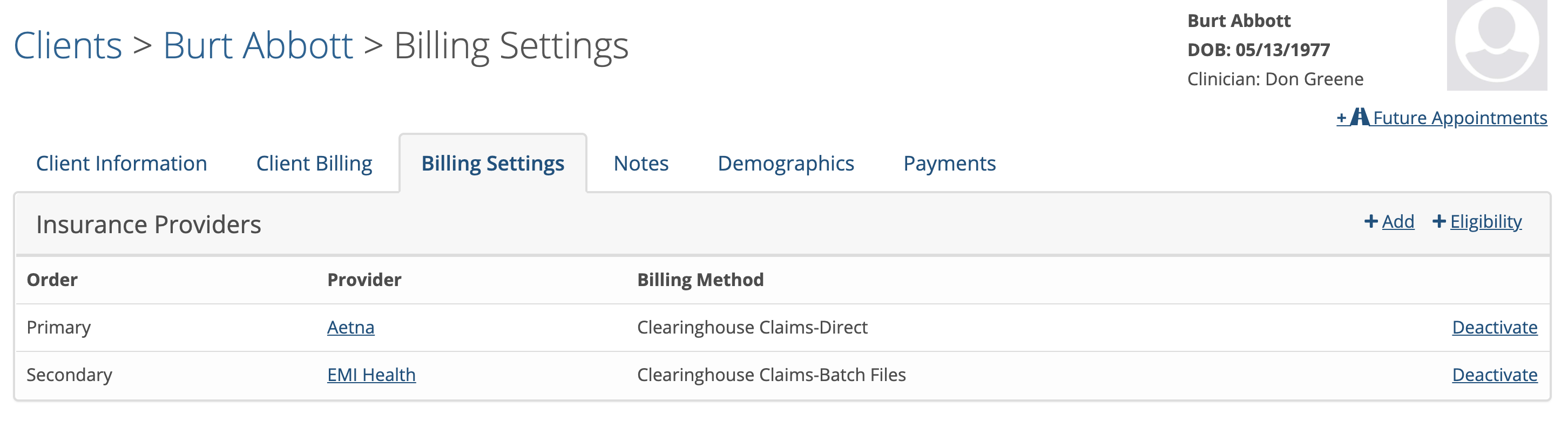
You will now see the client has two insurance providers configure on his billing settings page. That is OK for now.
Step 3a
If you don't have any existing invoices that need to be billed to the new insurance provider you can deactivate the old insurance provider now.
You're ready to submit the claims to the new insurance provider using your normal processes.
Step 3b
If you have existing invoices that need to be billed to the new insurance provider you must edit them before your deactivate the old insurance provider. Remember, changes to a client's billing settings are NOT retroactive to invoices that may already exist.
Please do the following to edit an existing invoice:
Go to the client's invoices page and click on the invoice number for a date of service you need to change.
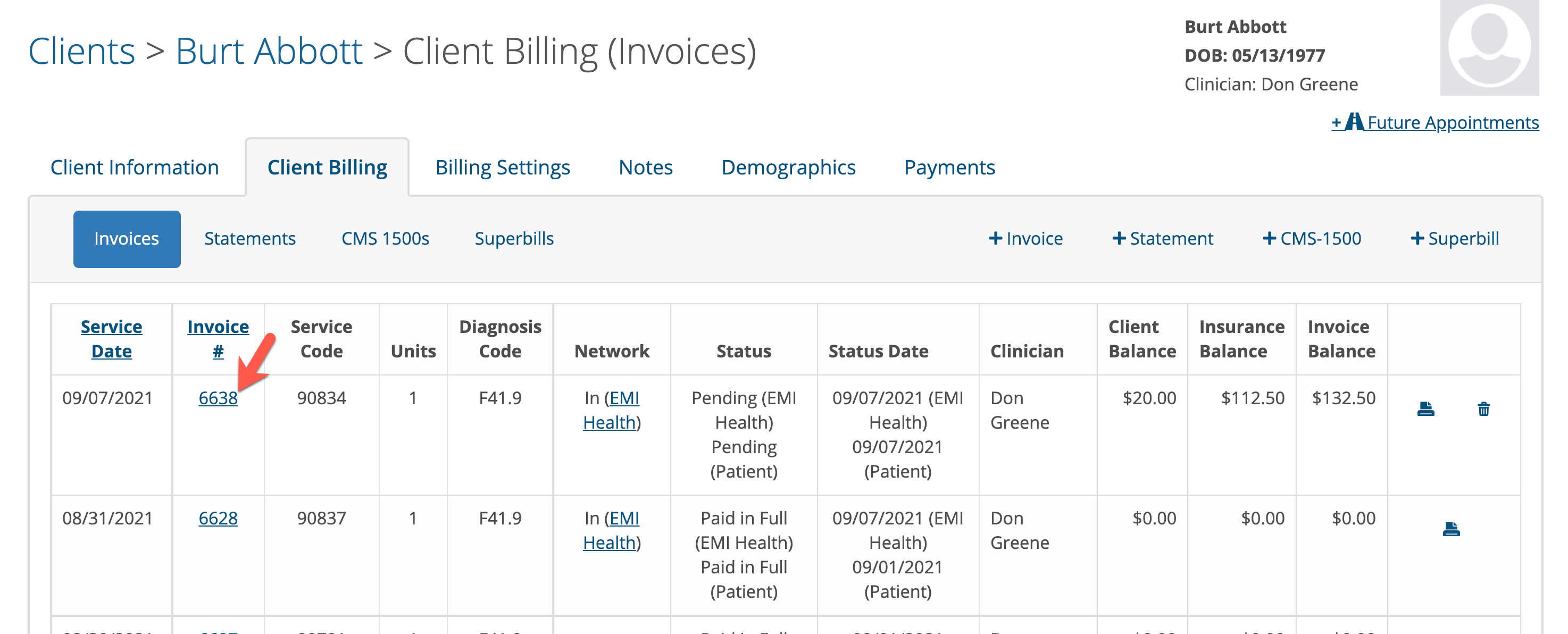
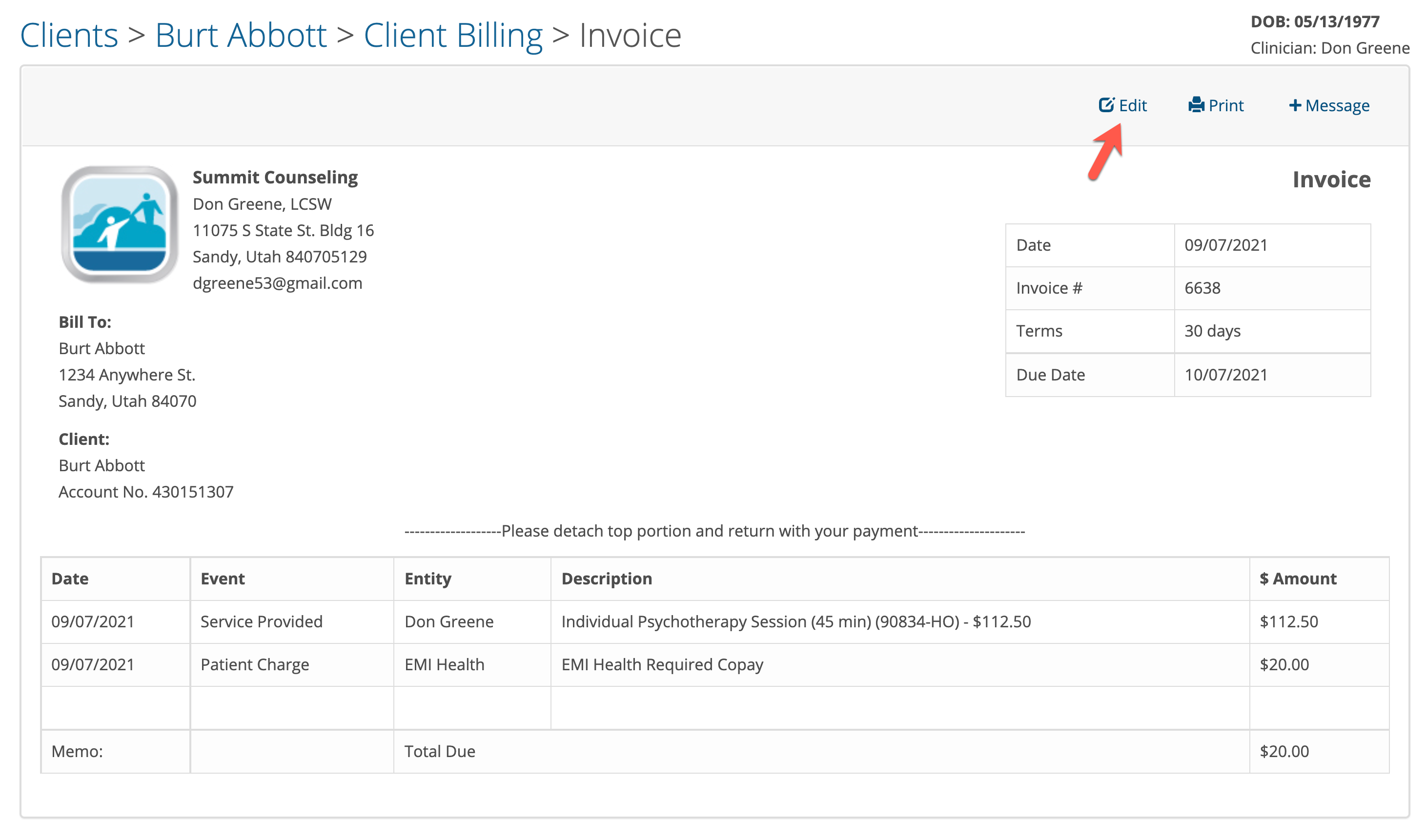
In this example, we are going to change the insurance provider on invoice number 6638 from EMI Health to Aetna.
Click on the edit button as shown below:
Remove the old insurance charge line for the old insurance provider (EMI Health in this example) by clicking the X on the right side.
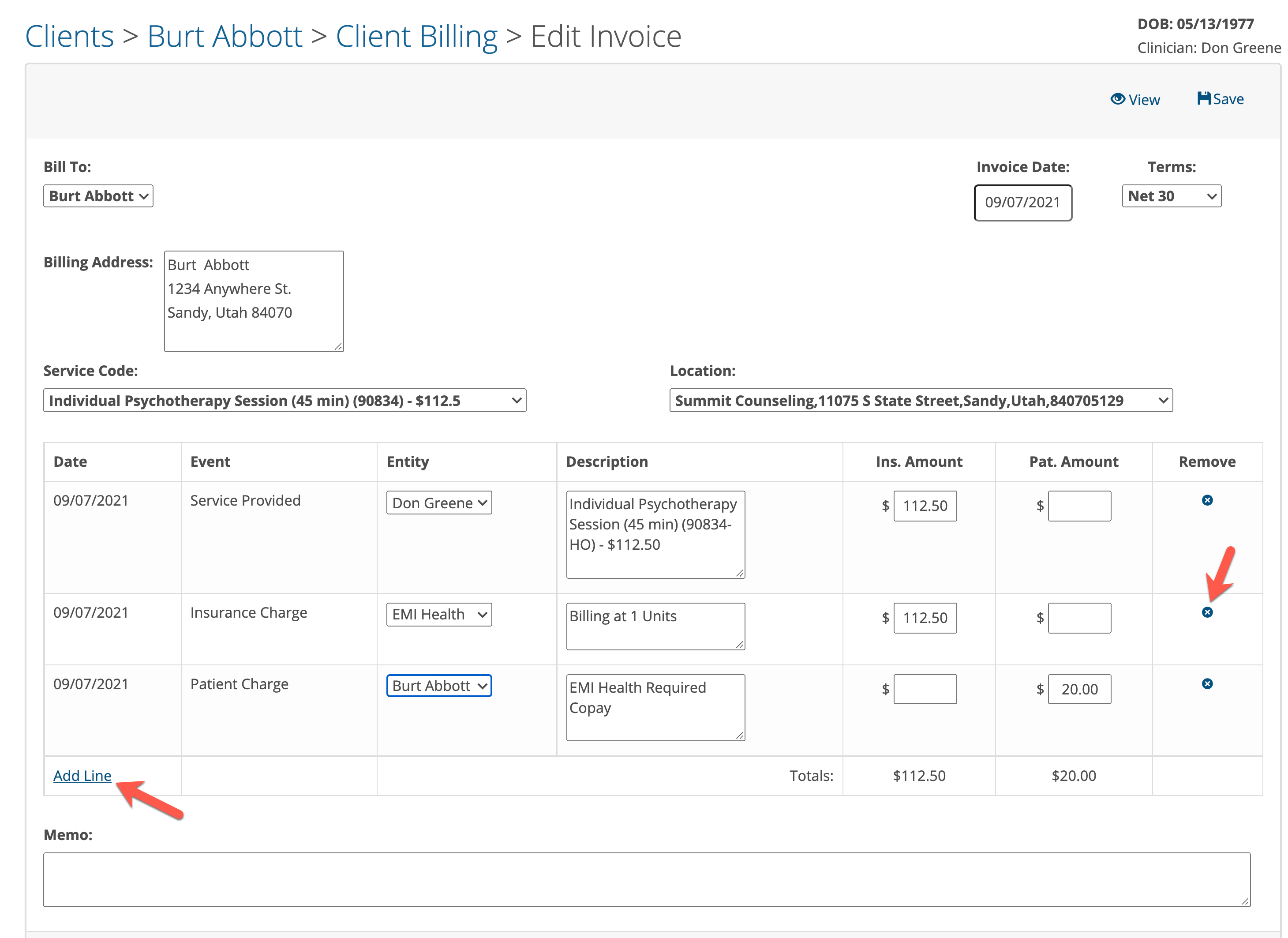
Next, click on Add Line button as shown above.
Be sure the date in the first column matches the date of service, select "Insurance Charge" from the Event drop down, pick the new insurance company from the drop down in the entity column (in this example it is Aetna), enter the description and then put the service code amount in the Ins. Amount box. See below:
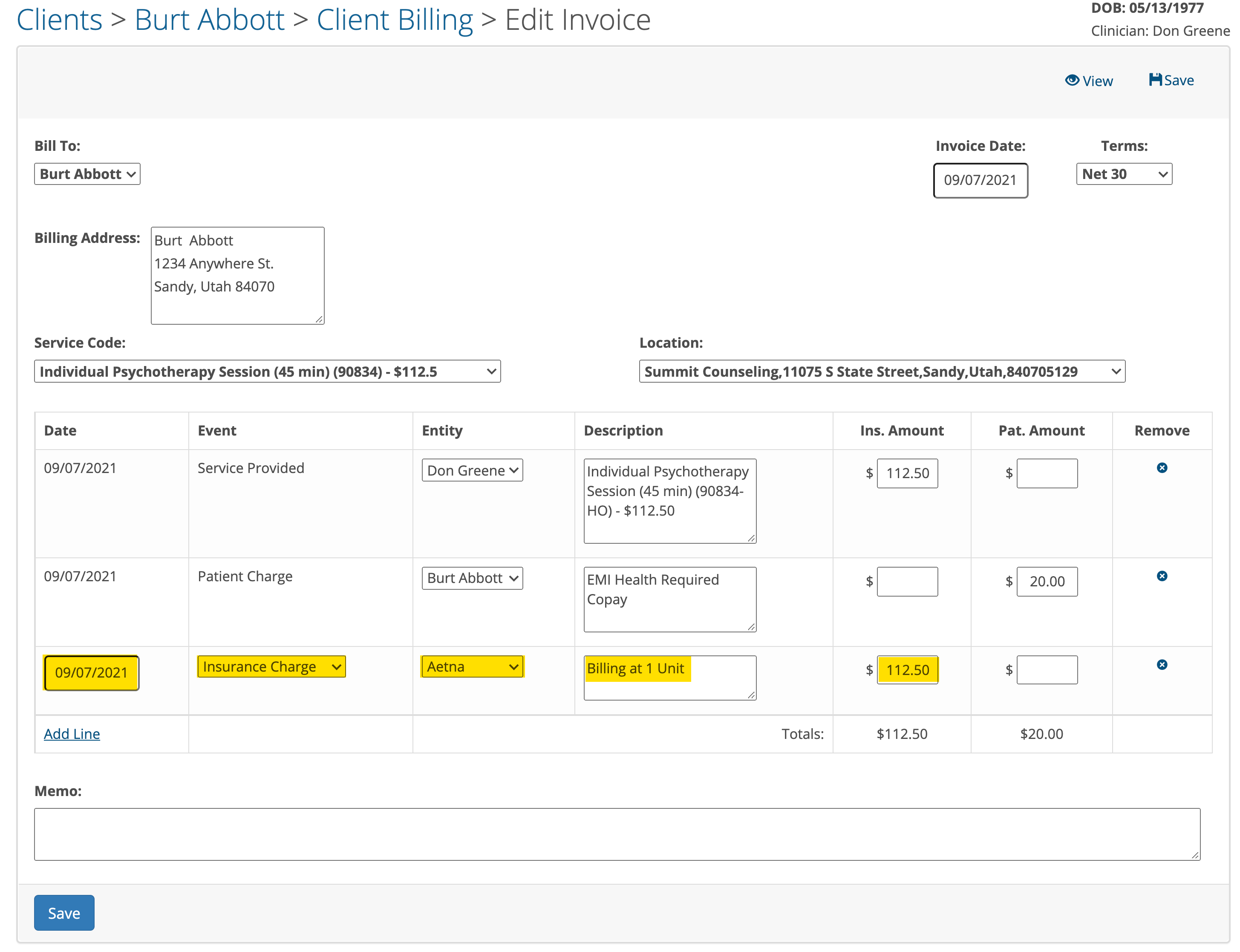
Click the Save button.
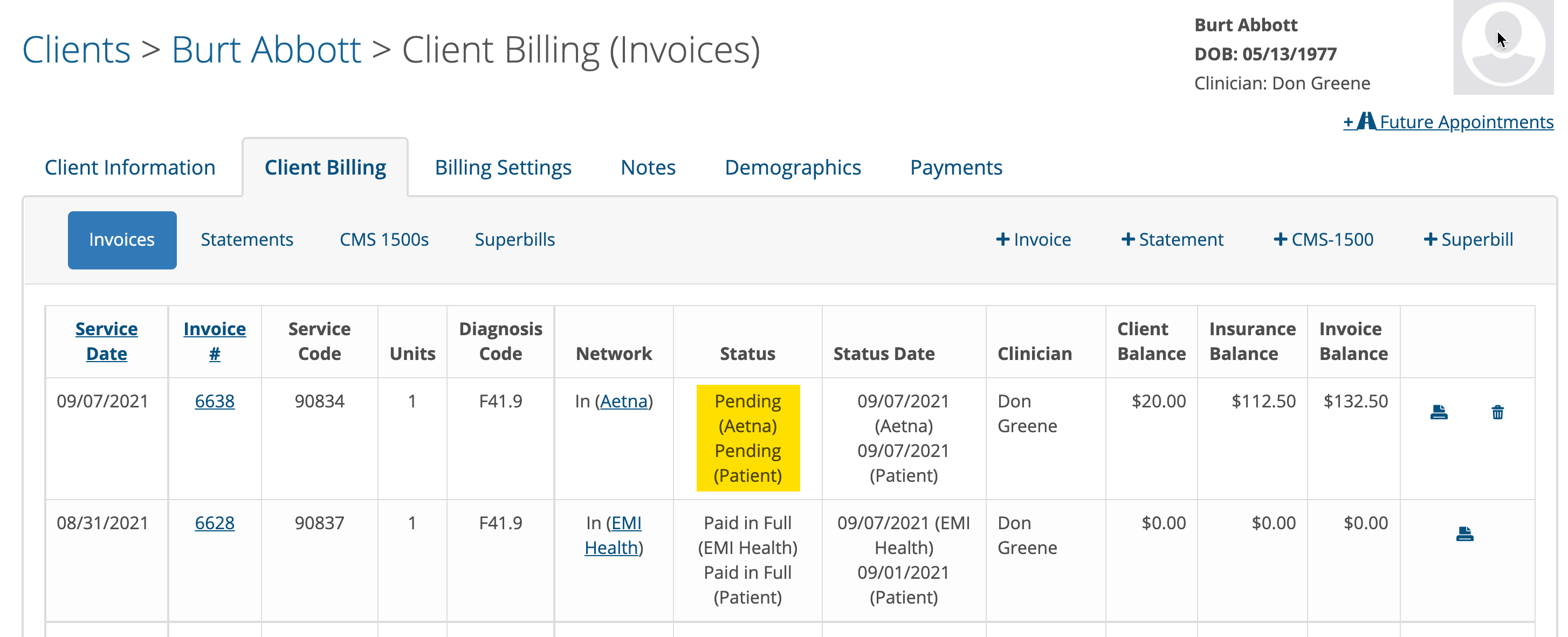
If you look at the client's billing page you will see that the invoice you edited will show the new insurance provider in the status column.
Now you can deactivate the old insurance provider.
When you're ready, submit the claims to the new insurance provider using your normal processes.