Claim.MD is our preferred method to bill claims through a clearinghouse, receive payments electronically back into TherapyMate and perform Eligibility searches.
Before you can submit claims directly from TherapyMate using the Clearinghouse Claims-Direct billing method, you will need a Claim.MD account. Go to Claim.MD's website to schedule a demonstration and sign-up for an account. A Claim.MD representative will advise you on a plan that best fits your needs. The cost of the plan will be paid directly to Claim.MD by you. TherapyMate does not charge extra on top of their subscription fee. Be sure to tell them that you are going to use TherapyMate as your EHR software.
A Claim.MD account has the following benefits:
- Submit claims electronically directly from TherapyMate to Claim.MD
- Get secondary claims submitted automatically
- Receive electronic remittance advices for all insurance payers in one place
- Automatic payment entry into TherapyMate from insurance payers. You will no longer need to enter insurance payments manually.
- Perform eligibility searches to check a client's insurance status, deductible and copay amounts
Configuration Requirements
The following one-time configuration is required to switch from your present clearinghouse (if any) to using TherapyMate with Claim.MD:
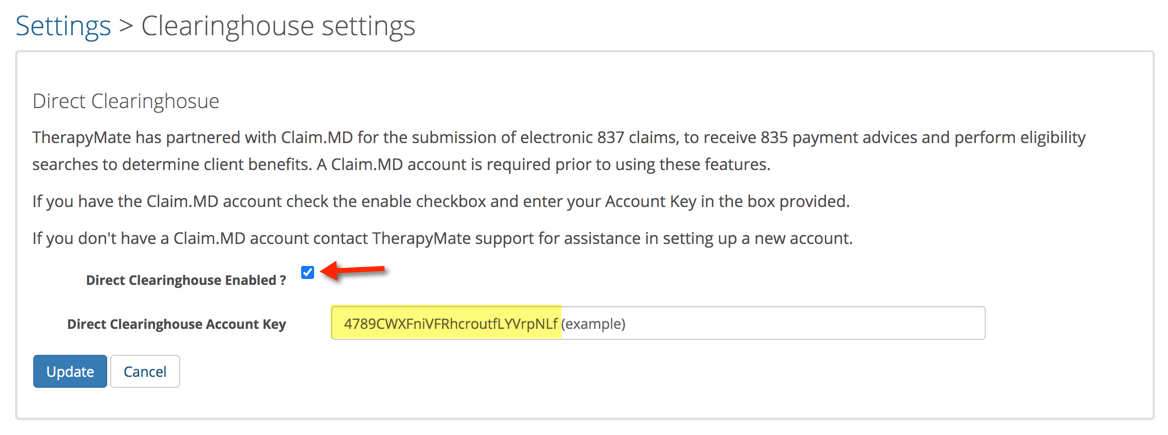
- Enable the Direct Clearinghouse feature and add your personalized Claim.MD SCRIPT KEY into the field shown below. TherapyMate's support personnel will be able to obtain and add this for you. Please ask Claim.MD to granted us FULL ACCESS when your account is set-up. Full access will enable us to provide better support to your Practice over time.
- Make sure you have done your PROVIDER ENROLLMENTS through Claim.MD. Provider enrollments are necessary so your insurance providers will know which clearinghouse you're using and where to send the ERA information after they process your claims. This will be discussed when you attend your Claim.MD training and they can assist you with this effort.
- Add each clinician to your PROVIDER LIST in Claim.MD with their individual TYPE 1 NPI number. This will enable you to do billing sessions and perform eligibility searches.
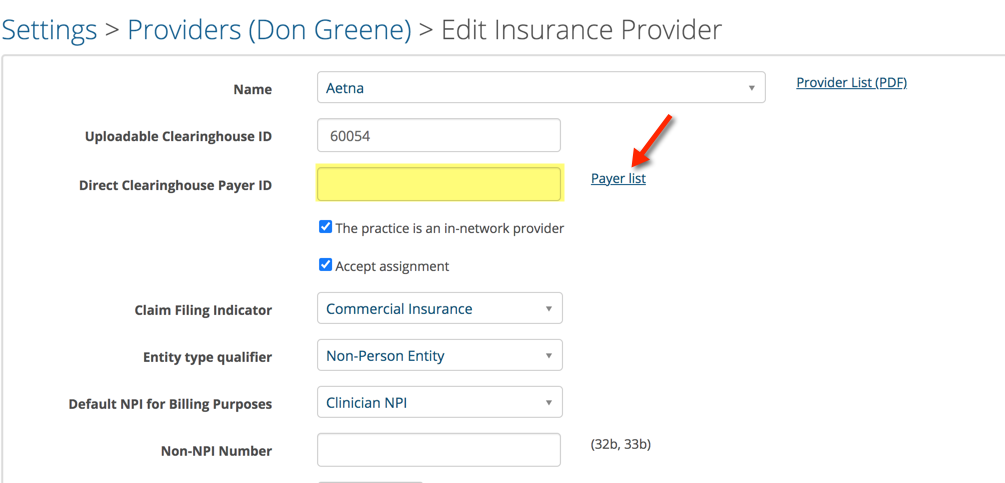
- Edit each insurance payer settings in TherapyMate and add the PAYER ID for Direct Clearinghouse billing. There is a PAYER LIST link to help you search for the correct ID or you can look them up in Claim.MD.
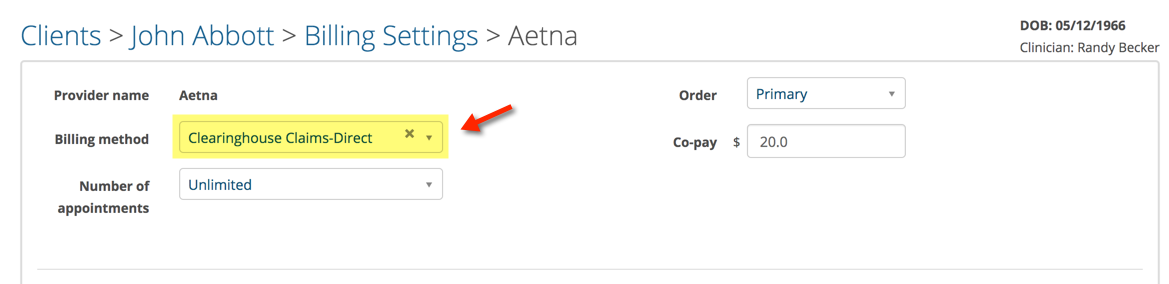
- Change the BILLING METHOD in each client's insurance billing settings to Clearinghouse Claims-Direct.
- Add the Clearinghouse Interchange ID Qualifier and Clearinghouse ID to the bottom of each clinician's practice information page in TherapyMate. See below:

After completing all of the steps above, you are now ready to schedule and bill for your services directly through the clearinghouse to realize the benefits described earlier.
Changing a Client's Billing Settings
Check the Billing Method for each client to ensure it is set to Clearinghouse Claims-Direct.
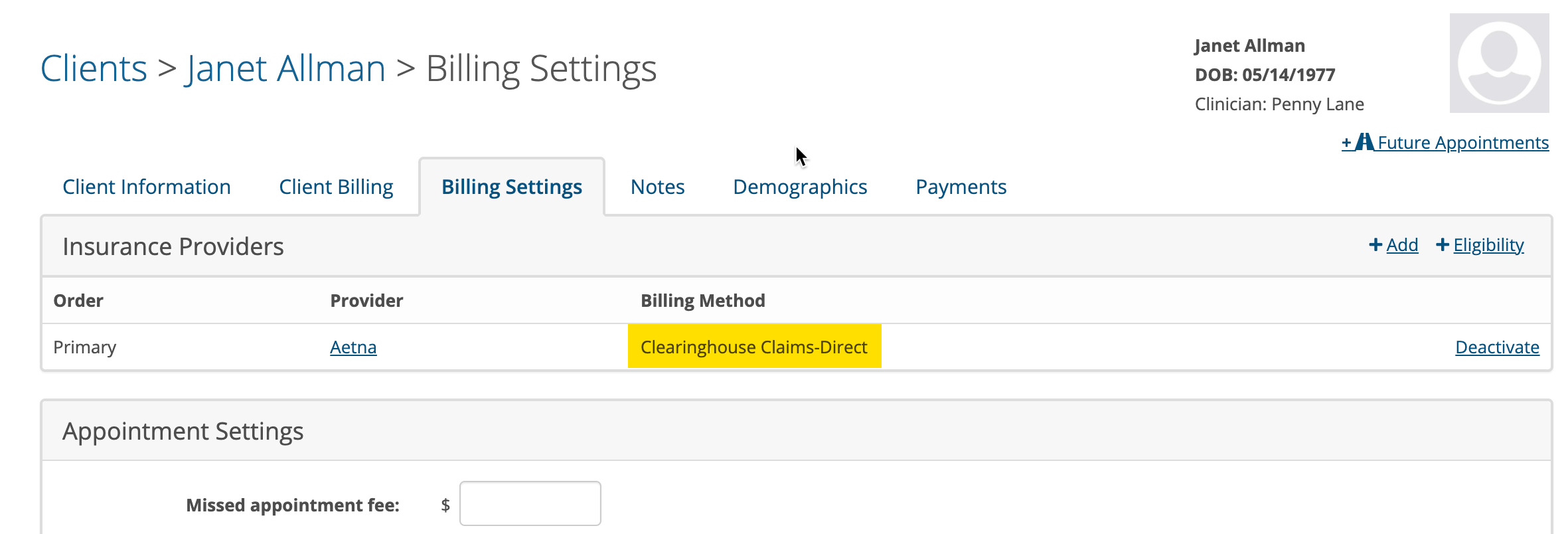
If you need to change the Billing Method, click on the provider's name and change it on the next page.

Repeat this process for each client that you want to bill directly through the Clearinghouse.
Creating a Claim
Check to make sure the client you wish to bill for has their insurance billing settings configured properly, insured's ID number enter and the relationship to the insured correct. Also make sure the client was scheduled properly (service code and location). Make sure a diagnosis has been assigned by creating a session note. A claim can't be successfully submitted if certain pieces of information are missing from the claim.
When you think you're ready to submit a claim, click on Billing on the blue menu bar of TherapyMate.
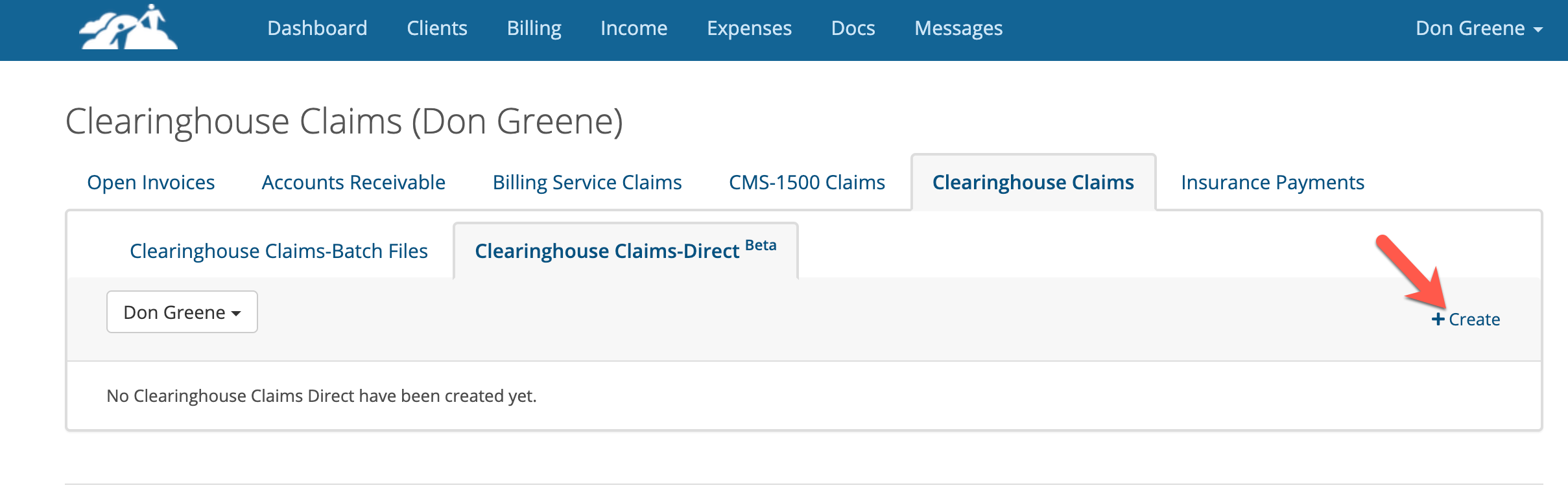
Next, click on the Clearinghouse Claims tab. Then click on the Clearinghouse Claims-Direct tab.
Click on Clearinghouse Claims -Direct. Next, click on the + Create button as shown below.
Choose the clinician's name to display a list of the pending claims.
You will see eleven columns with the necessary billing data for each date of service. This is a summary of of the data for each date of service so you can check to see if you're ready to bill for them.
If any of the boxes is empty, you'll need to investigate and make corrections to appointments and in some cases have the clinician make diagnosis corrections on a note.
Also check to make sure the Service Locations and Modifier Codes are appropriated. For example, if the Service Location shows Telehealth, the Modifier Code should be GT or 95 depending on the insurance provider's requirements.
Primary diagnosis codes are also required.
After you have review the data, check the chek boxes on the left next to each claim you wish to send. When you have your selections made, click the blue Select button in the lower left corner.
Sending a Claim
After you have clicked the Select button, the claims you selected will be batched together into a claim file that you will send to Claim.MD. To send the claims, click the UP ARROW as shown below.

When you click the up arrow, some error checking will take place. If there are no errors, you will see a green message bar saying the submission was successful and the up arrow will change to say Acknowledged.
If see an error window or the arrow changes to Rejected, you'll need to click on the button to see what is wrong and fix the issue before it can be re-submitted.
Avoiding Errors and Denied Claims
It is the responsibility of the Practice to ensure each of the client charts and Practice settings are properly configure to avoid errors when submitting claims. The important pages are the client information page and insurance billing settings for each client. If you don't make the proper settings, claims will be rejected and/or errors will occur which will take up more of your time than is necessary.
For example:
Make sure that each appointment shows the correct service code, modifier (if applicable) and an assigned diagnosis code(s). The best way to ensure a diagnosis code gets included is to create a session note for each date of service.
If the client has EAP benefits, make sure the EAP checkbox checked (if applicable) on each appointment.
Here is a list of common errors and their possible cause:
What to Do After You Get Paid
1. Compare the Claim.MD Remittance Advices against the client's invoices to make sure the insurance payments were applied correctly.
2. Look to see if there are any new client charges that need to collected.
Getting Started Advice
Try a couple of insurance providers with a few patients until you get comfortable with the process and results. Gradually add more insurance providers and clients. It is possible to be completely switch over with a month or less.
What to Do After You Get Paid
1. Compare the Claim.MD Remittance Advices against the client's invoices to make sure the insurance payments were applied correctly.
2. Look to see if there are any new client charges that need to collected.
Getting Started Advice
Try a couple of insurance providers with a few patients until you get comfortable with the process and results. Gradually add more insurance providers and clients. It is possible to be completely switch over with a month or less.