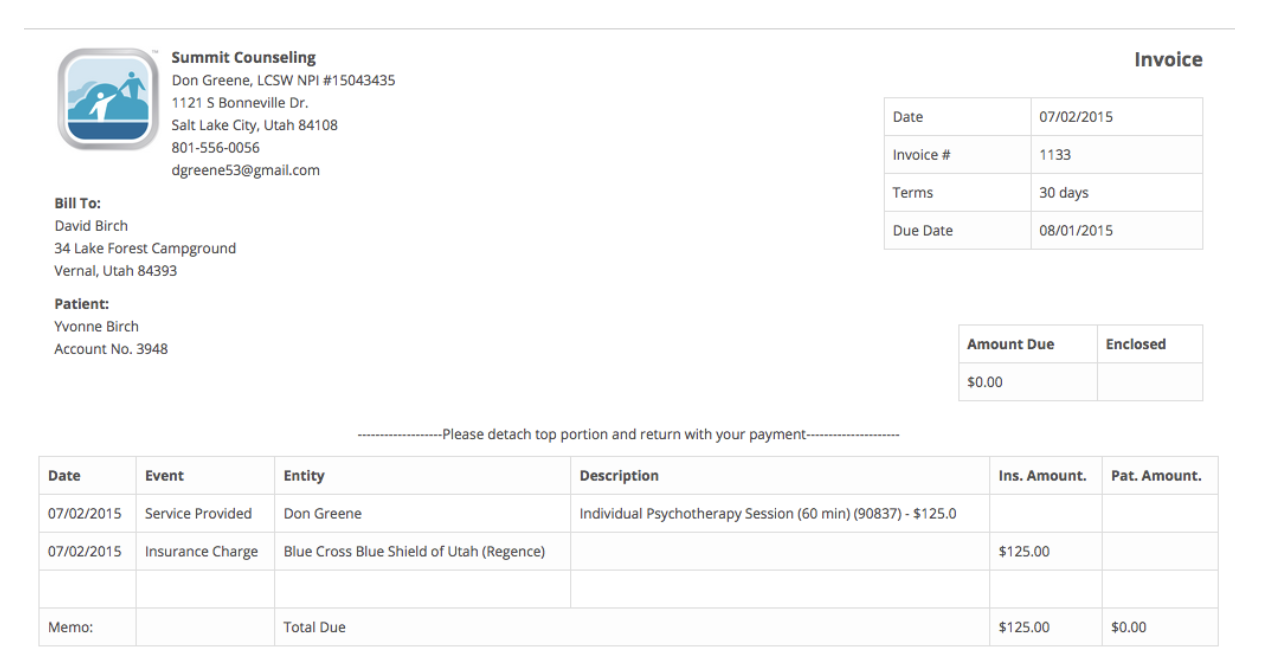
If you wish to change the Bill To: information on an invoice or statement, please
follow the instructions below:
Add a New Contact
- Navigate to the Patient’s information page.
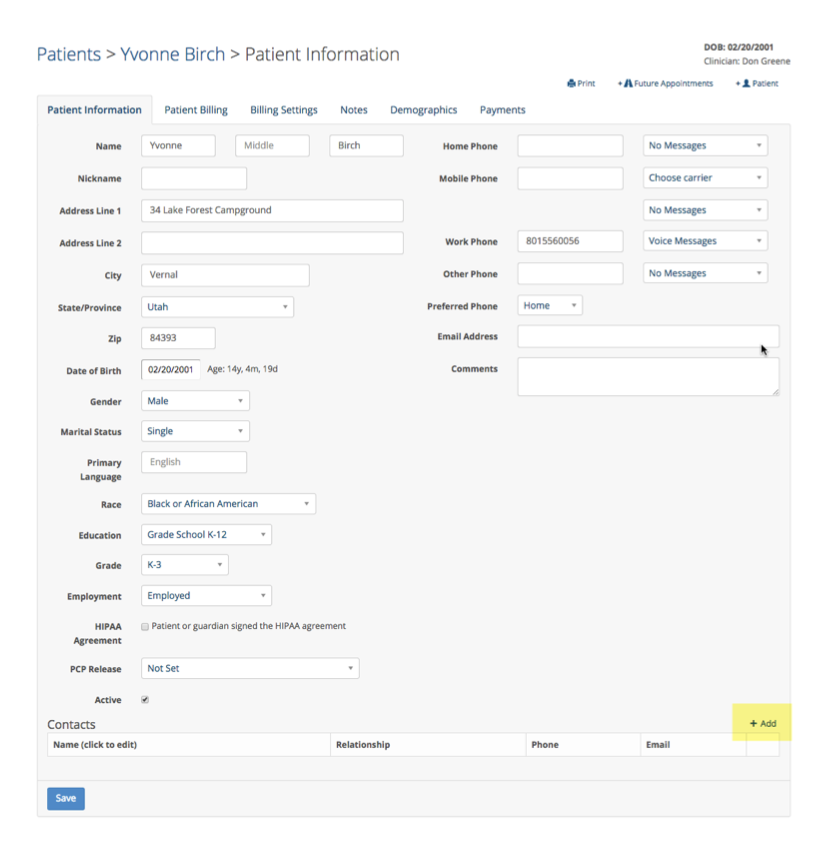
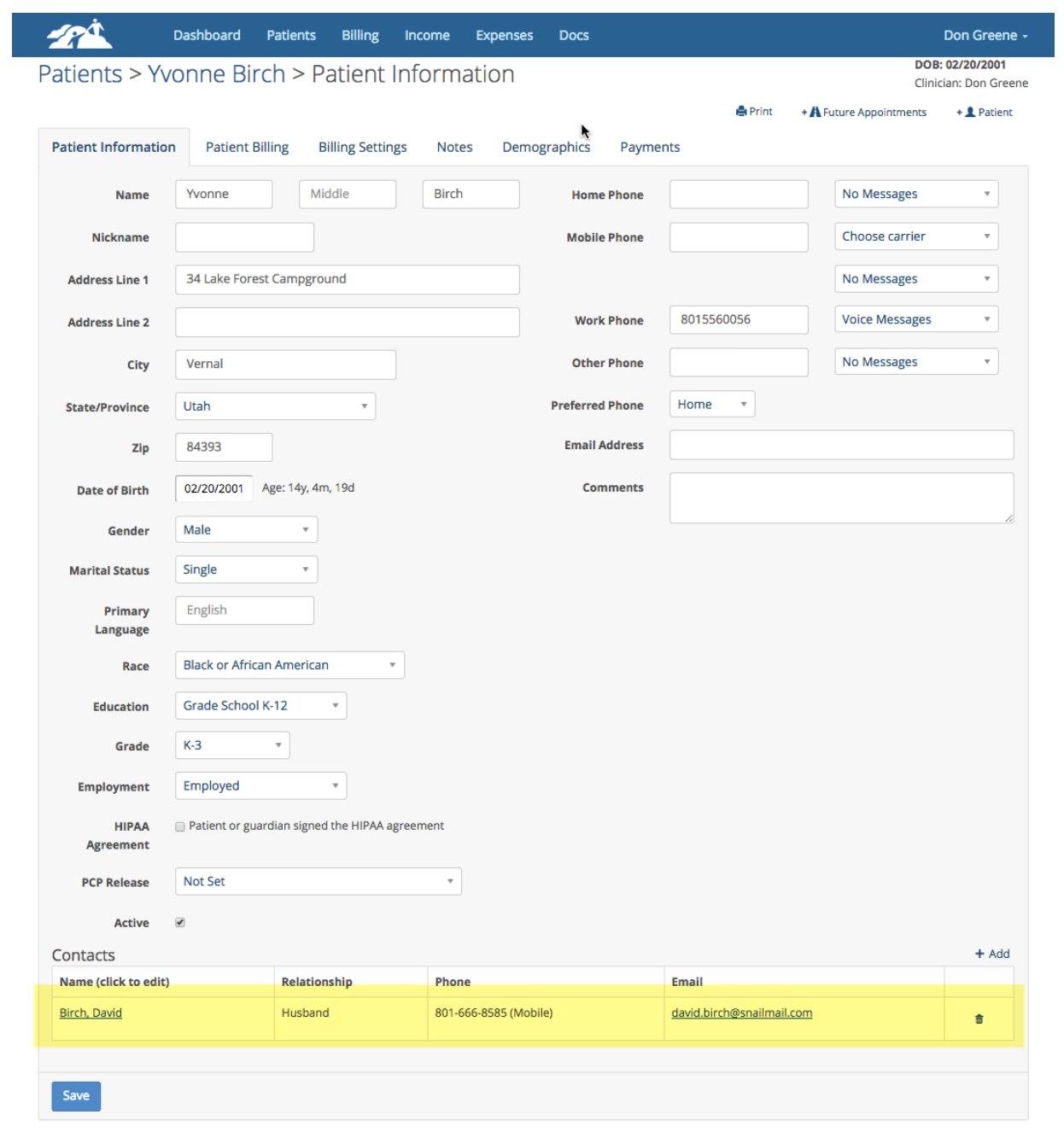
- Add a new Contact for the patient by clicking on +Add as highlighted below.
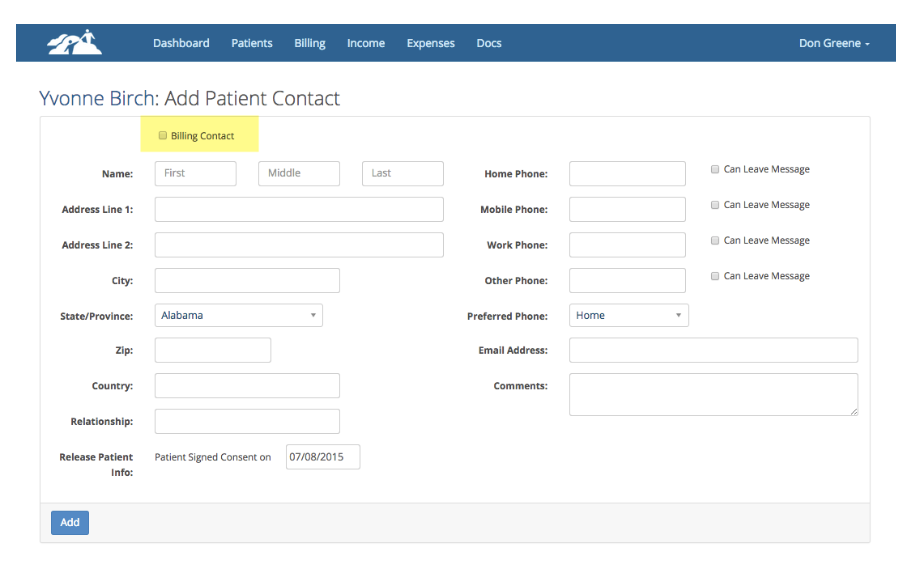
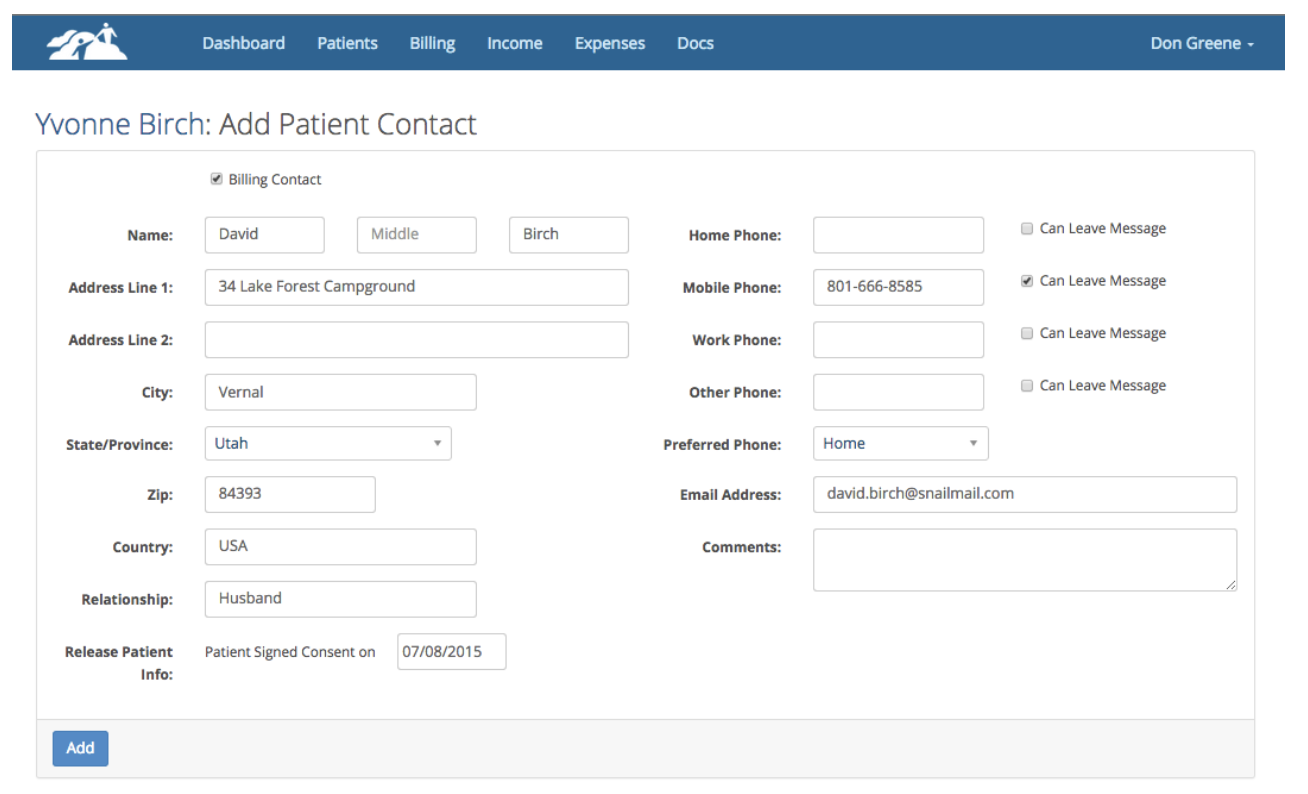
- Fill out the form below and be sure to check the box next to Billing Contact to designate this contact as a Bill To: person for this patient.
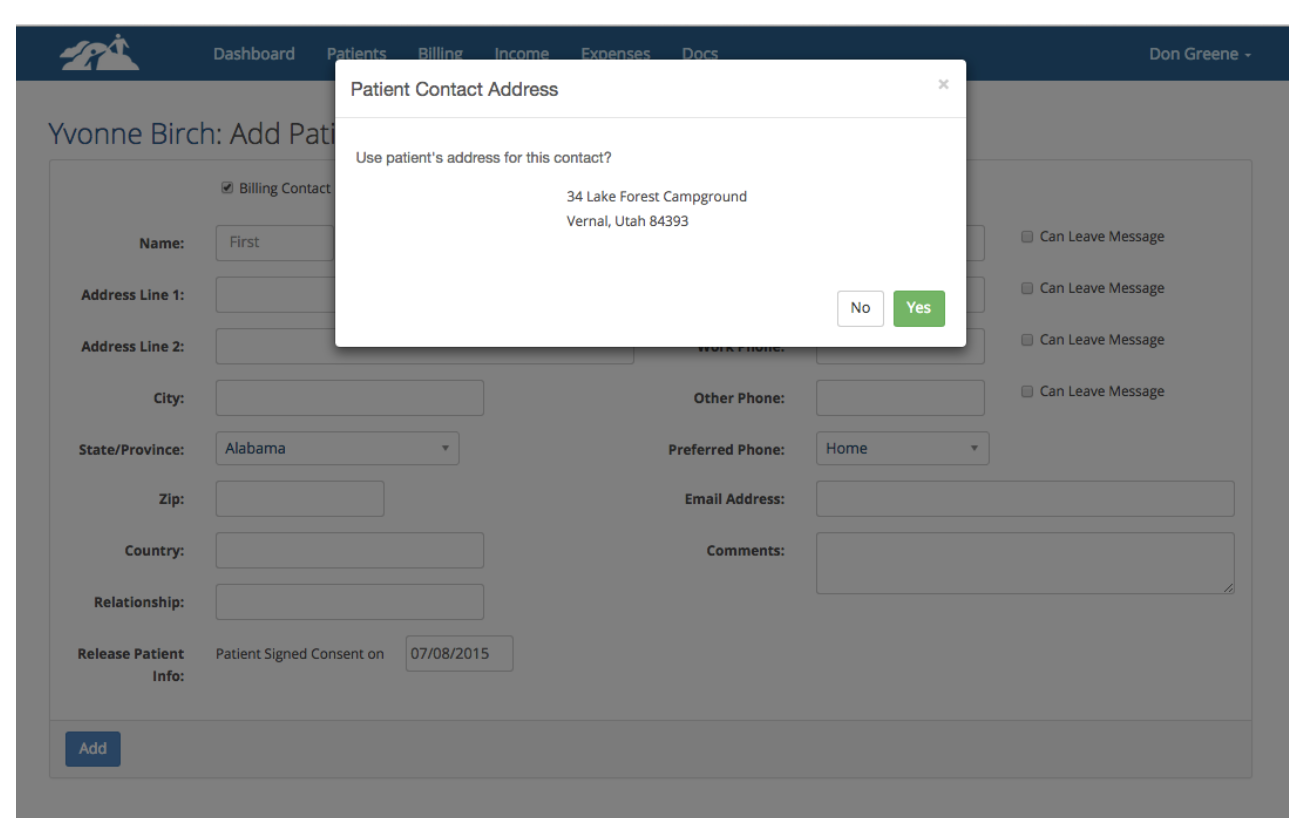
- When you check the box you will be asked if the contact has the same address as the patient. Click Yes or No as appropriate.
- When you have the form filled out click the Add button. Completed form example is shown below:
- Your new contact has been added to the patient’ chart as highlighted below:
Changing Invoices or Statements
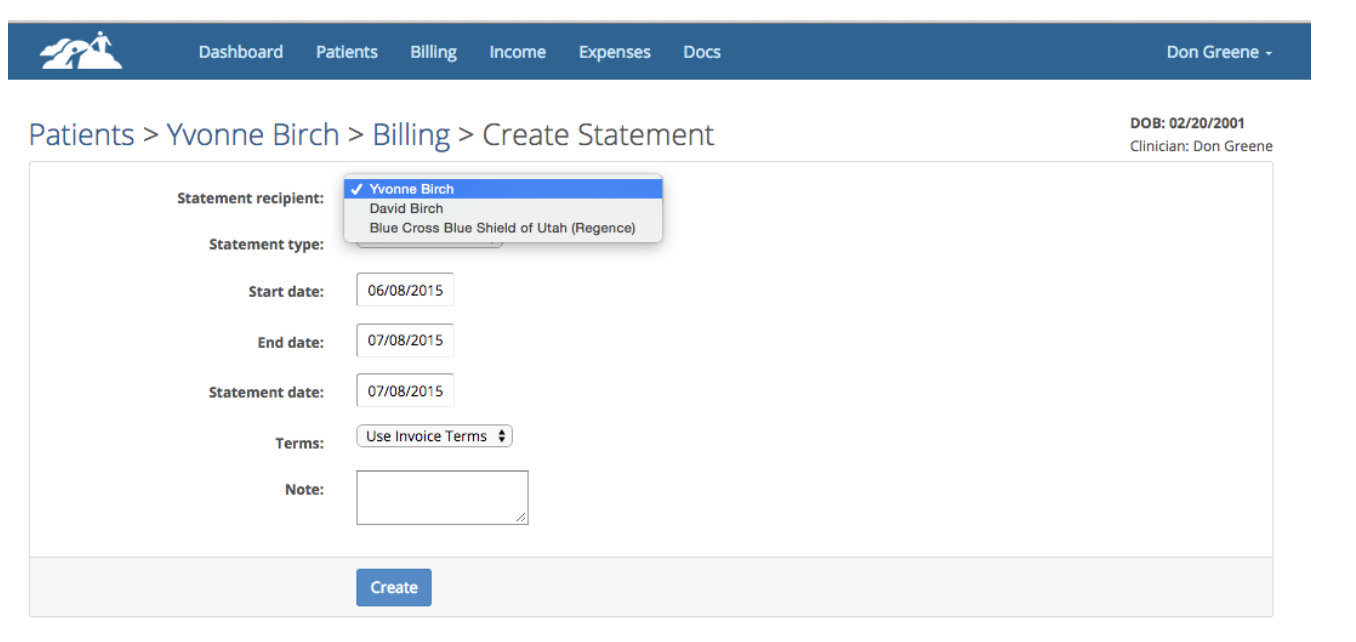
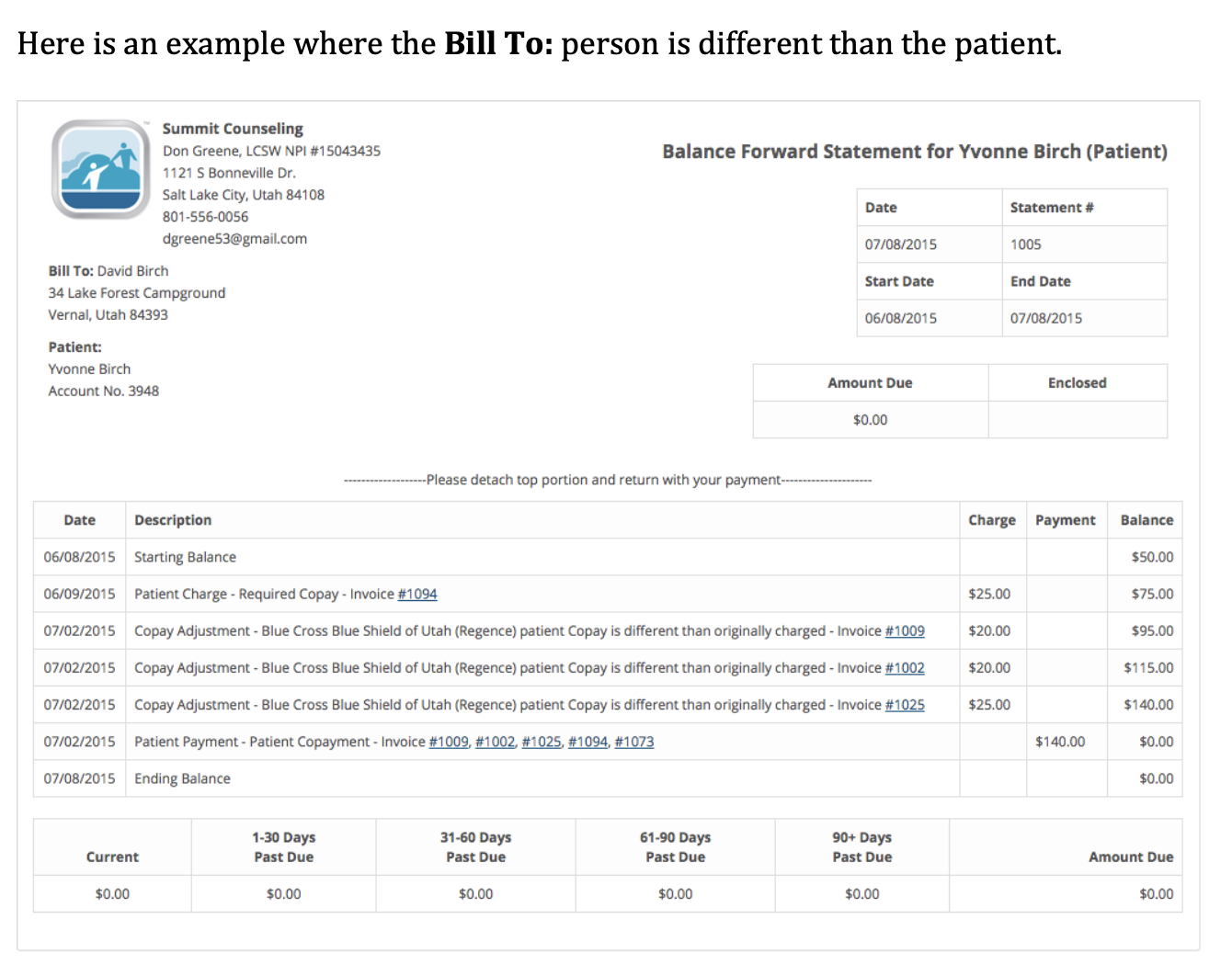
When you have a contact designated as a Bill To: person, their name will be displayed in the Statement Recipient drop down as shown in the example below. The name you select in this drop down will become the Bill To: person on that statement. The default is the patient.
Changing the bill to person on an invoice is very similar. When creating a new invoice or editing an existing invoice, you will notice a Bill To: drop down as highlighted below:
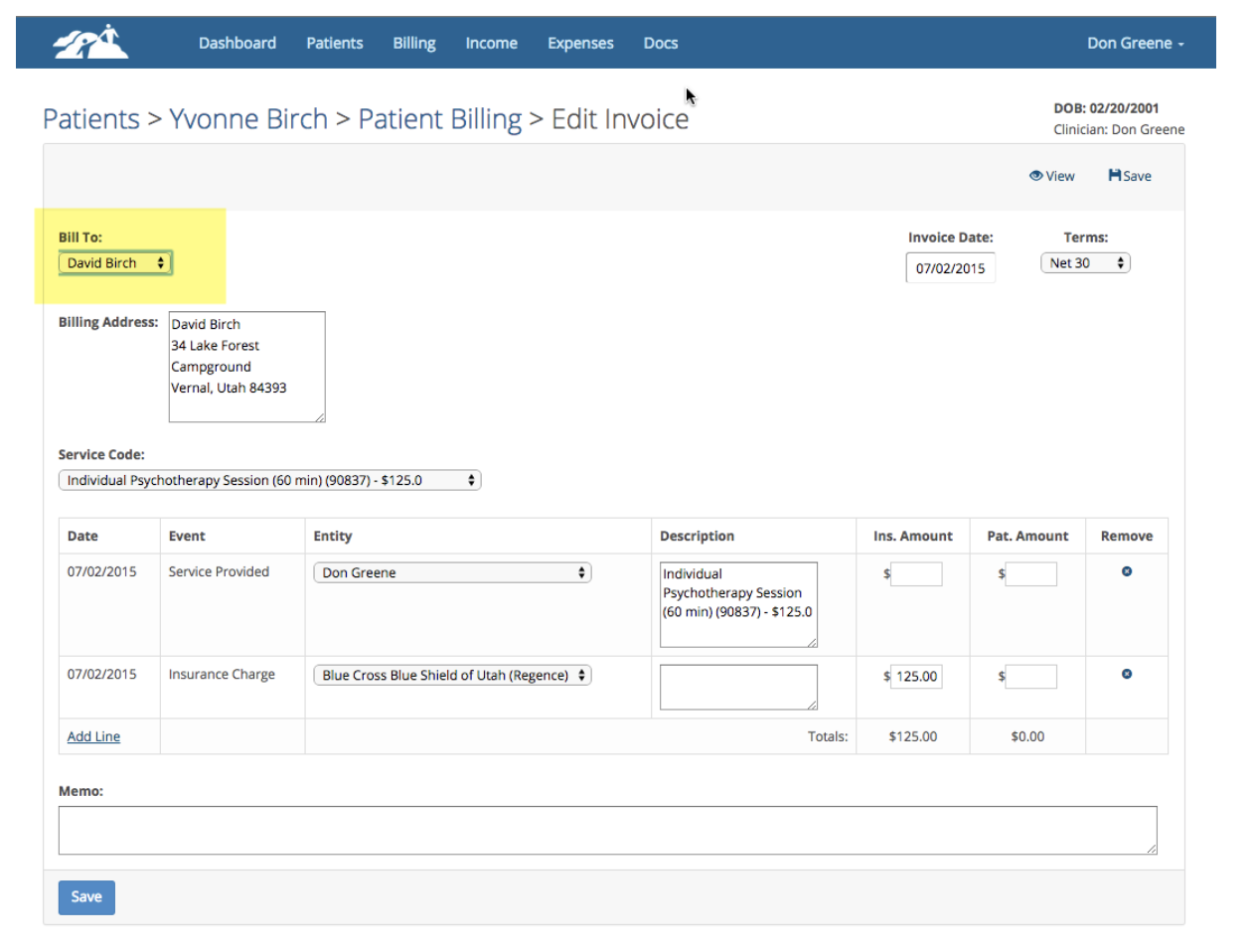
Select the appropriate name and Save your invoice.