Stripe is a great option for credit card processing. Once you have TherapyMate connected to
Stripe you will be able to process a client's credit card payment directly in the application. in addition, you can store a client's credit card in the system so you can charge them for copays and other fees as they occur.
Please Note: The Practice owner or System Administrator must set this up. Once your Stripe account is connected to TherapyMate, all of the clinicians in the Practice will be using the same Stripe account. It isn't necessary to setup each individual clinician. If there is a need to have a separate Stripe account for each clinician please contact TherapyMate support for assistance.
Please Note: The Practice owner or System Administrator must set this up. Once your Stripe account is connected to TherapyMate, all of the clinicians in the Practice will be using the same Stripe account. It isn't necessary to setup each individual clinician. If there is a need to have a separate Stripe account for each clinician please contact TherapyMate support for assistance.
Stripe and their financial business partners require you to have an online web presence. You will be required to provide a URL that links to a website for your Practice. The website must include a description of your products and services. It must also have your contact information so clients can contact. you. This could be your own custom website or perhaps a link to something like Psychology Today. You will be asked to provide this information later in these setup instructions.
Stripe may also have other verification requirements. They will notify you if those are necessary.
Connecting TherapyMate to Stripe
Login to TherapyMate, click on your name in the upper right corner and choose settings. On the Practice settings page scroll down near the bottom to Partner Integrations and click on that.
Click on the Connect with Stripe button as shown below:
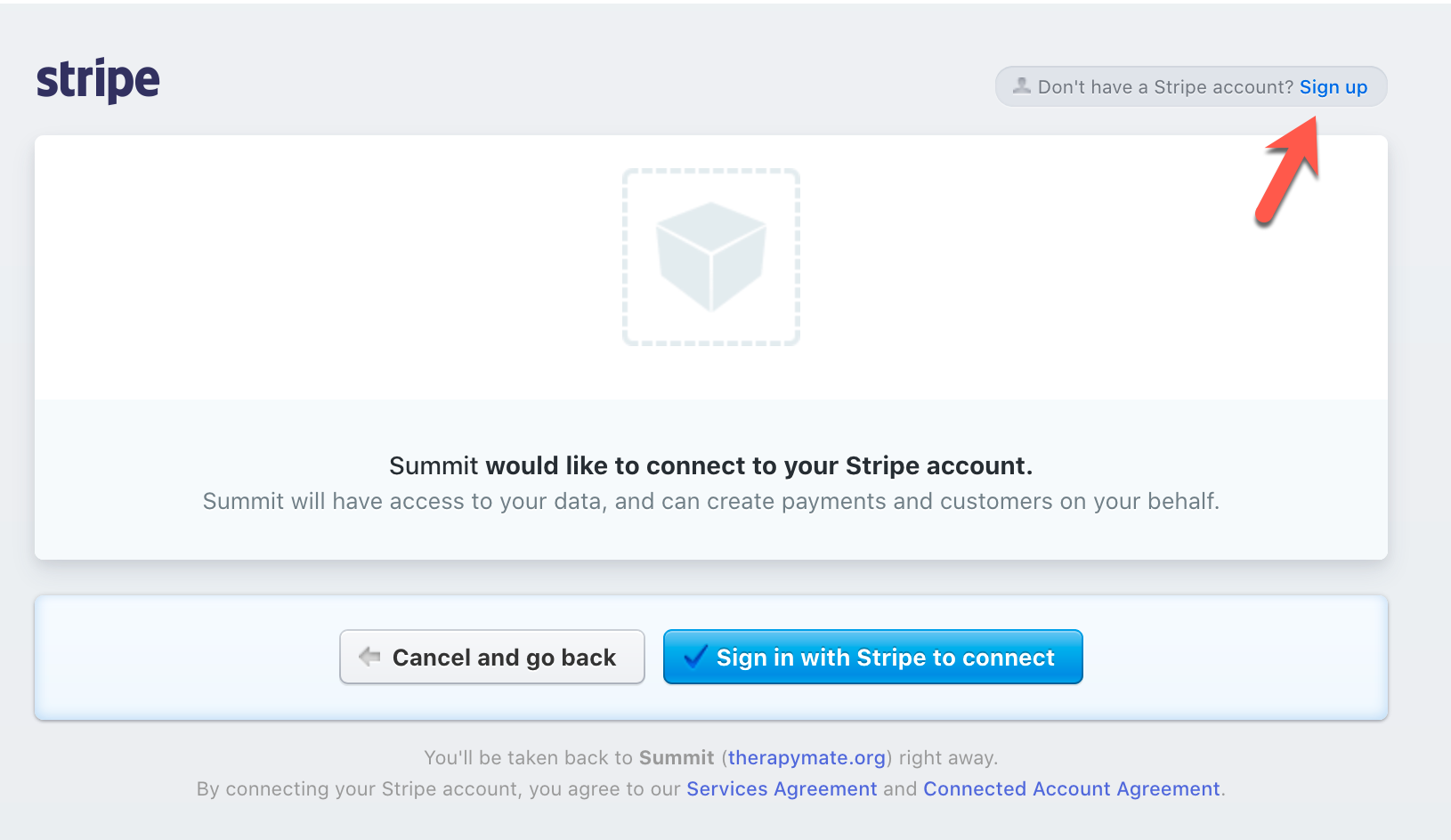
On the screen below click on the Sign up button as shown.
You will need to provide your business and banking information. Your banking information is needed so Stripe can deposit funds directly into your checking account.
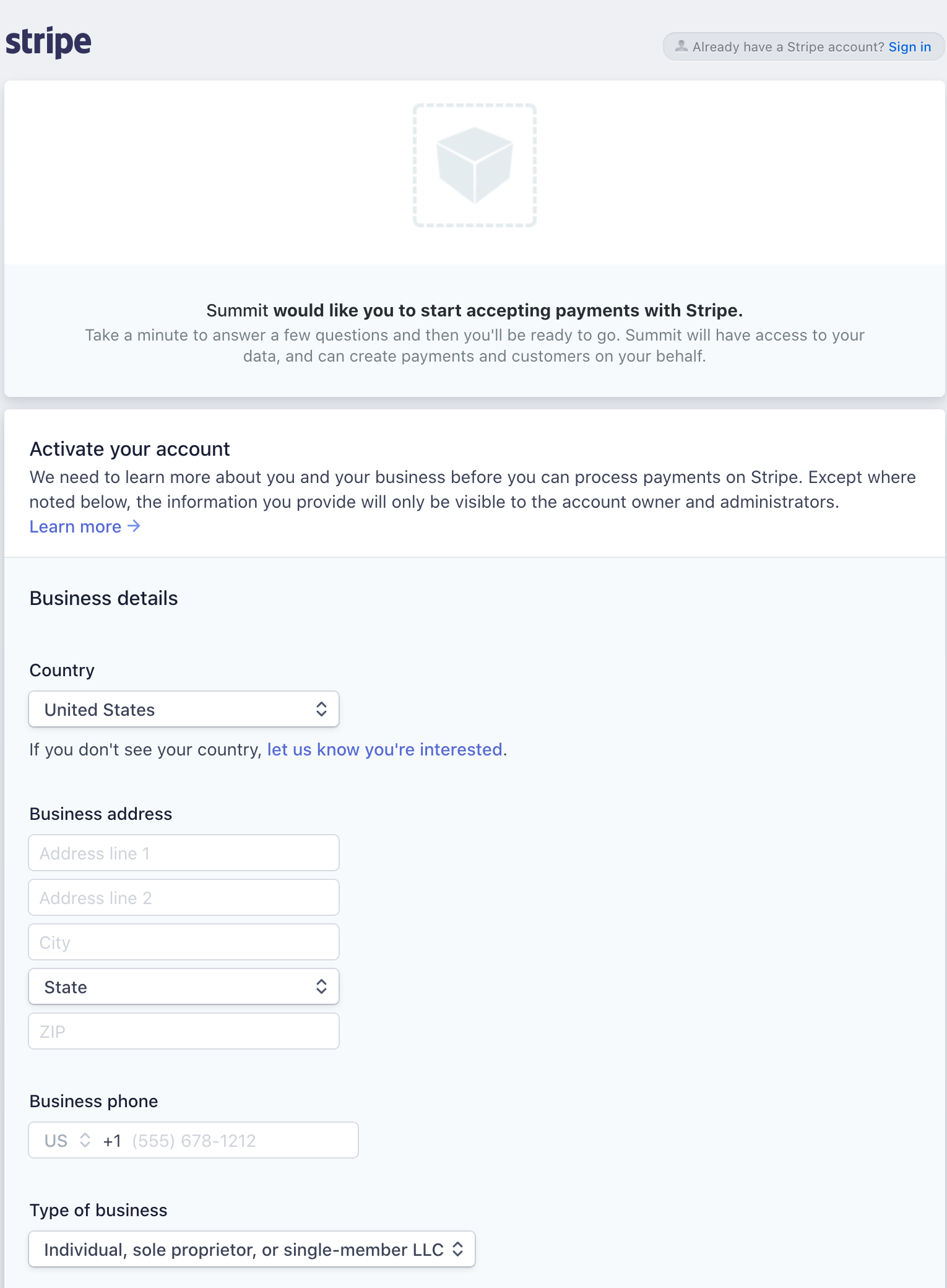
Please Note: Stripe and their financial business partners require you to have an online web presence. You will be required to provide a URL that links to a website for your Practice. The website must include a description of your products and services. It must also have your contact information so clients can contact you. This could be your own custom website or perhaps a link for Psychology Today. The Business Website field below is required to establish a Stripe account.
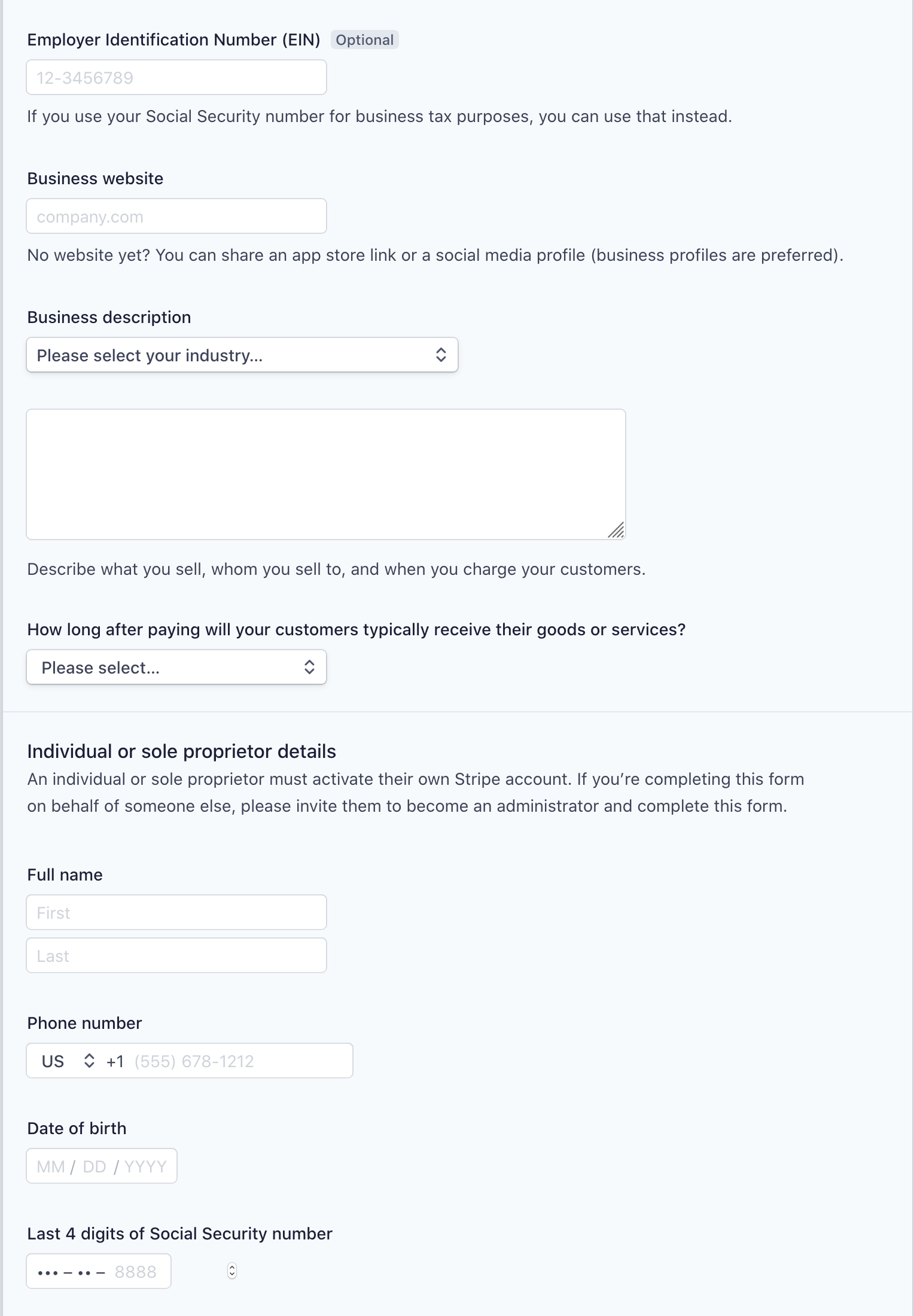
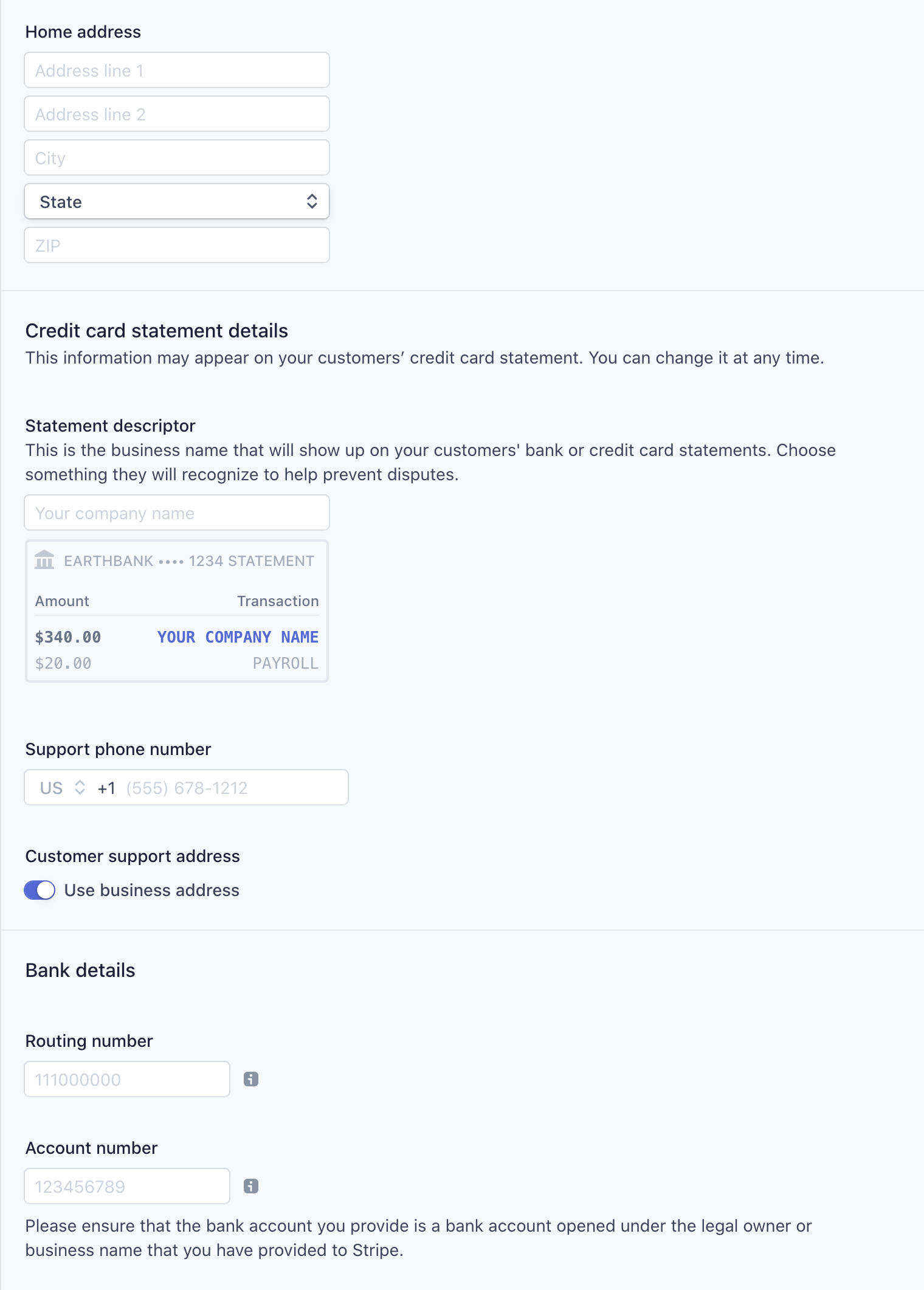
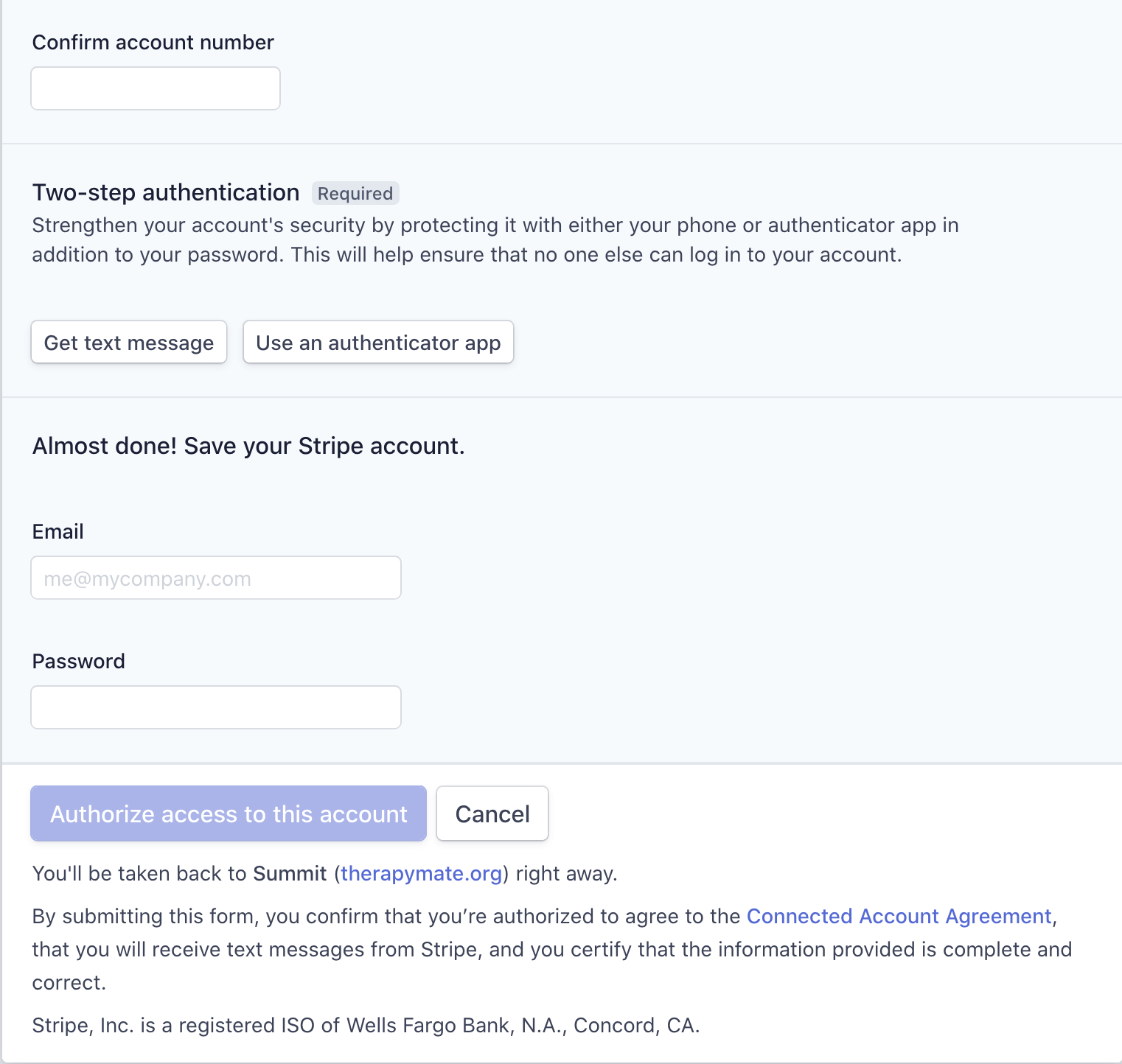
When the web page is completed, click on the blue Authorize Access to this Account button. You will be returned to your TherapyMate Dashboard.
You are now finished connecting TherapyMate to your new Stripe account. Go back to your TherapyMate settings and look at the bottom of the Payment Types and Integrations page again. The blue button that was there in the beginning should now look like this:

You can start using it immediately and adding patient credit cards to patient charts in TherapyMate.
Be sure to keep track of the email address and password you gave Stripe. You will need it to login to your Stripe dashboard in the future to make refunds and view your transaction history.
Please Note: Your new Stripe account is not enable to accept Health Savings Account (HAS) and Flex Spending Account (FSA)credit cards by default. If you want to accept HSA and FSA cards from clients you will need to contact Stripe support to have your account enabled to do that. There is another Help Center article that will describe this process.
Enabling Automatic Client Receipts
Please Note: Your new Stripe account is not enable to accept Health Savings Account (HAS) and Flex Spending Account (FSA)credit cards by default. If you want to accept HSA and FSA cards from clients you will need to contact Stripe support to have your account enabled to do that. There is another Help Center article that will describe this process.
Enabling Automatic Client Receipts
If you would like your clients to receive a receipt for each credit card transaction do the following:
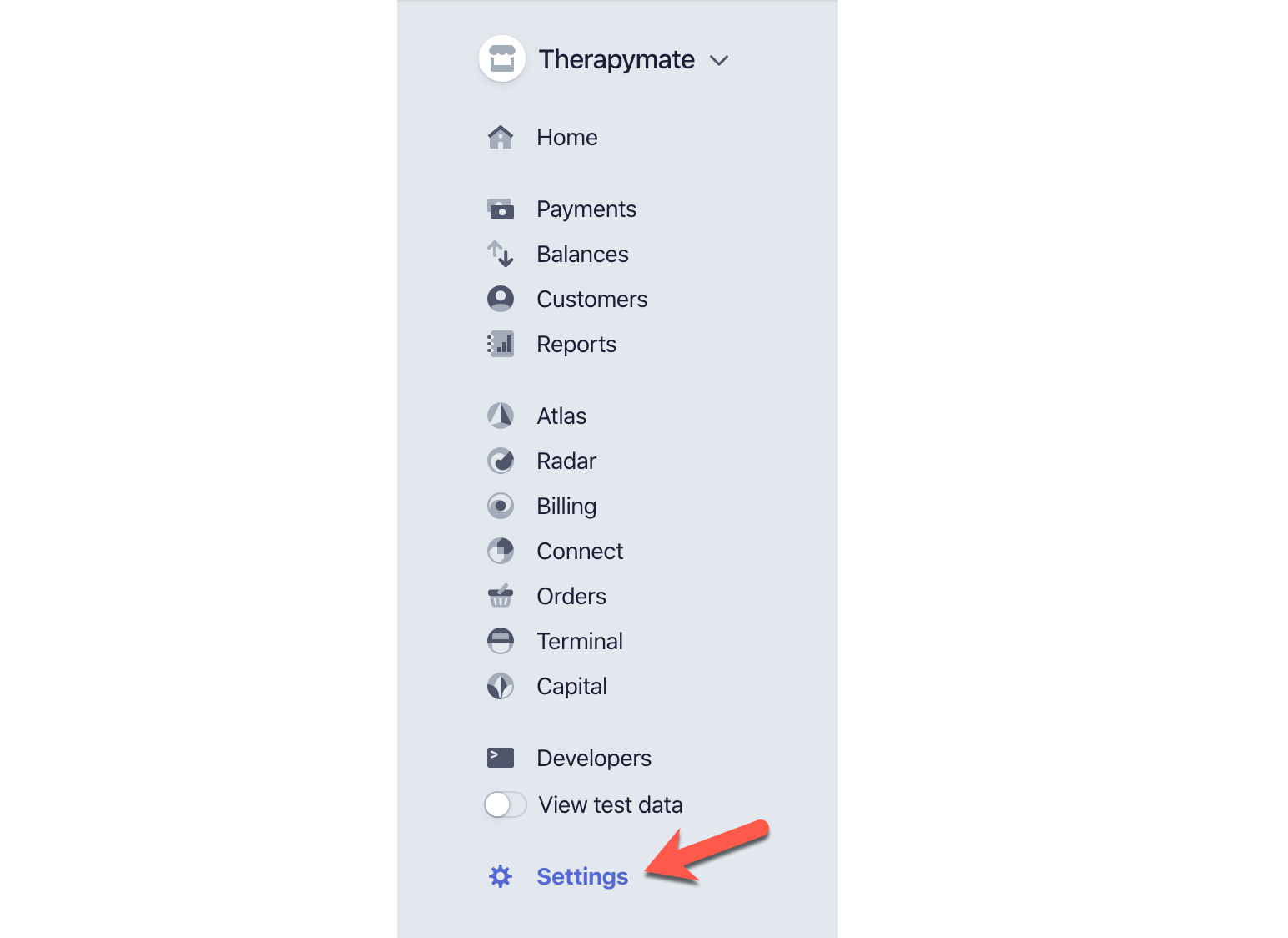
Log into your Stripe Dashboard and click on Settings over on the left navigation menu area.
Log into your Stripe Dashboard and click on Settings over on the left navigation menu area.
Click on Emails as shown below:
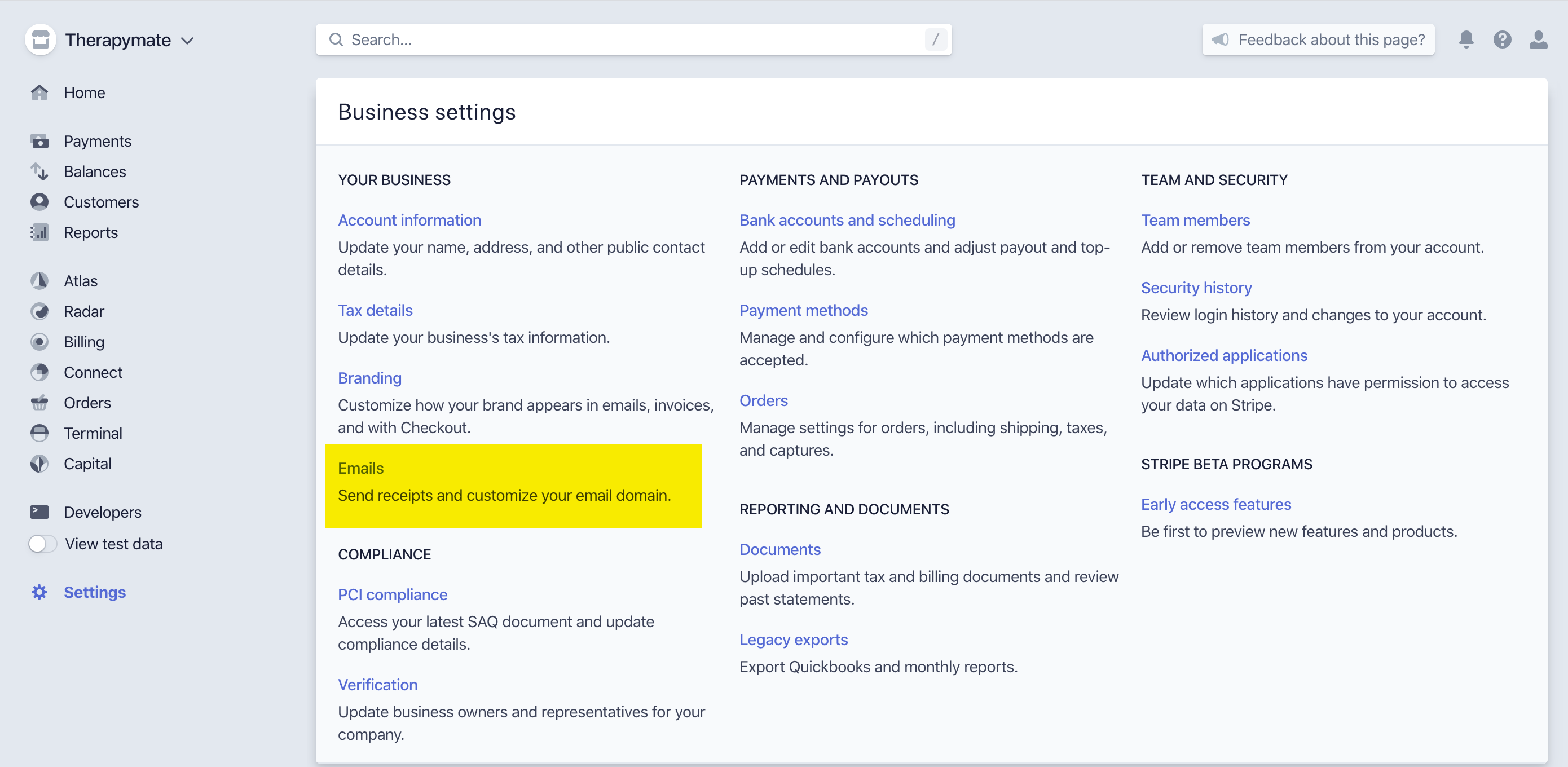
Choose the settings that will ensure a receipt is sent to a client.

Click Save when done.
Automatic Card Updates
Your customer's card expiration date may get updated automatically due to Stripe's automatic card update feature. Stripe collaborates with card networks to automatically update saved card details when a customer receives a new card, such as when a card is replaced due to expiration, loss, or theft. This feature helps ensure that your customers can continue using your services without interruption and reduces the need for you to manually collect new card details.
Automatic updates are supported by most card issuers in the United States, including American Express, Visa, Mastercard and Discover.