If you receive a credit card payment from an insurance company you can use these instructions to do enter the payment in TherapyMate. Sometimes these types of payments are called Virtual Payments and come with an Explanation of Benefits (EOB) statement.
There are two ways to record the payments:
Method #1-Record the Payment Directly in TherapyMate
If the payment you received is for a single session, use the following instructions:
Navigate to the Insurance Payments page in your main billing area. Find the session you need to enter the payment for.
1. Enter the EOB Date
2. Choose Stripe from the Payment Method dropdown
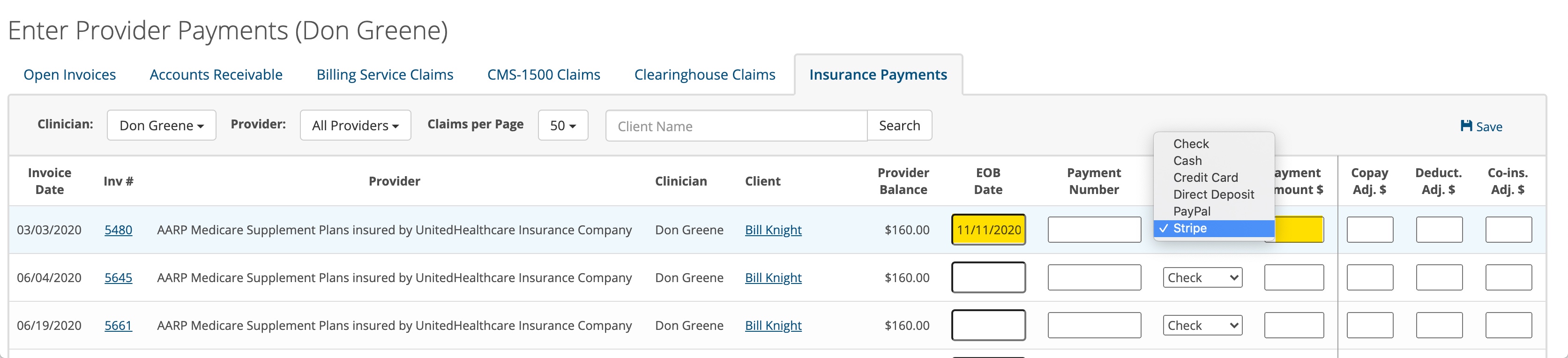
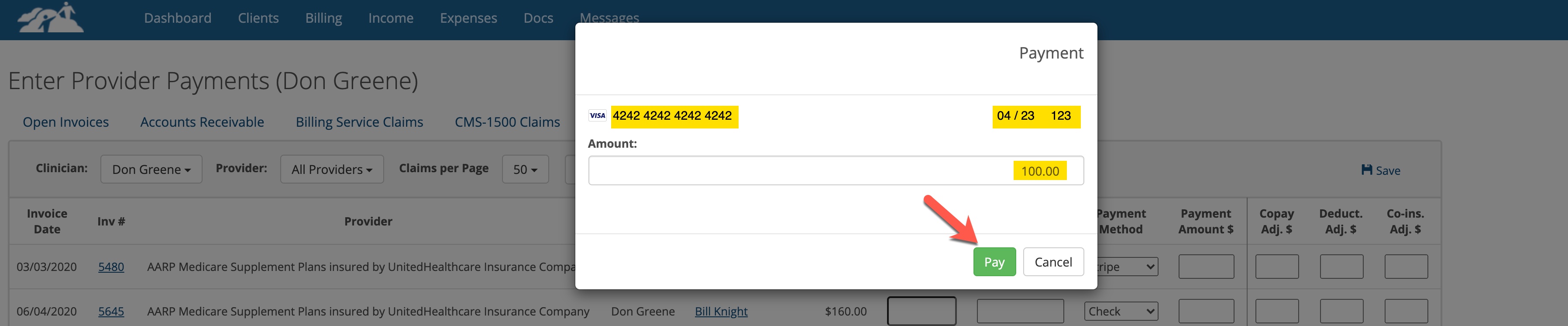
3. Enter the credit card information you received from the insurance company in the highlighted fields. Click the Pay button when done.
If the payment is successful, you will see a payment number entered automatically in the box highlighted below:
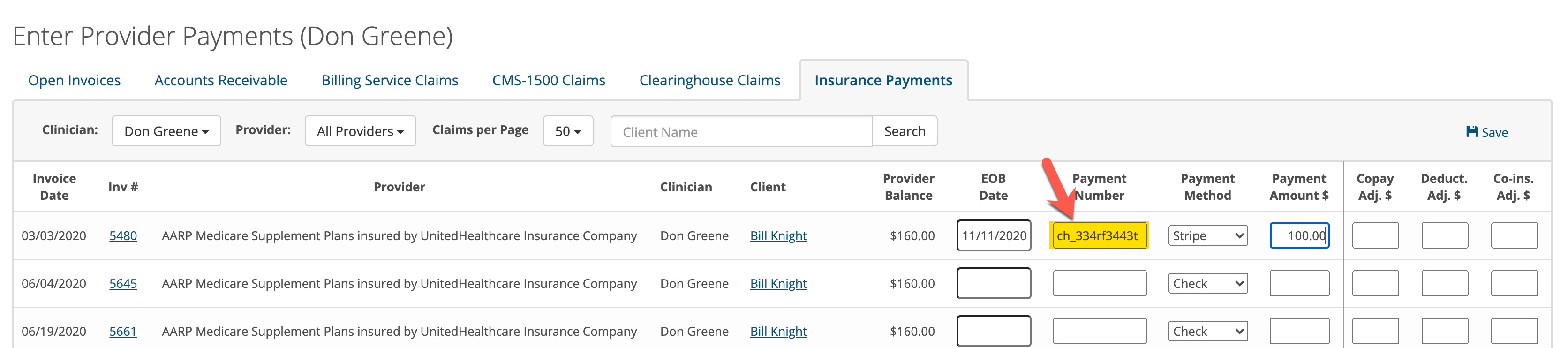
4. SAVE THE PAYMENT PAGE! If you forget to click the Save button on the Insurance payment page, the payment will not get saved in TherapyMate. Don't worry, if you mess up, you can login to Stripe and find the information but that is more work.
Method #2-Recording the Payment Directly in Stripe
Use this method if the payment covers multiple sessions. You can't split the payment across multiple dates of service on the insurance payment page in TherapyMate.
You will need to login to Stripe and create a payment. On the menu bar click on Payments. Then click on + Create payment.
From the drop down click on Manual payment
Enter the card information in the highlighted fields for a One-Time payment.
Click the Submit payment button.
After the payment has processed n Stripe, copy the payment authorization number so you can use that in the following steps to add the payment information inyo TherapyMate. The payment authorization number starts with ch_ and then a bunch of letters and numbers.
Recording the Payment in TherapyMate
Log into TherapyMate and navigate to the main billing area. Click on Insurance payments tab.
You can now split the payment across multiple dates of service by entering the amount for each one. In the following examples the practice got paid $270.00 and the EOB said payments were for dates of service 1/2, 1/3 and 1/4. Use the payment method called Credit Card. This won't create another charge.
When you are done entering the information, click the blue Save button at the bottom or top of the page.
If you wish to look at the payment history for a patient, navigate to the patient’s payment page to see the payment you just entered.