When you receive an Explanation of Benefits (EOB) or Electronic Remittance Advice (ERA) from an insurance provider, you must enter the payment information from the ERA or Remittance Advic into TherapyMate to show the invoice has been paid.
Please Note: If you are using the Clearinghouse Claims-Direct billing method and submitting claims directly through Claim.MD, manually entering insurance payments isn't usually necessary if your provider enrollments are set up properly. All other insurance billing methods require you to manually enter insurance payments.
There are two ways to do this manual entry.
1. Manual Check Entry
2. Bulk Check Entry
We will show you how each of these is done.
Manual Check Entry
Entering insurance Payments manually is done by choosing Billing from the main menu bar and then click on the Insurance Payments tab.
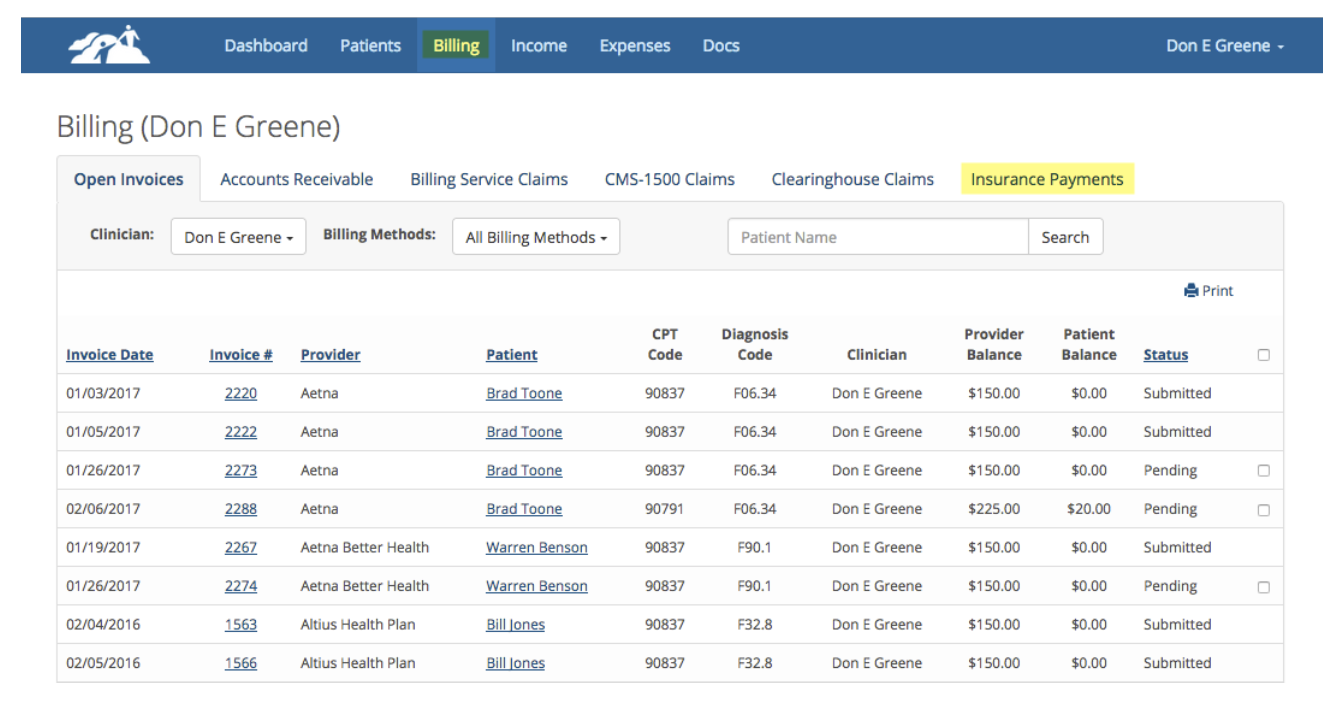
When you receive the insurance payment information you need to record that information on the Insurance Payments page so the invoices in TherapyMate get updated with the payment information, finalize the invoices and show income for the Practice.
There are several common scenarios that you might encounter. First, let’s describe what each of the boxes are for on the Insurance Payments page.
FYI...Please enter this information by typing into the boxes. Do not cut and paste the information from another document or website.
EOB Date – Enter the date that you got paid by the insurance provider. EOB stands for Explanation of Benefits. Sometimes an insurance provider will call their claim payout information a Summary Voucher or Remittance Advice.
Payment Number - Enter the provider’s check, payment or reference number if there is one. Otherwise enter None.
Payment Amount $ - Enter the amount you got paid by the insurance provider. It the amount paid is zero, enter 0.00
Payment Amount $ - Enter the amount you got paid by the insurance provider. It the amount paid is zero, enter 0.00
Copay Adj. $ - If the insurance provider indicates that the patient owes a copay you can enter it in this box as a positive number. The amount you enter will be added as a patient charge.
Please note: If you have already set the patient’s insurance Billing Settings with a Copay amount, don’t add it again here. It was already added to the patient’s invoice for you.
Deduct. Adj. $ - If the insurance provider indicates that the patient’s deductible hasn’t been met you can add the amount into this box as a positive number. The amount you entered will be added as a patient charge.
Co-ins. Adj. $ - If the insurance provider indicates that the patient owns an additional amount for coinsurance you can enter that amount in this box as a positive number. The amount you enter will be added as a patient charge.
Scenario #1 – Insurance Payment
Scenario #1 – Insurance Payment
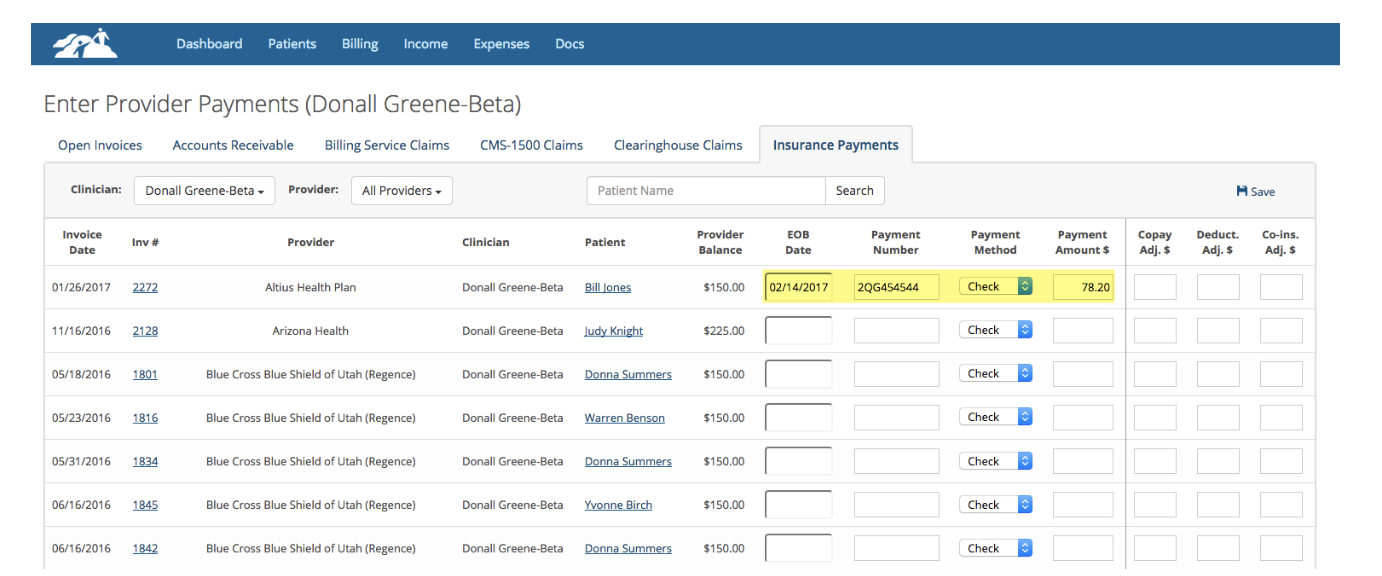
In this scenario, the insurance provider paid your negotiated rate for your services and there isn’t any Copay, Deductible or Co-insurance adjustments needed.
Do the following steps:
1. Enter the date that you got paid by the insurance provider in the EOB box.
2. Enter the provider’s check or payment number in the Payment Number box.
3. Enter the amount you got paid by the insurance provider in the Payment Amount $ box.
4. Leave the Copay, Deduct and Co-ins Adjustment boxes blank.
5. Click the Save button when done.
The adjustment between what you got paid by the insurance company and what you didn’t get paid are taken care of automatically for you. The amount you didn’t get paid by the insurance company will show as an Insurance Adjustment on the invoice.
1. Enter the date that you got paid by the insurance provider in the EOB box.
2. Enter the provider’s check or payment number in the Payment Number box.
3. Enter the amount you got paid by the insurance provider in the Payment Amount $ box.
4. Leave the Copay, Deduct and Co-ins Adjustment boxes blank.
5. Click the Save button when done.
The adjustment between what you got paid by the insurance company and what you didn’t get paid are taken care of automatically for you. The amount you didn’t get paid by the insurance company will show as an Insurance Adjustment on the invoice.
Scenario #2 - Insurance Payment Denial
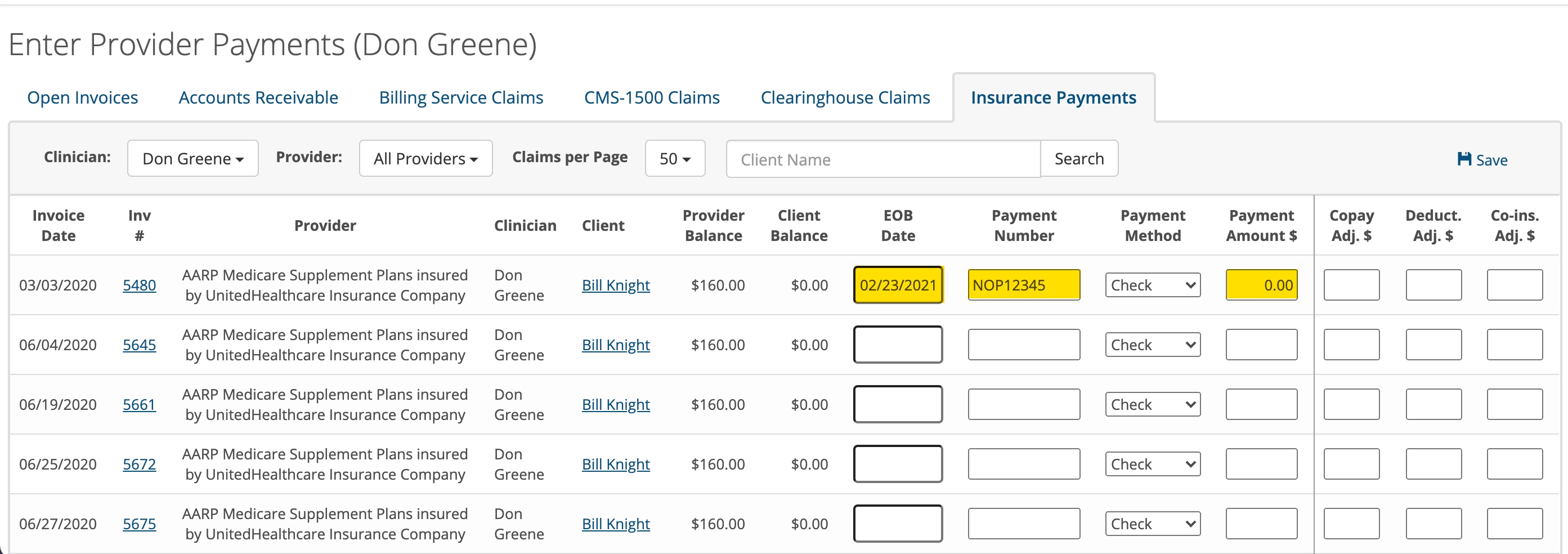
If the claim you filed was denied you can enter the information as show above. Enter the date of the denial, put the reference number in the payment number box and enter 0.00 in the payment amount $ box. When you save this entry the client's invoice will be updated to show a zero dollar payment from the insurance company and add an insurance adjustment to bring the invoice total to zero for the insurance charges.
Scenario #3 – Insurance Payment with Copay Adjustment
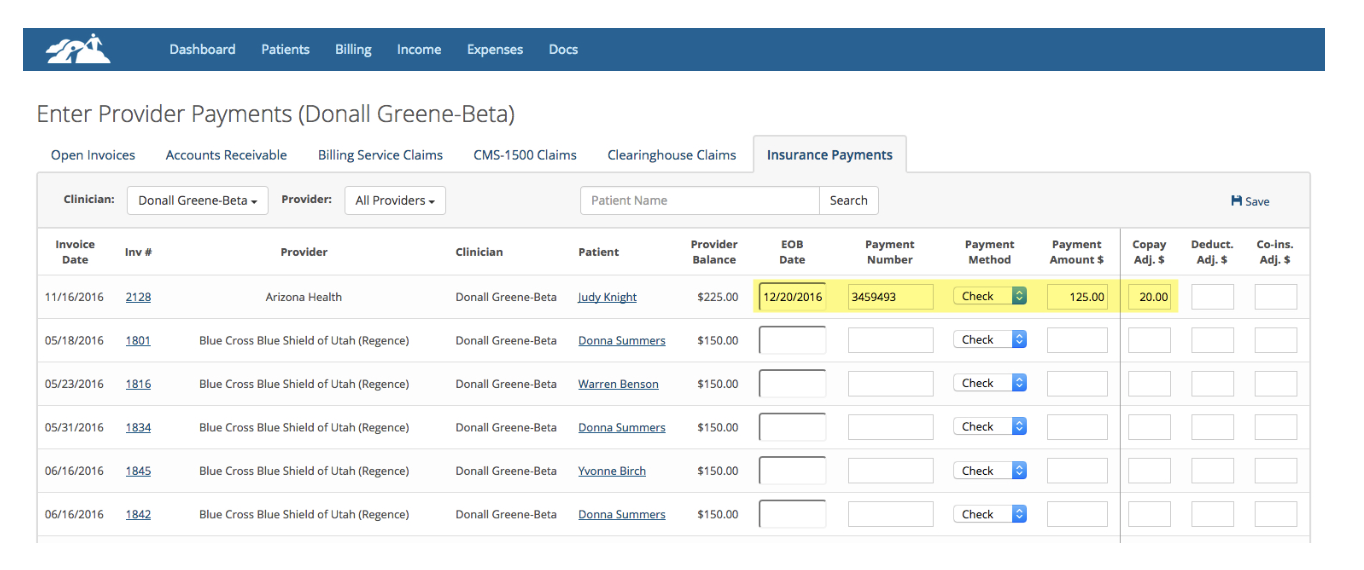
In this scenario, the insurance provider paid your negotiated rate for your services and you need to add this copayment charge to the patient’s invoice for the session.
IMPORTANT: If you have already set the patient’s insurance billing settings and specified a co-pay, deductible adjustment, or co-insurance there will be a patient charge line on the invoice. Be sure to enter the information from ERA in each box as shown even though the copay, deductible adjustment, or co-insurance may already exists on the invoice. This will not duplicate the patient charge. If you leave a box blank the patient charge will change to a patient adjustment.
IMPORTANT: If you have already set the patient’s insurance billing settings and specified a co-pay, deductible adjustment, or co-insurance there will be a patient charge line on the invoice. Be sure to enter the information from ERA in each box as shown even though the copay, deductible adjustment, or co-insurance may already exists on the invoice. This will not duplicate the patient charge. If you leave a box blank the patient charge will change to a patient adjustment.
1. Enter the date that you got paid by the insurance provider in the EOB box.
2. Enter the provider’s check or payment number in the Payment Number box.
3. Enter the amount you got paid by the insurance provider in the Payment Amount $ box.
4. Enter the copayment amount in the Copay Adj. $ box. This will added to the patient’s invoice as a patient charge.
6. Click the Save button when done.
Scenario #4 – Insurance Payment with Deductible Adjustment
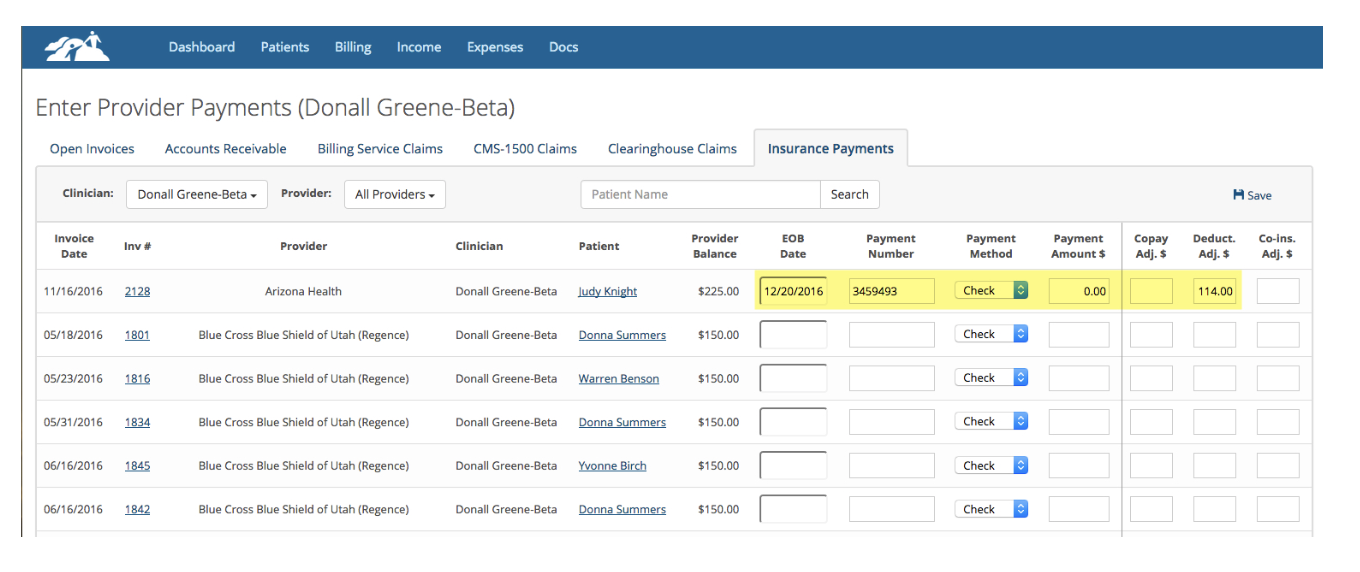
In this scenario, the insurance provider didn’t pay you anything because the patient’s deductible hasn’t been met. You will need to show that you didn’t get paid and add the amount you are allowed to charge the patient to the box called Deduct Adj. $.
1. Enter the date that you got notified of the non-payment by the insurance provider in the EOB box.
2. Enter the provider’s reference number in the Payment Number box.
3. Enter 0.00 in the Payment Amount $ box
4. Enter the deductible amount you need to charge the patient in the Deduct Adj. $ box. This will add this amount to the patient’s invoice as a patient charge. The insurance company will tell you how much you can charge the patient.
1. Enter the date that you got notified of the non-payment by the insurance provider in the EOB box.
2. Enter the provider’s reference number in the Payment Number box.
3. Enter 0.00 in the Payment Amount $ box
4. Enter the deductible amount you need to charge the patient in the Deduct Adj. $ box. This will add this amount to the patient’s invoice as a patient charge. The insurance company will tell you how much you can charge the patient.
5. Click the Save button when done.
Scenario #5 – Insurance Payment with Co-insurance Adjustment
Scenario #5 – Insurance Payment with Co-insurance Adjustment
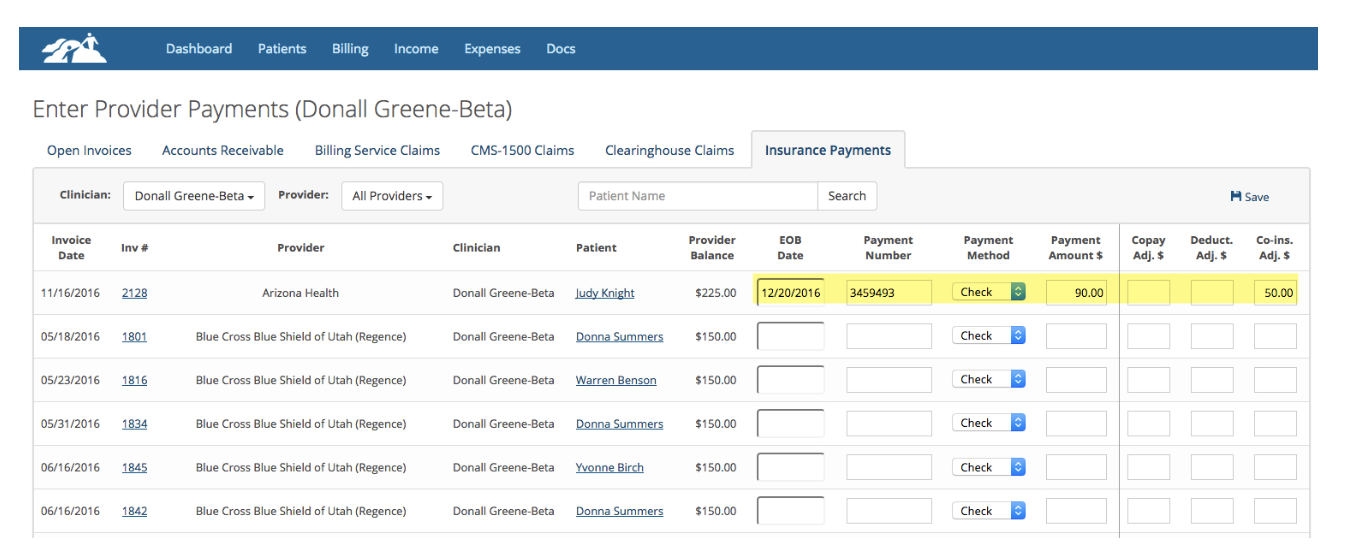
In this scenario, the insurance provider paid you the negotiated rate for your services and the patient owes an additional percentage of the overall costs. This is usually referred to a coinsurance.
To add the co-insurance amount to the patient’s invoice do the following:
1. Enter the date that you got paid by the insurance provider in the EOB box.
2. Enter the provider’s check, payment or reference number in the Payment Number box.
3. Enter the amount you got paid by the insurance provider in the Payment Amount $ box. If the insurance company didn’t pay anything, put zeros in this box.
4. Enter the co-insurance amount in the Co-Ins Adj. $ box as a positive number. This will add the amount to the patient’s invoice as a patient charge.
5. Click the Save button when done to save your entries.
In any of these scenarios, you can look at the patient’s invoice related to the sessions involved to make sure the desired result was obtained. To look at an invoice, go to the patient’s chart and look for the invoice under the Patient Billing tab and click on it to view the invoice.
Bulk Check Entry
If you have an Explanation of Benefits (EOB) or Electronic Remittance Advice (ERA) from an insurance
company with multiple client payments, you can use the Bulk Check Entry method by selecting the
Provider from the drop down and entering the total amount of the insurance check in the Check $ Total box.
Then locate each client on the page and start entering in the amount for each invoice received as payment.
Use the "adj." boxes when needed on the far-right side of the page as described above.
As you enter the dollar amount for each invoice, the Unallocated $ box will change to show the amount of
money that hasn't been allocated yet. When the Unallocated $ box reaches zero you have allocated all the
money properly. If you have money left over, recheck your entries and correct any
errors.
Click the SAVE button at the bottom of the Insurance Payments page to save your entries.