Clinician Practice Information Page Settings
At the bottom of the Settings page you’ll see a link to Clinician Practice Information.

Click on the link and scroll down to the bottom of the Clinician Practice Information page. You will see two fields called Interchange ID Qualifier and Clearinghouse ID. Set them to the values shown below and save the page when done.

This completes the TherapyMate settings changes for NaviNet.
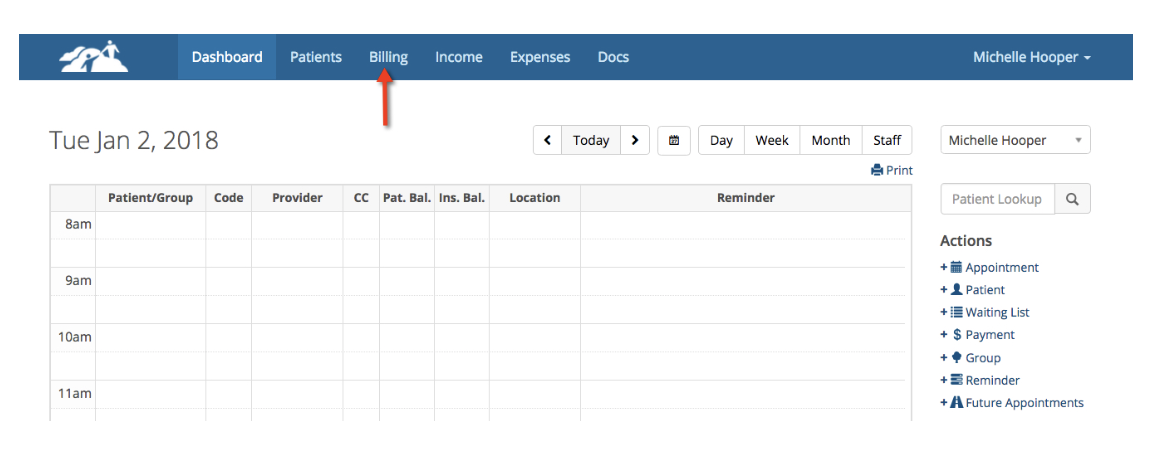
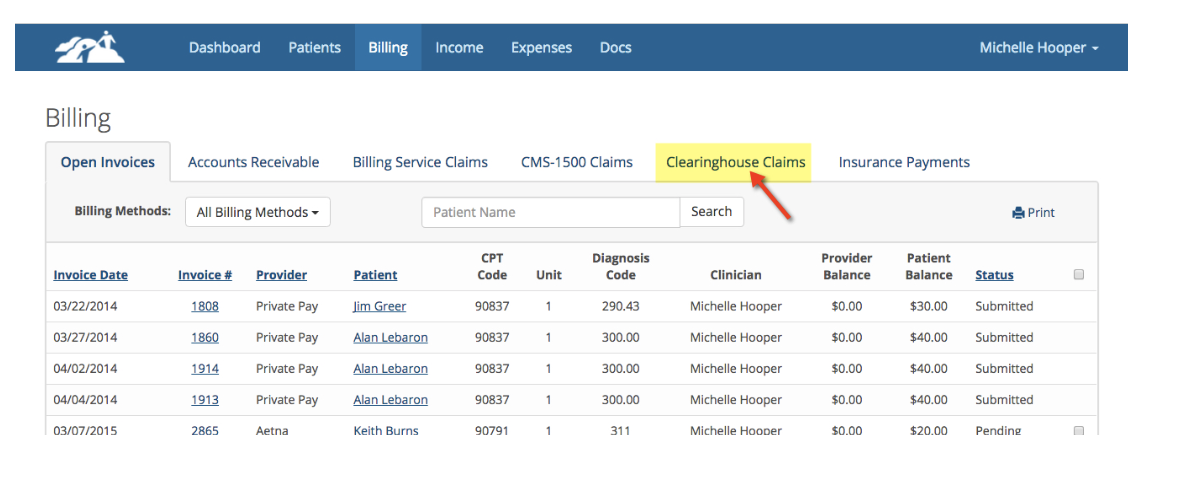
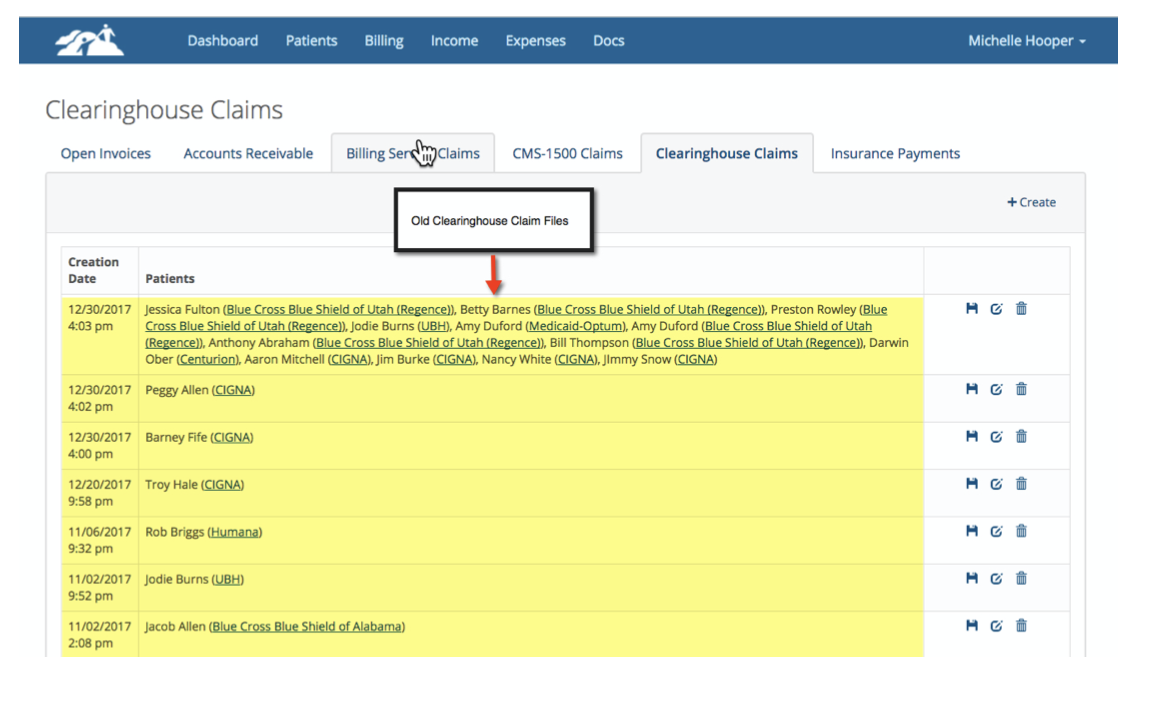
3. On the next page you will see all of the Clearinghouse Claims that you have created in the past and submitted previously (see below). This page may be blank if you haven’t created any claims yet.
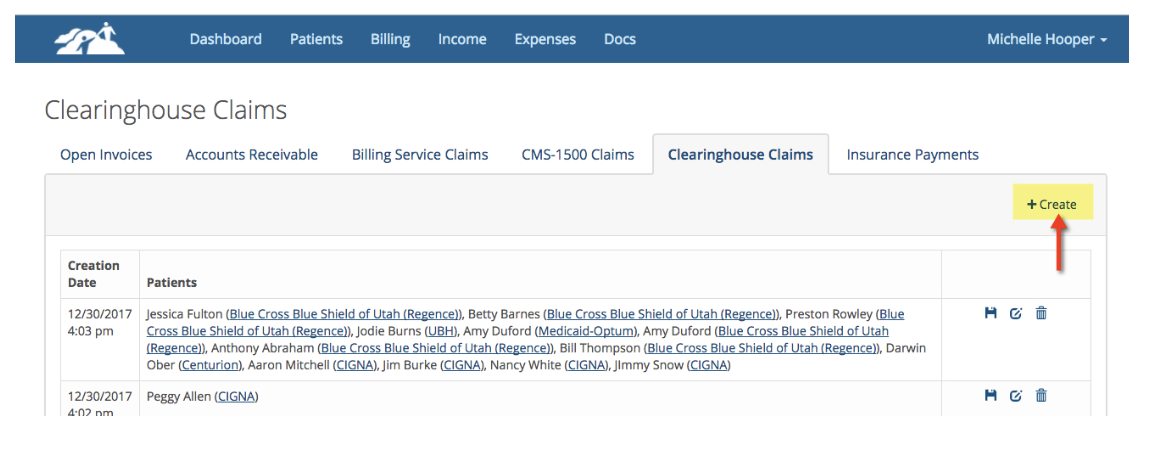
4. To create a new Clearinghouse claim click on the + Create button as shown below:
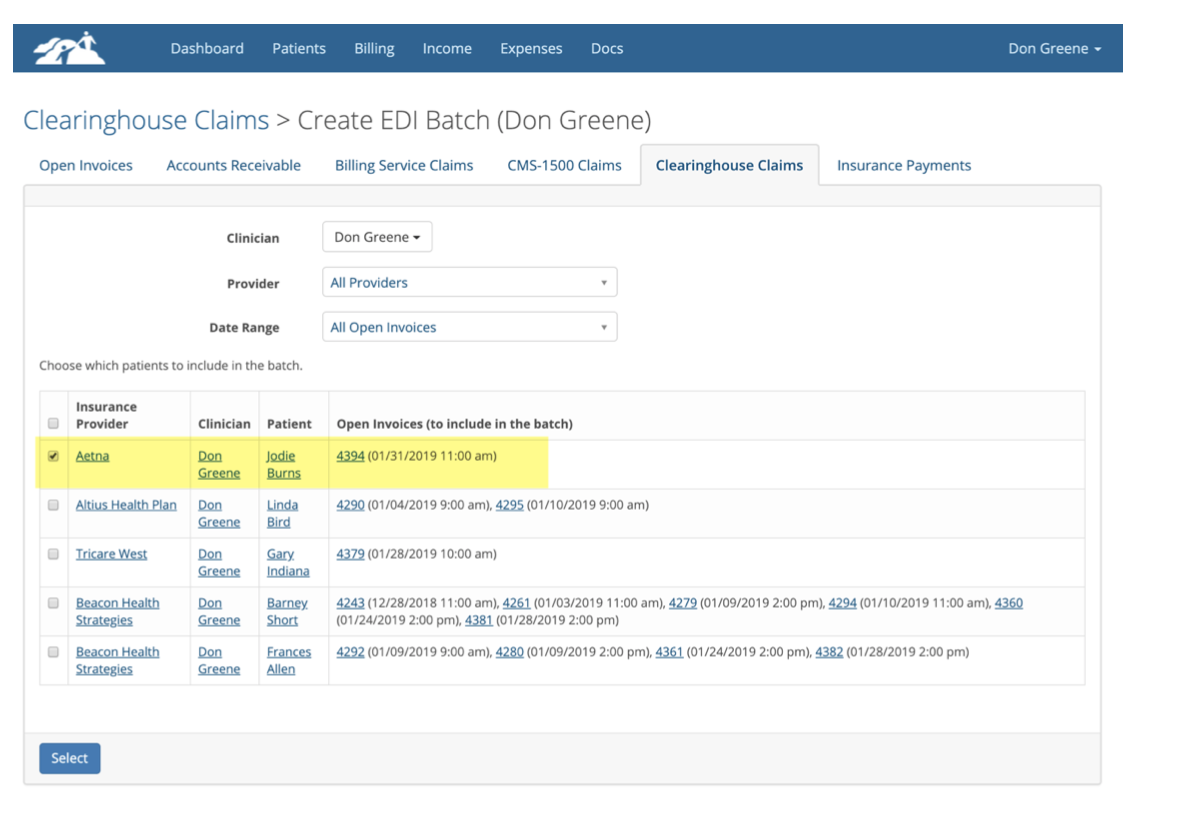
5. Check the boxes on the left-hand side for the claim(s) that you wish to include in the Clearinghouse batch file. For NaviNet, don’t mix different insurance providers in the same claim file. Each insurance provider has their own billing area. Please check with each insurance provider for more information about uploading claims. In the following example we are going to create and upload a claim for Aetna. Aetna allow claim files to be uploaded.


Checking Claim Status
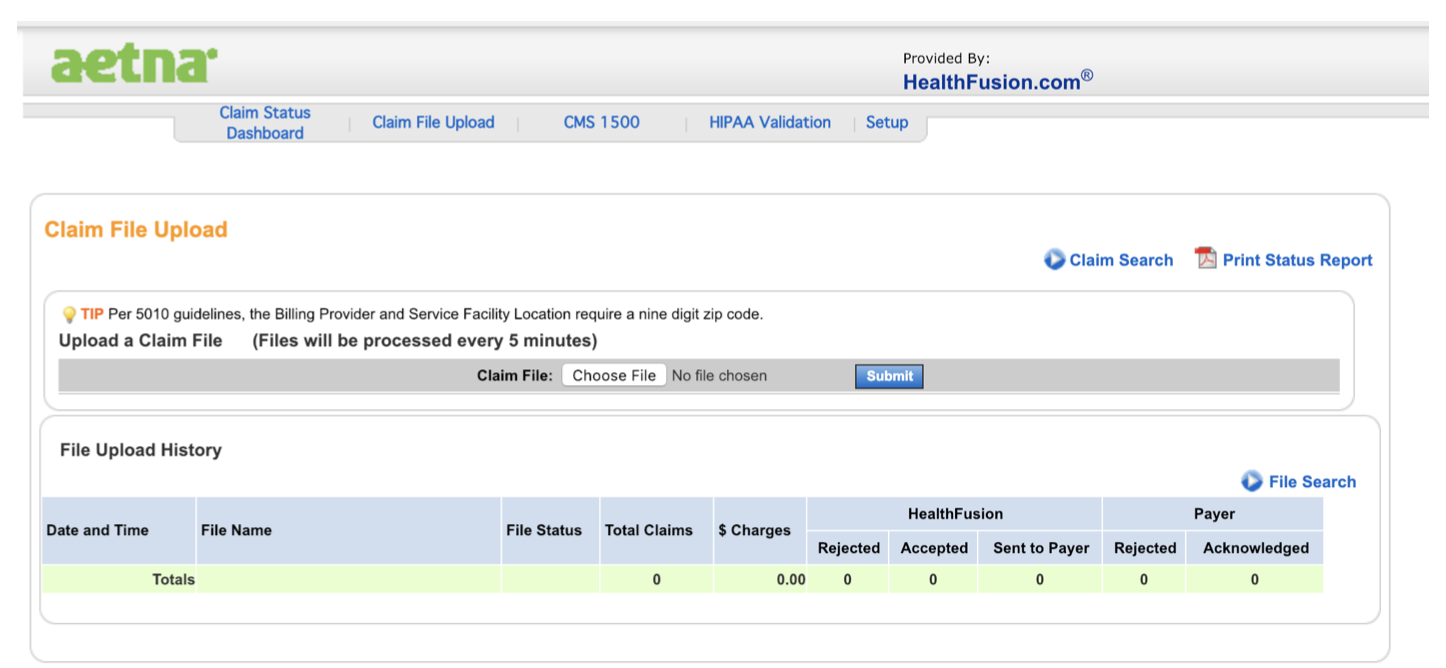
When the payer acknowledged column changes from 1 to zero again, you can assume that the claim is getting paid. In a day or two check the site for an EOB.