
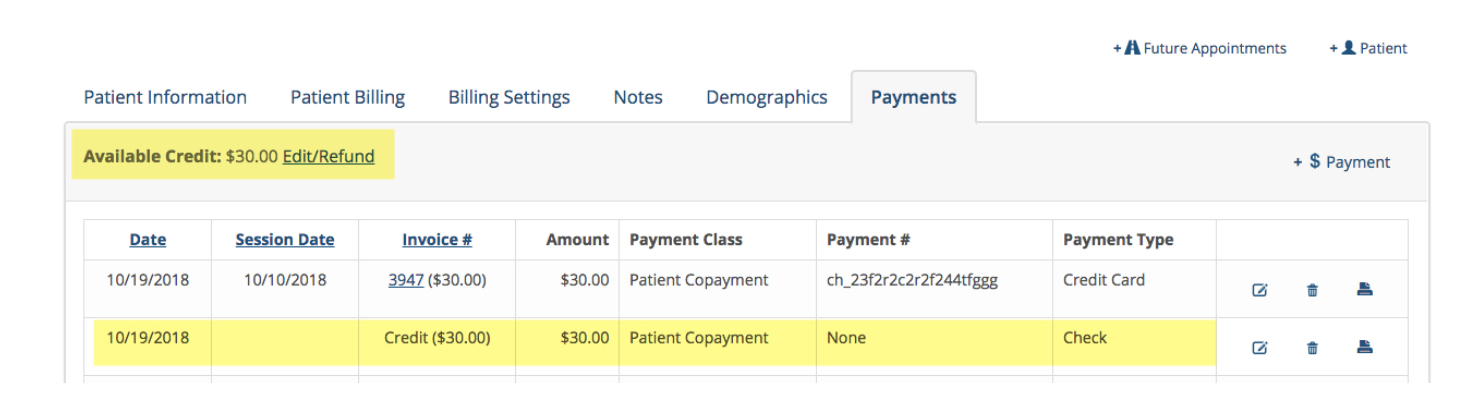
You can leave this credit in the client's chart to be used later if they agree or you can continue following this article to issue a refund.
In this next step you will click on the Edit/Refund link.
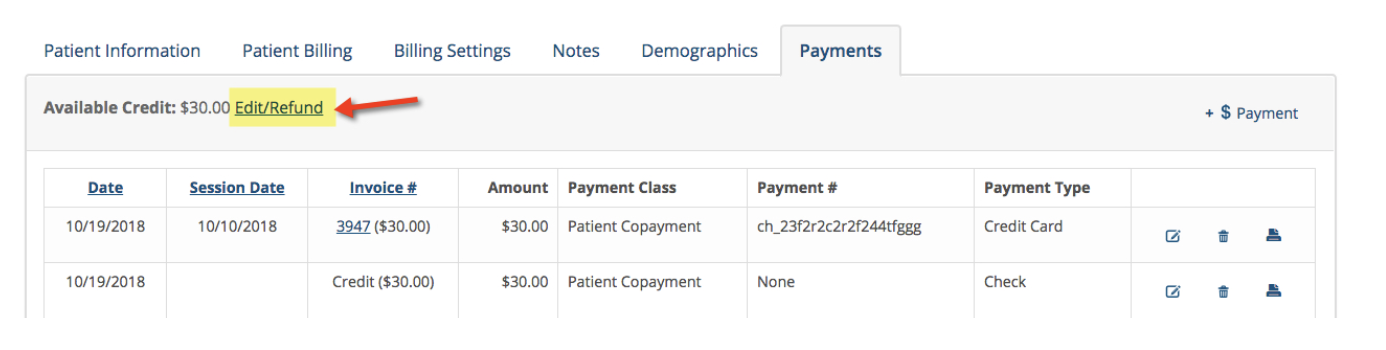
In the highlighted fields below enter the amount you want to refund. This could be all or a partial refund. Enter an explanation and then your check number that you are going to send to the patient by writing a check manually and mailing to them.
Click Update when done.
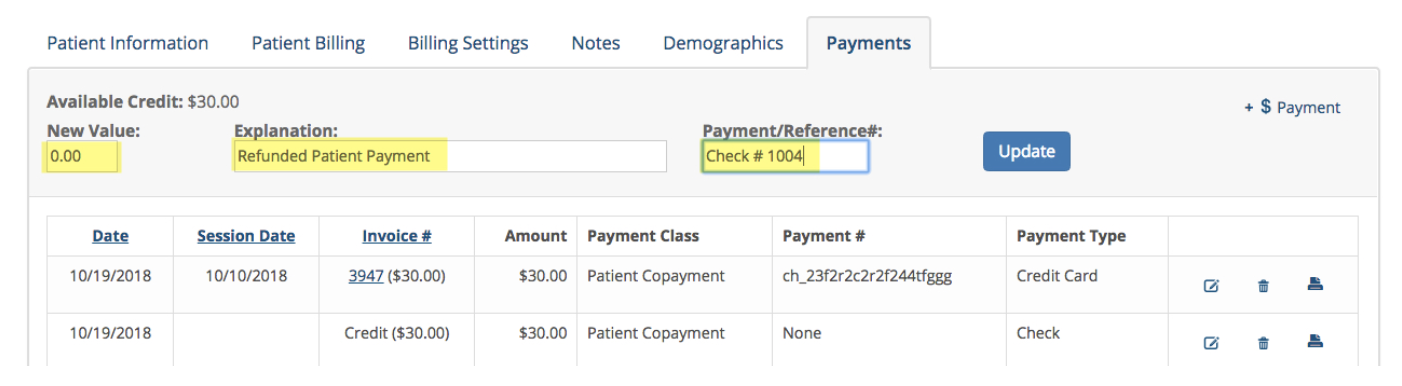
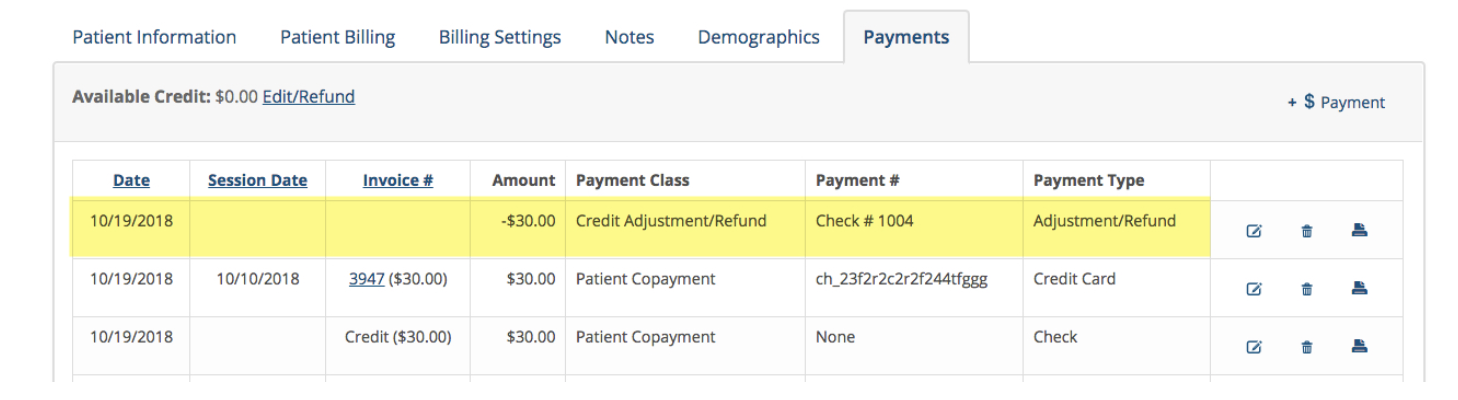
The payment window will now show that the credit was refunded.
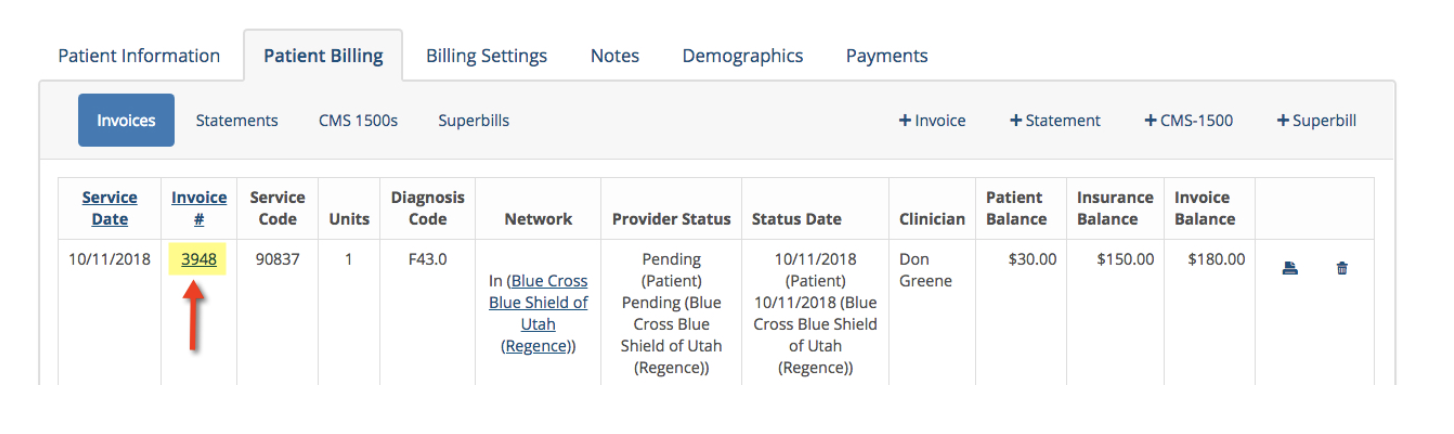
This last step must be done to remove or update the client charge from that same invoice. Go to the client’s Patient Billing page. Click on the invoice number.

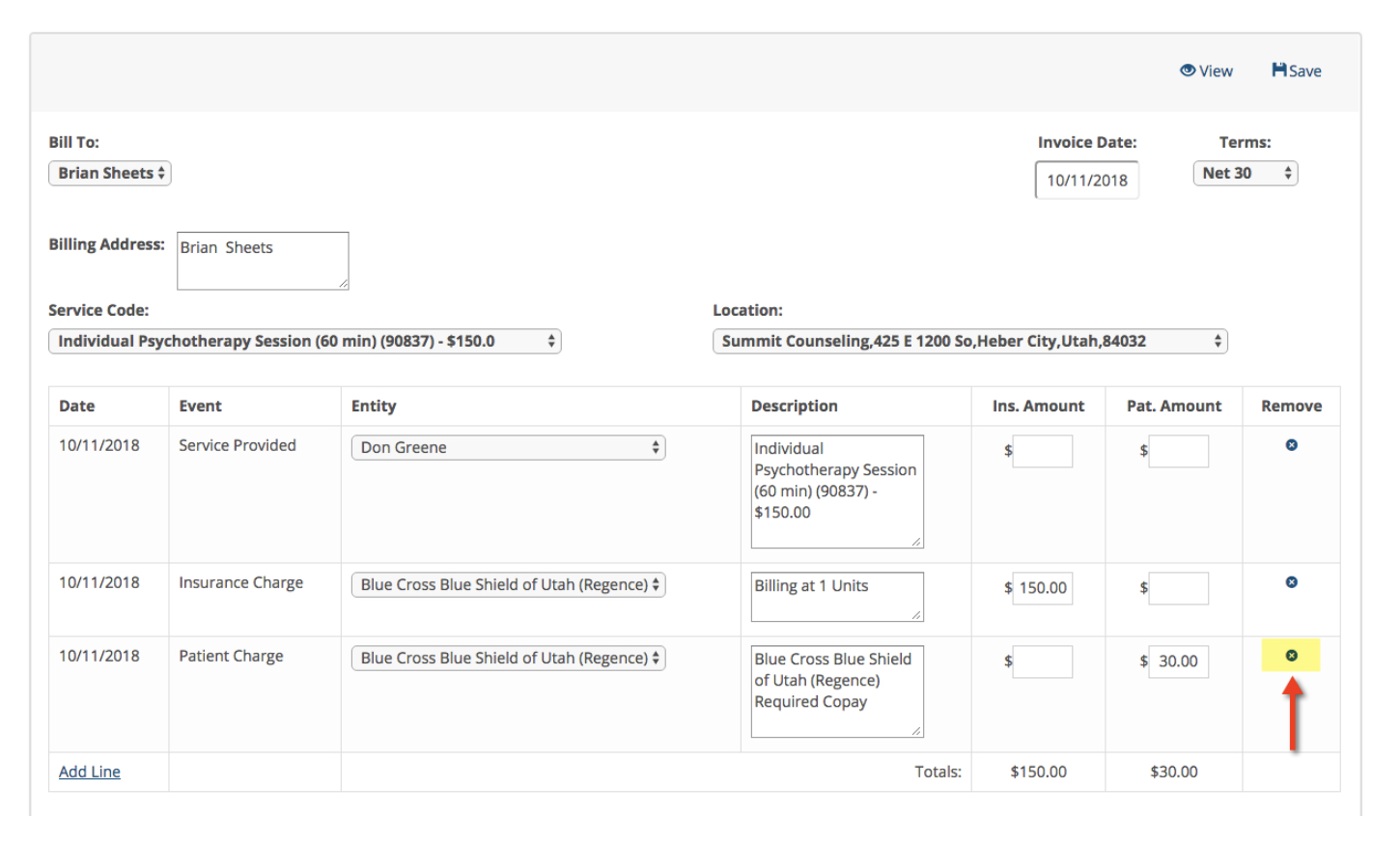
Click Save when done. This completes the check or cash refund process for this patient.
You can refund a Stripe payment directly from a client's invoice.
Locate the invoice where you need to refund all or part of a credit card charge.
Click on the Refund button shown above.
Enter the amount you wish to refund in the window. You can refund the entire amount or just a portion of the original amount. Enter the reason for the refund.
4. Click the Submit button when done.
5. The invoice will be updated with a new line showing the refund that was processed through Stripe.
Notice the Total Due at the bottom of the invoice. I now shows the uncollected amount after a refund was processed. You can edit the invoice and change the dollar amount on the Patient Charge line to change or correct the Total Due as needed.
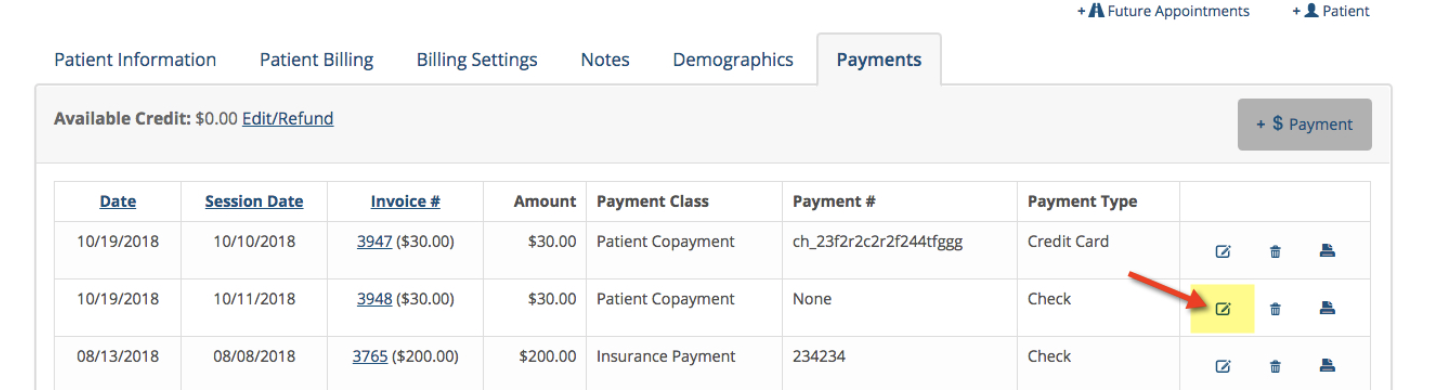
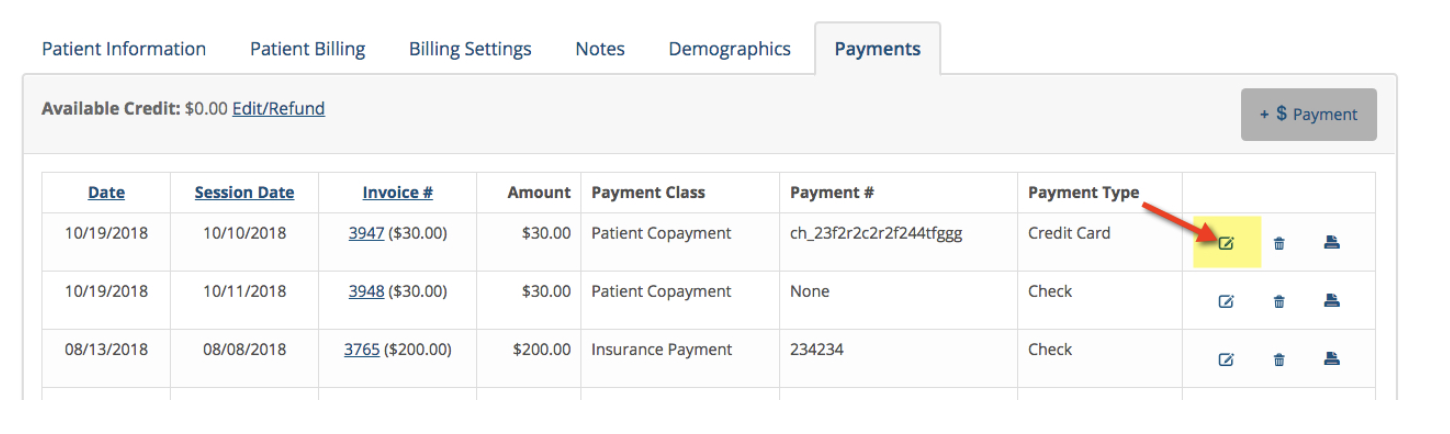
Go to the client's Payments page, find the payment you wish to refund and click the edit button as shown below:
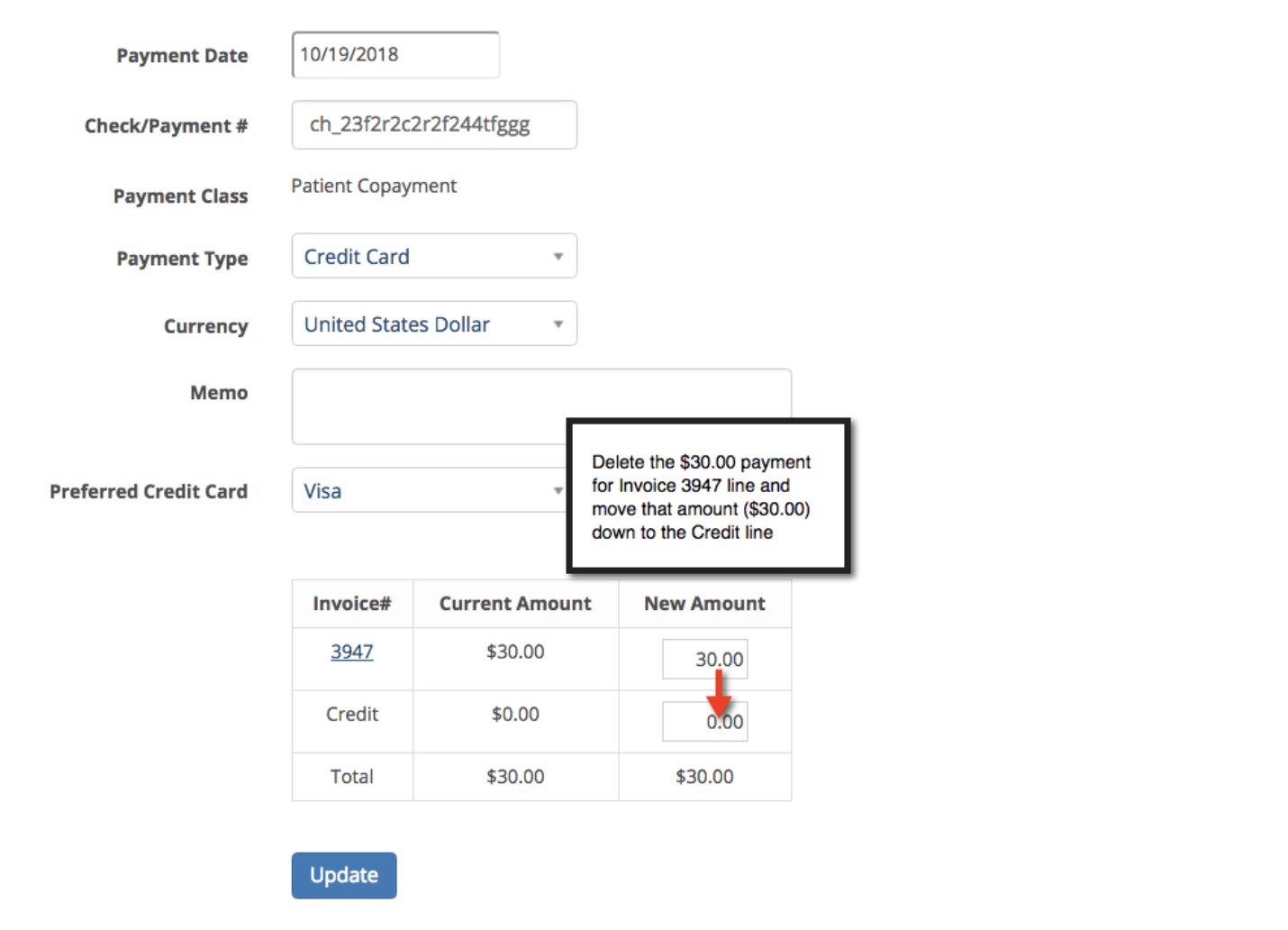
On the payment edit window below, delete the amount from the invoice line and move it to the Credit line. In this example. We are going to delete the $30.00 check payment that was credited to Invoice 3948 and move it down to the Credit box. Click update when done.
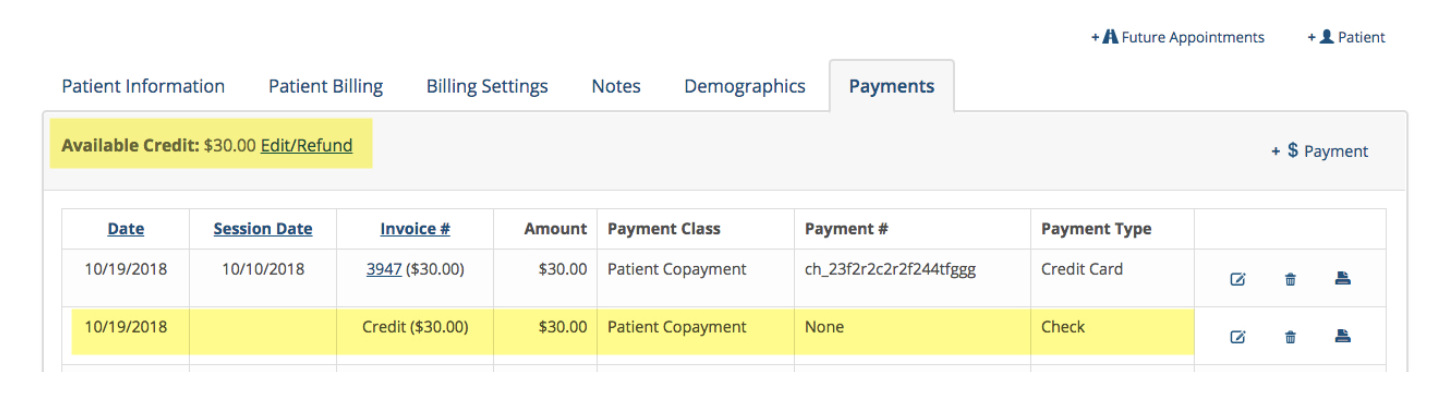
In this next step you will click on the Edit/Refund link.
In the highlighted fields below enter the amount you want to refund. This could be all or a partial refund. Enter an explanation and then the original credit card authorization number.
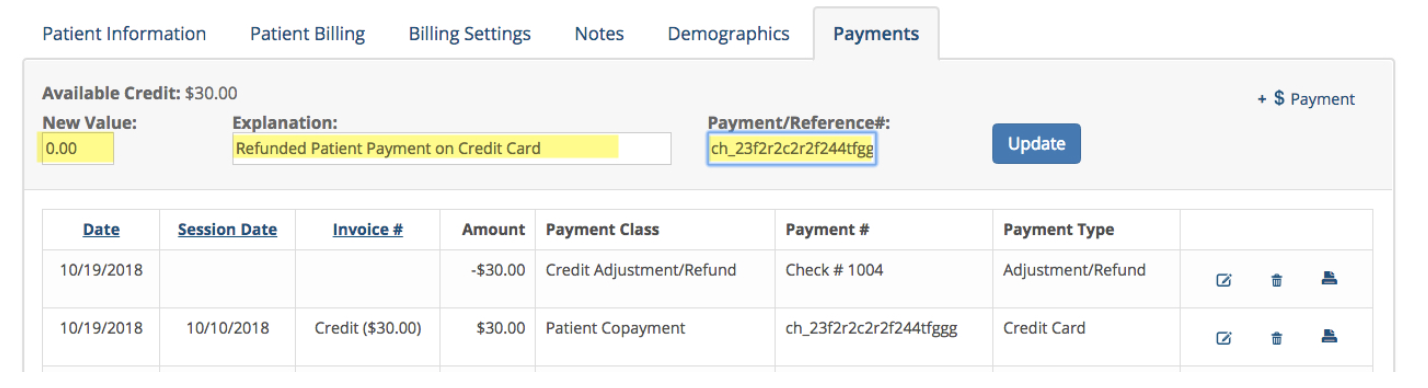
The client's payment page will now show that the credit was refunded according to TherapyMate. See below:
To complete the refund, you must login to our Stripe account and perform the following steps:
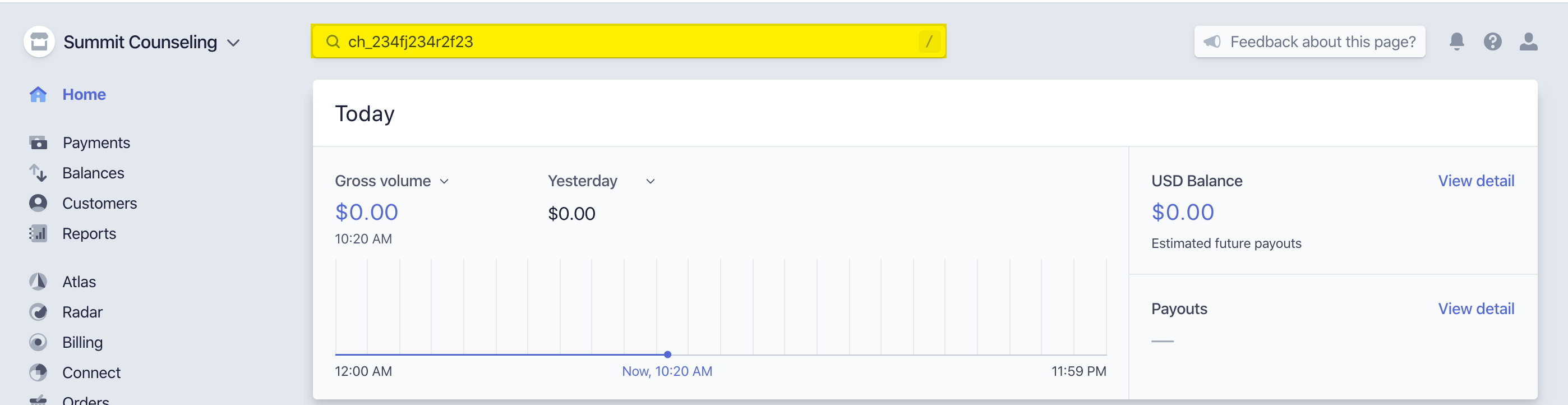
The search results will take you to a page like the following:
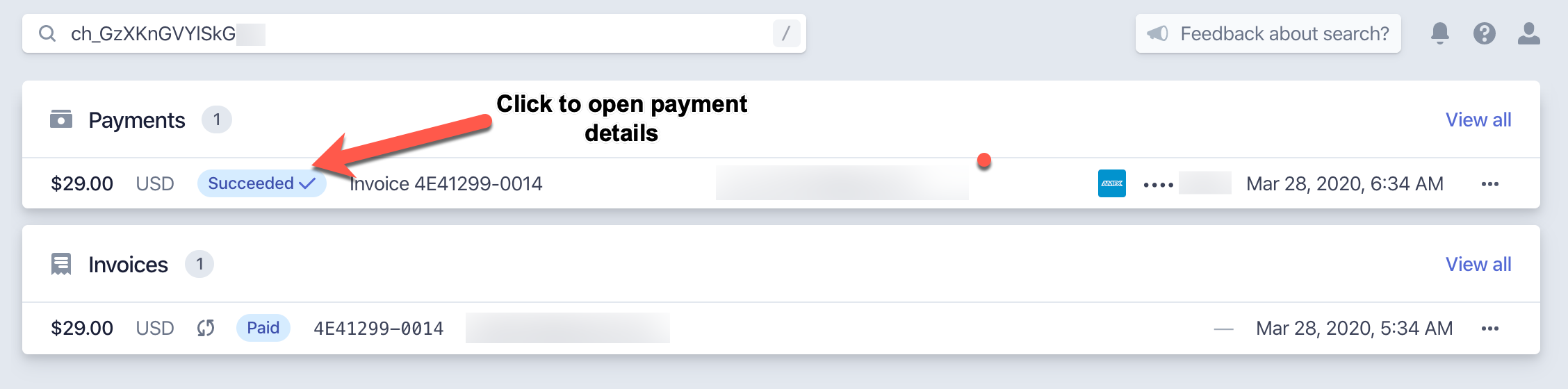

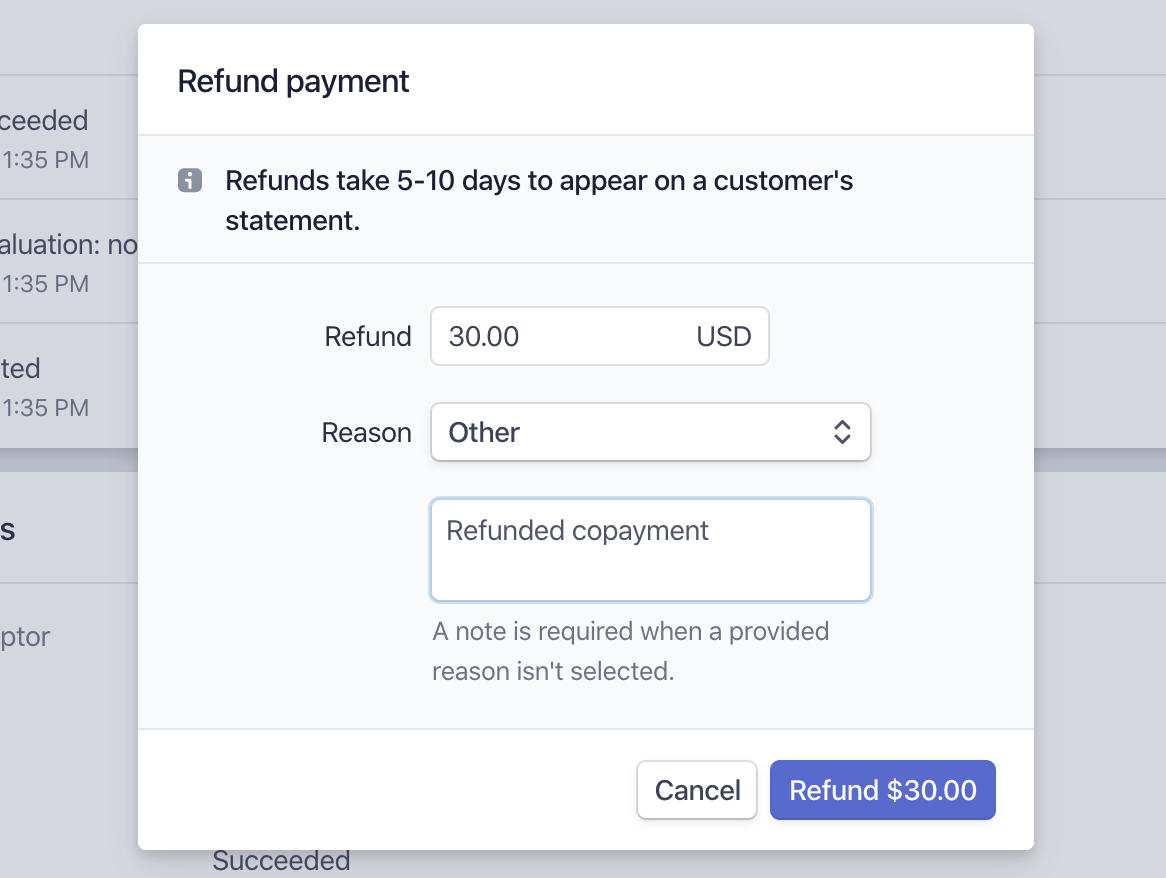
Click on the Refund button and enter the dollar amount and a reason for the refund. Click the blue Refund button to finish refunding the payment.
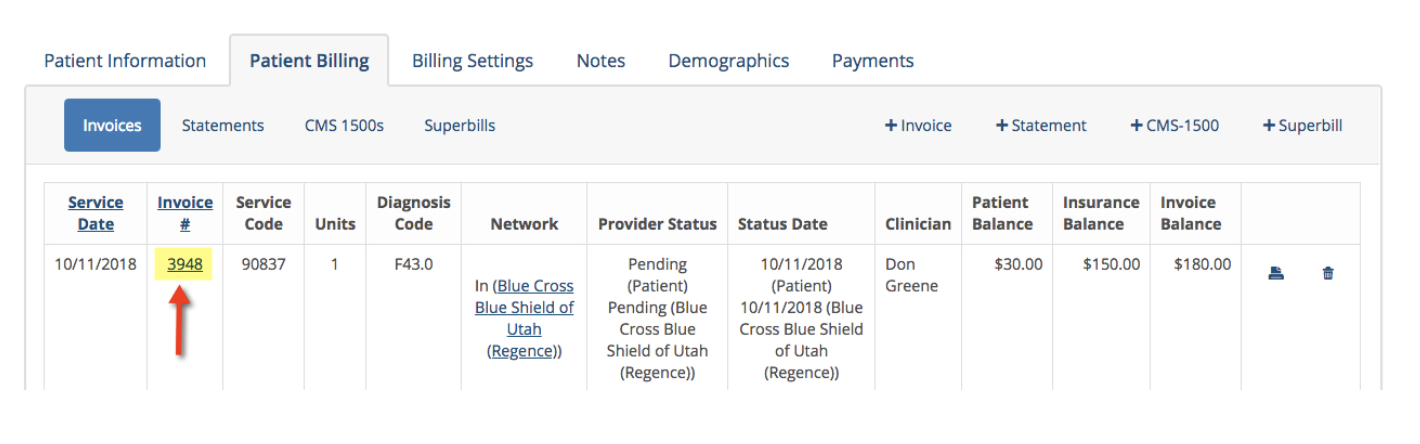
Edit the invoice and remove the Patient Charge line from the invoice or change the dollar amount to $0.00.
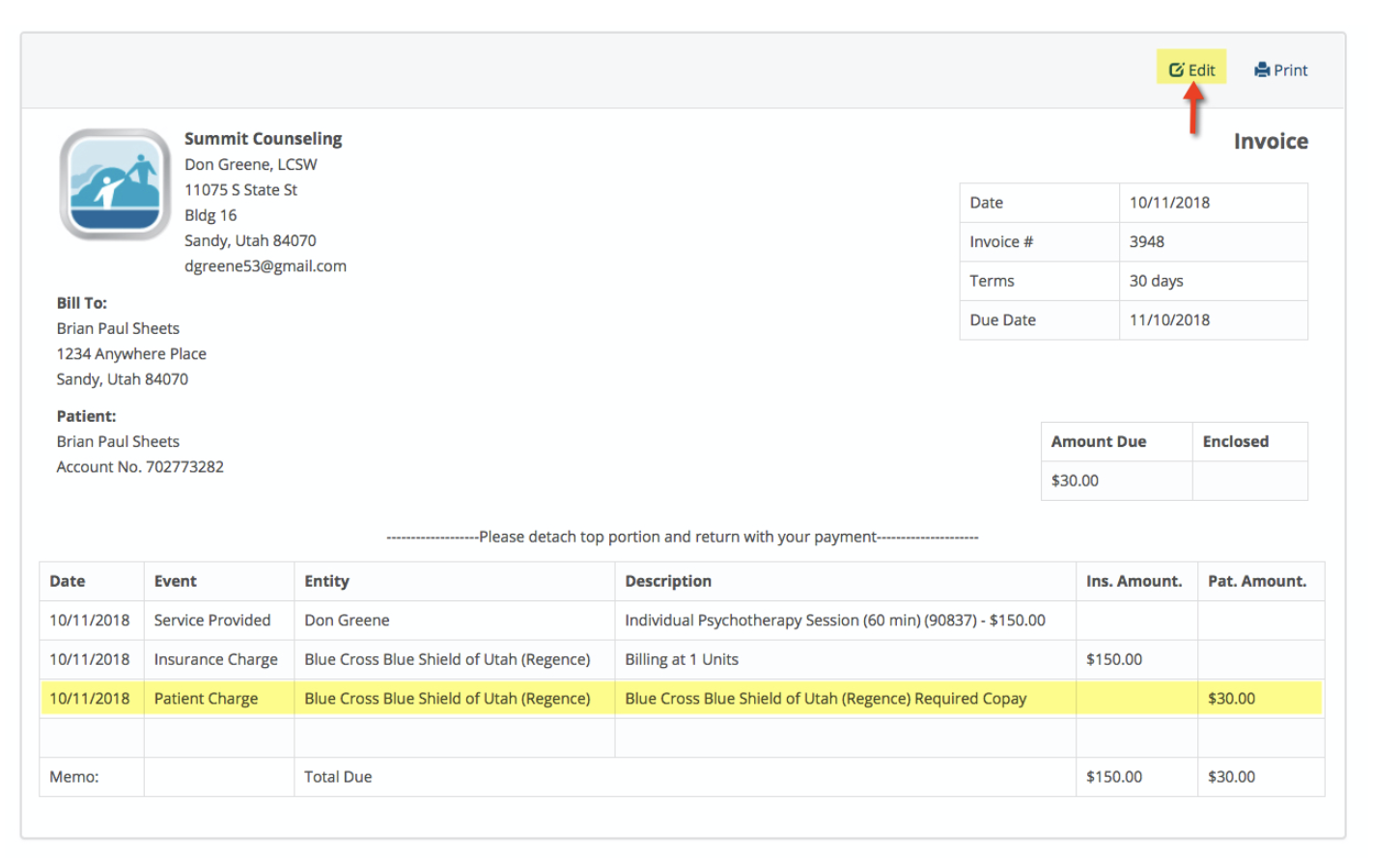
To remove the Patient Charge line entirely, click on the “X” on the right hand side as shown below:
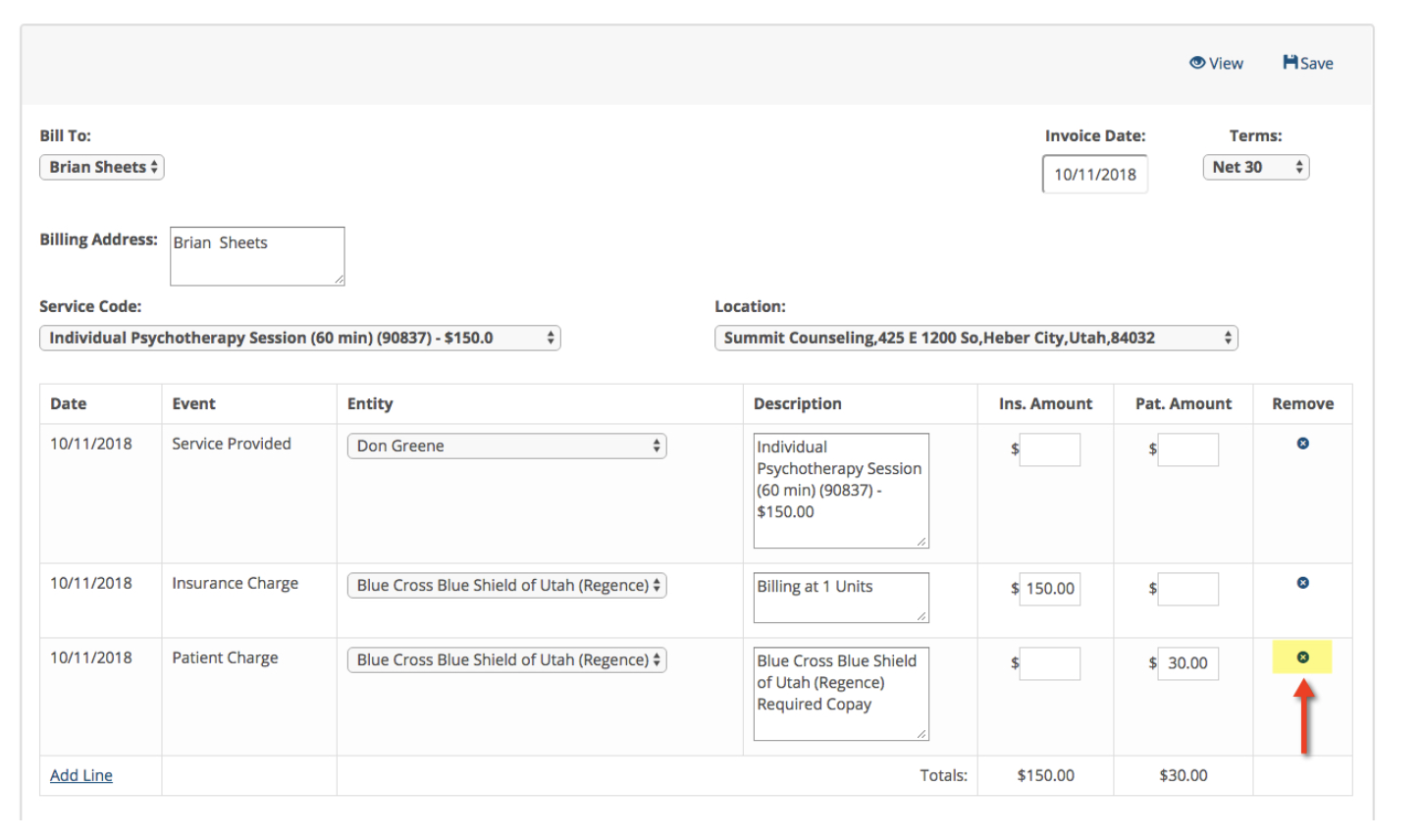
Click Save when done. This completes the credit card refund process for this patient.