Occasionally you will need to reset your browser's browsing history, cookies and data cache files.
This could be required because your browser is automatically saving certain locations or data elements within the program to potentially speed up access to TherapyMate. When we upgrade our program those pointers or save locations in your browser could become invalid and you could see errors. Resetting will eliminate the old locations and data pointers and errors.
Here are instructions on how to do the reset for three of the most popular Internet browsers running on an Apple Mac. (Chrome, Firefox, Safari).
Chrome
Click on the word Chrome on the browser's menu bar and select Clear Browsing Data.

The following window will appear on your screen. Make sure the Time Range is "All Time" and the Cookies and other site data, Cached images and files are check.

Click the blue Clear data button to perform the reset. This completes the resetting process for Google Chrome.
Firefox
Click on the word History on the browser's menu bar and select Clear Recent History from the drop down.
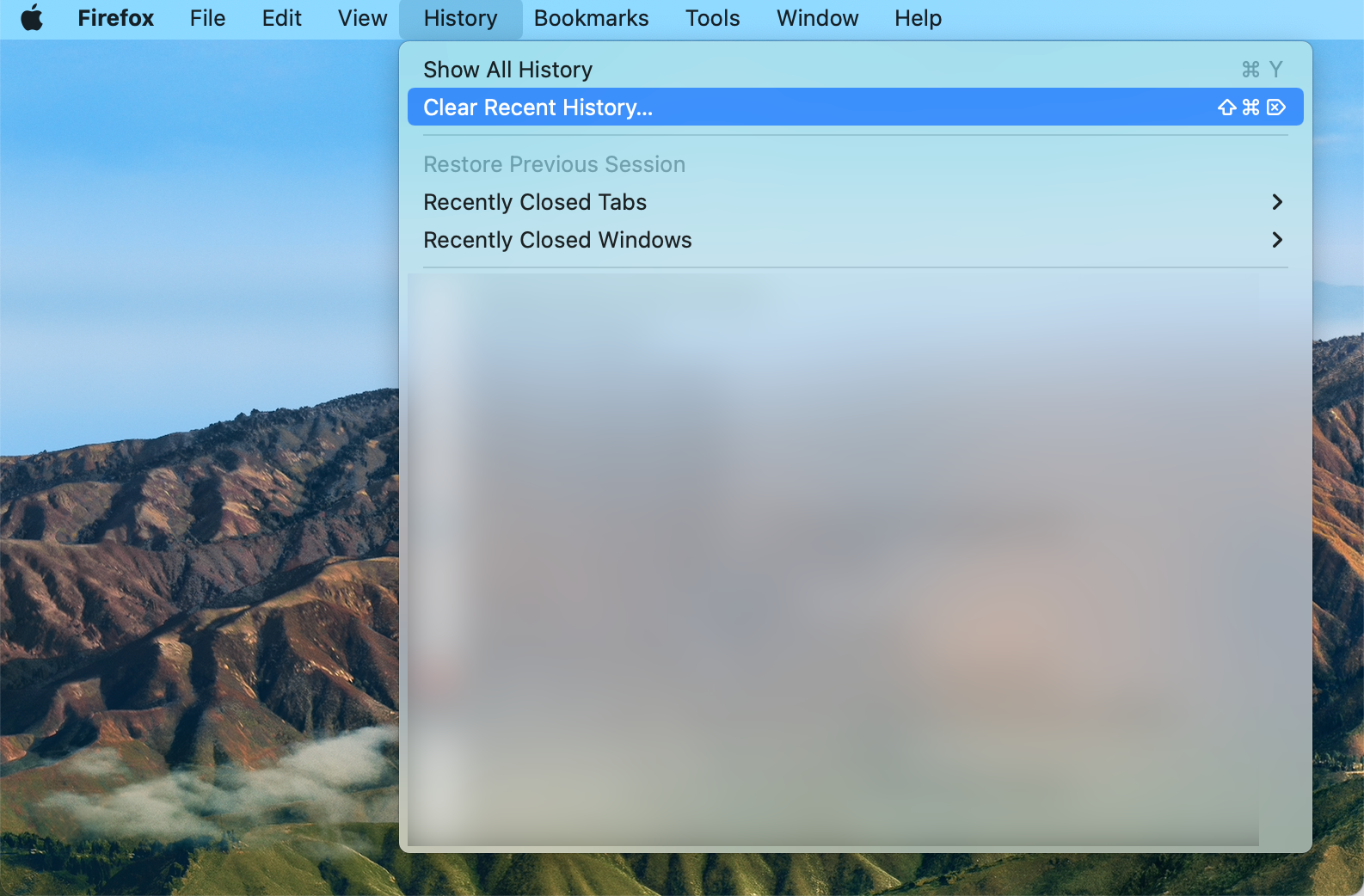
A window will appear like the following:
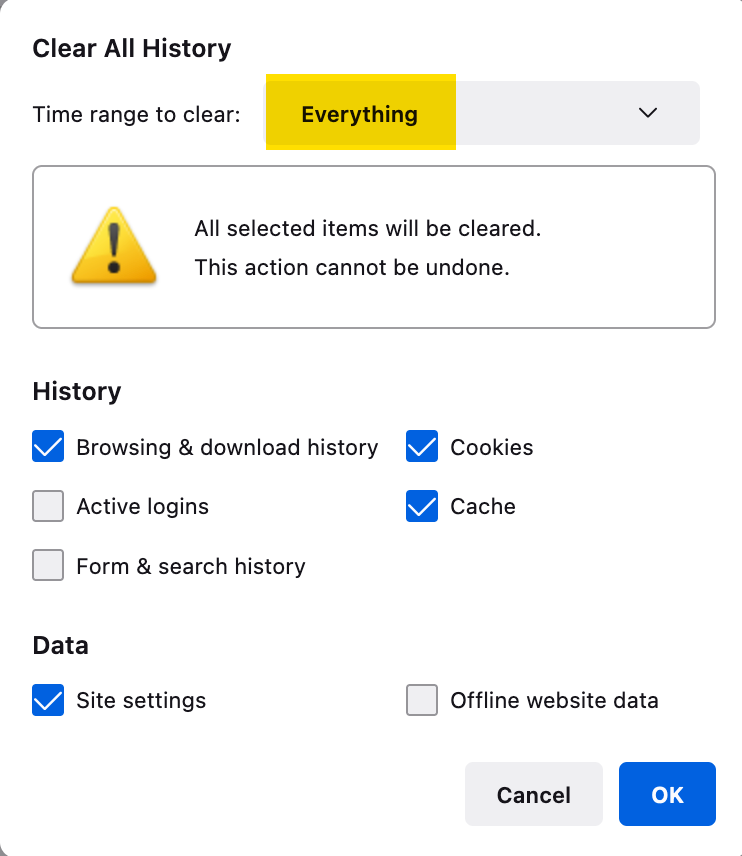
Make sure the time range to clear is set to Everything and the other check boxes are checked. Click the OK button when done.
This completes the resetting process for Firefox.
Safari
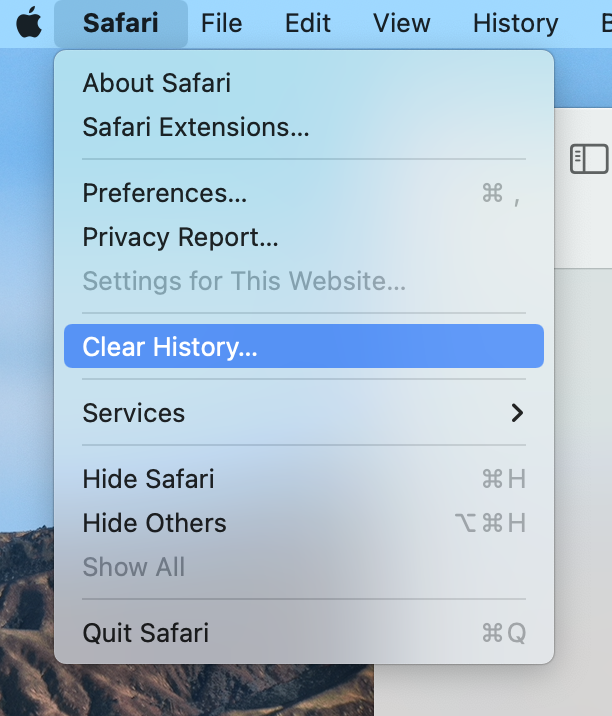
Click on Safari on the menu bar and select Clear History from the drop down.
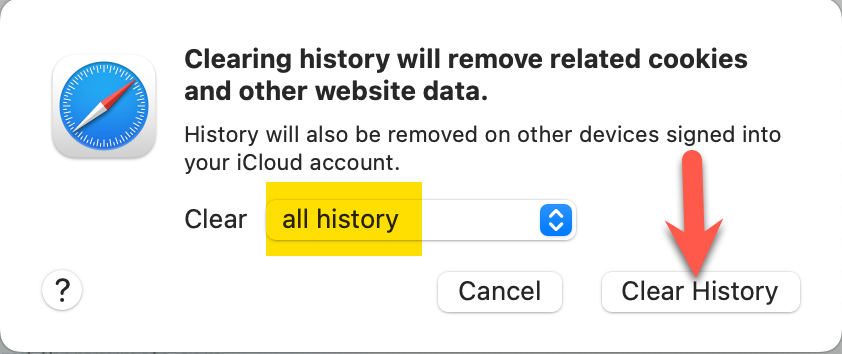
Make sure the Clear drop down shows "all history". Click the Clear History button to complete the resetting process.
Other Mac Browsers
If you're using a different Internet browser that is not covered in this article refer to their help feature and search for the resetting instructions.