You can configure your iPhone and iPad to fetch your TherapyMate schedule and display the appointments in your Google calendar. This training document will show you how to configure your device(s) and enable the feature in TherapyMate. This example was created using an iPhone running Apple's IOS Version 26.2.1. If you have a really old OS on your iPhone, your screens could look different.
1. Click on your Settings icon on your iPhone or iPad.
2. Scroll to the bottom of the settings page to APPS and click on it.
3. Scroll way down to Mail and click on it.
4. Now click on Mail Accounts as shown below:
5. At the bottome of the Mail Accounts screen, click on Add Account.
6. Click on "choose from a list".
7. Click on Add Other Account.
8. Click on Subscribed Calendar.
On this screen you'll see a text box labeled Server. You will get this information from TherapyMate and paste it into this box.
9. Login to TherapyMate and go to your User Settings page. On your settings page click on Mobile Applications.
10. Click on Enable Calendar Access.
11. The long weblink you see must be typed into the Server text box on your device that was mentioned in Step 8. It is very important to do this exactly as it appears.
Here is an example of an iPhone screen where that weblink was inserted. After inserting the weblink give you calendar a Description. The username and password are not necessary.
Click Done. If you get an error most likely you didn't type the weblink correctly.
12. Exit the settings area on your iPhone or iPad. This completes the settings on your device.
13. How the patient's names appear on your Google Calendar depends on the Name Format setting that is back on your Mobile Calendar Sync settings page in TherapyMate. You have four options. Pick the one you feel most comfortable with if someone other than you saw your calendar.
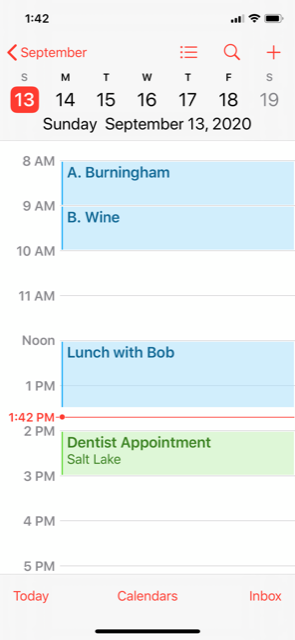
14. To view your schedule on your iPhone or iPad, click on the calendar icon. The appointments you have in TherapyMate will now appear on your Google calendar in addition to any personal items you may already have.
In this example, the TherapyMate appointments are blue and person appointments are green.
A couple of things to keep in mind:
a. The sync doesn't happen instantaneously. It may take a several minutes for new items to appear from TherapyMate in your Google calendar.
b. This is a one way sync, meaning the TherapyMate Calendar information is fetched by your device and shown on your Google calendar. Calendar items you created in your Google calendar will not sync back to your TherapyMate calendar.