You can configure your Google Calendar to show your TherapyMate schedule. Please perform the following steps to enable access.
1. Login to TherapyMate and go to your main settings page by clicking on your name in the upper righthand corner.
2. On the settings page scroll down and click on Mobile Applications.
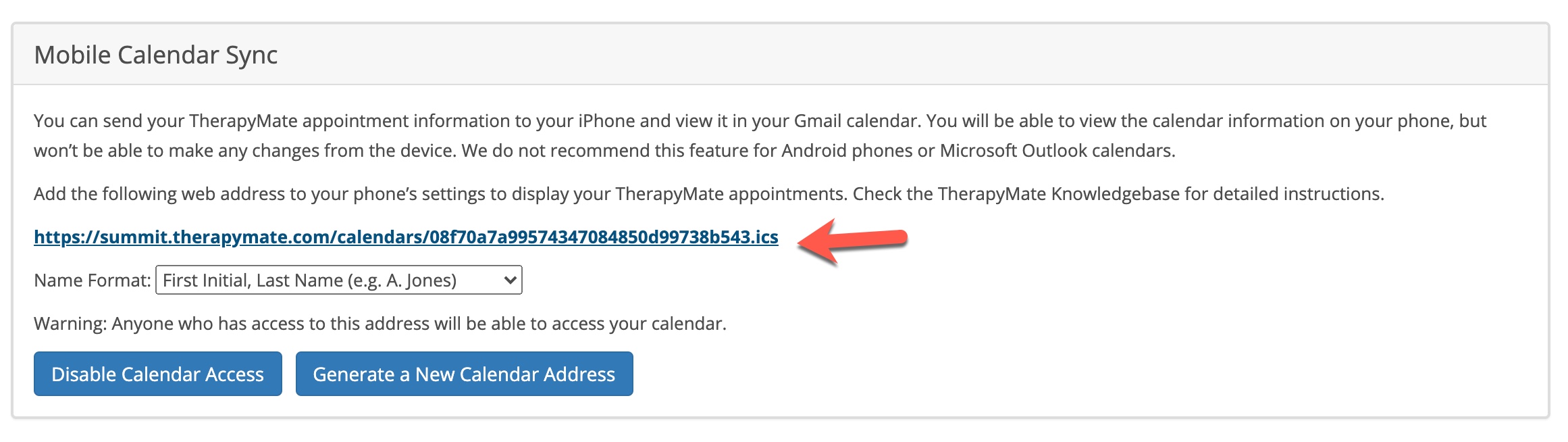
3. At the bottom of the Mobile Applications page click on the blue button labeled Enable Calendar Access.

4. Highlight the URL with your mouse and copy it to your clipboard
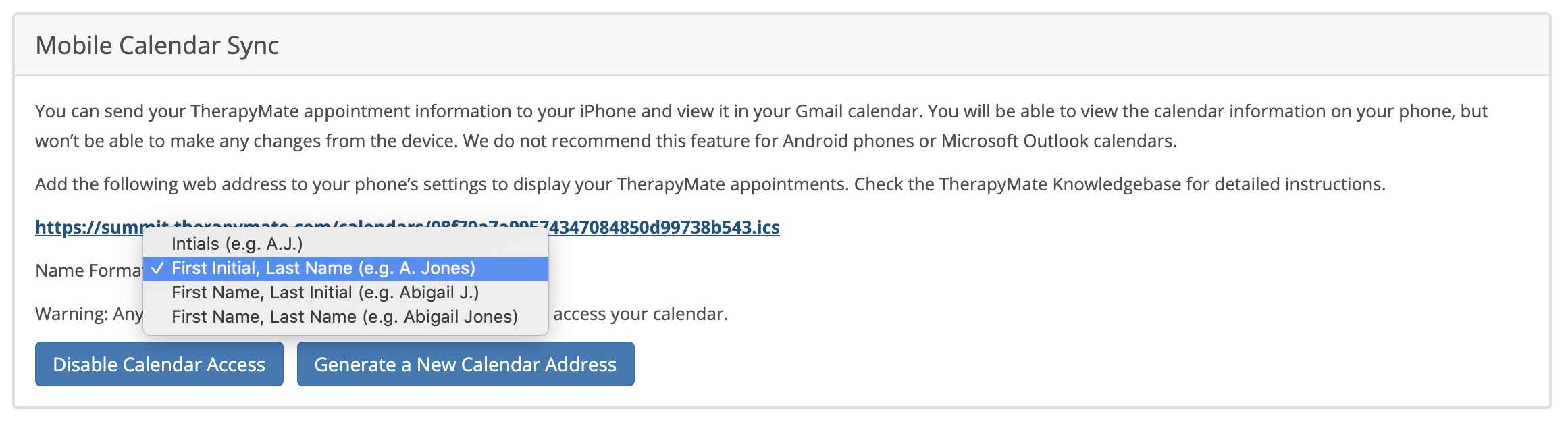
5. Decide how you want your client's names to appear in your Google Calendar. Here are the choices.
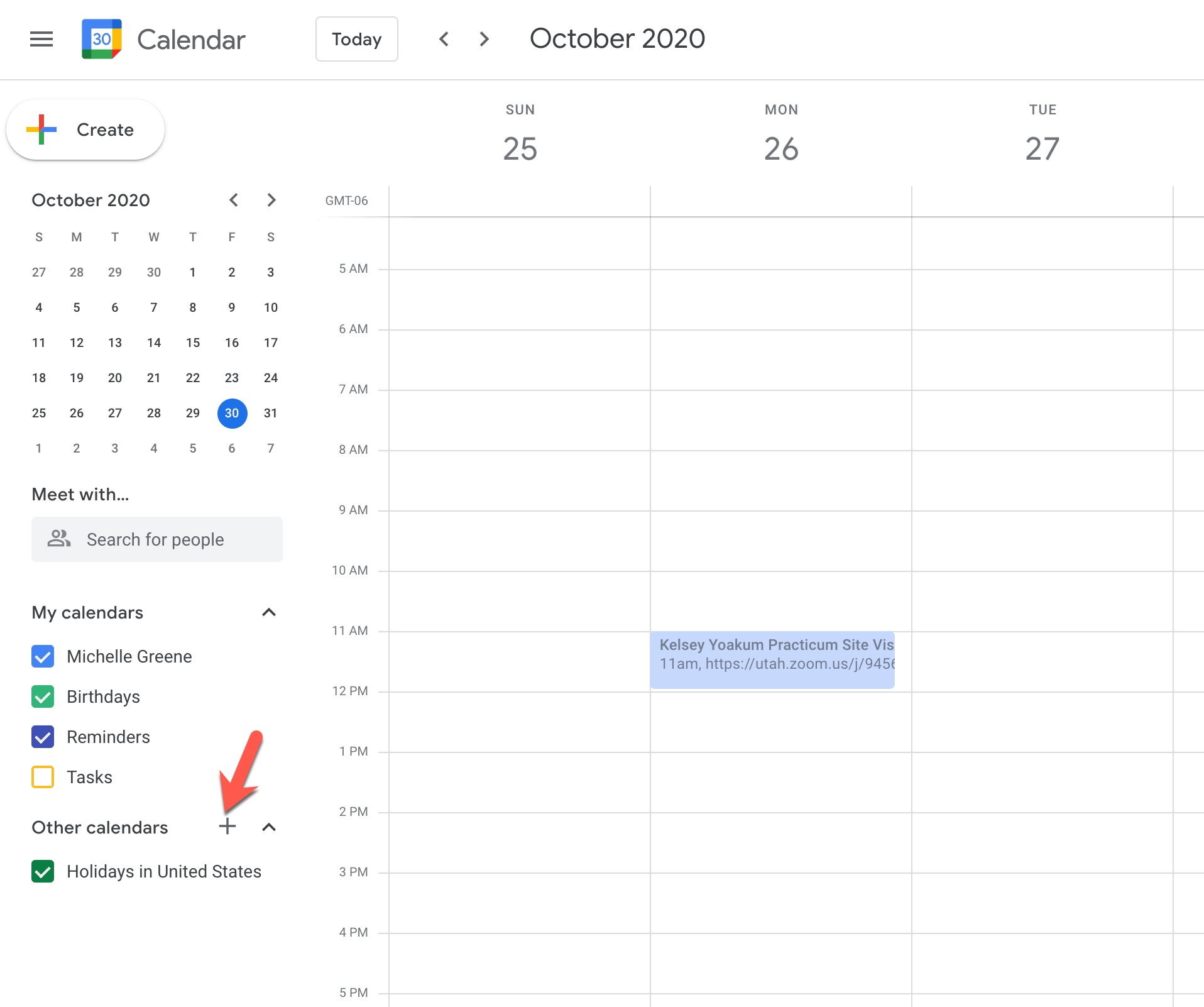
6. Go to your Google Calendar. On the righthand side near the bottom, click on the + sign to add your TherapyMate Calendar URL that you copied in step #4
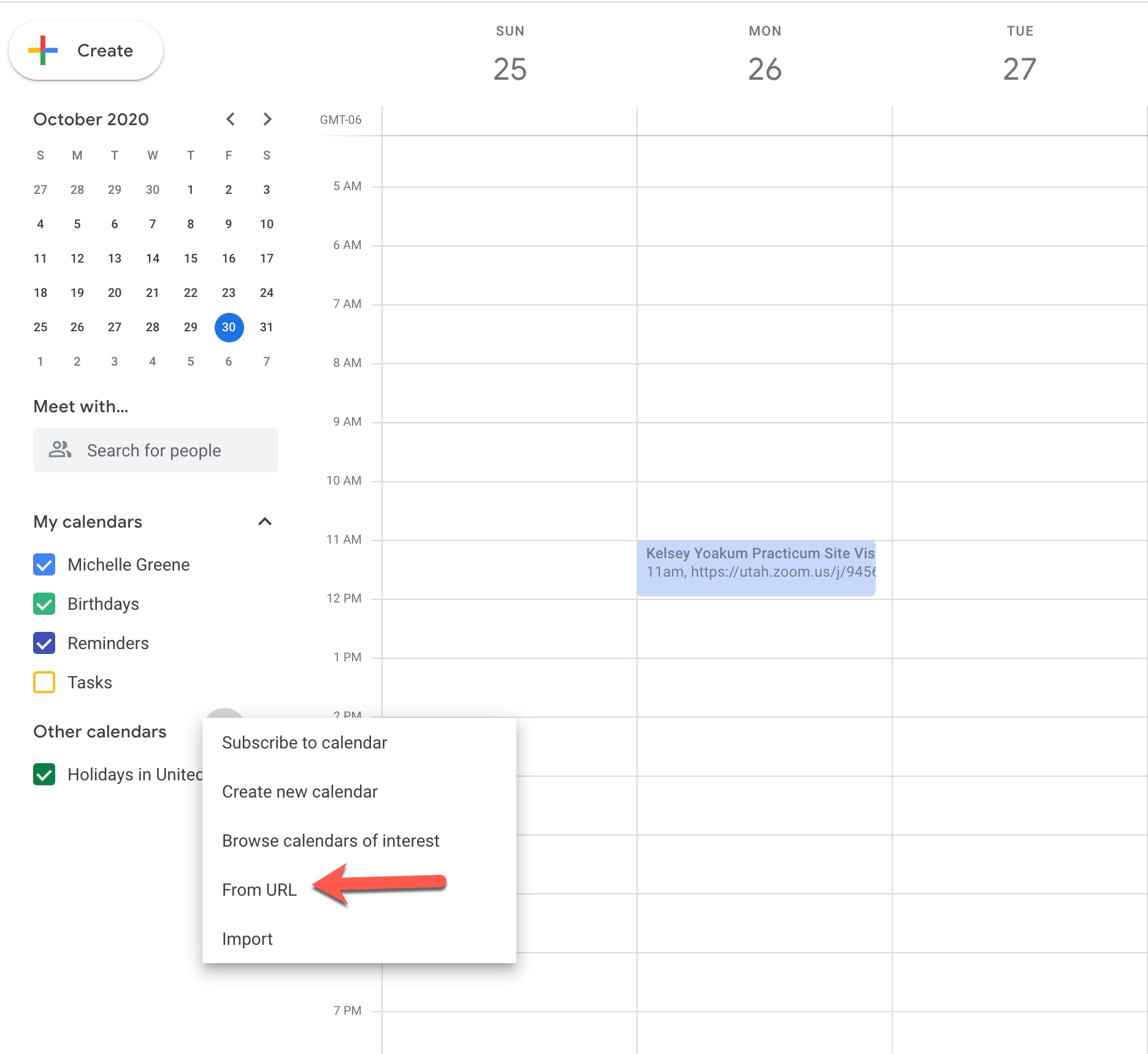
7. Click on the From URL menu option as shown below:
8. Paste the URL you copy in TherapyMate into the box below:
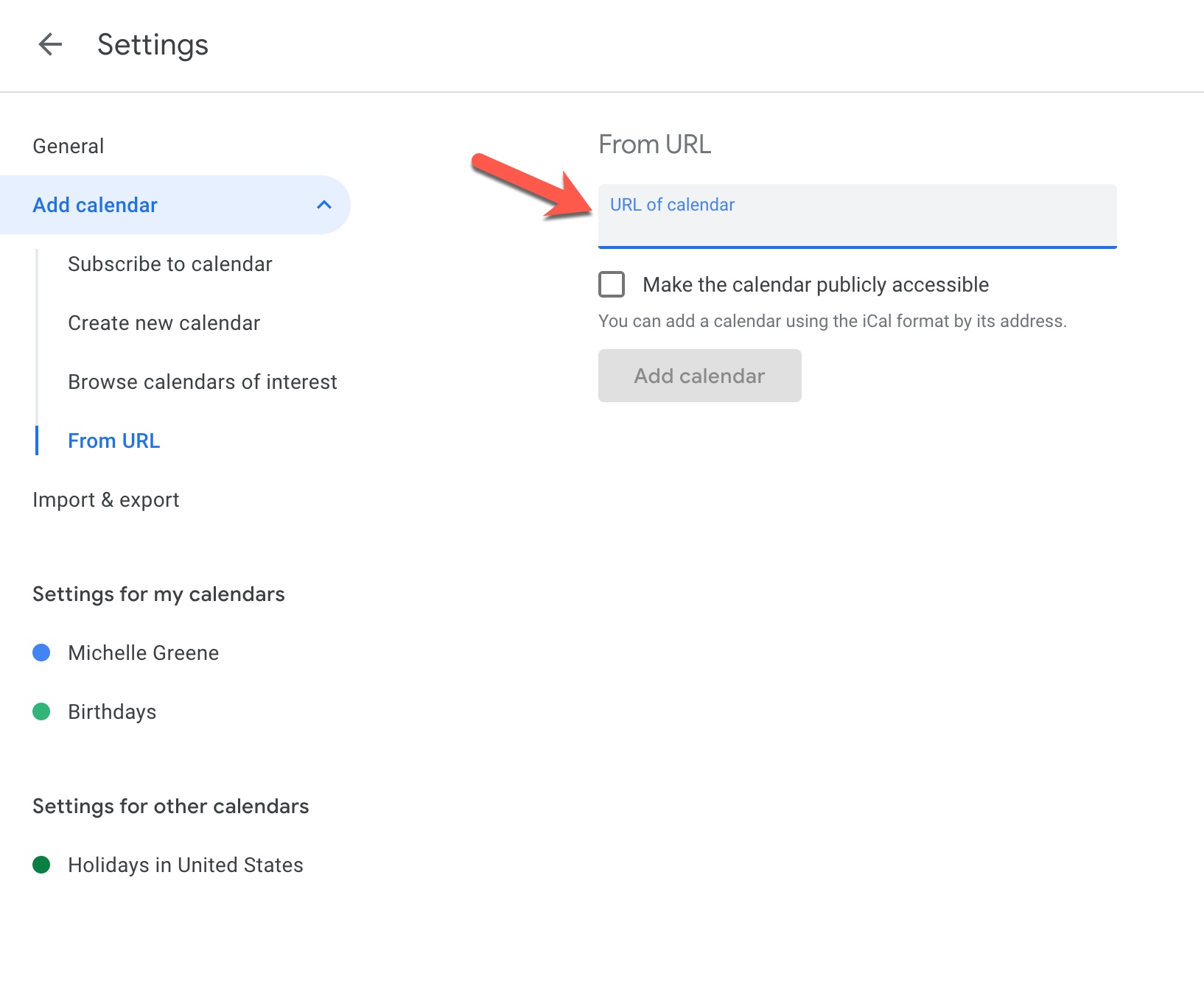
9. Do not check the checkbox labeled "Make the calendar publicly accessible".
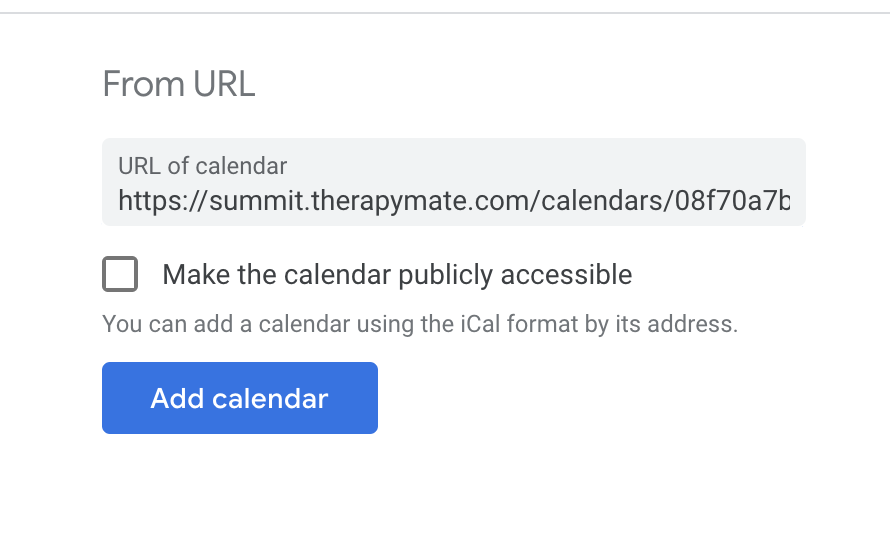
10. When you have the URL pasted into the box, click the blue Add calendar button. When the calendar is added you will see it on the left side near the bottom on your Google calendar settings page. See example below:
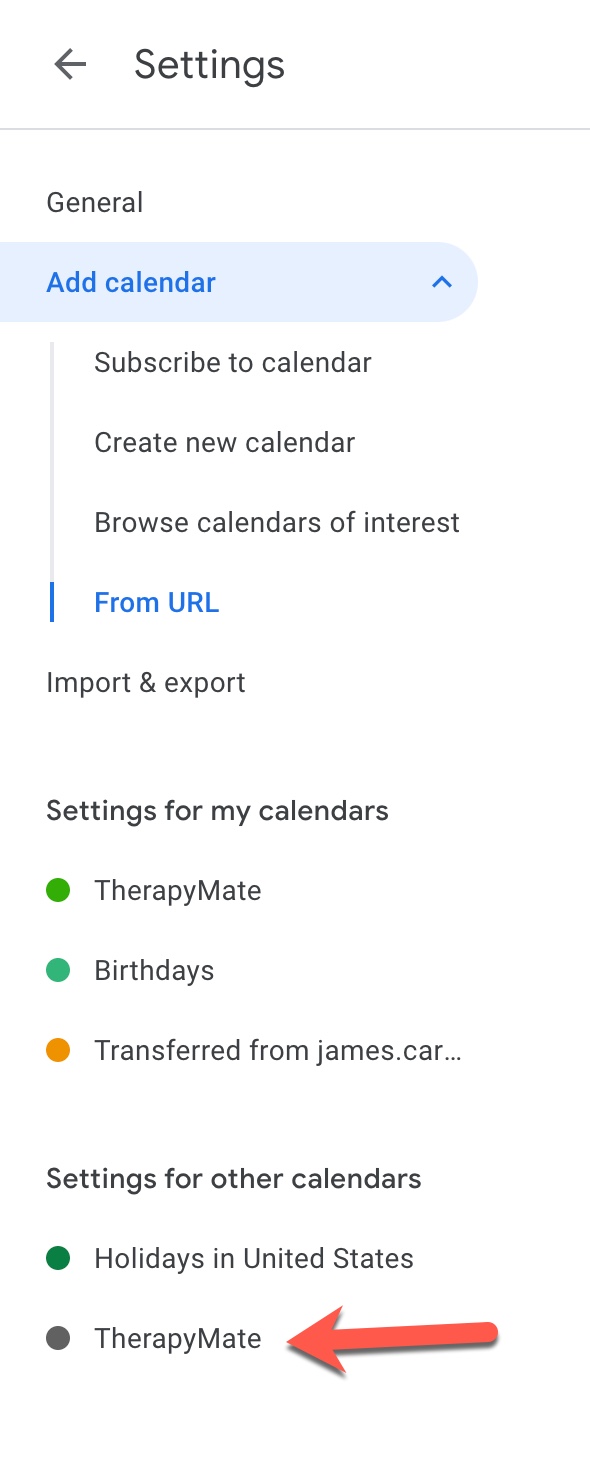
11. Exit the Google settings page and return to your Google Calendar. Your TherapyMate schedule will be displayed.
This completes the setup process.
PLEASE NOTE:
Google only syncs the past month's calendar information. You won't see information older than that.
Your TherapyMate schedule can only be viewed in your Google calendar. You can't make changes in your Google calendar and have those changes sync back to TherapyMate. Google says it could take up to 12 hours for changes in TM to appear on your Google Calendar.
For more information Click Here to view a Google article.