Telehealth services are subject to a variety of issues no matter what Telehealth provider you use. We maintain very robust servers to handle the activity our users place on them to maximize the reliability and quality of the video sessions. Having said that, the internet connections of the participants and the configuration of their computers seems to play a much larger role in how well a video session occurs. Those factors are outside TherapyMate's ability to control. Some of our users have tremendous success using our platform while others struggle because they can't troubleshoot the external factors with their clients.
During a Telehealth session you can check the Internet performance of your connection and your client's. Click the Toggle Tile View button to get both video windows side by side as shown below.
Hover over one of the windows with your mouse cursor. In the upper left corner, a round icon will appear. The icon can be Green, Yellow or Red.
In the example below, one of the performance icons is yellow and the other one is green.
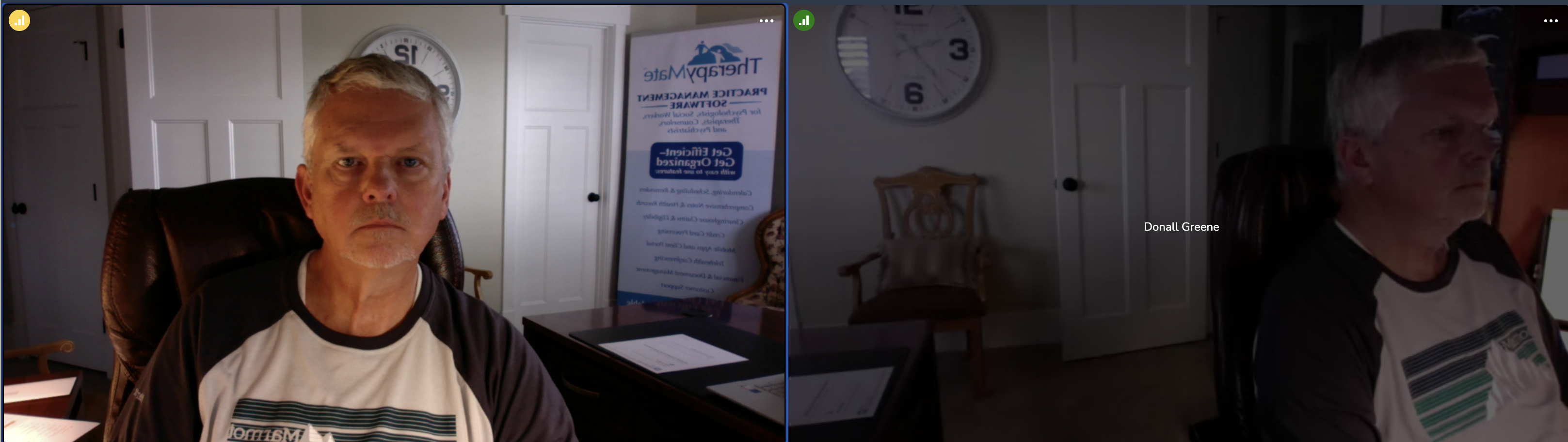
If you hovered over one of the performance icons will give you a popup next to it with some additional information like the example below:
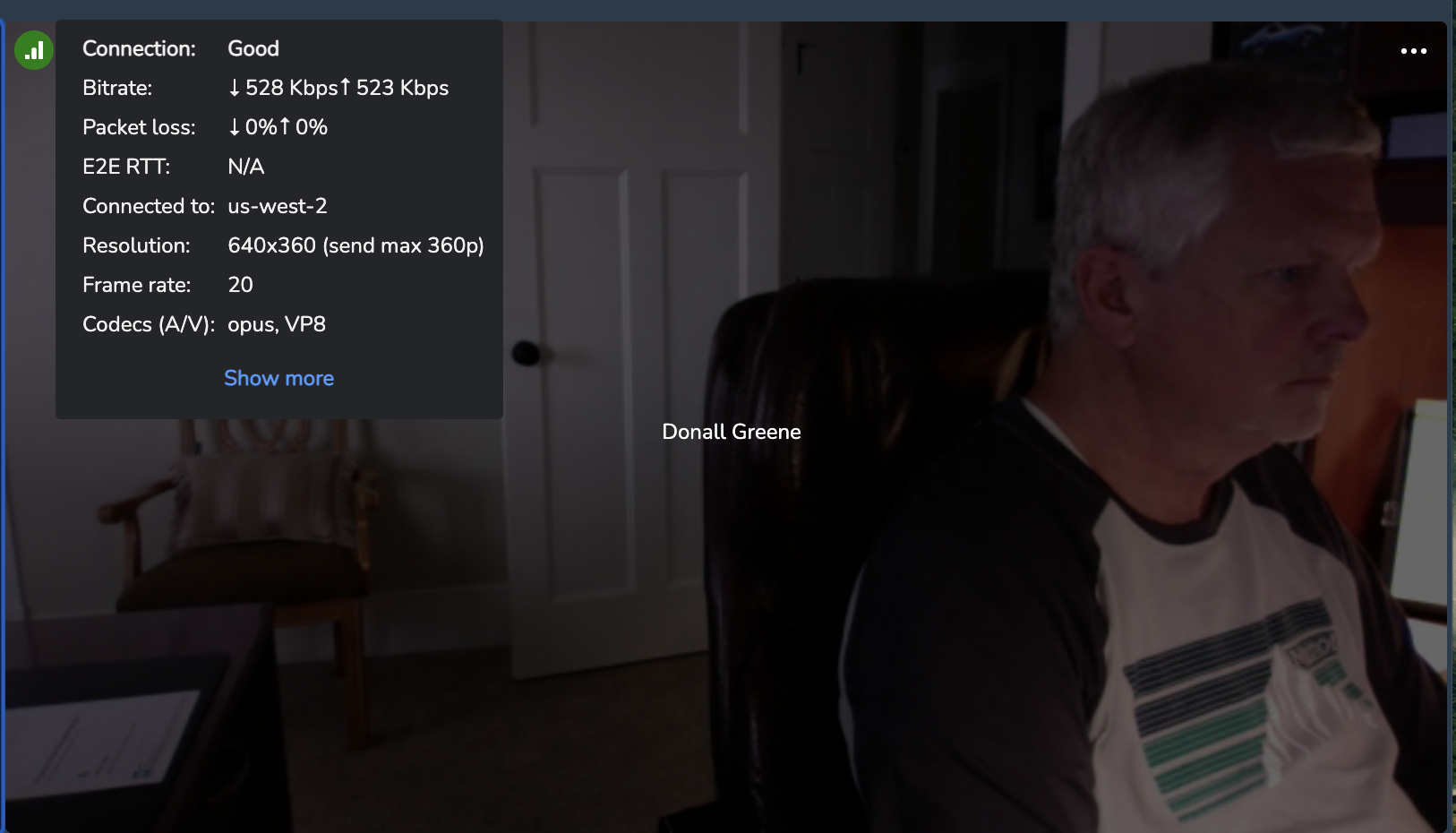
Here is a description of each icon color:
- Green-The connection is suitable for High definition video.
- Yellow-The connection is marginal and might support Standard definition better. (see below)
- Red-The connect is very poor and won't support a reliable video session.
Knowing the Internet performance of either participant can help troubleshoot issues.
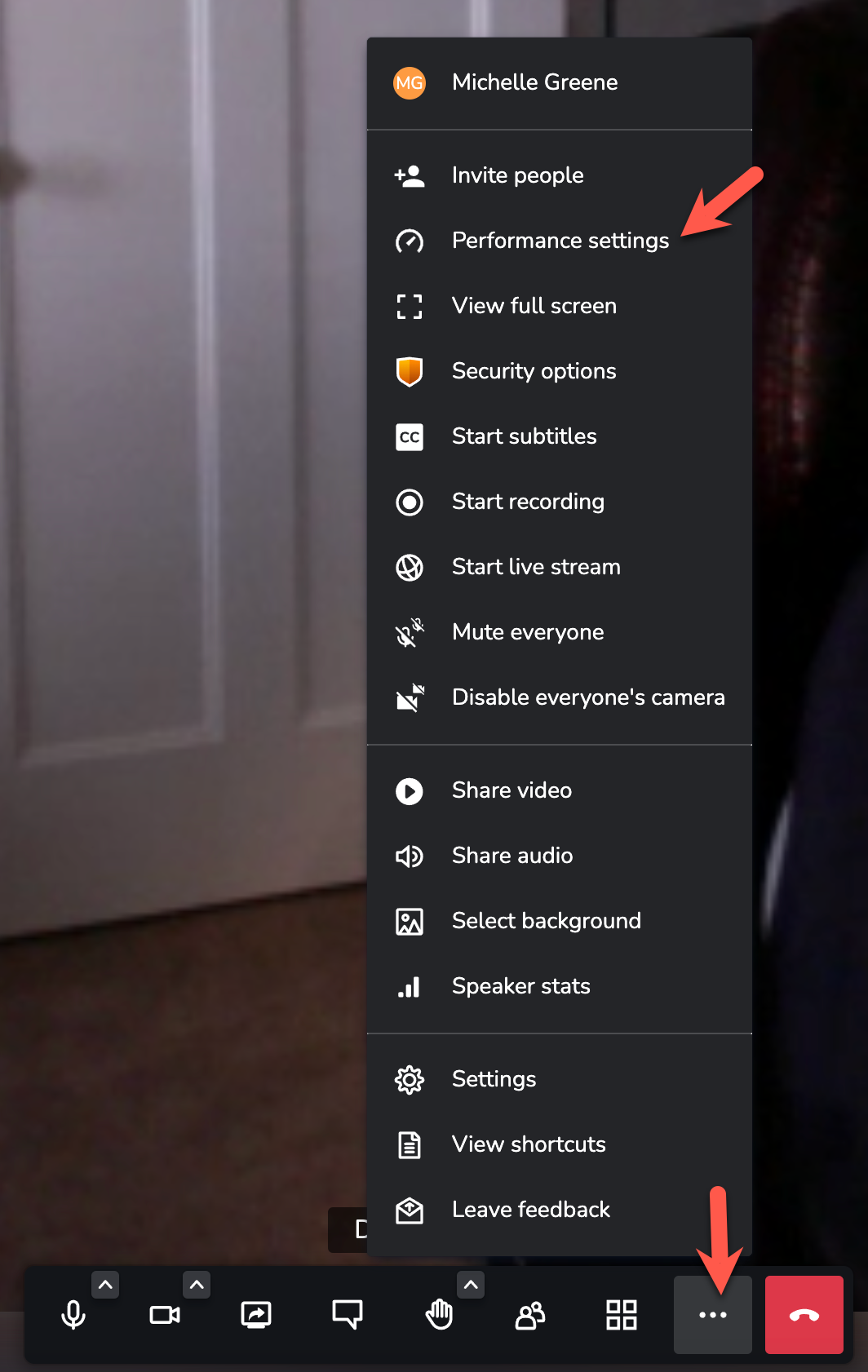
To change the performance setting during a call, click on the three dots in the menu bar at the bottom of the video screen to bring up the menu as shown below.
Click on "Performance Settings".
The slider defaults to Highest quality. This setting requires a higher degree of Internet bandwidth and quality. You could try sliding it down a bit to see if your situation improves.
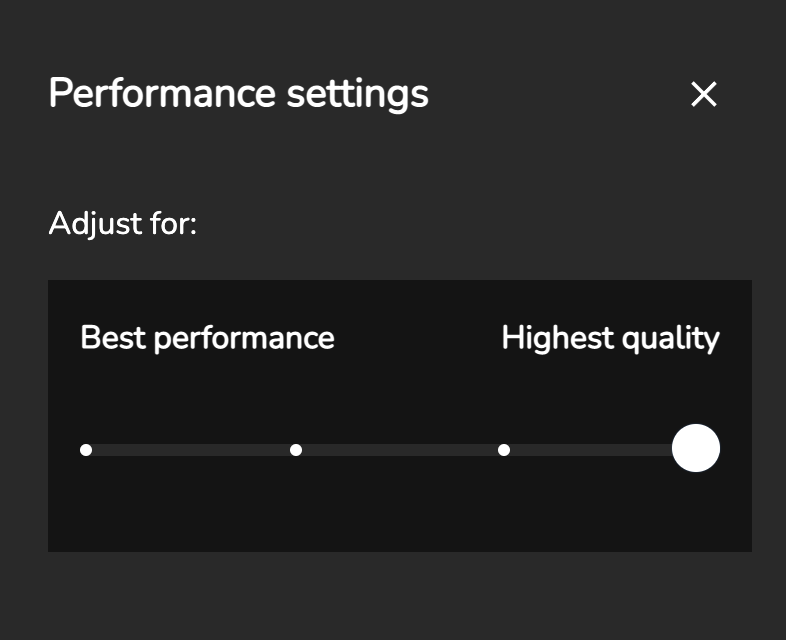
In many cases this may reduce the blurry video quality and keep the video from stalling or delaying.
Other Troubleshooting Tips
- Apple Mac OS, Google Chrome Books and Microsoft Windows 10 computers are supported. Make sure the latest version of the operating systems are installed.
- Please ensure that you and your client is using the newest versions of Google Chrome, Mozilla Firefox or Microsoft Edge (Chromium Version) browsers. Apple Safari and the non-chromium version of Microsoft Edge may not work and are NOT supported.
- Mobile Phones users should check to see which browser on their phone is set to the default. If the user only has one browser installed it is automatically the default. If a particular browser is not supported or doesn't work, have the client install a different browser and set it to be default. Not all browsers can be set to a default.
- Participants should enable their microphone and camera during use.
- Make sure the speaker and microphone volume controls are adjusted properly on each device.
- Mobile phone users should be on their speakerphone or use ear buds during the session so the client can hold the phone in front of them during the session.
- The quality and reliability of an audio & video during a Telehealth session are dependent on several factors. Each connected participant plays a role. Using the Telehealth service assumes that each participant (client & clinician) have a good high speed internet connection. Telehealth sessions running on low speed DSL Internet connections could experience frequent disruptions in video and audio performance requiring either party to reconnect to the session.
- Poor audio & video performance could also be attributed to factors outside the control of the connected participants and TherapyMate. This could be the result of overloaded internet service providers or Internet traffic in general on the world wide web. Per minute fees will apply no matter the conditions and are not refundable.
- Both participants should maintain adequate room lighting and a proper distance from their cameras so they can see each other.