Before a Practice can use the Telehealth feature in TherapyMate, the System Administrator needs to enable the Telehealth feature, add a Telehealth office location and the appropriate Telehealth procedure code modifiers for each clinician in the Practice. This will enable each clinician to properly schedule Telehealth appointments and the Practice to bill insurance companies for Telehealth services.
Enabling the Telehealth Feature
TherapyMate's Telehealth feature must be enabled by the Practice's System Administrator before it can be used.
TherapyMate's Telehealth feature must be enabled by the Practice's System Administrator before it can be used.
If you wish to use another Telehealth service, skip this section and scroll down to the Adding the Telehealth Office Location section.
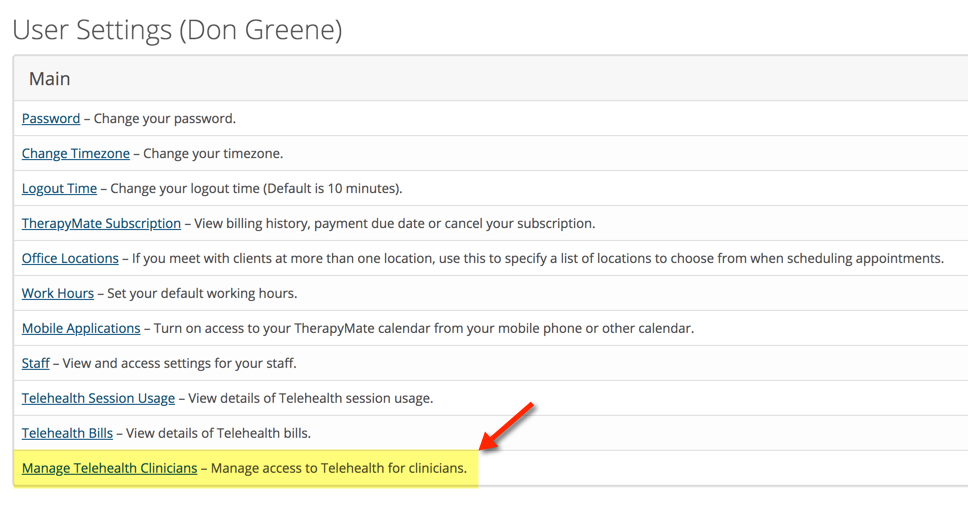
To enable the Telehealth feature, the System Administrator goes to their main settings page and clicks on Manage Telehealth Clinicians.
Each clinician in the Practice can be enable individually. Slide the on/off button to ON for the clinicians who will be able to use TherapyMate's Telehealth feature.
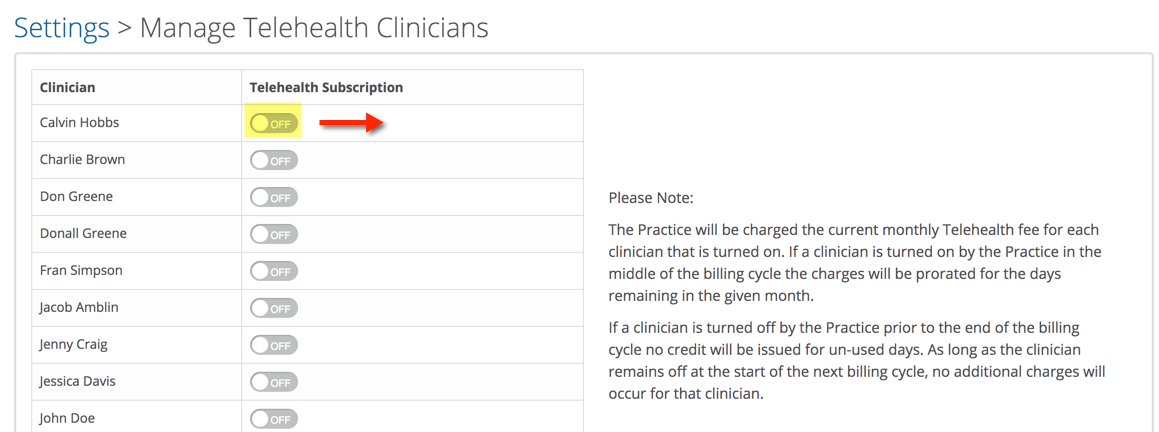
Click Update when done.
The Practice will be charged the current monthly Telehealth usage fee for each clinician that is turned on. If a clinician is turned on by the Practice in the middle of the billing cycle the charges will be prorated for the days remaining in the given month.
If a clinician is turned off by the Practice prior to the end of the billing cycle no credit will be issued for the unused days. As long as the clinician remains off at the start of the next billing cycle, no additional charges will occur for that clinician.
Adding the Telehealth Office Location
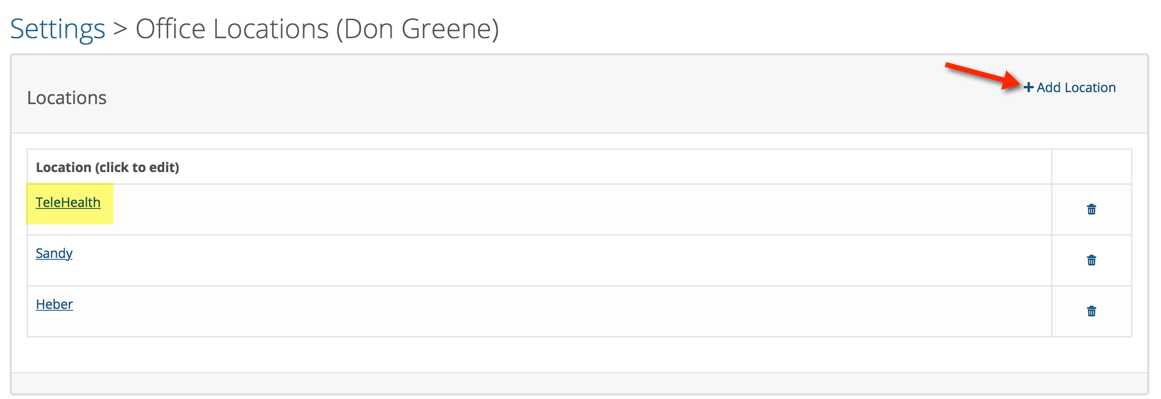
To add a new location for Telehealth go to your setting page by clicking on your name in the upper right-hand corner and choose Settings. On the settings page click on Office Locations.
Click on + Add Location button to add the Telehealth location.
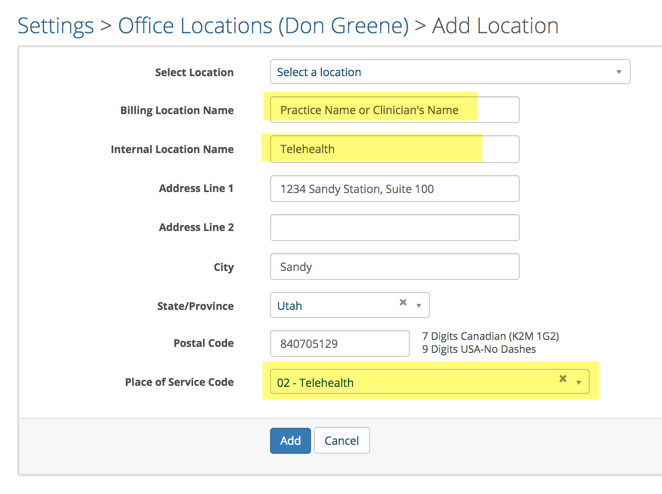
On the Add Location screen fill out the fields similar to the example below. The word "Telehealth" must appear somewhere in the Internal Location Name box.
The address should be the address from where you normally conduct Telehealth video session. Make sure to choose "02 - Telehealth" for the Place of Service Code.
The address should be the address from where you normally conduct Telehealth video session. Make sure to choose "02 - Telehealth" for the Place of Service Code.
To save your new office location, click the blue Add button. Please be aware that there is a new Place of Service Code 10 for Patient's Home effective January 1, 2022. If you need to use this code in addition to the 02 code, add another office location. To differentiate between the two, put the code number after the word Telehealth (i.e. Telehealth 02 or Telehealth 10) When you schedule the client you'll be able to see both in the place of service drop down so you can pick the appropriate code depending on the insurance provider's requirements.
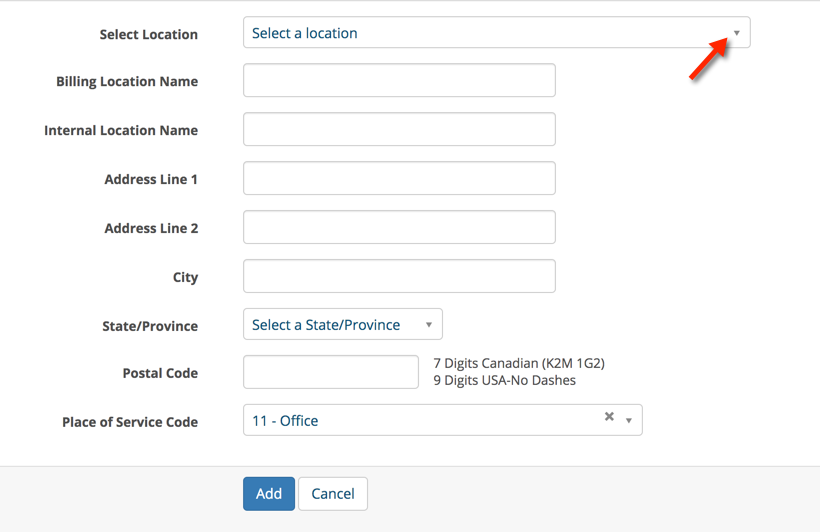
If your Practice has more than one clinician, add the new Telehealth office location you just created to each of their office locations setting page by selecting it from the Select Location drop down as shown below. It is best to use the existing location you just created instead of creating a duplicate.
If your Practice has more than one clinician, add the new Telehealth office location you just created to each of their office locations setting page by selecting it from the Select Location drop down as shown below. It is best to use the existing location you just created instead of creating a duplicate.
Adding Telehealth Procedure Code Modifiers
The modifiers for Telehealth are "GT and 95". These modifiers are the two that are most frequently used for Telehealth services. Check with your insurance companies to find out which modifier they prefer you to bill with. You could add both of these to your settings and then choose between them when you schedule clients depending on the client's insurance company.
To add the modifiers go to your setting page by clicking on your name in the upper right-hand corner and choose Settings. On the settings page click on Procedure Code Modifiers about half way down the page.
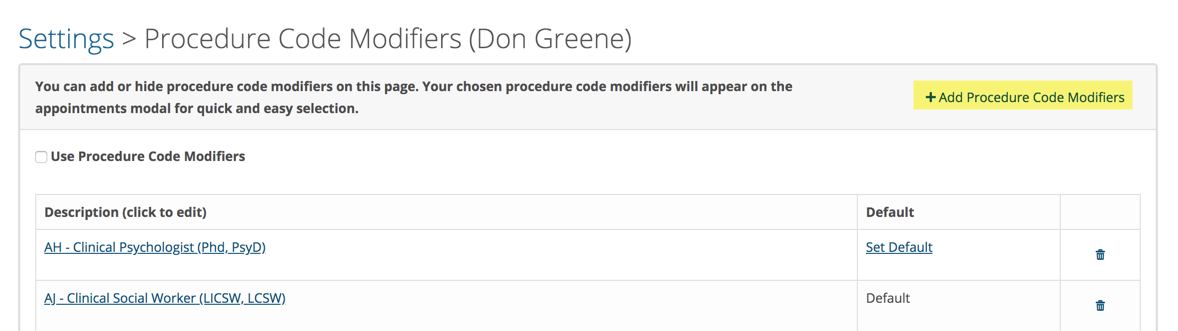
To add the new Telehealth modifier click on the + Add Procedure Code Modifiers button that is highlighted below:
The modifiers for Telehealth are "GT and 95". These modifiers are the two that are most frequently used for Telehealth services. Check with your insurance companies to find out which modifier they prefer you to bill with. You could add both of these to your settings and then choose between them when you schedule clients depending on the client's insurance company.
To add the modifiers go to your setting page by clicking on your name in the upper right-hand corner and choose Settings. On the settings page click on Procedure Code Modifiers about half way down the page.
To add the new Telehealth modifier click on the + Add Procedure Code Modifiers button that is highlighted below:
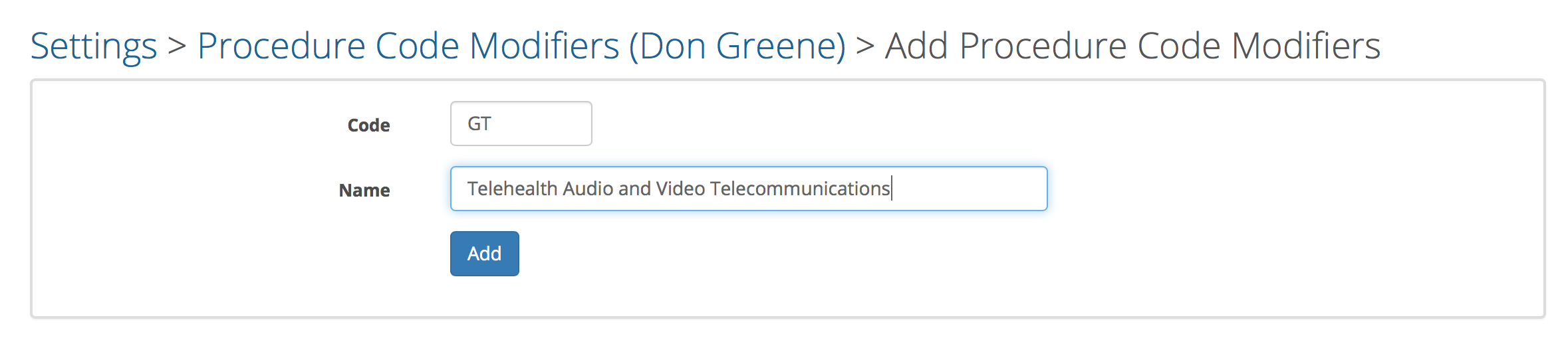
In this example we are adding the modifier "GT-Telehealth Audio and Video Telecommunications" as shown below:
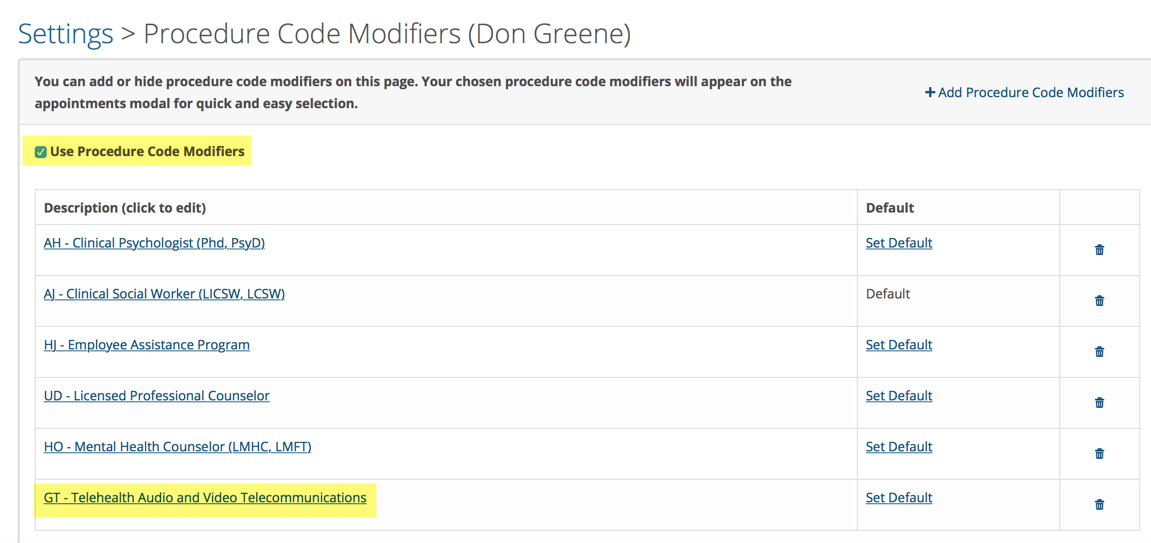
Click the Add button when done. You will now see the Telehealth option in your list now. To enable Procedure Code Modifiers check the check box called "Use Procedure Code Modifiers". If you don't check the box, the modifiers will not be available in the appointment window to use.
For multi-clinician Practices, you should repeat these steps on each of the clinician's Procedure Code Modifiers settings page. The system admin has rights to do this for all staff members.
The next time you go to schedule a client for a Telehealth session, there will be a new drop down called "Code Modifier" and "Location". Select the appropriate modifier and location for a Telehealth appointment. The appointment selections you make here will also appear in the insurance claims that you submit.
The next time you go to schedule a client for a Telehealth session, there will be a new drop down called "Code Modifier" and "Location". Select the appropriate modifier and location for a Telehealth appointment. The appointment selections you make here will also appear in the insurance claims that you submit.

The Practice is now setup for Telehealth services.