This training article assumes that each clinician in the Practice has the Telehealth Office Location and Procedure Code Modifiers configured in their settings. If these have not been done, contact the System Administrator or Practice Owner for assistance.
Scheduling a Telehealth Session
Add a new appointment to your schedule. It is necessary to select the correct Code Modifier and Location from their respective drop downs. If the location is NOT set to Telehealth the process to invite a client and join a session will not work.
Add a new appointment to your schedule. It is necessary to select the correct Code Modifier and Location from their respective drop downs. If the location is NOT set to Telehealth the process to invite a client and join a session will not work.
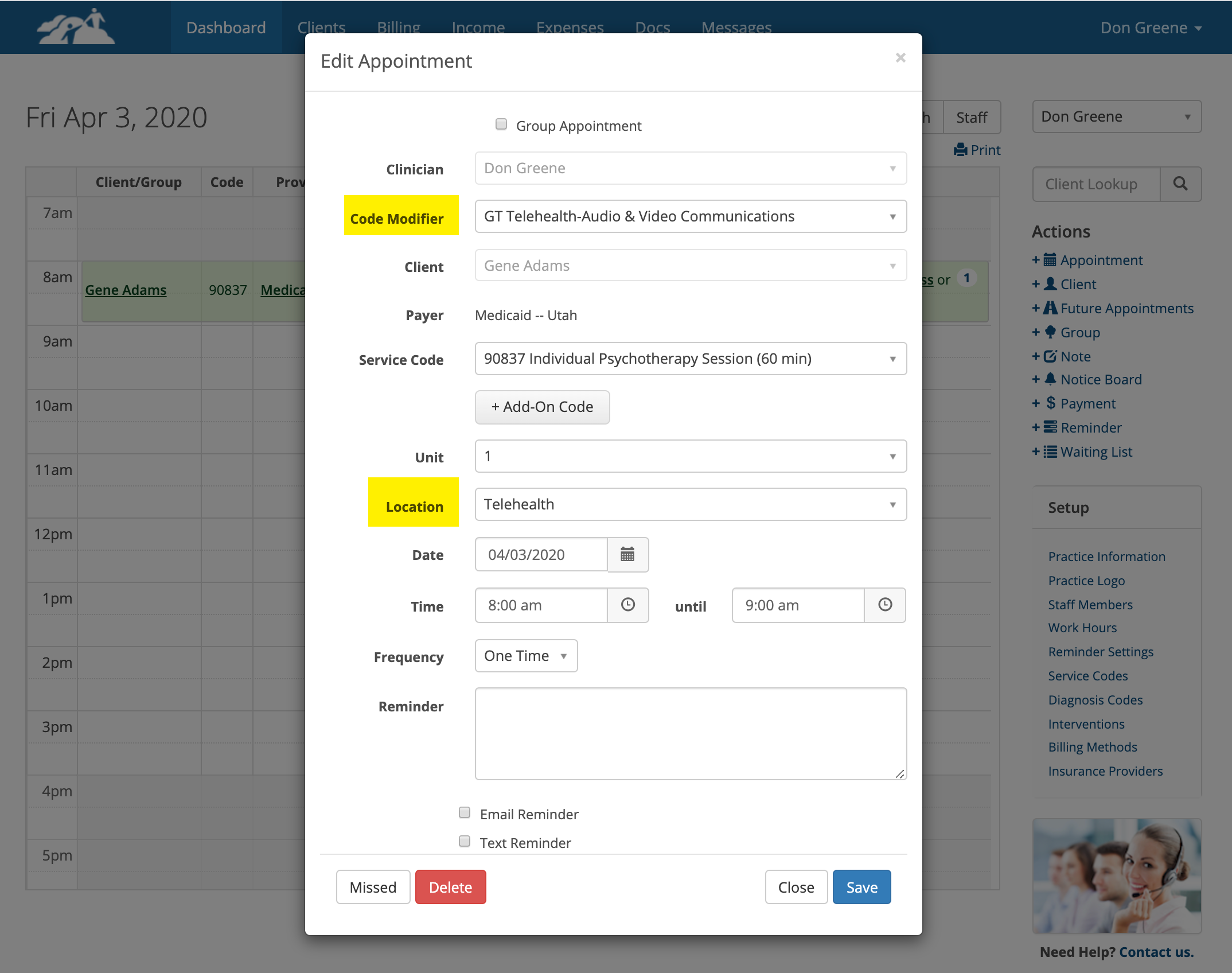
All of the other appointment options remain the same as you've been doing them in the past.
Click the Save button when done.
Inviting and Starting a Telehealth Session
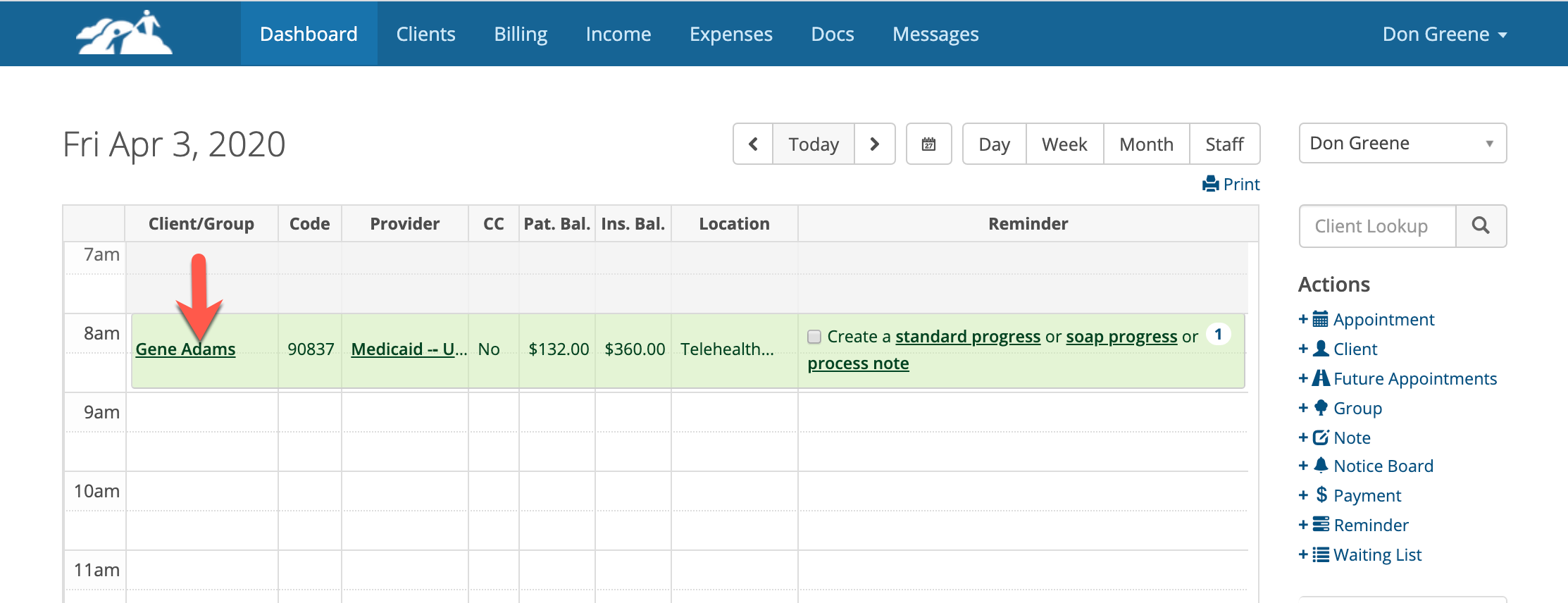
Go to your Dashboard and click on the client's name when you want to start a session.
Click the Save button when done.
Inviting and Starting a Telehealth Session
Go to your Dashboard and click on the client's name when you want to start a session.
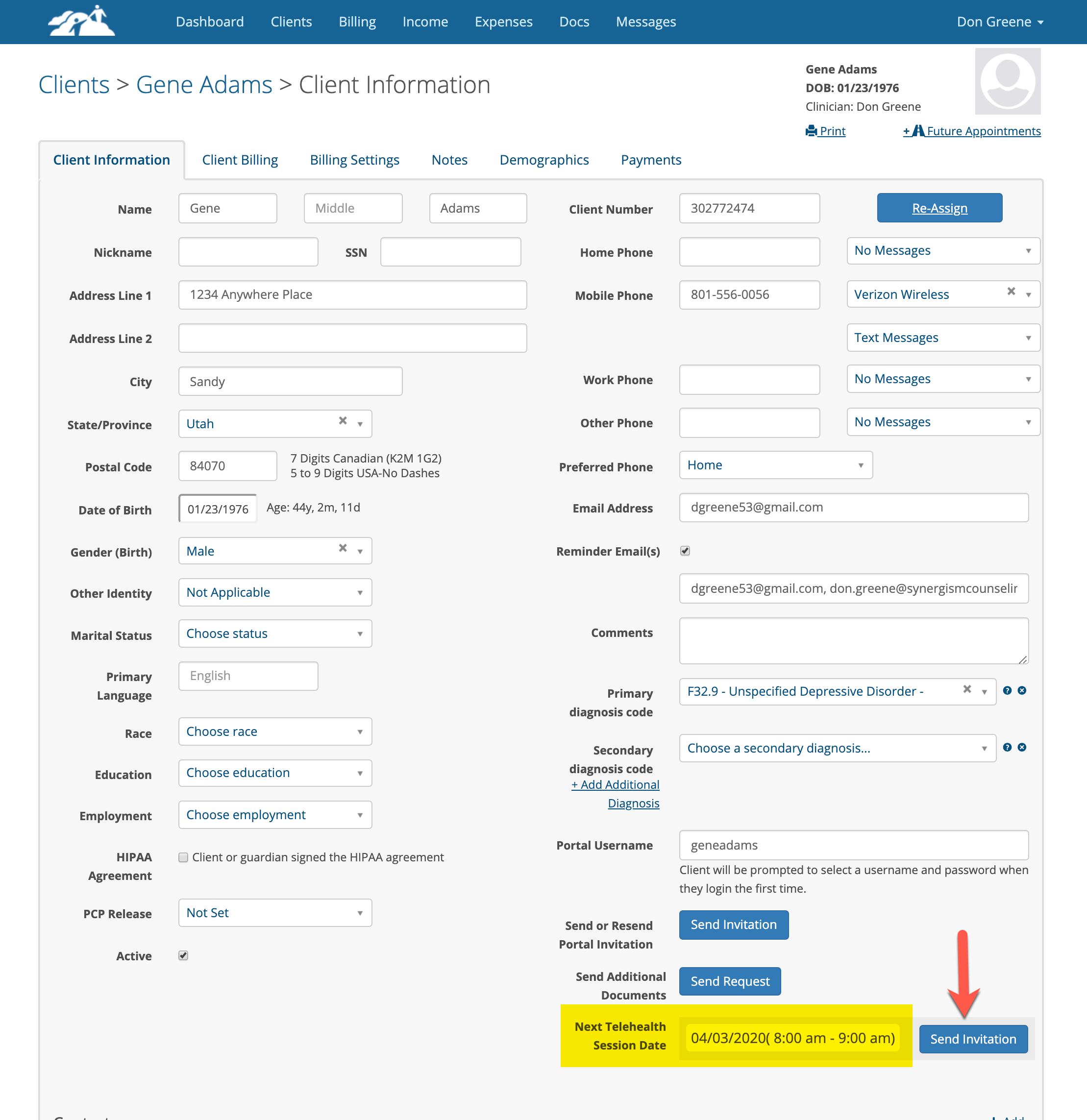
In the lower right corner of the client's information page you will see the next Telehealth session date and time for the client. Click the Send Invitation button to invite the client to this session. You can invite them just prior to the session start time or up to 24 hours in advance.
The client will receive an email inviting them to join the Telehealth session. In the email there will be a link for them to click on to join. The client can also join by logging into the Client Portal and clicking the Join button. To login to the client portal the client must already have a username and password.
Joining a Telehealth Session
It is highly recommended that participants use one of the following Internet Browsers to join a session:
- Google Chrome
- Mozilla Firefox
- Microsoft Edge (2020 Chromium version)
Microsoft Windows 10 or Apple Mac OS are supported.
Clinician
Clinicians should join the session using a desktop or laptop computer, not a mobile phone.
Clinicians should join the session using a desktop or laptop computer, not a mobile phone.
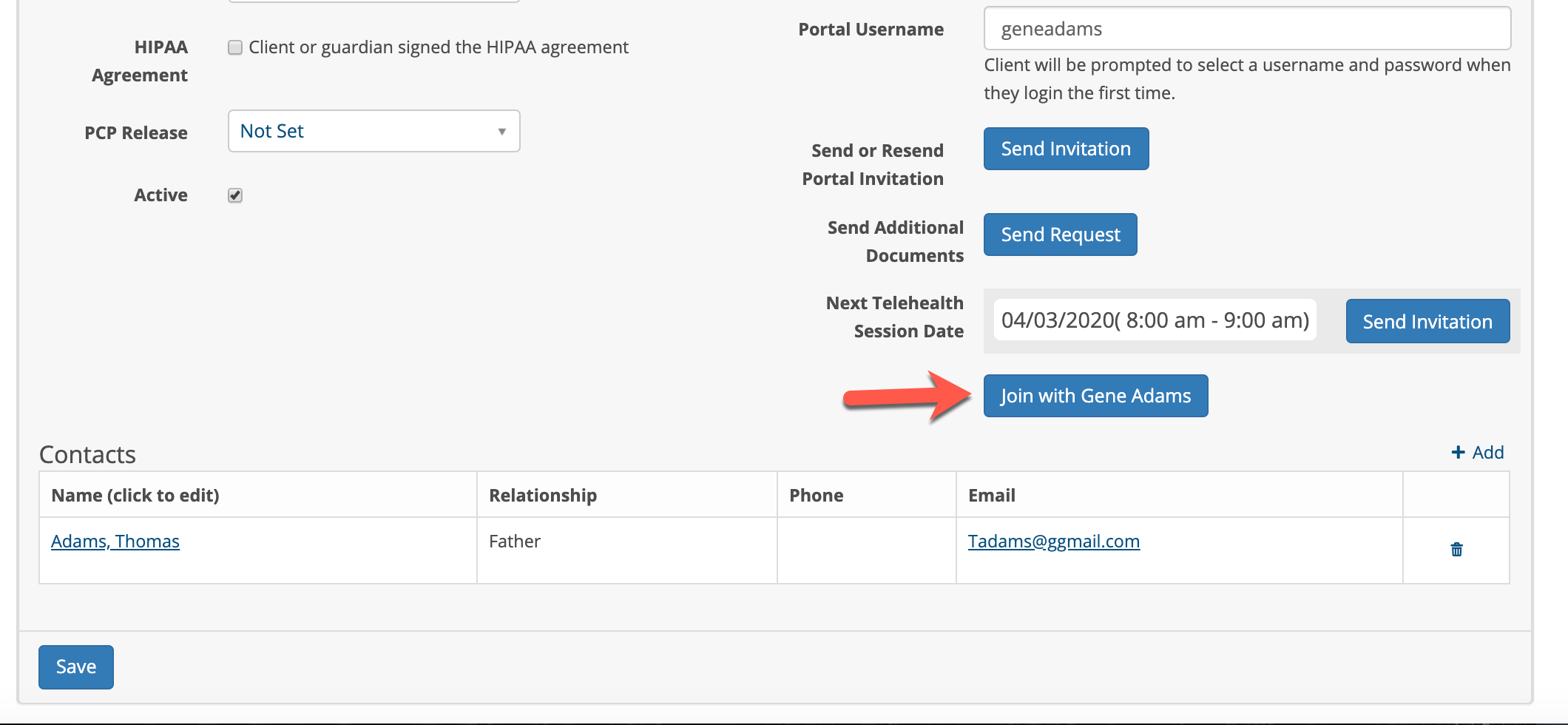
After the clinician clicks the Send Invitation button on the client's information page the join button will turn to a dark blue color so they can join the session In the example below, the button says to Join with Gene Adams who is the client. To join the session the clinician clicks this button as shown below.
Client
Clients can join the Telehealth session using their desktop computer, laptop or mobile phone. When the clinician sends the Telehealth invitation the client receives an email with a link to join the session similar to the one below:
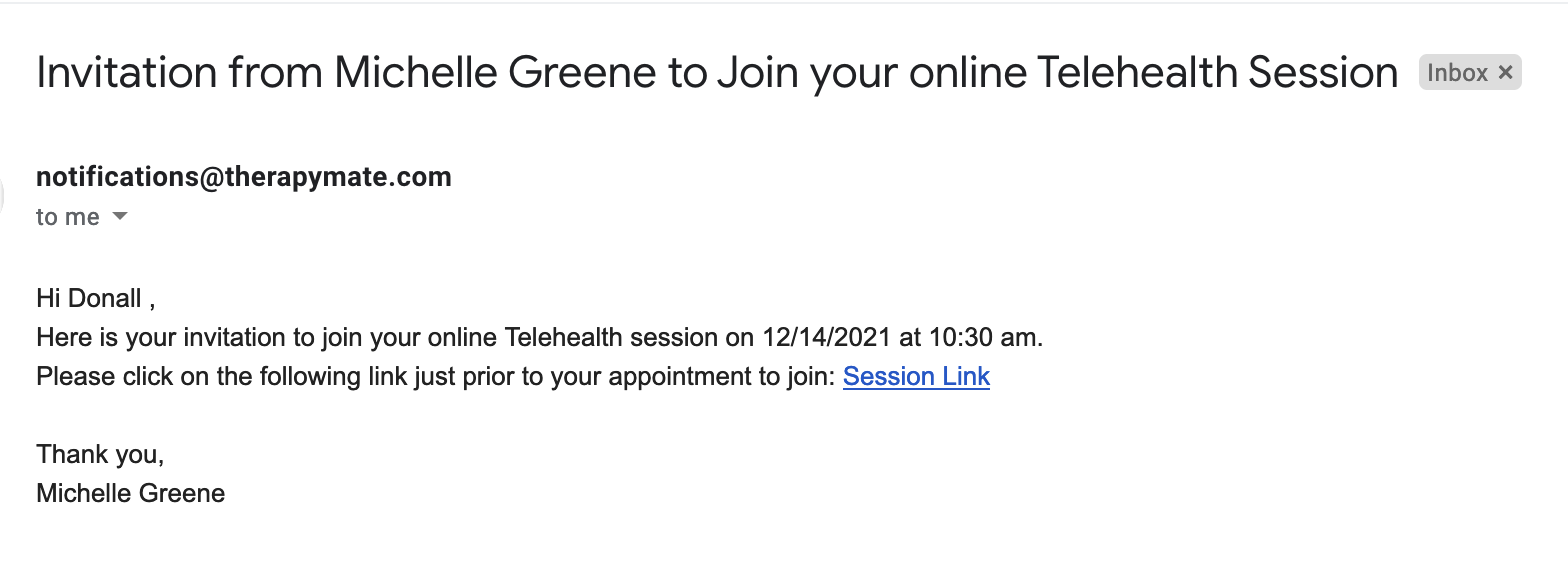
Clients can join the Telehealth session using their smartphone if they can receive the invitation email on the phone and click on the link in the email. No app is needed to join. If the client gets a message that their browser is not supported their browser needs to be updated or their phone may be too old.
Client Portal Method
The client logs into the portal with their username and password and clicks on the join button shown below. In this example it says Join with Don Greene, who is the clinician.
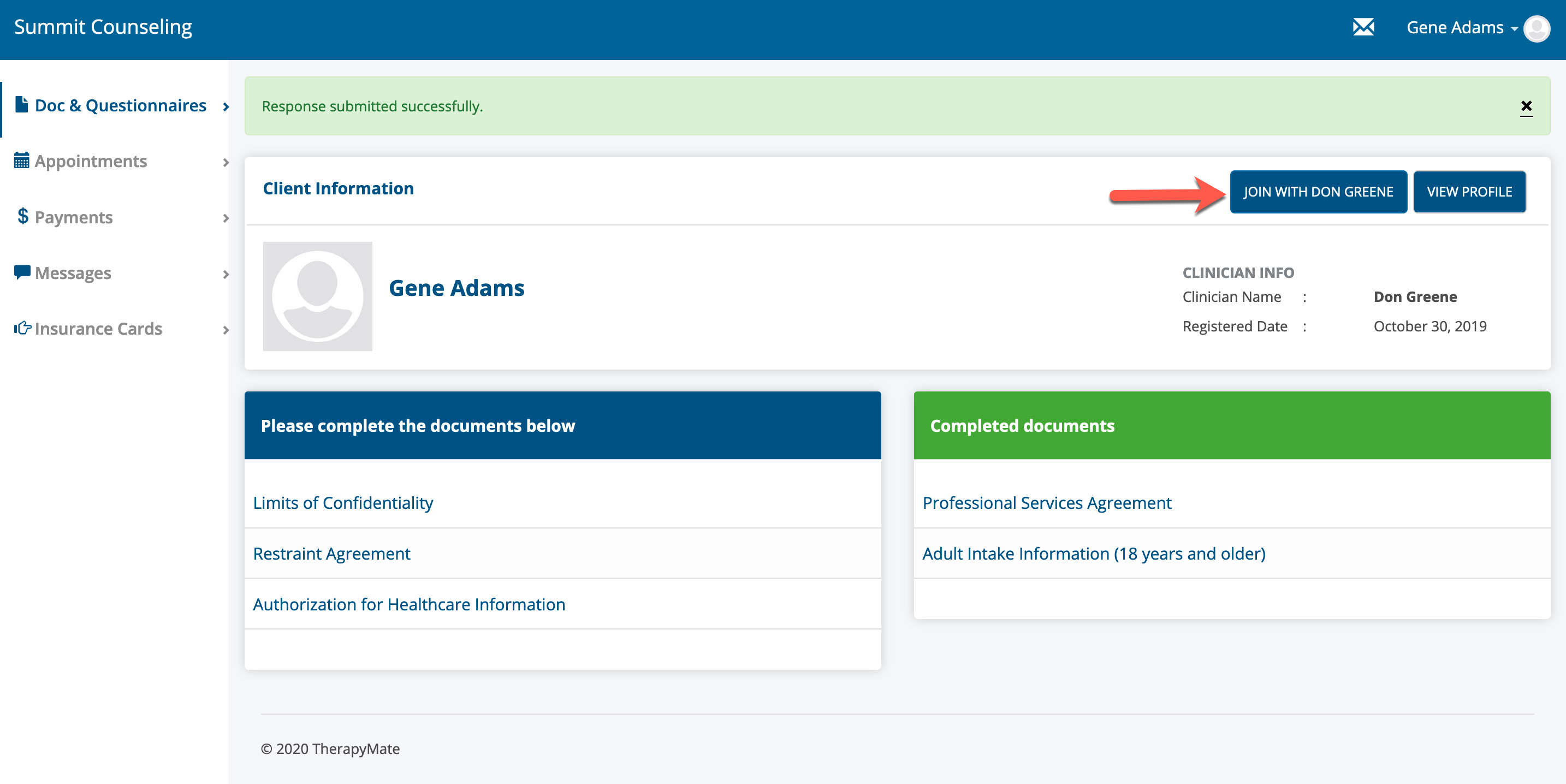
When both participants have clicked on their respective join buttons they will see each other on their computer screen and the Telehealth session begins.
Ending a Telehealth Session Each participant should end the session by clicking on the red button shown below:

Troubleshooting Tips
- Participants should enable their microphone and camera during use.
- Make sure the speaker and microphone volume controls are adjusted properly on each device.
- Mobile phone users should be on their speakerphone or use ear buds during the session so the client can hold the phone in front of them during the session.
- Please ensure that you and your client is using the newest versions of Google Chrome, Mozilla Firefox or Microsoft Edge (Chromium Version) browsers. Apple Safari and the non-chromium version of Microsoft Edge may not work and are NOT supported.
- Mobile Phones users should check to see which browser on their phone is set to the default. If the user only has one browser installed it is automatically the default. If a particular browser is not supported or doesn't work, have the client install a different browser and set it to be default. Not all browsers can be set to a default.
- The quality and reliability of an audio & video during a Telehealth session are dependent on several factors. Each connected participant plays a role. Using the Telehealth service assumes that each participant (client & clinician) have a good high speed internet connection. Telehealth sessions running on low speed DSL Internet connections could experience frequent disruptions in video and audio performance requiring either party to reconnect to the session.
- Poor audio & video performance could also be attributed to factors outside the control of the connected participants and TherapyMate. Everyone is subject to the amount of traffic that might exist on the world wide web or within the internet service provider's system. TherapyMate is not able to troubleshoot these kinds of problems.
- Both participants should maintain adequate room lighting and a proper distance from their cameras so they can see each other.