This document will show you how to schedule groups that they have already created. You will also see how to create group notes for the session. If you need information about creating groups see the Help Center article called Group Creation. Remember, a clinician can only create their own groups and invite their own clients. They can't add clients assigned to other clinicians to their groups.
To create an appointment for a group click on the time slot you wish to schedule it on your calendar or click on +Appointment in the Actions menu on the right hand side of your dashboard. The new appointment window will open.
Step #1 - Check the box next to Group Appointment that is highlighted below:
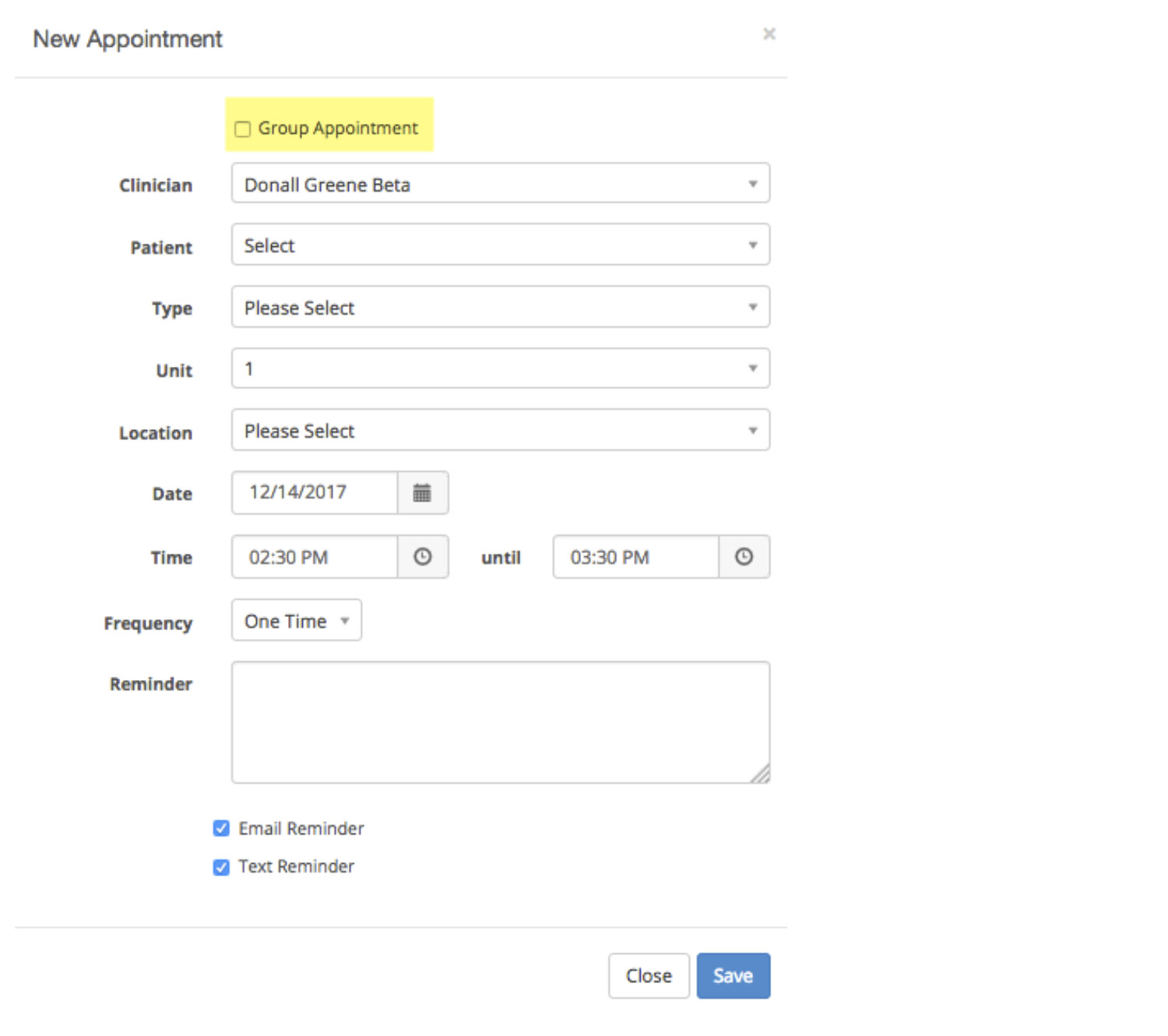
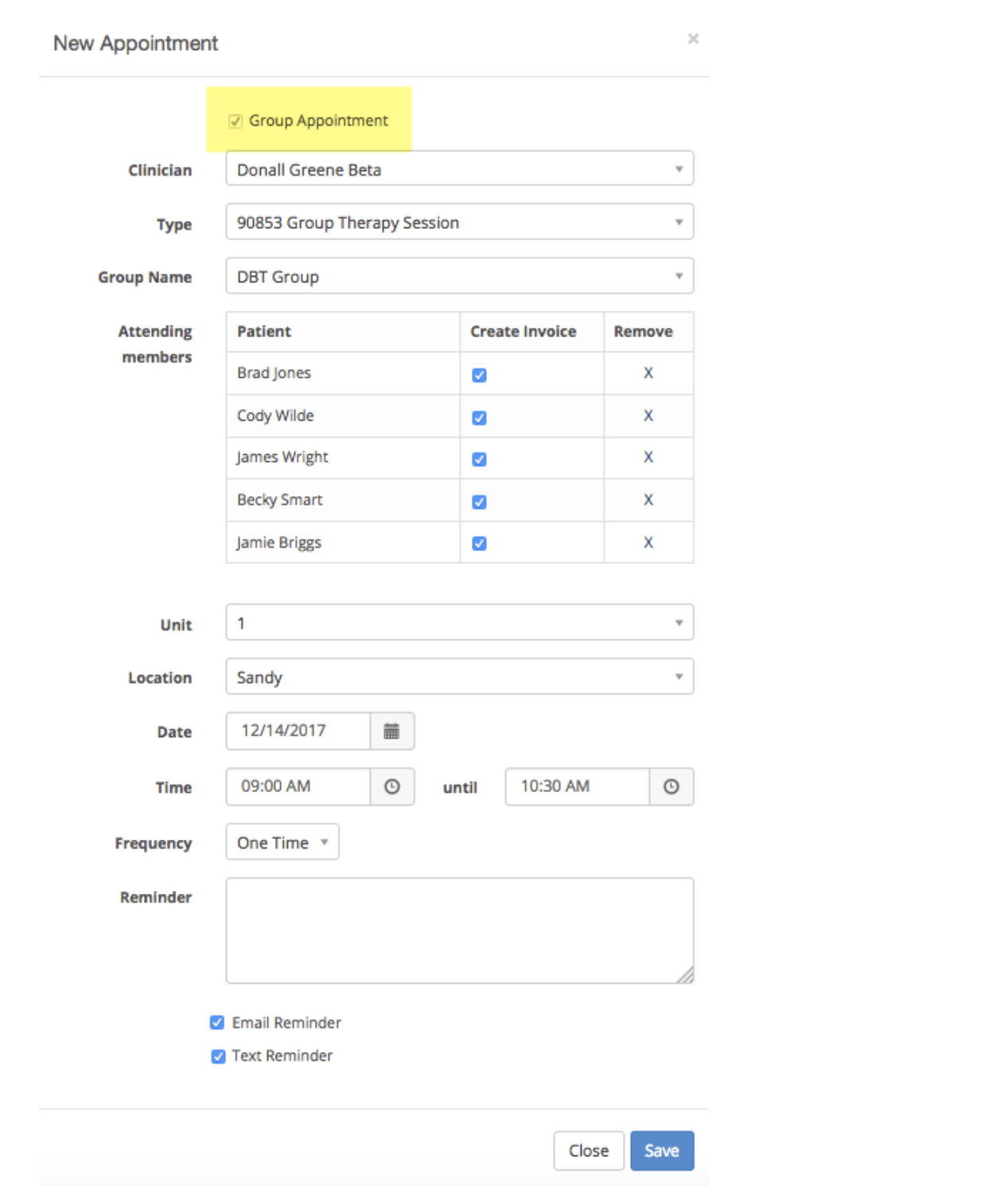
Step #2 – Select the Clinician if necessary
Step #3 – Select the type of session to be scheduled (generally 90847 or 90853)
Step #4 – Select the group name from the drop down to be scheduled
Step #3 – Select the type of session to be scheduled (generally 90847 or 90853)
Step #4 – Select the group name from the drop down to be scheduled
Step #5 - When the group name is selected you will see the clients who are members of that group.
Please Note:
- If members of the group will not change, it is OK to schedule recurring appointments. If your group members will come and go, we don't recommend using recurring appointments.
- You can't add a new group member to an appointment that is occuring today or in the future if those appointments already exist on your schedule. You can add the person to the group, delete all future group appointments that were scheduled in the future and then recreate them again.
- If a group appointment is added on today's schedule, make sure you remove patients who are not going to attend BEFORE you save the appointment if that is known. After the group appointment is saved you won't be able to remove someone. You can mark that person as missed to show they didn't attend.
- If the group appointment happened in the past and you wish to remove someone who didn't attend, your only option is to mark them as missed.
-
Removing someone from a Group appointment doesn't remove them from the group, it only un-invites them to this one session.
- If the group appointment is in the future (next day and beyond), and that day hasn't occurred yet, you can remove patients from an appointment by editing the appointment. If you wait until the day of the appointment and try to remove someone you won't be able to do this. You must mark them as missed.
- If a group appointment is recurring, removing someone from a future appointment only affects that one appointment. All other future appointments will still show that person as invited.
- If a group note has been created (signed or unsigned) you won't be able to delete the group appointment from your Dashboard. This also applies to patients in the group where you have taken a payment for that same appointment.
If you need to bill the client or their insurance company be sure to check the “Create an Invoice” check box next to their name as applicable. This will create an invoice using each client's billing settings to bill for your services.
Step #6 – Complete the rest of the fields on the new appointment window and save it. If the client is setup to receive automatic text or email appointment reminders those will go out prior to the group appointment session the same as other individual client appointments.
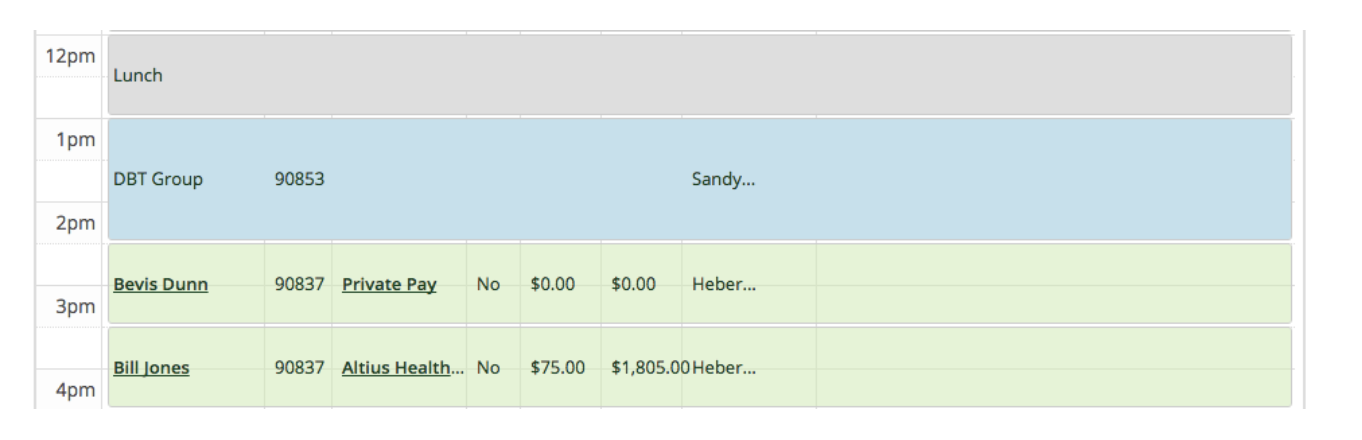
Step #7 – Confirm that the group appointment is on the Dashboard calendar on the proper day and time. Group appointments will appear light blue on your dashboard.
Marking Attendees as Missed
If a person who was invited to a group session doesn’t attend you can mark the missed in the Group Appointment window.
Open the group appointment window by clicking on it and then click the Missed button next to the person’s name. This will open a Missed Appointment Note template that you can use to document the reason and if necessary charge for the missed session. Enter 0.00 if you don’t want to charge the patient. In the example on the next page, Clyde has been marked missed already.

PLEASE NOTE
You can edit a group and add or remove clients. When you do this the appointments that may already exist on your dashboard will NOT be updated with your changes. You will need to delete the appointments that are not correct and re-add them again.