This feature allows a clinician to create a group so they can schedule one or more clients for a group appointment at the same time.
The participants in the group have to be assigned to the clinician. Clients assigned to other clinicians can't be added to the group.
Before you can schedule a group you must create it by giving it a name and adding clients to the group. Remember, A clinician can only invite their own clients. They can't add clients assigned to other clinicians to their groups.
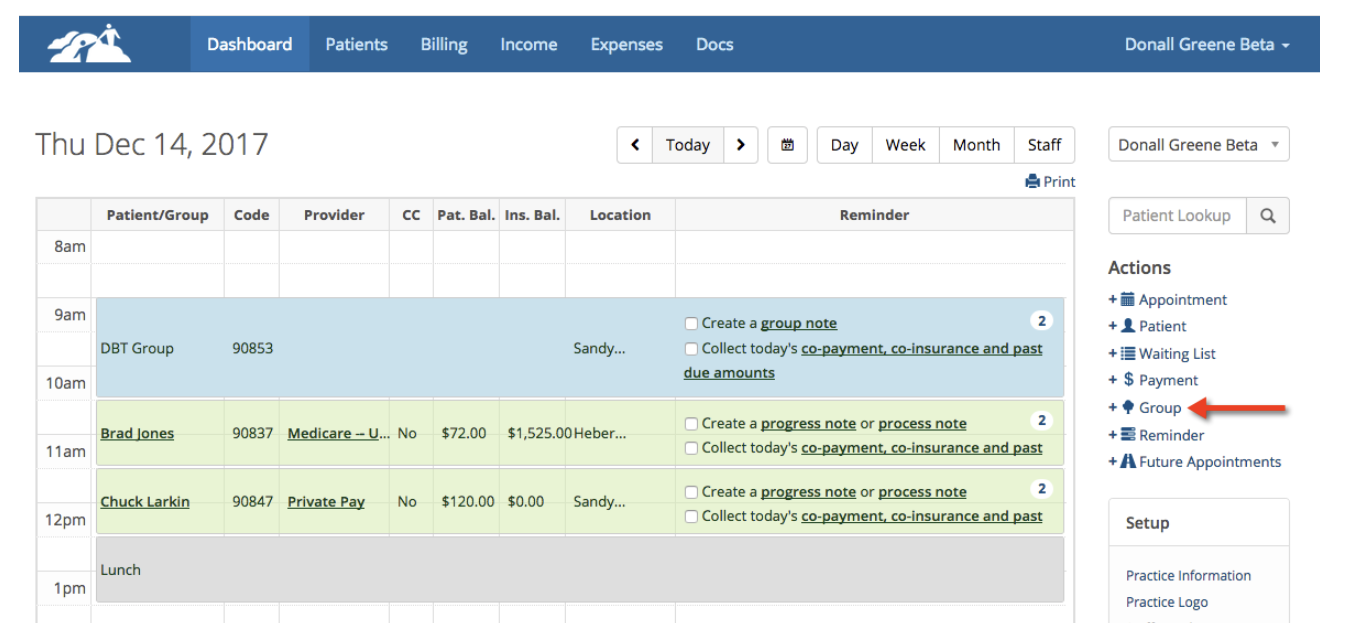
To create a group, click on +Group on the right hand side your dashboard.
The Add Group window will appear as shown below:
Give the group a name. For example, we called our group Evening Grieving Group.
Next, start searching for a client (highlighted yellow box) you want to add to the group by typing in their first or last name.
When you find the client, click on their name to add that person to the group. Repeat the process until everyone is added.
If you make a mistake and wish to remove someone from the group, click on the “X” to remove them.
When all of the attendees have been added, click the Add button.
All newly created group(s) will be added to an area called Group Management. This is located in your clinician settings area. To get to your settings, click on your name in the upper right hand corner and choose settings.
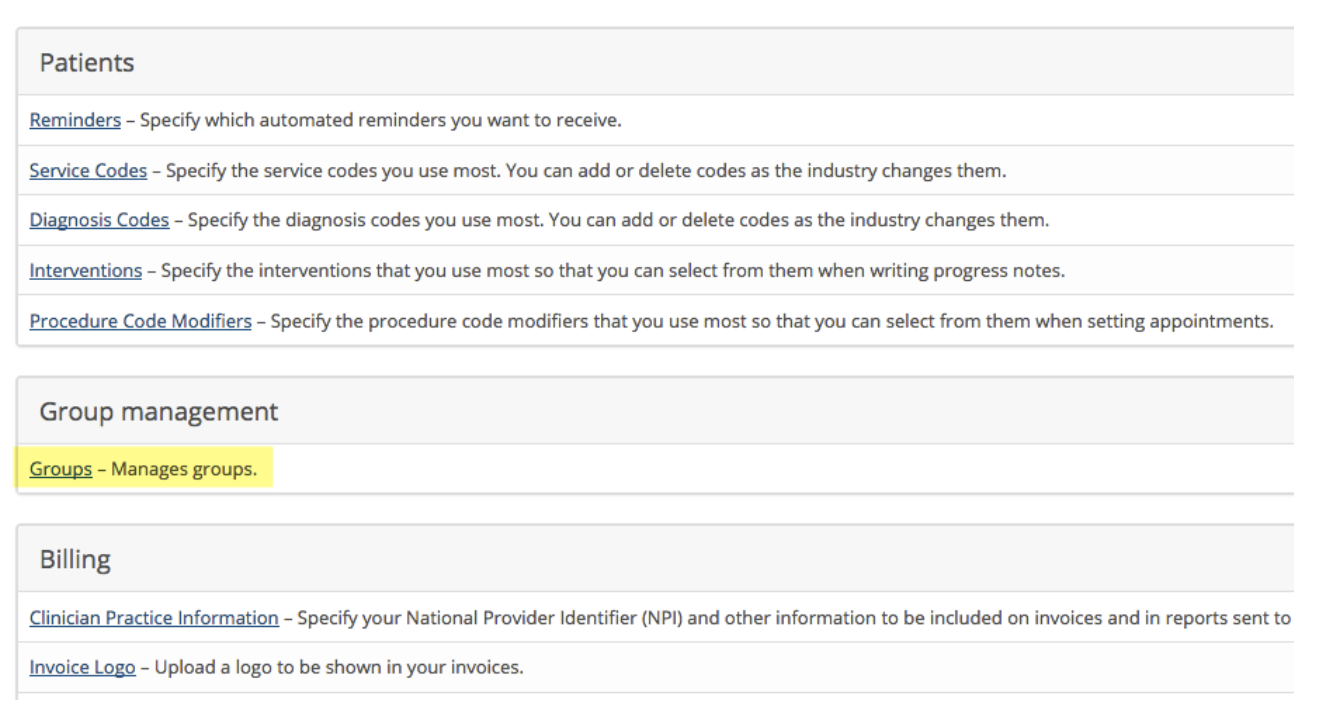
To see a list of the groups you’ve created click on Groups. It is highlighted above.
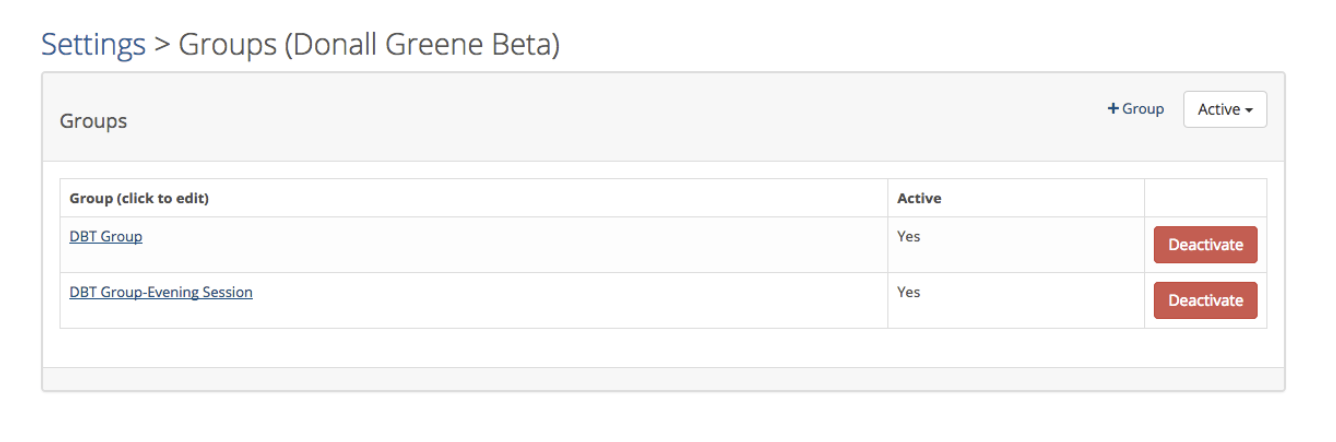
The example below shows that this clinician has created to DBT groups. You can click on the names of the group to see the clients that belong to the group. If a group is no longer needed you can deactivate it. You can’t ever delete the group.
Scheduling Groups
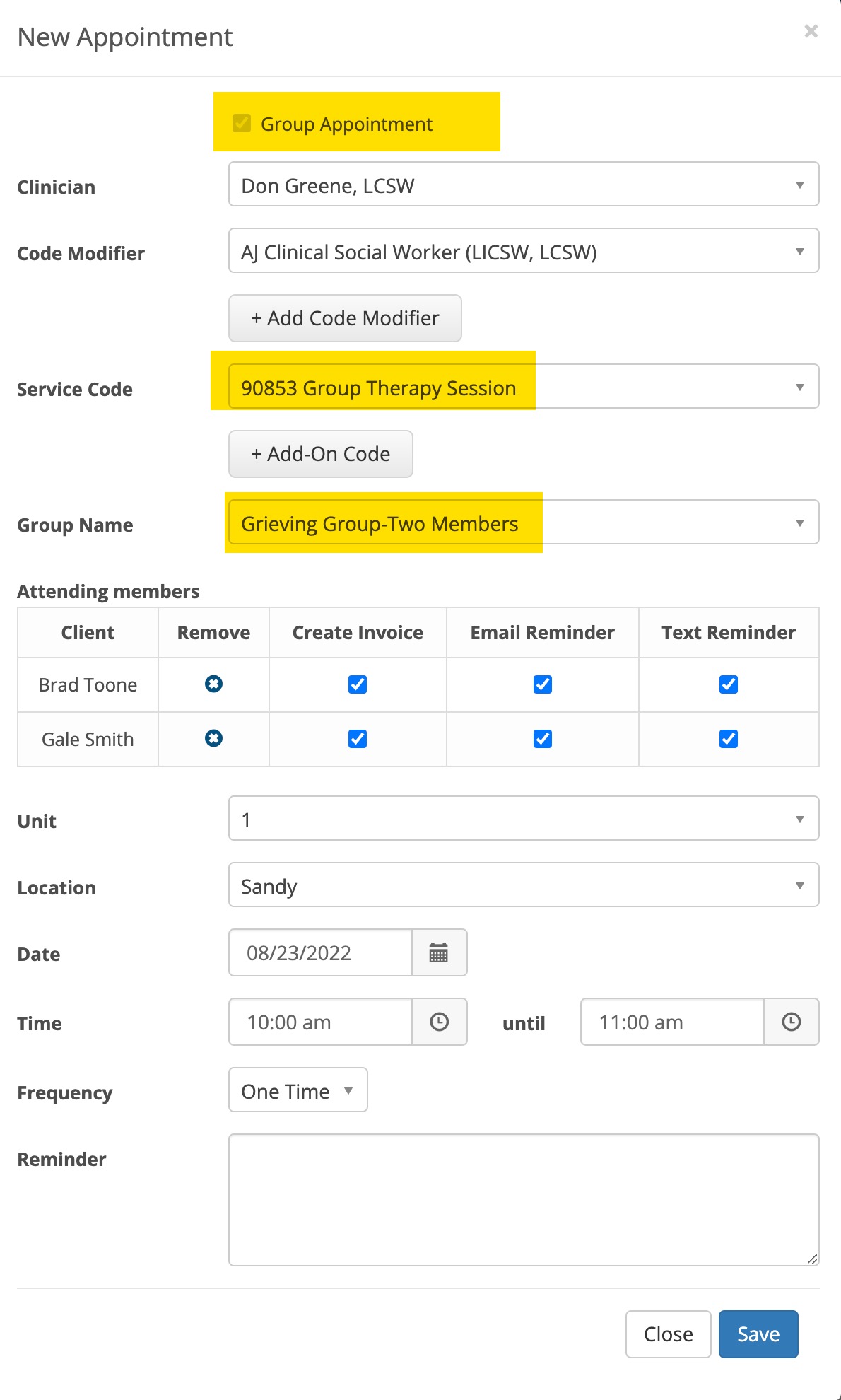
When a group has been created, you will be able to schedule the group appointment as follows:
1. Check the box next to Group Appointment
2. Select the service code 90853
3. Select the Group Name from the drop down. You will then see the group member who will be invited
4. Select the date, time and location for the meeting.
When the meeting has been scheduled it will appear on your dashboard in light blue.
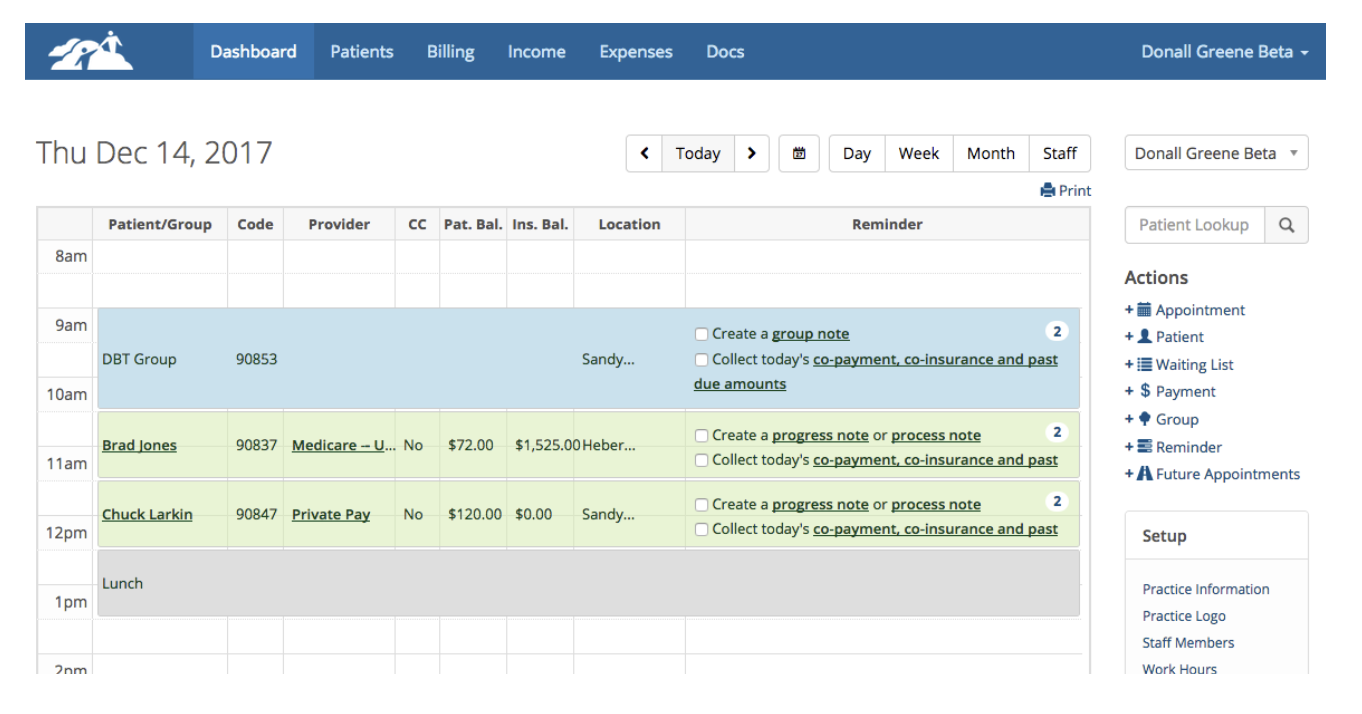
To create a group appointment click on the reminder.

To learn more about scheduling a group appointments and completing group progress notes see the article in the Help Center called Group Scheduling.