These settings are used throughout the program and must be done to get the best user experience. This training article was created to assist System Administrators to do this configuration. It is assumed that the System Admin has already added the new Staff member, entered a working email address and assigned a role to the individual.
The Clinician Practice Information page is one of the very most important pages to have configured properly. The information is used throughout TherapyMate in the appointments, invoices, billing and report features. Please take the time to fill out the areas marked in yellow below.
The Formal Name field can have only one comma. For example, John Doe, LCSW
It is important to specify the days, hours and locations that the Clinician will be working. Here is the work hours settings screen:
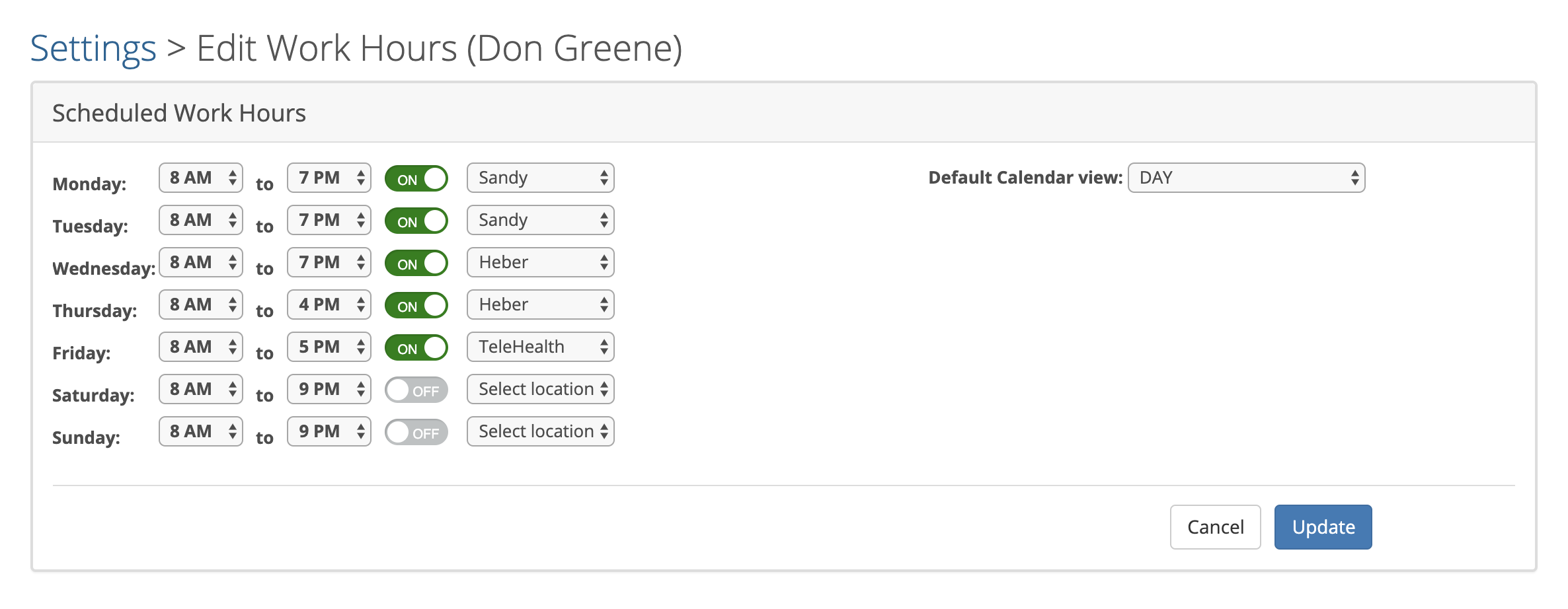
In the upper right-hand corner a clinician can specify their calendar view of the Dashboard when they login. The options are Day, Week or Month. We recommend the Day view because it is easy to access note templates and client balances. Some of that information is not visible on the week or month views.
The service code settings page will look similar to the one below.

The service codes need to be set up for each clinician individually. You can add to this list if you want by clicking on + Add Service Code on the upper right-hand corner. To edit the existing service codes click on the service code number on the left.
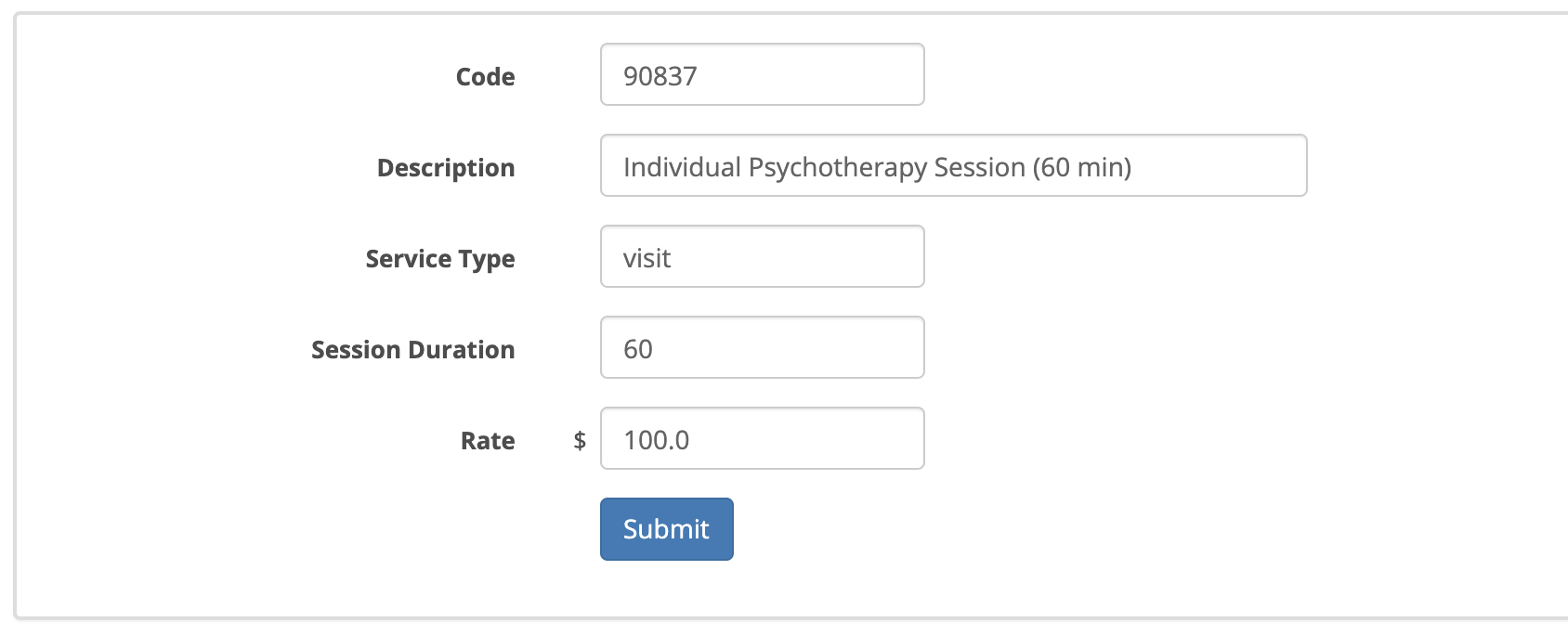
You can update the code number, description, service type, duration and rate. The rate is your "practice rate" that you bill an insurance company and typically not a client. Set them slightly higher than your best insurance payer for that particular service code. If you have a client who pays out-of-pocket you can set up a sliding scale rate in the client's chart that overrides these dollar figures.
Client email or text appointment reminders can be sent to the Clinician's clients for upcoming appointment automatically. You can designate how many hours in advance of the appointment they will get a text and/or email reminder. The default is 24 hour prior to the appointment. If the two checkboxes are checked as shown, the client will automatically receive the reminders if their charts are configure properly.
Mobile Calendar Syncing is another option but very limited in functionality. We highly recommend you use the Mobile App mentioned above over this option. With mobile calendar syncing you can send your TherapyMate appointment information to your iPhone and view it in your Gmail calendar. You will be able to view the calendar information on your phone, but won’t be able to make any changes from that device. We do not recommend this feature for Android phones or Microsoft Outlook calendars as the sync time is rather long.