Multi-Clinician Practices can produce employee payroll summary reports. You can select a fixed dollar rate per session or a percentage of the income a clinician produces. Once the designation is made, a report can be exported in spreadsheet format or printed by date range. This feature only produces a summary of payroll related activities and not a pay stub.
Fixed Rate Description
The “Fixed Rate” payroll report will show how much the clinician will be paid for each session that was scheduled during the specified date range. The fixed rate is a flat dollar amount per session. A missed appointment will work in the following manner.
- If a fee is not going to be charged, a line will appear on the report for that session date, but the dollar amount will be blank so the clinician doesn’t get paid.
- If a fee is going to be charged but hasn’t been paid yet, a line will appear on the report for that session and the clinician will be paid.
- If a fee was charged and paid for, a line will appear on the report for that sessions and the clinician will be paid.
Percentage (Gross) Rate Description
The "Percentage Gross" report calculates the percentage of the actual income that was received and entered as payments within the specified date range including those payments that resulted in a patient credit. The clinician would be paid on the actual income received. Here are a few things to keep in mind.
- A payment entered in TM for an April invoice would be include on the May gross payroll report if the date range was May 1 thru May 3, not the April gross payroll report.
- If the payment was originally recorded as a credit the clinician will be paid on that amount even though the money hasn’t been spent yet towards services.
- The clinician will not be paid again when the credit is used for services. The line on the report where the credit is spent will be included on the report, but the column where the dollar amount would normally show up will say that it was paid with a credit.
Setup
To setup a staff member the systems administrator for the practice should go to the Staff Members page. The systems administrator logs in and clicks on their name in the upper right hand corner and selects “Staff” from the drop down.
Next, click on the employee that you need to setup for payroll.
On the employee’s user setting page there is a drop down called Clinician Income on the left side of the page. The dropdown allows you specify a percentage or fixed rate as shown below:
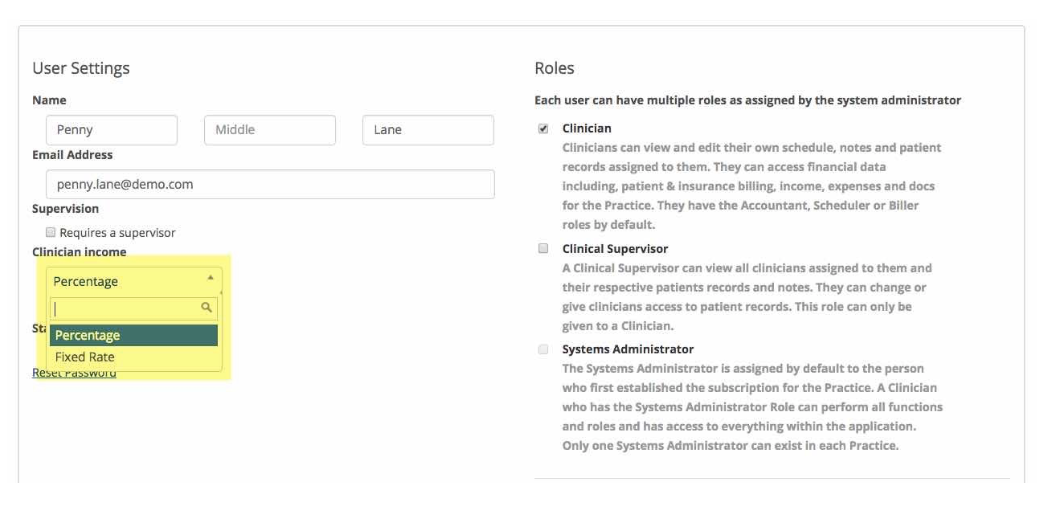
Percentage
Select percentage from the dropdown and then enter the percentage (i.e. 20%). Click update when done.
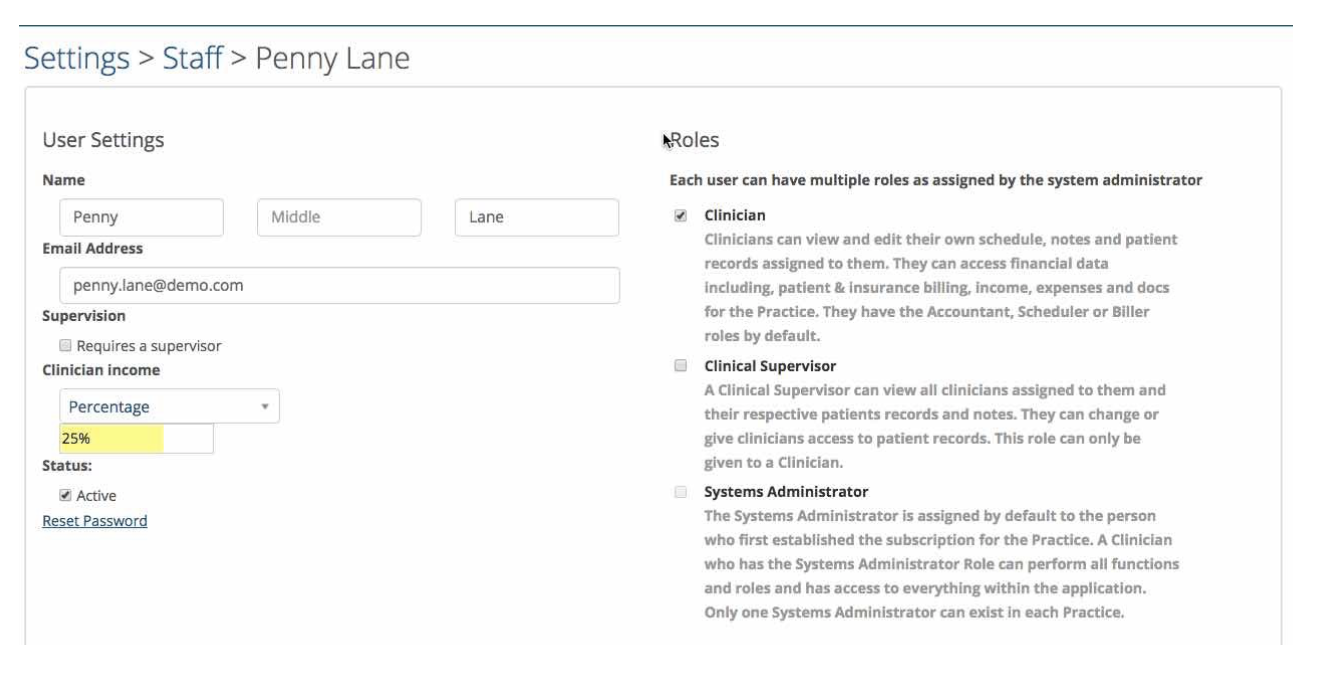
Fixed Rate
Select fixed rate from the dropdown and then enter a dollar amount (i.e. 25.00) the clinician will be paid for each session. You don’t need to put a dollar sign in front of the numbers. Click update when done.
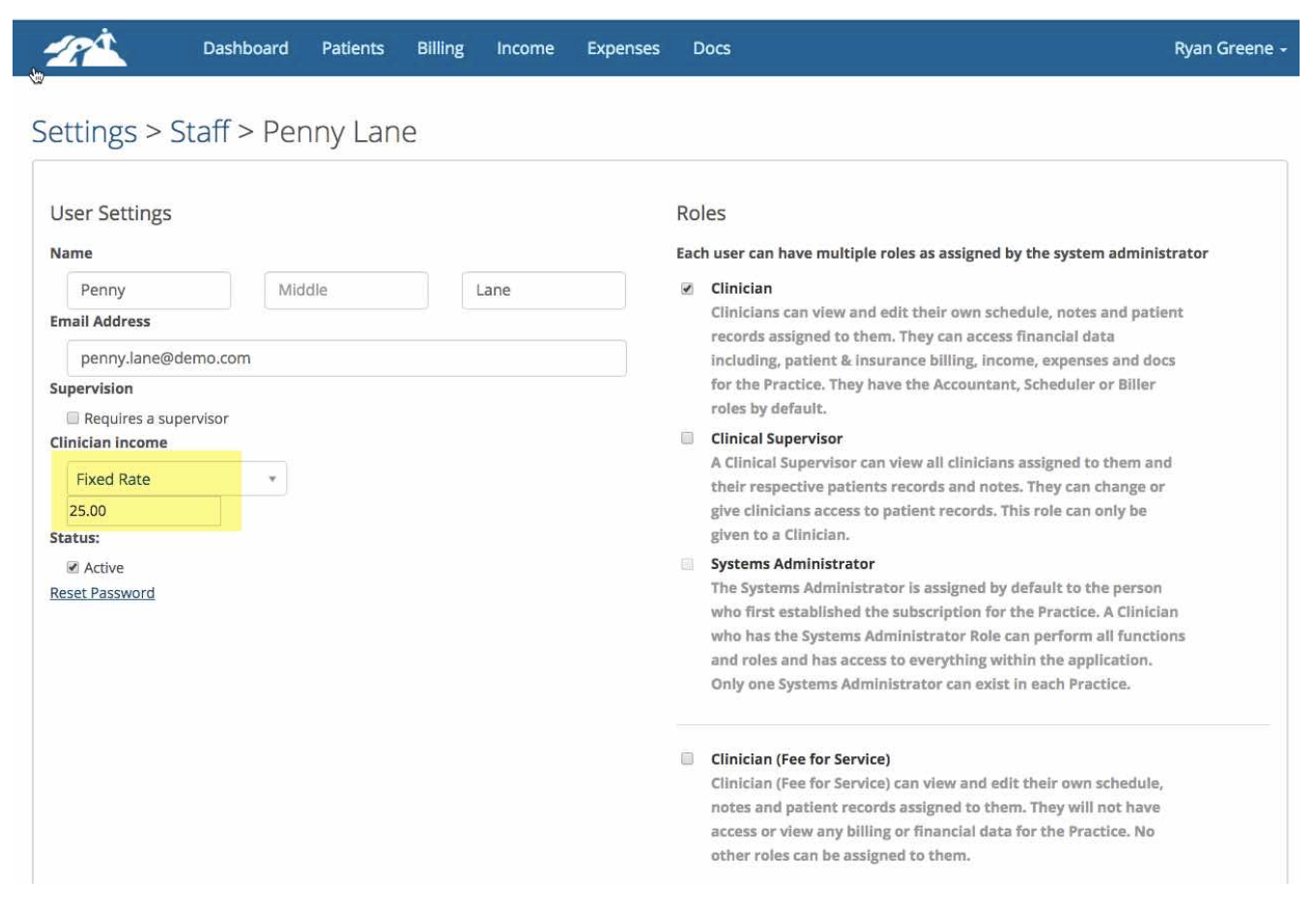
Continue this process for each employee.
Running Payroll Reports
Running Payroll Reports
To produce reports for your employees go to the Income page for the practice (main blue menu bar) at the top of your TherapyMate Screen.
On the Income page there is a tab called Payroll.
Click on the Payroll tab. Choose the clinician or all clinicians from the drop down.
Specify the payroll period.
Click the Generate button to see a report
Be patient...it might take a few seconds for the report to gather the data and display it on your screen.
A preview of the report will appear once the data is gathered. You can export the information in spreadsheet format for editing or you can print it.
If you selected just one clinician, repeat the process for the other clinicians.
Here is an example of a fixed rate report:
You can now send the information to your payroll processing provider or person to create the pay stubs.